Complete Guide
Clear Parrot Reader
An EPUB and PDF reader that reopens every document exactly where you stopped — with your bookmarks, your highlights and the way you like the page, all kept on your own machine.
1. What Is Clear Parrot?
Most people end up with two piles: the EPUBs they downloaded and the PDFs they were sent. One opens in a reader, the other in whatever opens PDFs, and neither of them remembers much. Close a long book halfway through a chapter and the next time you are back at the top of it, hunting for the paragraph you recognise.
Clear Parrot is a desktop reader for both formats that treats where you were as the thing worth keeping. It reopens a document at the line you stopped on, not the chapter. Your bookmarks and highlights are anchored to the text rather than to a position, so changing the type size does not scatter them. All of it stays on your machine: there is no account, no library uploaded anywhere, and no sync.
It is for someone who reads on the machine they already work on — a novel in the evening, a manual at work, a paper they have to get through — in short sittings, over weeks. Clear Parrot is free, and the only thing it asks the network about is whether a newer version of itself exists.
2. Installation
Go to thestromboliproject.com/tools/clear-parrot/ and download the Windows installer. No account, no email, no licence key.
Windows may show a SmartScreen warning the first time. Click More info → Run anyway. The installer is signed, but a new signature takes a while to build reputation with Microsoft.
After installing, .epub and .pdf files are associated with Clear Parrot: double-click one in Explorer and it opens here. You can also drag a file onto the window, or press Ctrl O.
3. First Launch
Clear Parrot opens with a short splash — the logo on a dark disc with a turning arc — and a parrot call at about a third of the volume. If the sound is not for you, the speaker icon at the right end of the toolbar silences it, and it stays silenced.
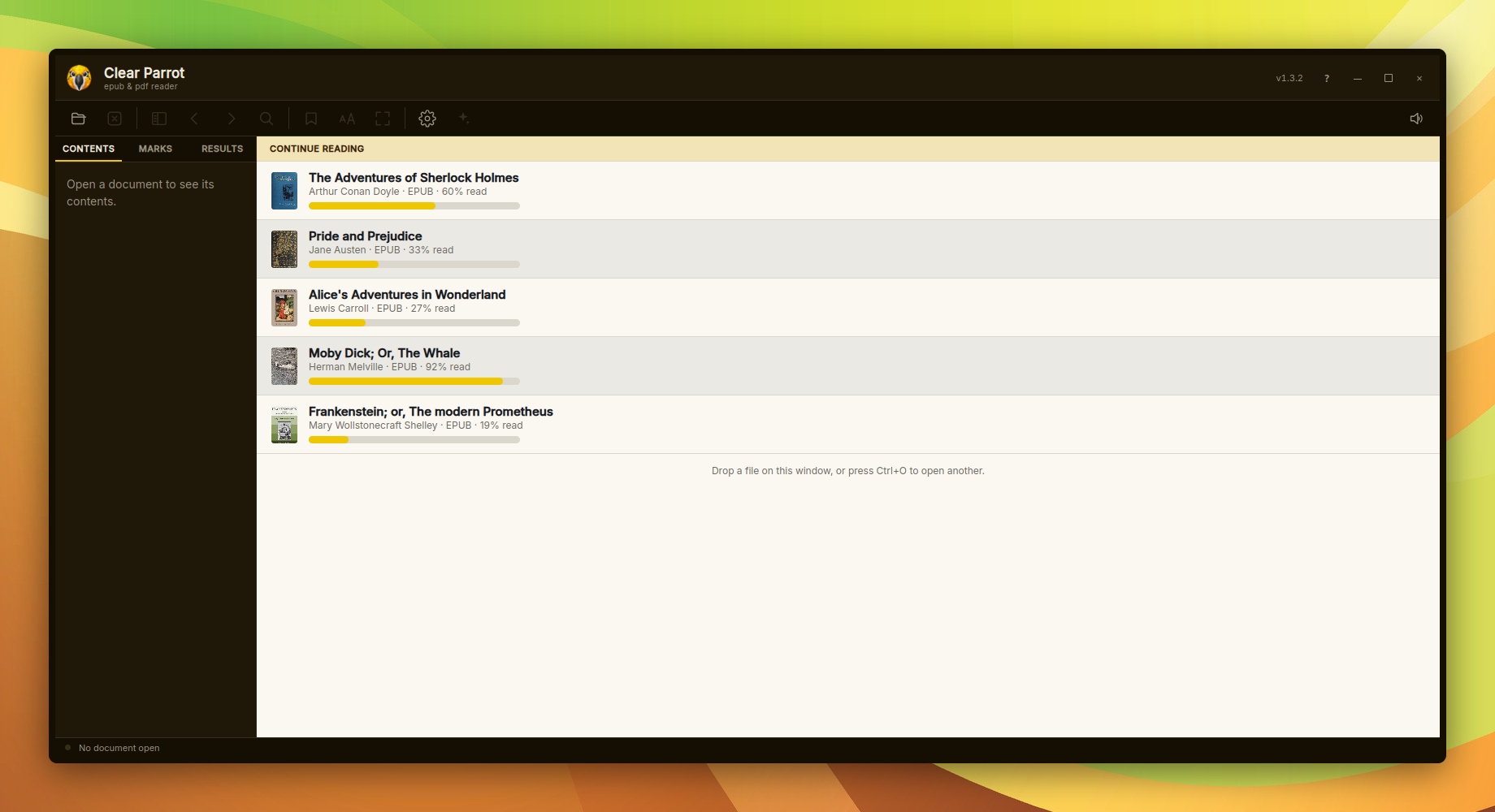
The first time, the reading area is empty and shows Continue Reading: the list of what you have opened before. It starts empty, and from the second book onwards it is the fastest way back into something. Each row carries the title, the author, the format and how far through you are.
With nothing open, there are four ways to start: double-click a file in Explorer, drop one on the window, press Ctrl O, or double-click the empty reading area.
4. Core Workflow
The whole point of the app is this loop: open, read, close, come back. Nothing to import and no library to build — the files you already have on disk are the library.
Double-click an EPUB or a PDF, drop it on the window, or use Ctrl O. If Clear Parrot is already running, the file opens in the window you have, not in a second one.
Space, PageDown and the ↓ arrow move the text. The ← and → arrows change section or page. The Contents tab of the side panel lists the document's own chapters; in a PDF with no bookmarks of its own you get a numbered page list instead.
Click a chapter, a search result or a mark to jump. Backspace (or Alt ←) undoes that jump and returns you to where you were reading.
In the status bar, the “Page 12 of 900” field is a button: click it, type a number, press Enter.
There is no “save my place” step. Close the document with Ctrl W or close the window; next time, Continue Reading puts you back on the same line.
5. Bookmarks & Highlights
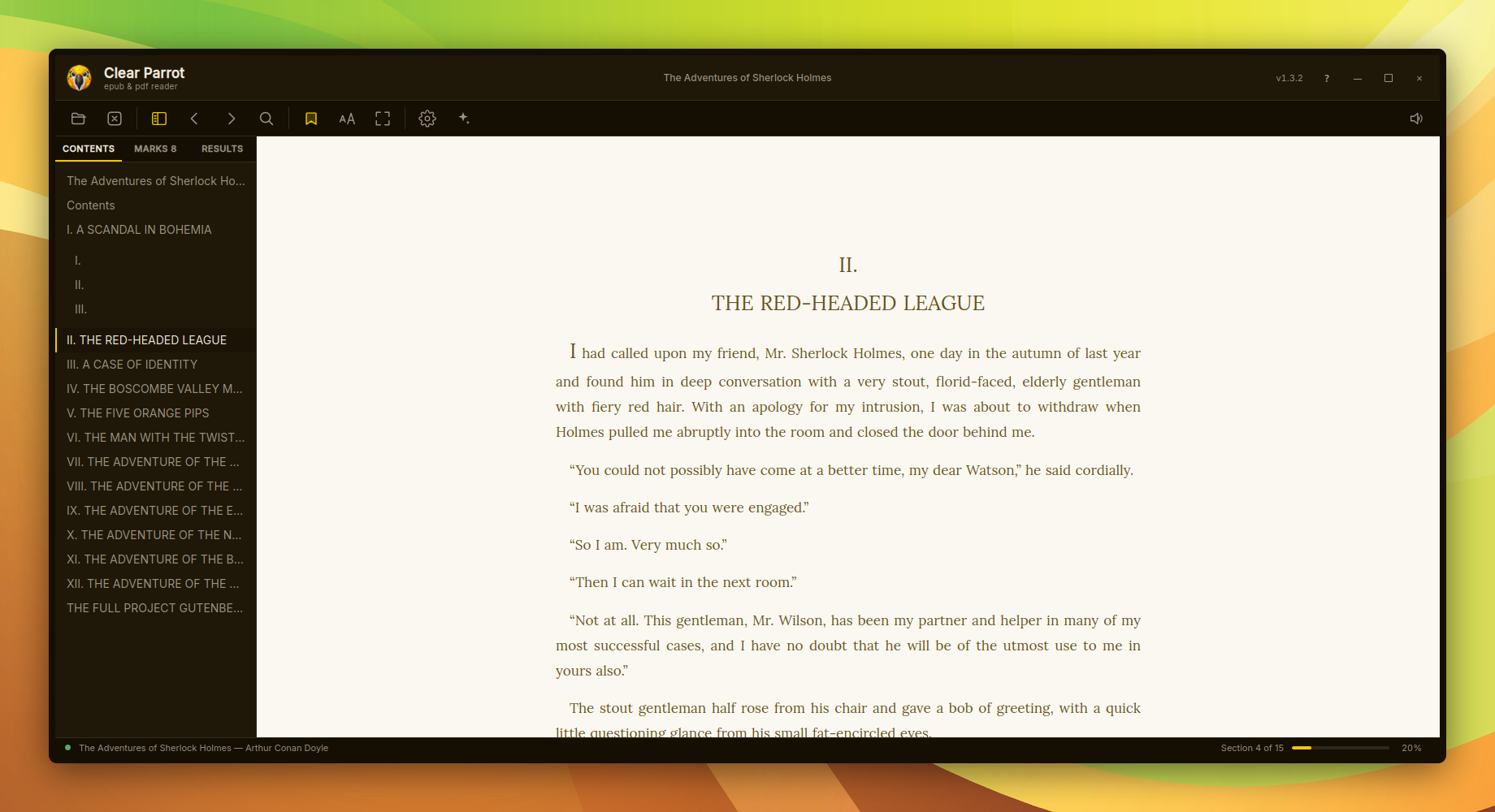
These are two different things, and the app says which is which on every row. A bookmark keeps a place and is labelled with the words that were on screen there. A highlight keeps the words themselves.
Bookmark a place Ctrl B
Marks where you are. The toolbar icon fills in when the current spot is already bookmarked, and pressing it again removes it.
Highlight a passage Ctrl H
Select text and the little menu appears over it. Highlights are anchored to the text and to which occurrence of it, so they survive a change of type size.
Copy a passage Ctrl C
The selection goes to the clipboard, as text. The document itself is never modified.
The Marks tab
Bookmarks and highlights of the open document in one list, in reading order, each labelled and each with a delete button. Click any row to jump there.
6. Finding Things
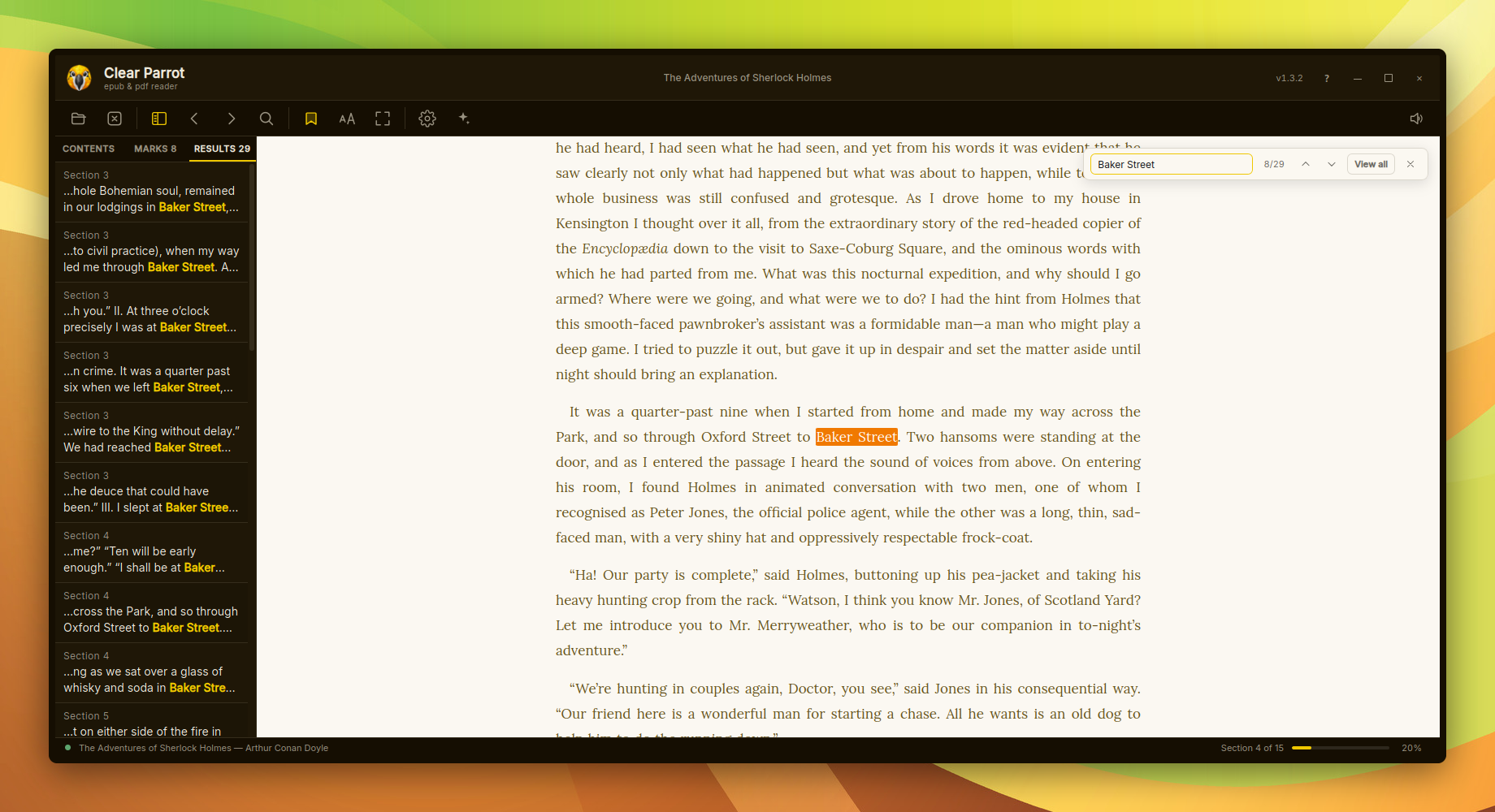
There are two searches and they run together. Ctrl F opens the bar and marks every match on what is in front of you, moving as you type. A moment after you stop typing, the Results tab fills with every match in the whole document, each with the text around it, so you can see where else the word appears without leaving the page you are on.
Search this page Ctrl F
Matches light up as you type. Enter and Shift Enter step through them; the counter shows which one you are on.
Search everything
Fills automatically, or immediately with the All button. Click a result and the app opens that section and puts the cursor on that exact occurrence.
Close the bar Esc
Clears the search marks and leaves your highlights alone.
7. Page & Type
The AA button in the toolbar opens the reading appearance panel. Everything in it is remembered and applies to every document you open afterwards. Each control shows its value, so a setting already at its limit looks different from one that is not responding.
Type size Ctrl = / Ctrl −
14 to 26 px in a book. The same shortcuts change the zoom in a PDF, where type size means nothing.
Typeface
Lora, a serif bundled with the app, or Georgia. The choice applies to the book even when the book has opinions of its own about its typography.
Line spacing and column width
1.4 to 2.2, and up to 1600 px of column. A wide screen does not have to mean a line you lose your place on — or it can, if that is what you want.
Page theme
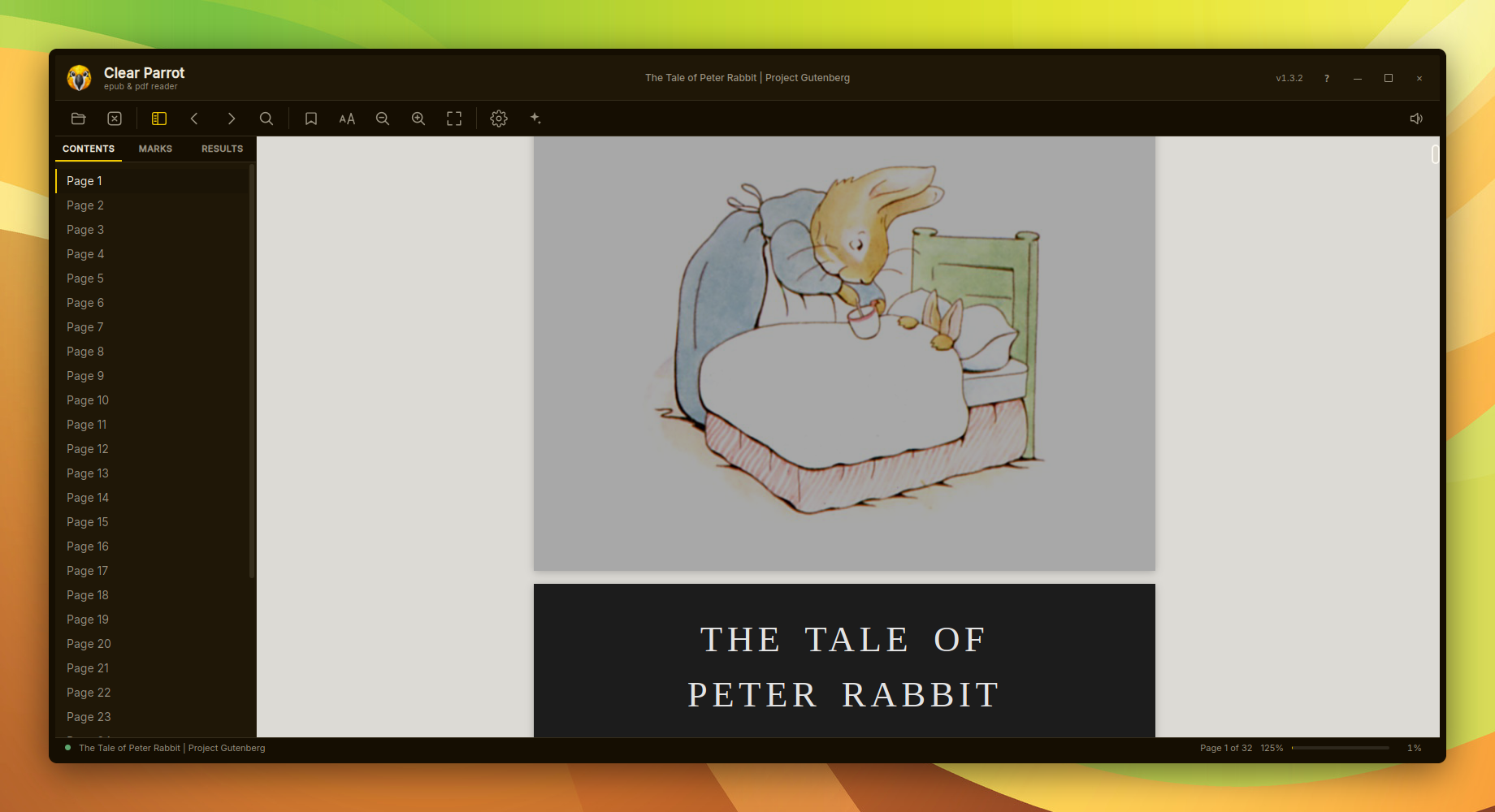
Cream, paper, sepia and night. In a PDF, night mode inverts a page of text or a black-and-white scan, and leaves a page with photographs or colour alone — dimmed, not inverted, so a diagram never becomes a negative.
Immersive mode F11
Everything but the page disappears. A notice on the way in says how to come back: Esc or F11 again.
PDF zoom
The zoom level in the status bar is a button: it rotates between fit width, fit page and 100%. The toolbar has − and + as well.
8. The Optional AI
The AI is off until you add a Google Gemini key of your own, and the reader is complete without it. With no key, nothing in the app talks to anybody.
The rule it works under is worth stating plainly: it is only ever shown the part of the document before where you currently are. Not as a promise from the model — the text after your position is never read off disk in the first place. Said precisely: the guarantee is “nothing from past your position”. If you jump to a chapter near the end from the contents or a search result, the app follows you there, because you asked to go.
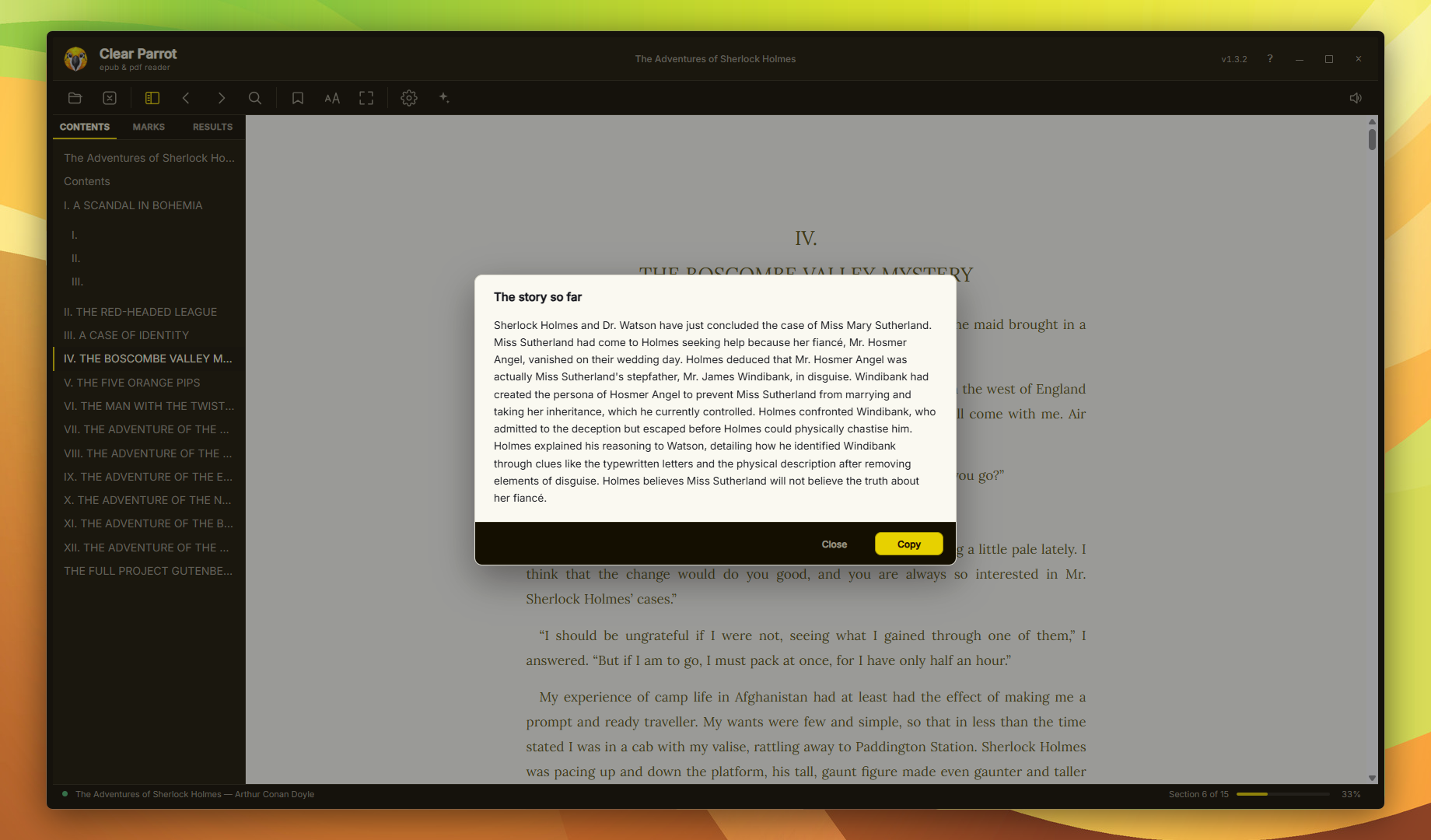
The story so far
You come back to a book after a few weeks and it reminds you what has happened up to where you are.
Explain this Ctrl D
Select a passage and ask what it means here. The same menu also offers “who or what is this?” and a translation.
Answer in
In AI settings. On Auto the answers come back in the language the document declares, so a Spanish novel is discussed in Spanish.
9. Settings & Where Things Are Kept
Reading appearance lives under the AA button. The gear at the left of the toolbar, just before the AI tools, opens Settings: under Accessibility → Interface size you pick Normal, Large (+30%) or Extra large (+50%) — bars, menus, panels and dialogs grow, while the book and the PDF keep their own type size and zoom — and the AI key sits below. The startup sound is the speaker at the right end. All of it is remembered between sessions.
| What | Where it lives |
|---|---|
| Type, spacing, column width, page theme | Your machine, applied to every document |
| Reading position, per document | Your machine, one file per document |
| Bookmarks and highlights, per document | Your machine, one file per document |
| Recent documents | Your machine — the × on a row removes it from the list |
| Gemini API key | Windows Credential Manager |
10. Tips
- Double-click the empty reading area to open a file. It is where your eye already is when nothing is open.
- Backspace after a jump. Clicking a result from chapter forty is only useful if you can get back; that is what it does.
- Click the page counter in the status bar to go to a page by number. In a nine-hundred-page manual it is the only sensible way there.
- A bookmark and a highlight are different tools. Bookmark the place you stopped; highlight the sentence you want to find again by its words.
- Search without pressing All. Type in the find bar and the Results tab fills on its own a moment later, without taking you off the tab you are looking at.
- If the type controls seem dead, look at the number beside them — you may already be at the limit.
The full list of keys is in Keyboard Shortcuts.
11. FAQ
Can it open the books I bought from Kindle or Kobo?
No. Those files are protected with DRM, and Clear Parrot does not implement any of those schemes — it opens EPUB and PDF files that are not locked. Books from Project Gutenberg, Humble Bundle, indie authors and anything you were sent directly will open.
Does it sync my place between my laptop and my desktop?
No. There is no account and no cloud, so your position and your marks stay on the machine that made them. This is a deliberate trade: nothing about what you read leaves your computer, and the price is that two machines do not know about each other.
Can I export my highlights?
Not to a file. You can copy a selection to the clipboard while reading, and the Marks tab lists everything you have marked, but there is no export. If you are collecting passages as you read, paste them into Clever Cat Notepad — a free tabbed editor that brings your notes back exactly as you left them.
Why can I not select text in this PDF?
Because it is a scan. Its pages are photographs of paper, with no text inside them, so there is nothing to select, highlight or search — the panels say so when that is the case. Bookmarks still work, since a bookmark keeps a place rather than words.
Does the AI send my book to Google?
Only if you switch it on with your own key, and only the part before where you are. Without a key nothing is sent anywhere. When you do use it, what travels is the excerpt needed for the question you asked — and never the pages you have not reached.
Will it read the book aloud?
No. Text-to-speech is a feature with real weight behind it — a voice engine, speed control, a voice per language — and it would have to be built deliberately rather than bolted on. It is not in this version.
12. Keyboard Shortcuts
Documents
| Action | Keys |
|---|---|
| Open a document | Ctrl O |
| Close the document | Ctrl W |
| Show or hide the side panel | F9 |
| Immersive reading | F11 Esc also leaves |
Moving around
| Action | Keys |
|---|---|
| Move the text, a screenful | Space PageDown PageUp |
| Move the text, a short step | ↓ ↑ |
| Previous / next section or page | ← → |
| Undo the last jump | Backspace or Alt + ← |
Reading
| Action | Keys |
|---|---|
| Find in what you are looking at | Ctrl F |
| Search the whole document | Ctrl Enter it also fills on its own |
| Next / previous match | Enter Shift Enter |
| Larger / smaller | Ctrl = Ctrl − type in a book, zoom in a PDF |
With text selected
| Action | Keys |
|---|---|
| Highlight the selection | Ctrl H |
| Bookmark this place | Ctrl B works with or without a selection |
| Copy the selection | Ctrl C |
| Ask the AI about it | Ctrl D only with a key configured |
Ready to install?
Free download. No account, no cloud, no noise.
Download Clear Parrot →