Complete Guide
Clever Cat
Open your files, close the laptop, come back tomorrow: they're still there. Tabs, syntax highlighting, and search — nothing else.

1. What Is Clever Cat?
Notepad has no tabs worth using and no syntax highlighting. VS Code has both — plus a 300–500 MB footprint, a 3–5 second startup, an extension ecosystem that breaks with every update, and telemetry turned on by default. Between "too little" and "too much" there's nothing that opens in under a second, remembers exactly what you had open, and highlights a YAML file without asking you to install anything.
Clever Cat is that gap. It opens fast, restores your last session automatically — same tabs, same cursor position, same scroll — and highlights the most common formats out of the box: Markdown, JSON, JavaScript, TypeScript, HTML, CSS, Python, SQL, YAML, PHP, Rust, XML, and plain text. No account, no cloud, no configuration wizard before you can type.
It's built for the person who has 5–10 files open at once and doesn't want to lose track of them: the consultant with config files, inventory CSVs, and meeting notes; the sysadmin reading logs and .env files; the writer with Markdown drafts and reference CSVs. If you've decided Notepad is too thin and VS Code is too much, this is the middle.
2. Installation
Go to thestromboliproject.com/tools/clever-cat/ and download the installer — Windows, or the Linux build (.deb or AppImage).
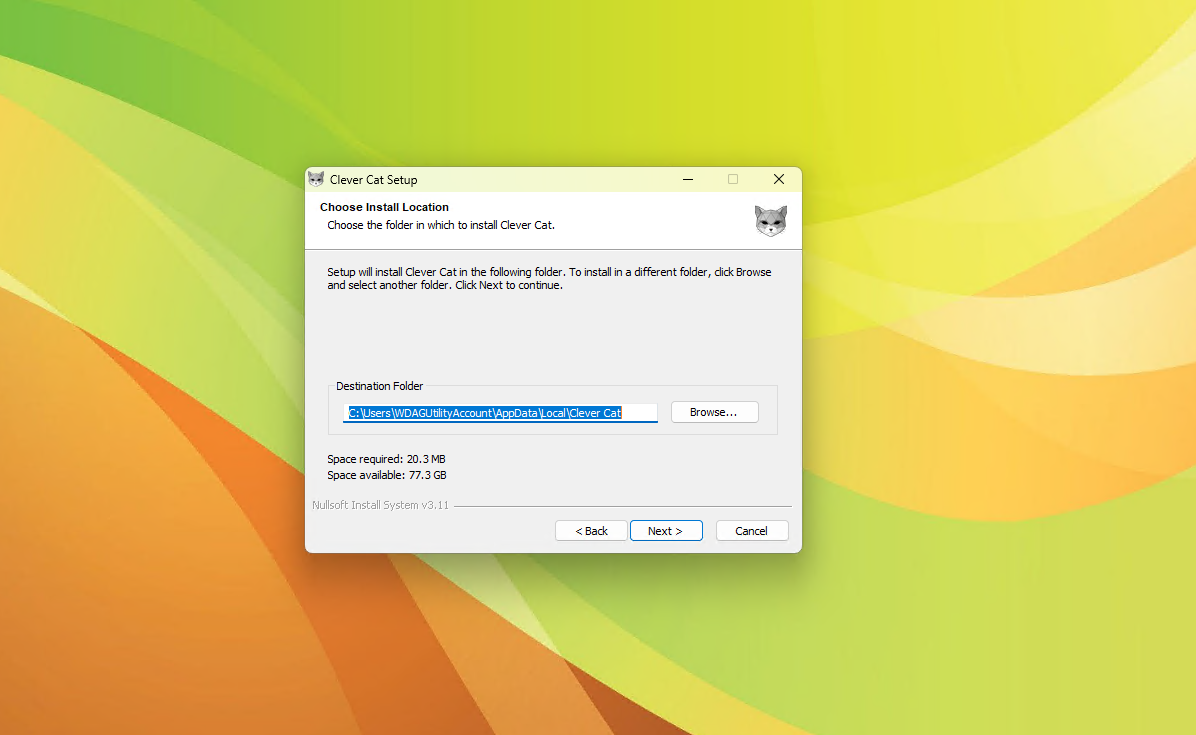
Double-click the installer and follow the prompts. On Windows it needs the WebView2 runtime, already there on Windows 11.
Find it in your Start menu or desktop shortcut. It's also registered to handle text files from the Windows Explorer "Open With" menu.
3. First Launch
Clever Cat opens with a brief splash screen — the cat logo, a short sound, a frameless window with rounded corners in the suite's warm palette. Under a second later, the main window appears.
If you'd rather start in silence, click the speaker button at the far right of the toolbar, past the file path. It mutes every sound the app makes — the startup meow and the chime of the unsaved-changes prompt — and remembers your choice; click it again to bring the cat back.
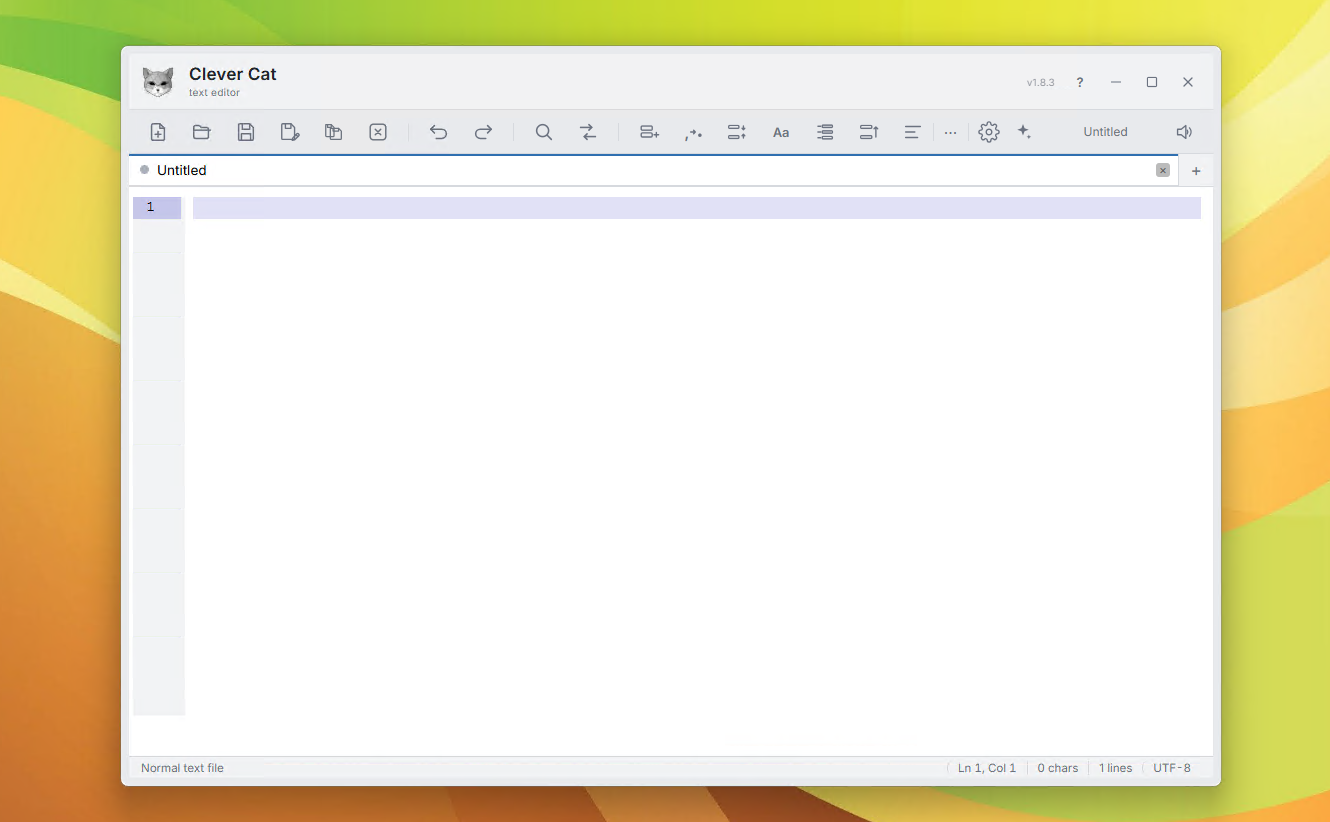
On a true first run, there's no previous session to restore, so you'll see a single empty untitled tab. From then on, every time you launch Clever Cat, it restores exactly the tabs you had open when you closed it last — including where your cursor was and how far you'd scrolled in each one.
4. Core Workflow
Clever Cat is built around one idea: you shouldn't have to think about session management. Here's the loop most users fall into within the first few minutes.
Use the native Open dialog, drag a file onto the window, double-click it in Explorer, or start a blank tab for a new file.
Clever Cat detects the file type from its extension and highlights it automatically — no language picker to touch first.
Reach for Find & Replace, Find All, or the Command Palette (Ctrl K) when you need more than plain typing.
Ctrl S saves the active tab, Ctrl Shift S saves every open tab at once. A dot on the tab tells you what's unsaved before you do.
Any tab with unsaved changes prompts you to save, discard, or cancel — nothing closes silently with lost work. That prompt has its own sound, deliberately unlike the cat that greets you at startup, so you can tell an alert from a welcome without looking.
Relaunch Clever Cat and every tab is back exactly where you left it, cursor and scroll position included.

5. Session & Tabs
Everything about how Clever Cat handles multiple files is designed to remove the "what did I have open" question entirely.
🗂️ Session restore
Reopens exactly the tabs you had open, including cursor position and scroll, every time you launch the app.
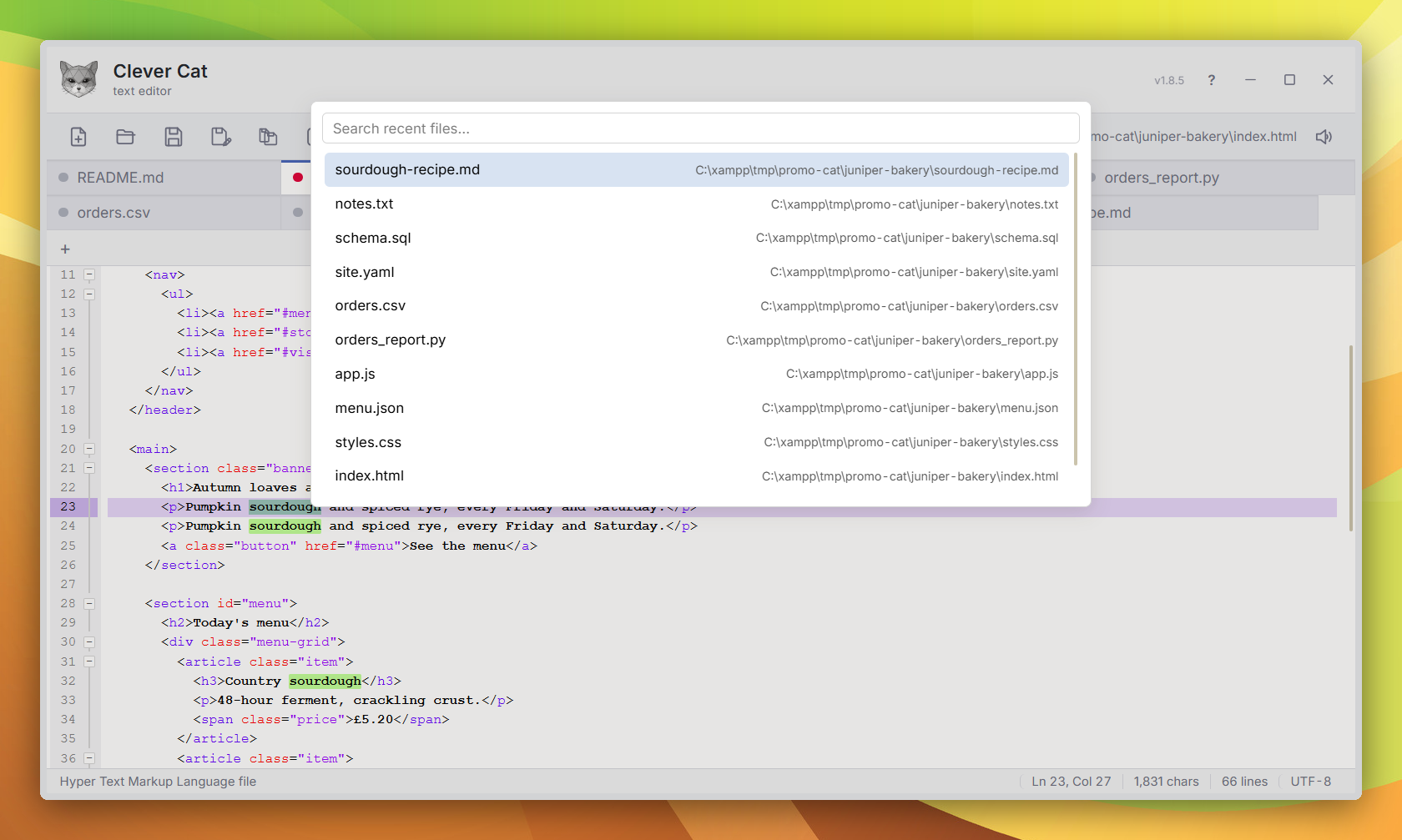
🕘 Recent Files CtrlShiftO
A filterable list of recently closed files — reopen any of them without touching Explorer.
↩️ Reopen closed tab CtrlShiftT
Closed a tab by mistake? Bring back the last one you closed instantly.
↔️ Drag to reorder
Rearrange tabs by dragging them into the order you want to work in.
🔀 Tab navigation
Jump between tabs with Ctrl Tab , page through them, or go straight to tab 1–9. Middle-click a tab to close it.
🔄 External change detection
If a file changes outside Clever Cat while open, it offers to reload or keep your in-progress edits. Untouched tabs reload silently.
6. Search, Command Palette & Macros
Beyond plain typing, Clever Cat has a small set of tools for moving and transforming text faster.
🔎 Find & Replace
Regex support, case-sensitivity toggle, and replace-one or replace-all.
📋 Find All
The ≡ button in the search bar lists every occurrence of your search term, with the term highlighted — click any result to jump straight to it. Press Enter to refresh the list, and leave it on: it stays on next time you search.
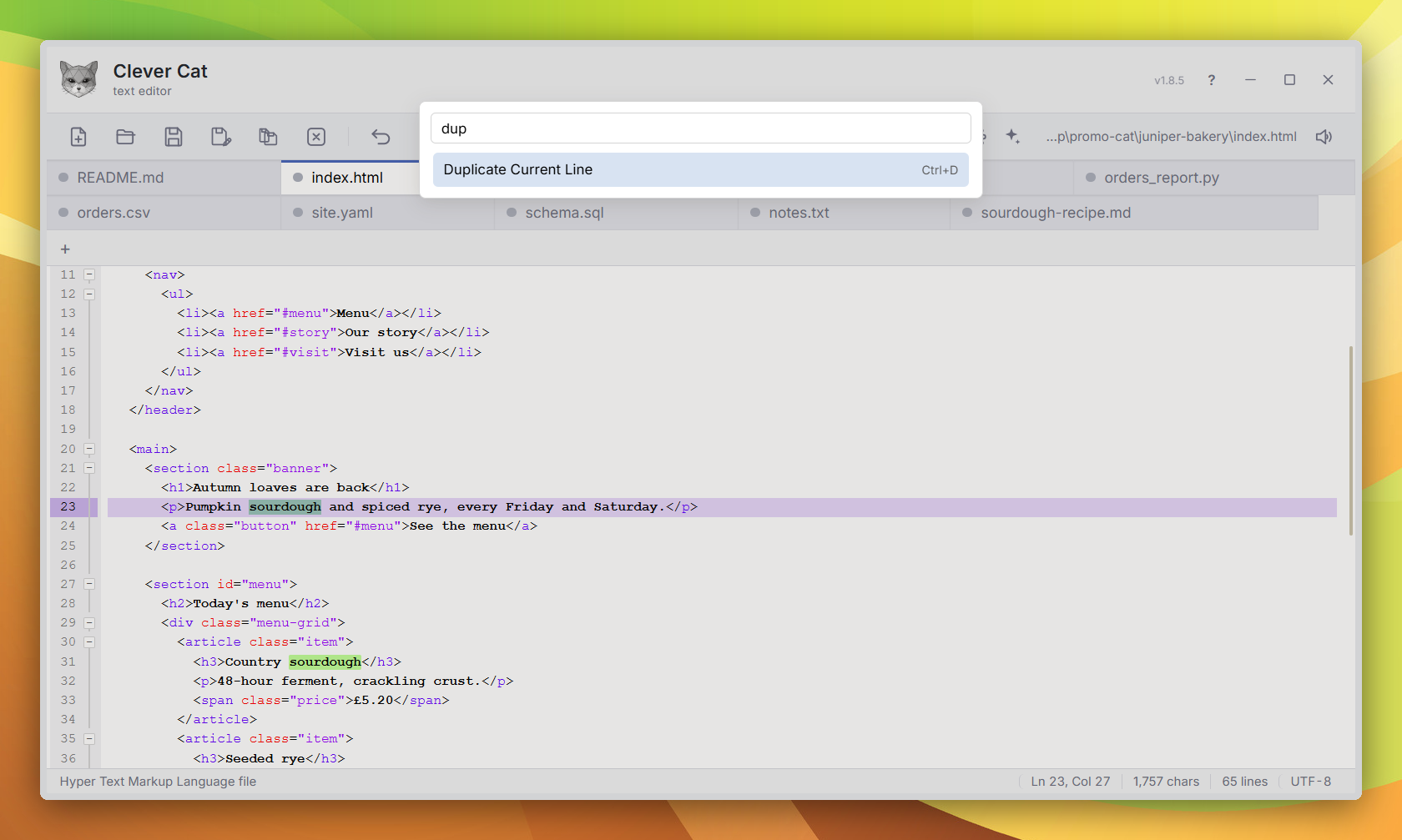
⌘ Command Palette CtrlK
Run any Clever Cat action by typing its name — no need to remember a menu location or a shortcut.
🪄 Text macros
Duplicate a line, reformat European-style numbers (strip dots, commas become the decimal point), strip empty lines, add a dash list, move a line up/down, or join wrapped lines back into a single paragraph. Fix AI Caps repairs dictated text: capitalization after a period, missing spaces after punctuation and missing full stops.
7. Editor & Status Bar
The editor surface itself carries a few conveniences that stay out of the way until you need them.
🎨 Syntax highlighting
Auto-detected by file extension for Markdown, JSON, JS, TS, HTML, CSS, Python, SQL, YAML, PHP, Rust, XML, and plain text. Recalculated automatically on Save As.
➖ HTML folding
In HTML files, every tag that opens a foldable block gets a boxed − / + in the left margin, with a light grey guide showing how far the block runs — the same idea as Notepad++. A folded block is marked by a full horizontal rule, not an inline ellipsis, so you can never lose track of what is collapsed.
🏷️ Matching tag
Put the cursor inside an opening or closing tag and both turn dark red, so you see at a glance which tag closes which. Self-closing tags have no partner and are left alone.
🧹 Tidy HTML CtrlShiftF
Re-indents and reorders the HTML in your selection — or the whole document if nothing is selected. Deterministic: same input, same output, no AI involved. The button sits in the utilities group of the toolbar, to the right of Join Lines.
📄 New file
Start a blank tab from inside the app — no trip to Explorer needed.
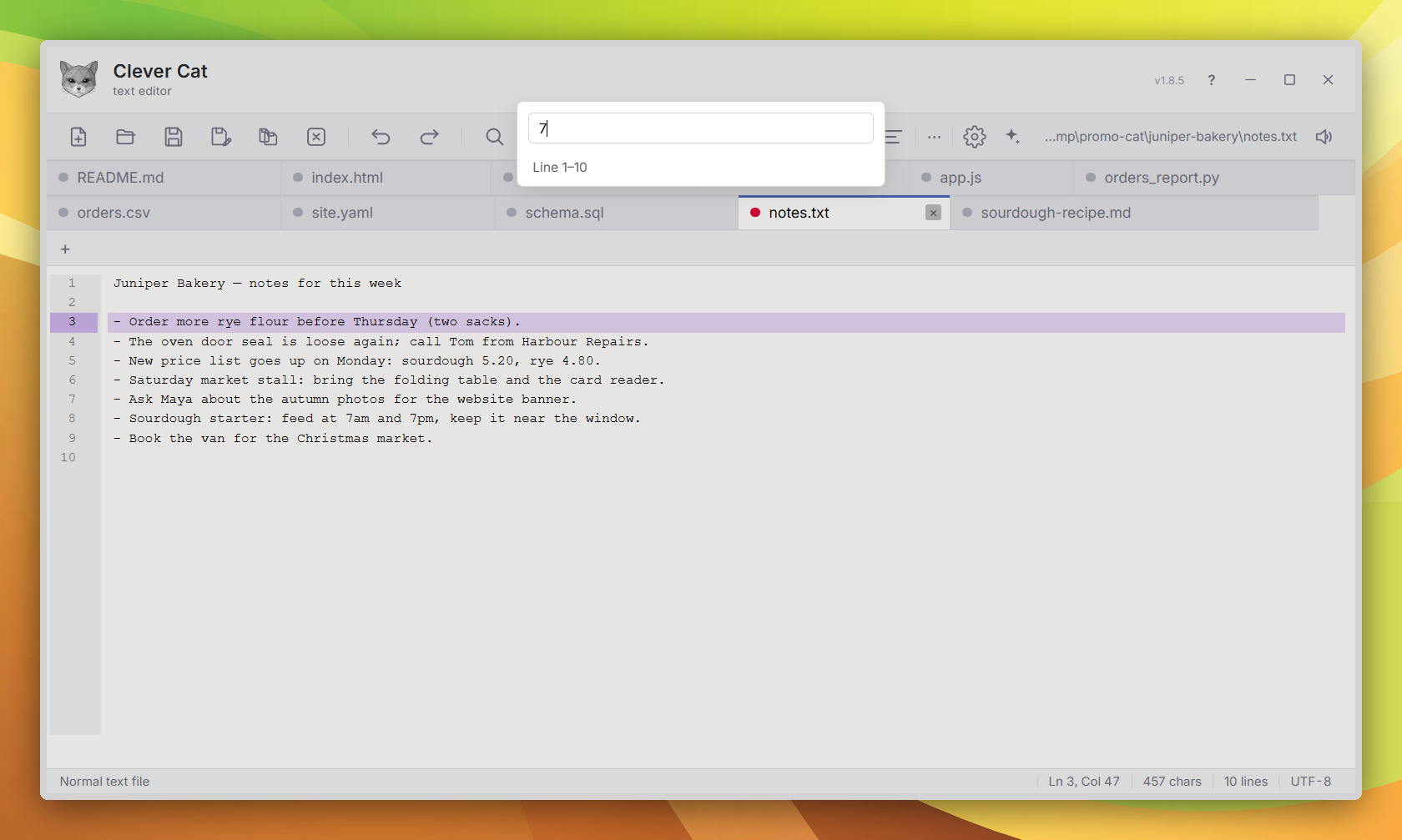
📍 Go to Line CtrlG
Jump straight to a specific line number. The status bar always shows your current line and column.
🔍 Font zoom
Scale the editor font with Ctrl+scroll or Ctrl+/- — useful on HiDPI screens or when sharing your screen. Your zoom level is remembered the next time you open Clever Cat. To make the rest of the window bigger too, see Interface size .
🔗 Clickable URLs
Any URL in plain text is clickable and opens in your browser.
💾 Save, Save As, Save All
Ctrl S · Ctrl Alt S · Ctrl Shift S , with a three-way prompt (Save / Don't Save / Cancel) on closing a tab with changes.
▌ Rectangular selection
Hold Alt and drag from the start of a line to select a column across multiple lines — type or delete once and it applies to every selected line, same gesture as Notepad or VS Code.
8. AI Tools
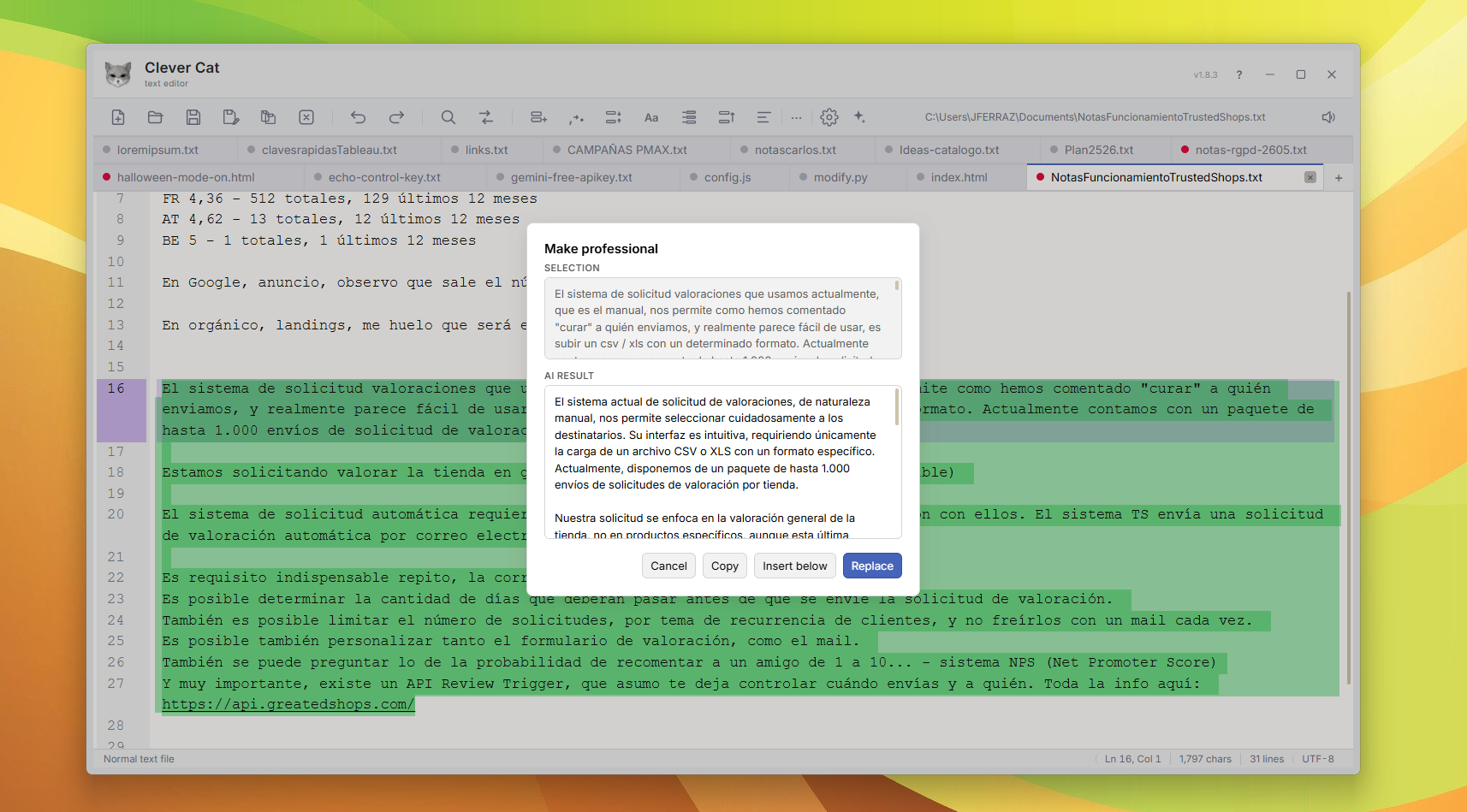
Clever Cat has an optional set of AI actions that work on the text you have selected — or the whole document, if nothing is selected. They are off by default: the editor behaves exactly as it always has until you add a key and switch them on, and nothing AI-related even loads until you open the menu for the first time.
Click the ✨ button in the toolbar to open the menu. The AI never overwrites your text on its own: every result opens in a preview where you decide what to do with it — Replace the selection, Copy it, Insert below, or Cancel. Applying a result is a single undoable edit, so CtrlZ puts things back.
✍️ Fix & improve
Correct spelling and grammar, improve the writing, or simplify it — keeping the original language and meaning. Improve writing also breaks a wall of text into paragraphs, keeping any you already made.
🎭 Change tone
Rewrite the selection to sound more professional or more casual.
🌍 Translate
Translate to the language you set in the AI settings, picked from a dropdown of common languages.
📝 Summarize & format
Get a five-point summary, or turn a block of text into a bullet list without summarizing it.
🐛 For code
On a source file the menu also offers "Explain code" and "Find bugs" — shown only when the tab holds a programming language.
🔒 Private by design
Your API key is stored locally and sent only to Google Gemini, never back to the app or through The Stromboli Project.
Setting it up
Open ✨ → AI settings (the menu goes straight there the first time, when no key is configured). You need a provider API key — Clever Cat uses Google Gemini today, and you can create a free one at aistudio.google.com/api-keys. Paste it into the API key field, turn AI tools on, and save. That is the whole setup: the model, the temperature and the response limits are fixed and no longer yours to pick. The two remaining fields — the translation language and the Never translate list — have sensible defaults you can leave alone.
If an answer ever comes back cut off, Clever Cat tells you so instead of handing you half a rewrite. Every answer has a length budget, and a very long selection can still hit the ceiling — Clever Cat already asks the model not to spend any of that budget thinking before it writes, so the fix on your side is to select less text and run it again.
Never translate is the one setting worth a look. Rewriting a text should not quietly rename things in it: in a Spanish text, “a skill” coming back as “una habilidad” changes what the sentence asks for, because there skill is a name, not vocabulary. Clever Cat asks the model to keep those words — and then checks the result and tells you, by name, if one went missing, so a silent swap cannot slip through. File names, code identifiers and acronyms are protected on sight; the list is for ordinary-looking words that happen to be technical terms in your world.
9. Settings & Configuration
Clever Cat is deliberately configuration-free. There's no setup wizard and nothing you must configure before you can start typing — session restore, recent files, and syntax highlighting all work automatically from the moment you install it. The AI features have their own optional settings (see AI Tools above), and you only need them if you want to turn those features on.
Interface size
The gear button in the toolbar, just before the ✨ AI button, opens Settings. Under Accessibility → Interface size you pick Normal, Large (+30%) or Extra large (+50%). Press OK and it applies at once, no restart, and it is remembered the next time you open Clever Cat.
Everything around your text grows: menus, icons, toolbar, tabs, dialogs and tooltips. The text you edit does not change — it keeps its own zoom, Ctrl + mouse wheel, so you can have a large interface with small text or the other way round. In the larger sizes the keyboard focus is marked more clearly, and a dialog too tall for the window scrolls instead of spilling off the edge.
The one thing that is configurable per file is its highlighting language, and only indirectly: change a file's extension with Save As and Clever Cat recalculates the highlighting for the new type. There's no manual language picker for a tab.
10. Tips
- Use the Command Palette when you forget a shortcut. Ctrl K and start typing the action's name — faster than hunting through a menu.
- Middle-click to close. Skip the tiny × on the tab and just middle-click it to close instantly.
- Ctrl+Shift+O beats Explorer for "that file from earlier". The Recent Files list is filterable — a few characters of the filename is usually enough.
- Drop files straight onto the window. Drag one or several files from Explorer onto Clever Cat and they open as new tabs — no dialog needed.
- Let Ctrl+Shift+T undo an accidental close. If you close the wrong tab, this reopens the last one you closed, cursor position included.
- Save All before you switch context. Ctrl Shift S saves every modified tab in one go, so nothing is left dangling when you step away.
For a complete list of keyboard shortcuts, see Keyboard Shortcuts ↓.
11. FAQ
Does Clever Cat autocomplete code?
No. Clever Cat is not an IDE and doesn't try to be one — no autocomplete, no IntelliSense.
Does it have a terminal or Git integration?
No. No integrated terminal, no Git, no plugin system. Each Stromboli tool does one thing.
Can I switch to a dark theme?
Not from the interface today. The underlying support exists but isn't exposed as a setting yet.
Can I manually change the syntax highlighting language for a tab?
Not directly. Highlighting is detected by file extension. To change it, use Save As with a different extension — Clever Cat recalculates the highlighting for the new type.
Can Clever Cat show me a diff between two files?
No — that's out of scope for a text editor built around simplicity. Clever Cat opens, edits and saves files; comparing two of them line by line is a different job, and no published Animal Tool does it — you will need a dedicated diff tool for that.
Do I need an API key or an account to use Clever Cat?
No. Clever Cat is fully usable with nothing configured. A key is only needed for the optional AI tools, which are off by default — everything else works offline with no account.
When I use the AI tools, where does my text and API key go?
Your API key is stored locally on your machine and used only to call Google Gemini — it never passes through The Stromboli Project and never returns to the app's interface. The selected text is sent to that provider to process the action, so the AI tools need an internet connection; the rest of Clever Cat stays offline.
12. Keyboard Shortcuts
File
| Action | Key |
|---|---|
| New file | Ctrl N |
| Open file | Ctrl O |
| Save | Ctrl S |
| Save As | Ctrl Alt S |
| Save All | Ctrl Shift S |
| Close tab | Ctrl W prompts to save if there are unsaved changes |
Tabs & navigation
| Action | Key |
|---|---|
| Next / previous tab | Ctrl Tab / Ctrl Shift Tab |
| Next / previous tab (alt) | Ctrl PageDown / Ctrl PageUp |
| Jump to tab 1–9 | Ctrl 1…9 |
| Reopen last closed tab | Ctrl Shift T |
| Recent Files (filterable) | Ctrl Shift O |
| Close tab | Middle-click on the tab itself |
Search & Command Palette
| Action | Key |
|---|---|
| Find & Replace | Ctrl F / Ctrl H |
| Command Palette | Ctrl K |
Editor
| Action | Key |
|---|---|
| Go to Line | Ctrl G |
| Zoom in / out | Ctrl + / Ctrl - or Ctrl+scroll wheel |
| Screen capture | Print Screen Linux only — hands over to your screenshot tool |
Text editing & macros
| Action | Key |
|---|---|
| Undo / redo | Ctrl Z / Ctrl Y |
| Duplicate line | Ctrl D |
| Move line up / down | Ctrl Shift ↑ / Ctrl Shift ↓ |
| lowercase / UPPERCASE | Ctrl U / Ctrl Shift U |
| Commas to Dots (number reformat) | Ctrl Alt V |
| Delete Blank Lines | Ctrl Alt D |
| Fix AI Caps | Ctrl Alt W |
| Bullet List | Ctrl Alt B |
| Join Wrapped Lines | Ctrl Alt I |
| Tidy HTML (reformat) | Ctrl Shift F |
Ready to install?
Free download. No account, no cloud, no noise.
Download Clever Cat →