Complete Guide
Funky Monkey
A free launcher that opens in place of the Start menu: find apps by typing, calculate, and see your apps in categories that reorganise around what you use.

1. What Is Funky Monkey?
The Windows Start menu is built to do many things: recommendations, web results, a grid of pinned tiles. If all you want is to press a key, type a few letters and open an app, most of that is in the way.
Funky Monkey replaces it, while it is running. The Windows key on its own, Ctrl+Esc or a click on the Start button open Funky Monkey instead: a search box, your pinned apps and every app on the PC, looking like the Start menu of your own Windows (your theme, your accent colour, the same place on screen). Combinations such as Win+E or Win+D still go to Windows as always.
It is made for people who open the same handful of apps all day, and it learns that: the categories you never open fold away by themselves, and the ones you live in get more room. It is free, with no account, and nothing you type is recorded or sent.
2. Installation
Go to thestromboliproject.com/tools/funky-monkey/ and download the Windows installer.
Double-click it and follow the prompts. It adds a Funky Monkey - App Launcher entry to the Start menu and, if you tick the box, a desktop shortcut. No extra components are required.
Open it from the Start menu. A splash screen appears with the app's own sound and it settles into the system tray. From then on the Windows key opens it.
3. First Launch
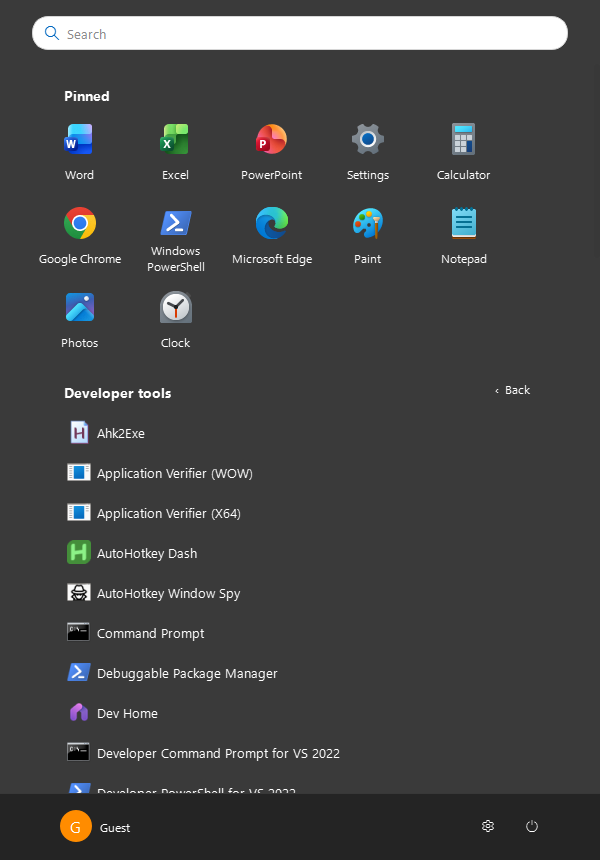
Press the Windows key. Instead of Start you get Funky Monkey, opened where Windows opens Start (left or centre, next to the taskbar), on the screen where your pointer is. The pinned apps are on top; below them, All lists every app. The first time, there is nothing to set up.
Tray icon
Look for the monkey in the system tray (click the ^ arrow if it is in the hidden icons). Right-click it to turn the Windows key capture on or off, open the launcher, open Settings or quit.
4. Core Workflow
Press the Windows key (or Ctrl+Esc), or click the Start button on the taskbar. Right-clicking the Start button still gives you the usual Windows menu.
Start typing and the results appear. Or click a pinned app, or open a category card in All.
Enter opens the first result; arrows move the selection. A right-click on any app pins it, unpins it or moves it to the front.
Esc, the Windows key again, a click outside or switching to another window closes it.
At the bottom there is your account (picture and name: account settings, lock, sign out), the gear for Funky Monkey's own settings and the power button (sleep, shut down, restart), as in Start.
5. Search, Sums & Web
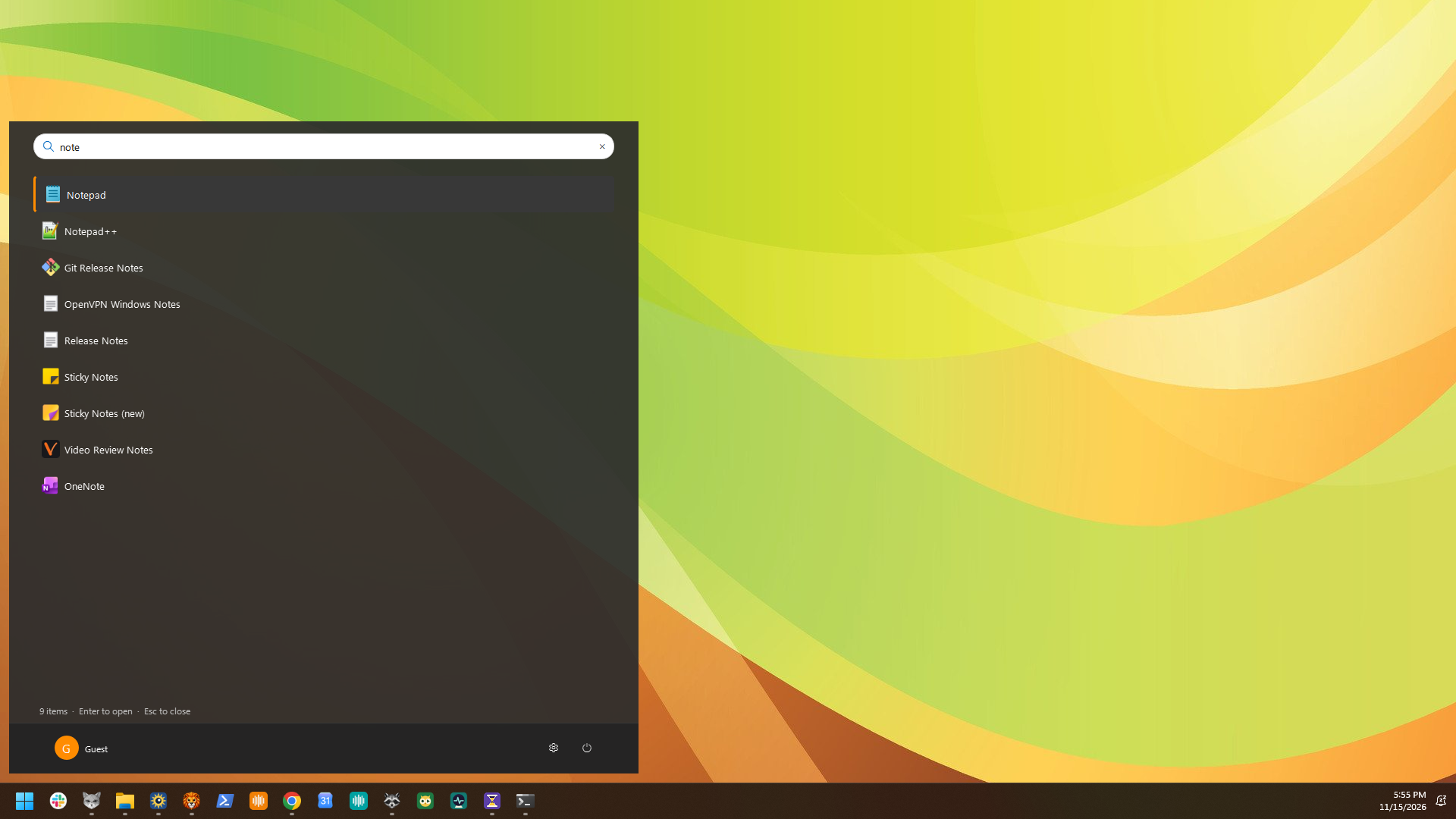
The search box looks through the apps installed on the PC (desktop and Store) and the shortcuts in your Start menu and on the desktop. Accents and capitals do not matter, and initials work: vsc finds Visual Studio Code.
🔎 Apps
Installed apps, Store apps and shortcuts, found as you type.
🧮 Sums
Type 12*7 , 2^10 or 15% de 80 . The answer comes first and Enter copies it.
⚙️ Windows settings
Words like bluetooth , wifi , pantalla or impresora lead to that settings page.
🌐 The web
If nothing matches, the last row searches the web in your browser. What you typed is not saved.
6. Categories
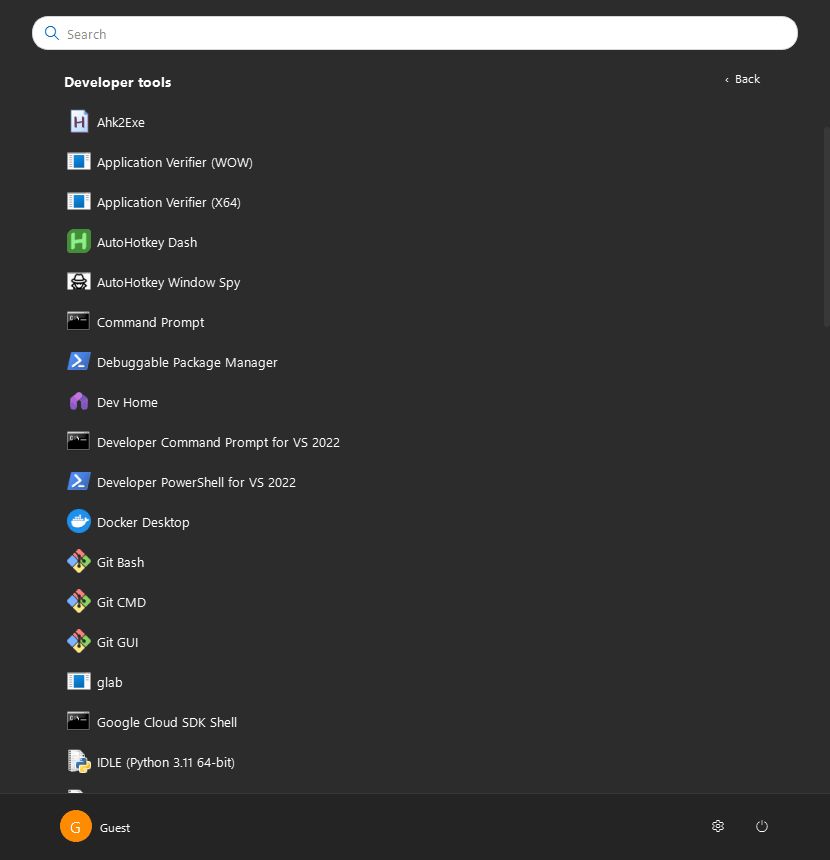
Next to All you will find View: List / Category. Category is the default: instead of a long A–Z list you see cards, one per category, each with its first apps. Click a card to see the whole category as a list, and ‹ Back to return.
There are twelve categories: Productivity, Developer tools, Internet & network, Communication, Creativity, Music & video, Games, Reading & news, Utilities, System, Help & docs, and Others for whatever does not fit. Inside each one, the apps you open most come first.
7. Smart Categories
Smart Categories is on by default and does three things, all from a short log of which apps you open, from Funky Monkey and, read from Windows' own record, from the taskbar, the desktop or Start (kept only on this PC):
📊 Order
Inside a category, the apps you open most, and most steadily, come first. Each opening counts half as much every five days.
🙈 Hide
A category with no app opened for 10 days is unticked for you in Settings. If you tick it back, it gets 20 days before it can hide again. There is no limit to how many can be hidden.
🔍 Enlarge
A category with 3 or more launches in 5 days takes double space and shows seven apps. At most two at a time, the busiest.
The review runs each time you open the launcher. The first day Smart Categories is on starts the clock, so the first category can fold away 10 days after that, not before. Untick it by hand in Settings and it stays unticked: Funky Monkey never ticks anything for you. Switch Smart Categories off and everything stays as it is, to manage yourself.
8. Tray & Startup
Funky Monkey lives in the tray and does nothing until you press the key.
🗂️ System tray
No window to manage while it is running.
🔁 Launch at startup
An optional checkbox in Settings (off by default) opens it each time you log in.
🔕 Quiet startup
Untick Play sound at startup and it opens without its launch sound.
🛡️ Single instance
Opening it again does not start a second copy.
9. Settings & Configuration
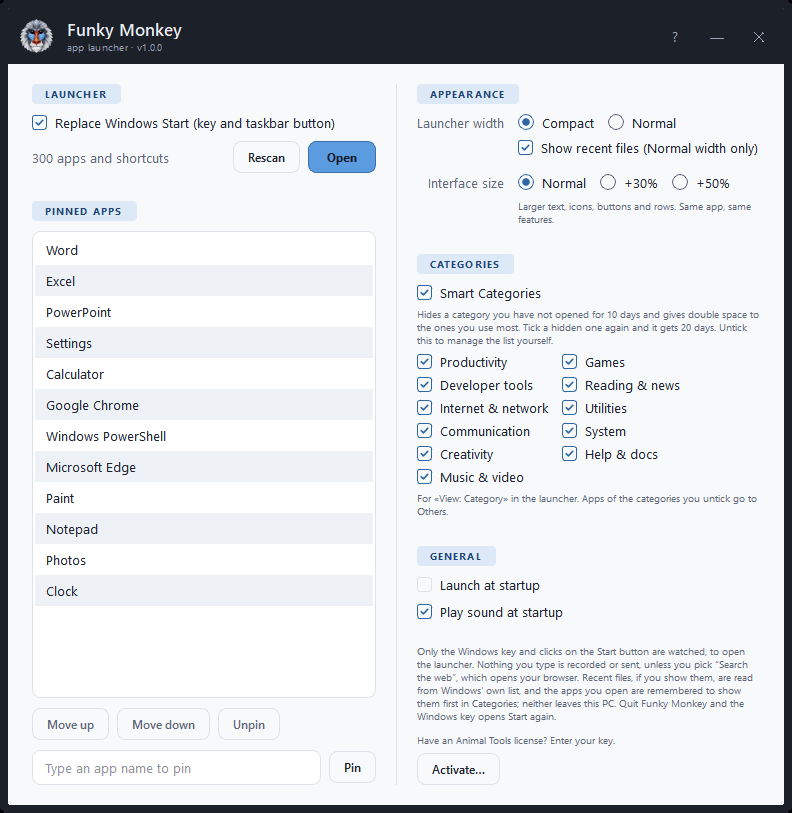
Open Settings from the gear in the launcher or from the tray icon. Everything lives in one window:
- Replace Windows Start — the master switch. Untick it and the Windows key and the Start button open Windows' own menu again. A message tells you where Funky Monkey is (the tray icon) and how to turn it back on.
- Pinned apps — add by name, move up or down, unpin.
- Launcher width — Compact (the default) or Normal, the width of Windows' Start. With Normal you can also show Recent files.
- Interface size — Normal, +30% or +50%: larger text, icons, buttons and rows.
- Categories — the Smart Categories switch and one tick per category.
- Launch at startup and Play sound at startup.
- Rescan — reads the list of installed apps again.
Every choice is remembered between launches. The window also says in plain words what Funky Monkey watches: only the Windows key and clicks on the Start button; with Smart Categories on it also reads Windows' own record of the apps you open; nothing you type is recorded or sent.
10. Tips
- Pin the ten you use. A right-click does it; they stay on top whatever the categories do.
- Type the initials. vsc, gc… a few letters are usually enough.
- Use it as a calculator. A sum in the search box, Enter, and the result is on your clipboard.
- Let the categories settle. After a week or two the first screen reflects what you really open.
- Prefer the old list? Switch View to List, or untick Smart Categories, whenever you like.
11. FAQ
Does it change Windows?
No. It does not touch policies or the native Start menu. The only registry entry is the one for Launch at startup, and only if you tick it. Close Funky Monkey and the Windows key opens Start again.
Does it search my files?
No. It finds apps and shortcuts. The Recent list is read from the list Windows already keeps, only to show it; nothing leaves the PC.
Does it record what I type?
No. It watches the Windows key and clicks on the Start button, to open the launcher. What you type in the search box is not recorded or sent, unless you choose Search the web, which opens your browser with that text.
Is it free?
Yes, with no account or licence key. If you own an Animal Tools licence, entering it in Settings does not unlock anything here; it only hides the card that promotes the other tools.
Does it work on Linux or macOS?
No. Funky Monkey is a Windows app, because it replaces the Windows Start menu.
A category I use disappeared. What now?
Tick it again in Settings → Categories. It then gets 20 days before Smart Categories can hide it again, or untick Smart Categories to manage the list yourself.
12. Keyboard Shortcuts
| Keys | What it does |
|---|---|
| Win | Open or close Funky Monkey (while it is running) |
| Ctrl + Esc | Same as the Windows key |
| Esc | Close it |
| Enter | Open the selected result (or copy a sum's answer) |
| Win + another key | Goes to Windows as always: Win+E, Win+D, Win+Shift+S… |
Ready to install?
Free download. No account, no clutter.
Download Funky Monkey →