🌋 The Stromboli Project
Free 🪟 Windows

Funky Monkey App Launcher

The Start menu, with the apps you actually use up front.

Press the Windows key, or click the Start button, and Funky Monkey opens instead: a search box, your pinned apps and every app grouped in categories that rearrange themselves around what you open.

No account, no email, no licence key. Funky Monkey is free, and quitting it gives you the normal Start menu back.

Windows desktop build

Windows may show a SmartScreen warning on first launch — click More info → Run anyway.

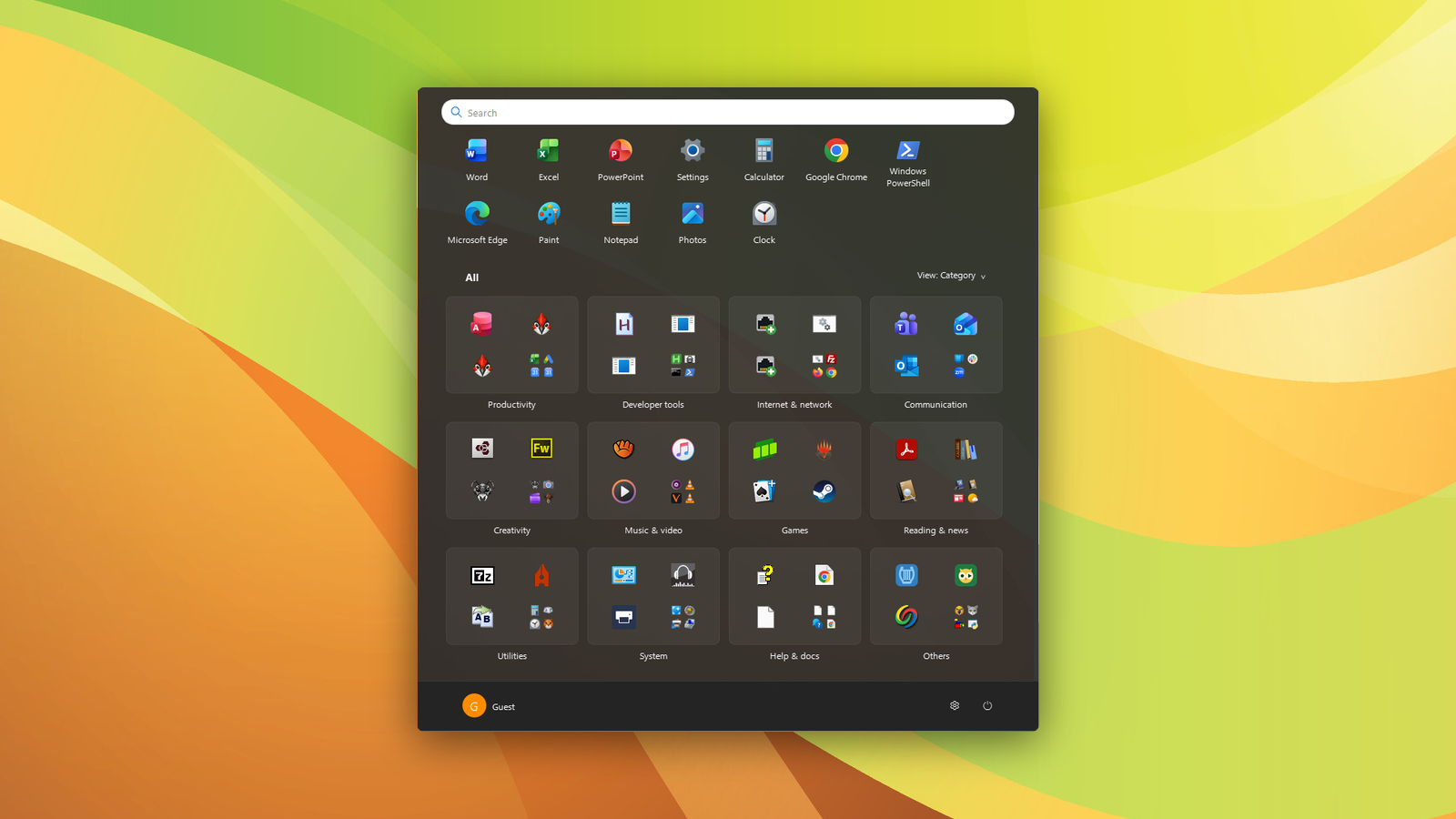
Funky Monkey open on the All section in Category view: pinned apps on top and the apps grouped in twelve category cards, with the search box above.

Funky Monkey is a Start menu you can search, calculate in and teach by using it: the categories you never open fold away, and the ones you live in get more room.

Features

What it opens, what it finds, and how it learns.

It replaces Start, and only while it runs.

  • The Windows key, Ctrl+Esc or a click on the Start button open it
  • Win+E, Win+D, Win+Shift+S… still reach Windows as always
  • Opens on the screen with your pointer, next to the taskbar wherever it sits
  • Quit it, or untick the switch, and the normal Start menu is back

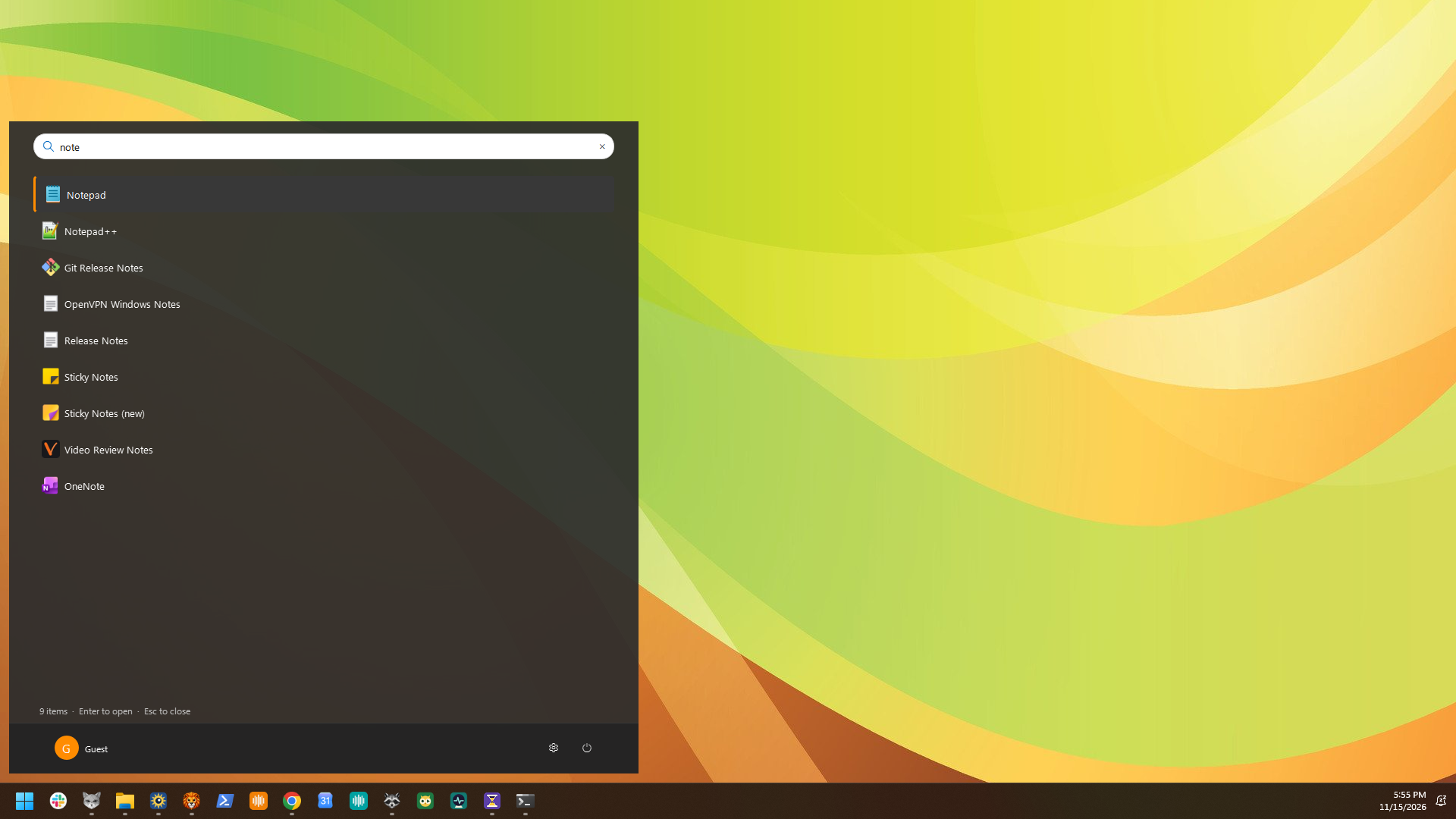
Type to find, calculate or search the web.

  • Installed apps, Store apps and Start-menu and desktop shortcuts
  • No accents or capitals needed, and initials work: “vsc” finds Visual Studio Code
  • Sums like 12*7 or 15% de 80; Enter copies the result
  • “bluetooth” or “wifi” jump to that Windows settings page
  • If nothing matches, the last row searches the web in your browser

Pinned apps and categories.

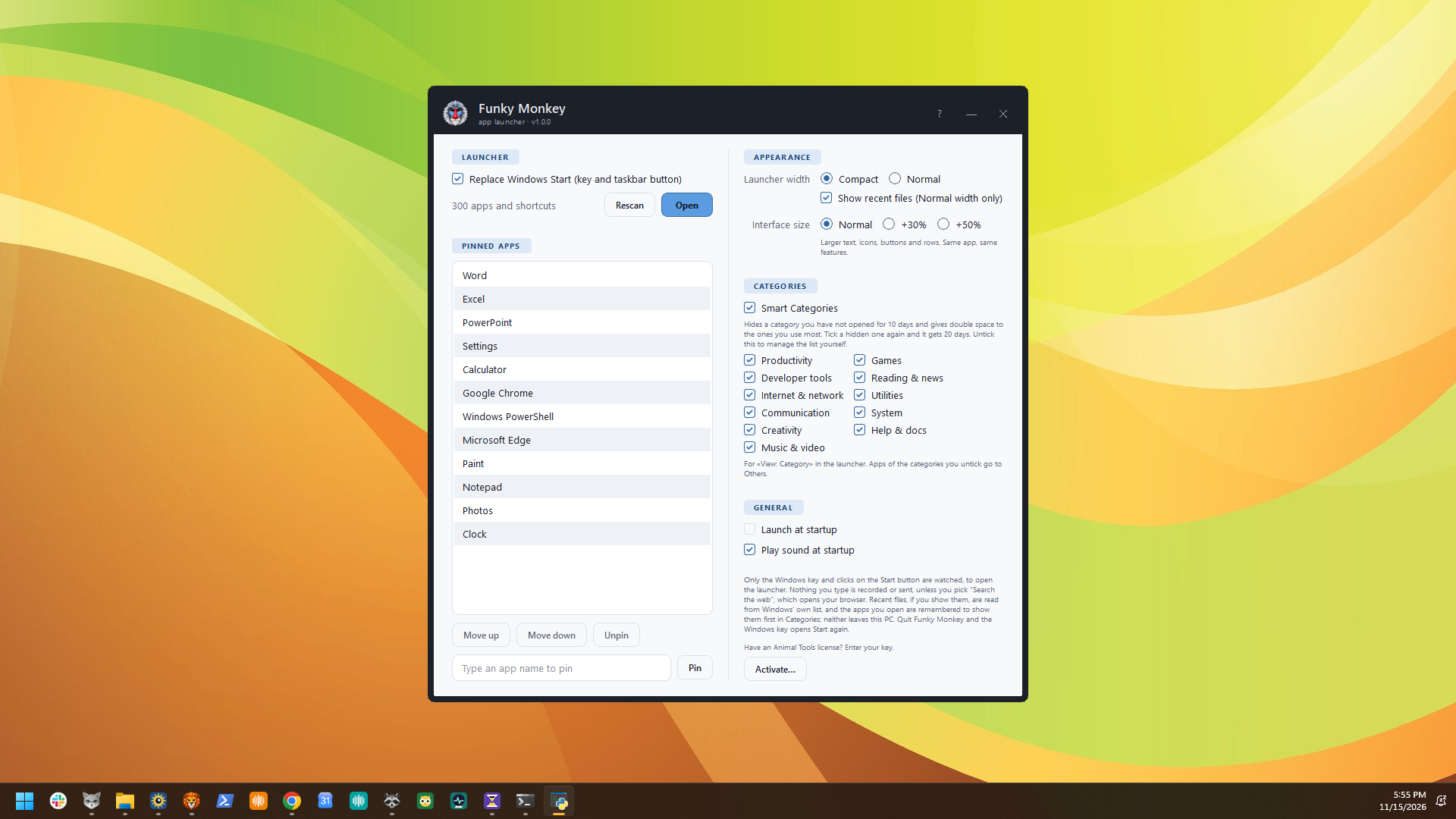
  • Pin and unpin from a right-click, or manage the list in Settings
  • “All” as an A–Z list or as Category cards: twelve groups, from Productivity to Games
  • Tick or untick categories in Settings; the apps of an unticked one go to Others
  • Compact or Normal width, and an interface up to 50% larger

Smart Categories: it learns what you use.

  • Inside each category, the apps you open most come first
  • A category you have not opened for 10 days unticks itself in Settings
  • A busy one (3 launches in 5 days) gets double space; at most two
  • On by default, one tick to switch it off; your history never leaves the PC
Funky Monkey with “note” typed in the search box, listing Notepad and the other apps and shortcuts that match.

What you get

Three things that decide whether you keep it.

Start, without the clutter

It looks like the Windows 11 Start menu you already know, in your theme and accent colour, but it is only for finding and opening things.

It reorganises itself

Categories you never open fold away and the ones you use get double space, so the first screen is the one you need. You can still tick anything back.

Nothing leaves your PC

It watches the Windows key and the Start button, nothing else. What you type is not recorded or sent. Your launch history, including the apps Windows saw you open from the taskbar or the desktop when Smart Categories is on, stays on this computer.

Where it fits

For people who live in the Start menu.

It is the right tool when…

  • you press the Windows key to open the same few apps every day
  • the Start menu’s pinned grid and recommendations get in the way
  • you would rather see groups of apps than a hundred-name list
  • you want a quick sum or a web search from the same box

What it needs

  • Windows 10 or 11. It lives in the tray and has an optional launch at startup
  • It has to be running. It takes over the Windows key only while it is open; close it and Start is back
  • A keyboard hook. That is how it sees the Windows key — it is signed, and nothing it sees is kept. Some antivirus may still ask
  • Linux and macOS: no build

How it goes

Four small moves, then it learns the rest.

It opens already working as your Start menu, so the first thing you do is use it, not configure it.

  • Esc, the Windows key again, a click outside or switching windows closes it
  • Right-click the Start button and you still get the Windows power menu
Step 1 · Install and open It lands in the system tray and the Windows key opens it from then on.
Step 2 · Pin what you use Right-click an app to pin it, or add names in Settings. Pinned apps sit on top.
Step 3 · Type or browse Type a few letters, or open “All” in Category view and pick a card.
Step 4 · Keep using it Within days the categories you never open fold away and the busy ones grow.
Funky Monkey’s settings window: the pinned apps list, launcher width, interface size, the Categories ticks with Smart Categories on, and the start-up options.

Who it is for

People who open the same apps all day.

The developer with forty tools installed, the office worker with a dozen, anyone who has stopped reading the Start menu and just types. The guide goes through search, categories and Settings, slowly.

Read the complete guide →

What it leaves out

It finds apps, and that is all.

  • It does not search your files or folders
  • No plugins or extensions
  • It does not change Windows: no policies, no registry edits, unless you tick Launch at startup
  • “Search the web” only opens your browser with what you typed
  • Windows only: no Linux or macOS build