Complete Guide
Sharp Crab
Open or paste a JSON file, even a huge or broken one, browse it as a tree, find the value you need and copy its path.

1. What Is Sharp Crab?
Someone sends you an API response, a log in JSON Lines or a configuration file, and you only need to read it. The browser shows «error» and nothing else, the editor stalls on a big file, and finding one value means scrolling through brackets. Sharp Crab opens the file, or the text you paste, as a tree you can fold and search, and tells you the exact path of whatever you select.
It loads in the background, so the window keeps responding with big files, and it shows numbers exactly as they are written. When the JSON is broken, it says where and why in plain words, and it can show you a repaired copy without touching your file. If you want, an optional AI feature, with your own key, can describe the document or answer a question about it.
It is for anyone who gets JSON several times a day and just wants to read it: backend developers, QA, support and analysts. It is a viewer: it does not edit, convert or query.
2. Installation
Go to thestromboliproject.com/tools/sharp-crab/ and download the Windows installer. It is free, with no account and no email.
Double-click it and follow the prompts. It installs for your own user, so it does not ask for administrator rights. It also adds Sharp Crab to Open with for .json, .jsonl and .ndjson files, without changing the program those files open with by default. If you uninstall it later, it asks whether you also want to delete your settings.
Open the Start menu and look for Sharp Crab, or right-click a .json file and choose Open with › Sharp Crab.
3. First Launch
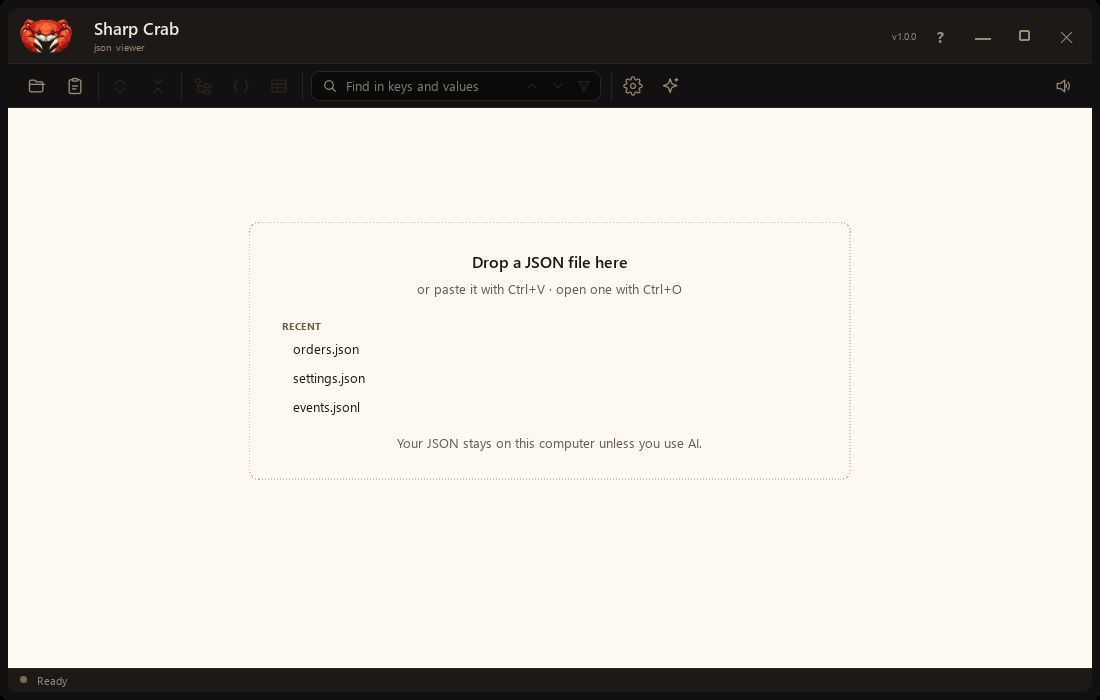
Sharp Crab opens with a short splash — the crab and a spinning arc — a startup sound, and then the main window. At the top there is a title bar with the version, a ? button that opens this guide, and minimize, maximize and close. Under it, a toolbar: open, paste, expand all, collapse all, the Tree and Raw views, the search box, settings, the AI menu, and a speaker button at the far right to mute the startup sound.
The rest of the window is a drop zone that says Drop a JSON file here, with the shortcuts to paste or open a file and a Recent list of the files you opened before. The line at the bottom says it plainly: Your JSON stays on this computer unless you use AI.
4. Core Workflow
Most of the time, Sharp Crab is four steps:
Drag a file onto the window, press Ctrl O, click a file in the Recent list, or copy JSON text and press Ctrl V. If you copied a file in the Explorer, Ctrl V opens that file.
Big files load in the background with a progress message, and the window keeps responding. Esc cancels the load. The status bar then says Valid JSON (or Valid JSON Lines), the file name and size, and how many values it has.
Open branches in the tree, or press Ctrl F and type a key or a value. F3 takes you to the next match and opens the branches on the way.
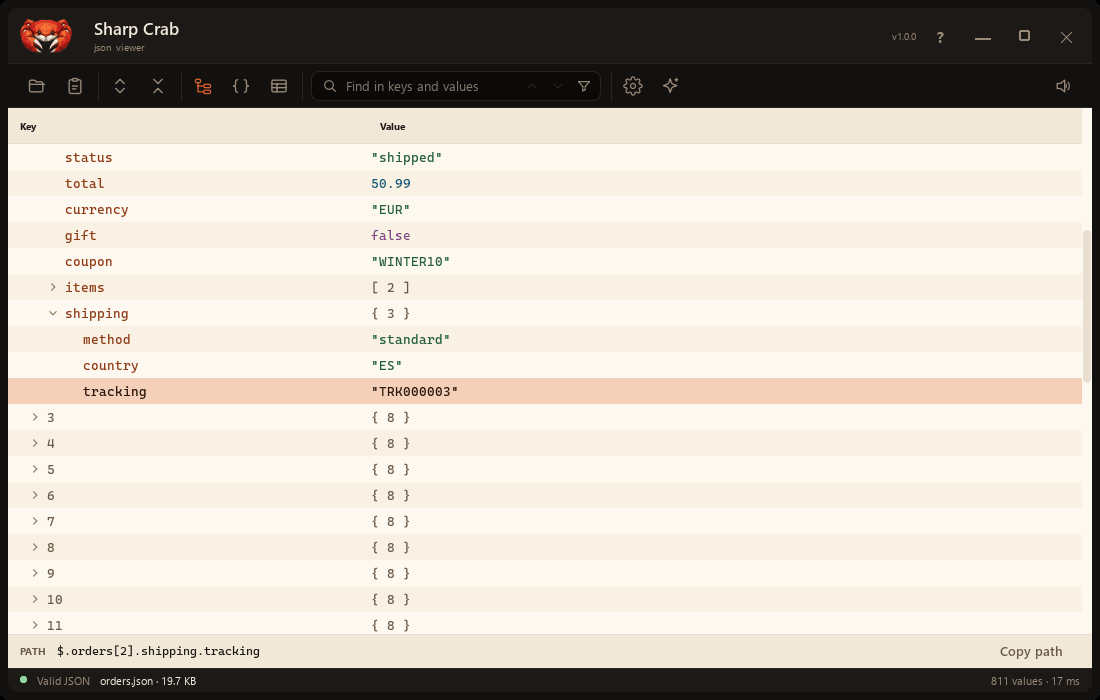
Select the value. Its path is shown at the bottom of the window. Ctrl C copies the value and Ctrl Shift C copies the path.
5. The Tree & Paths
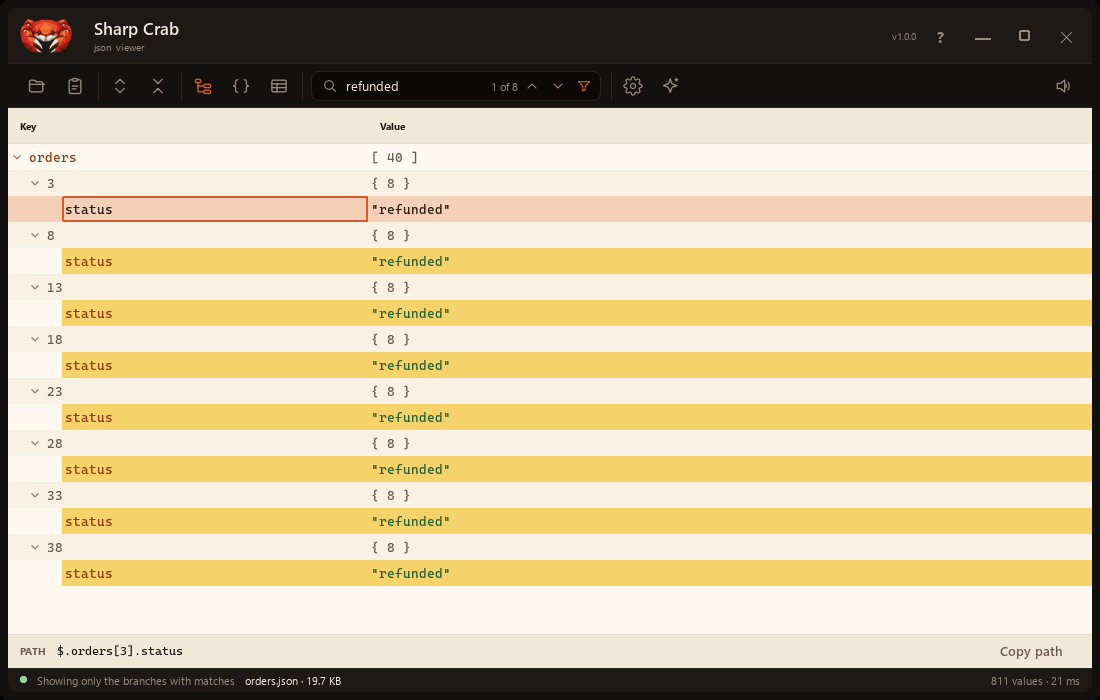
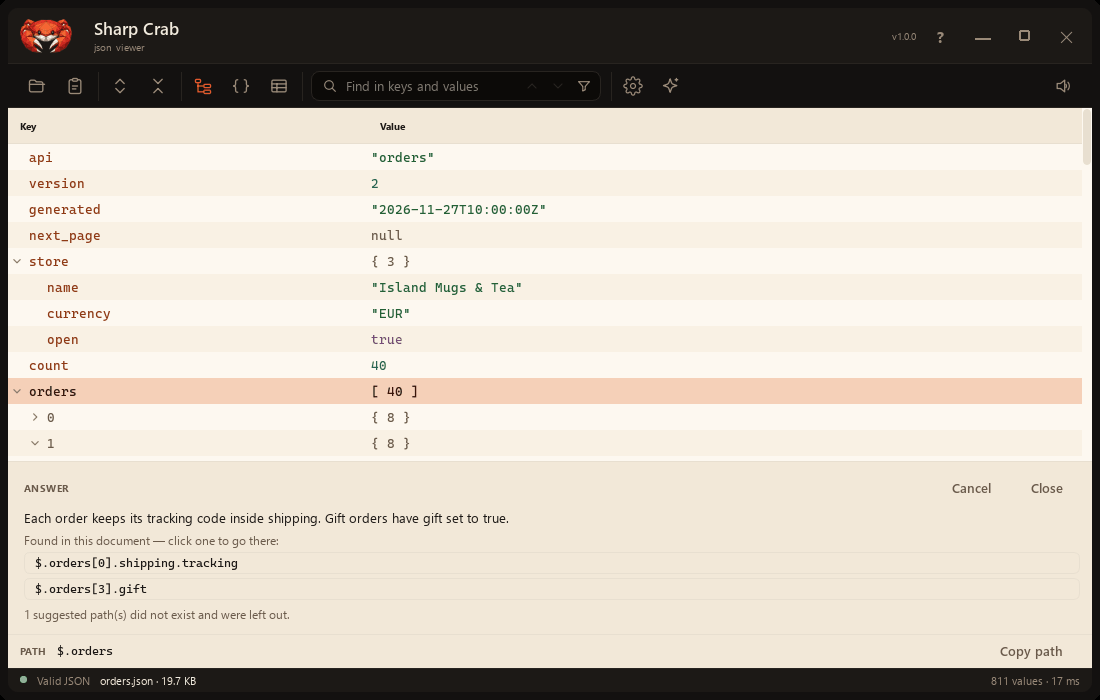
The tree has two columns, Key and Value. Each type has its own colour, and every list and object shows how many items it holds, like [ 40 ] or { 8 }, so you know what is inside before you open it. Hover over the file name in the status bar for a one-line summary of the document.
🔢 Exact numbers
Numbers are shown as they are written in the file. A 20-digit ID or a long decimal is never rounded.
⚠️ Repeated keys
A key that appears twice in the same object is underlined, and the status bar says the document has repeated keys. It also tells you if the file uses NaN or Infinity, which strict JSON does not allow.
🌳 Expand and collapse Ctrl E
Ctrl E expands everything and Ctrl Shift E collapses everything. Right-click a row to expand or collapse just that branch. On huge lists, expanding stops after a set number of rows so the window does not freeze.
📋 Copy path Ctrl Shift C
Copies the path of the selected value, in the syntax you chose in Settings: JSONPath ( $.orders[2].shipping ), jq, JavaScript or Python. The Copy path button in the path bar does the same.
📄 Copy value Ctrl C
Copies the selected value. The right-click menu has Copy value , Copy path and Copy key .
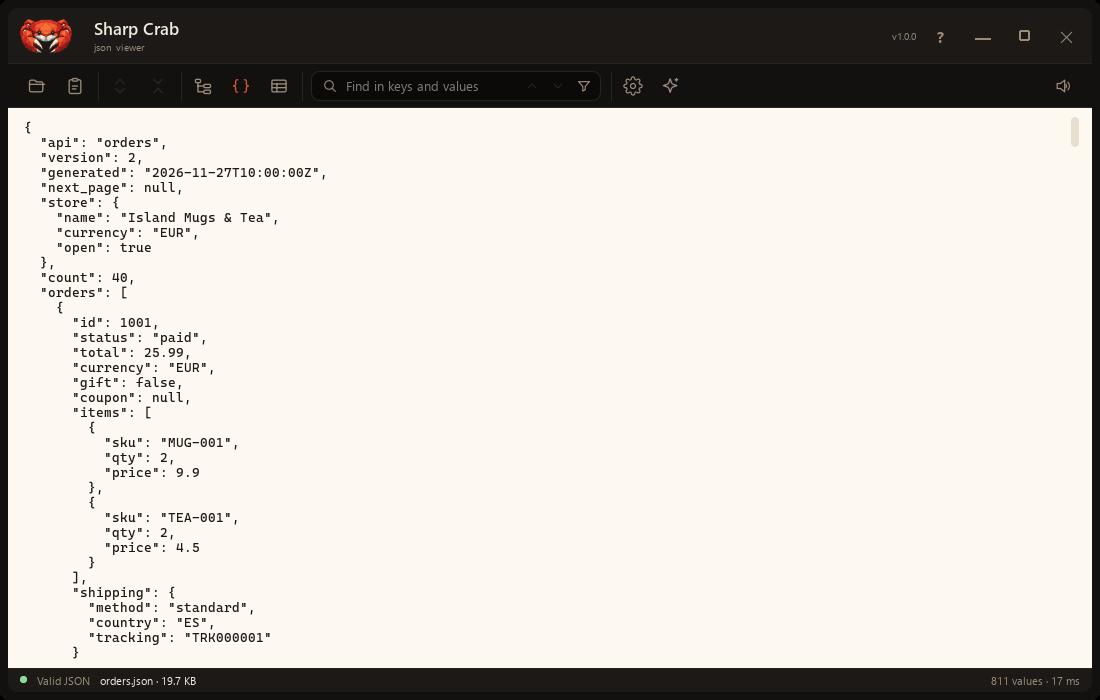
{ } Raw view Ctrl 2
Shows the document as formatted text. Ctrl 1 goes back to the tree. You can also switch with the view buttons in the toolbar.
6. Search
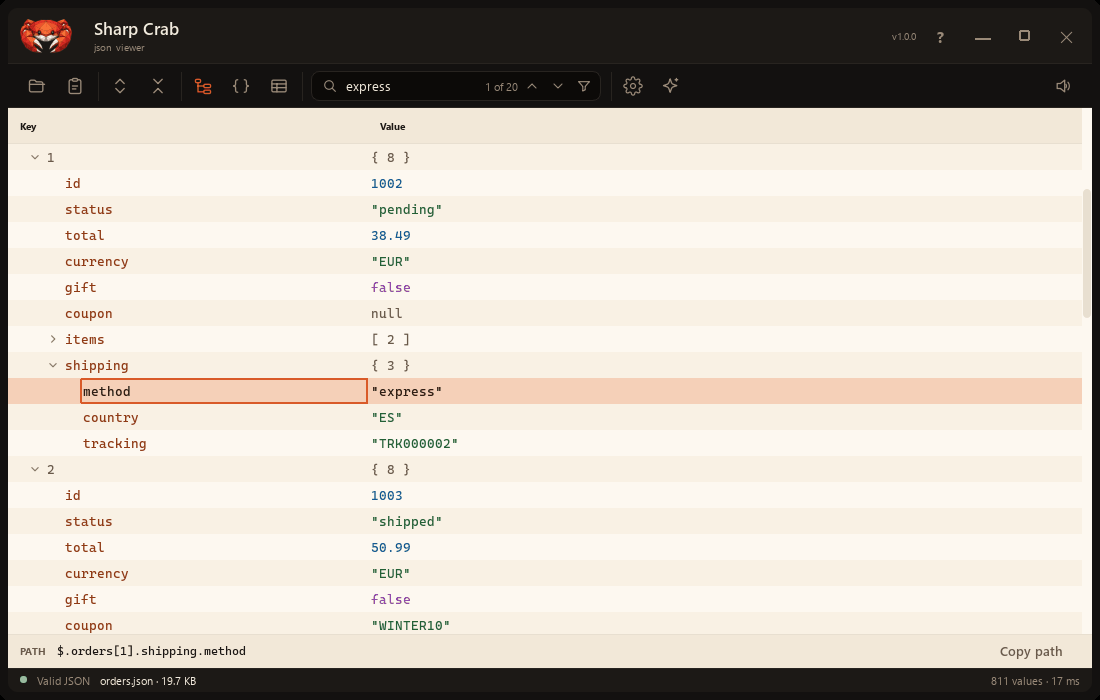
The search box in the toolbar looks in keys and values at the same time, ignoring capitals. It is plain text search: there is no query language to learn.
🔎 Find Ctrl F
Puts the cursor in the search box. Type and press Enter : the tree jumps to the first match and opens the branches on the way.
↕️ Next and previous F3
F3 or Enter goes to the next match, Shift F3 or Shift Enter to the previous one. The arrows next to the box do the same.
🔢 Counter
The box shows where you are, like 1 of 20 , so you know how many matches there are.
⎋ Clear Esc
Esc clears the search.
⏬ Show only matches Ctrl Shift F
The funnel at the end of the search box hides everything that does not lead to a match. Paths stay the real ones, and a key that matches keeps everything inside it. Click it again to see the whole document.
7. Table View
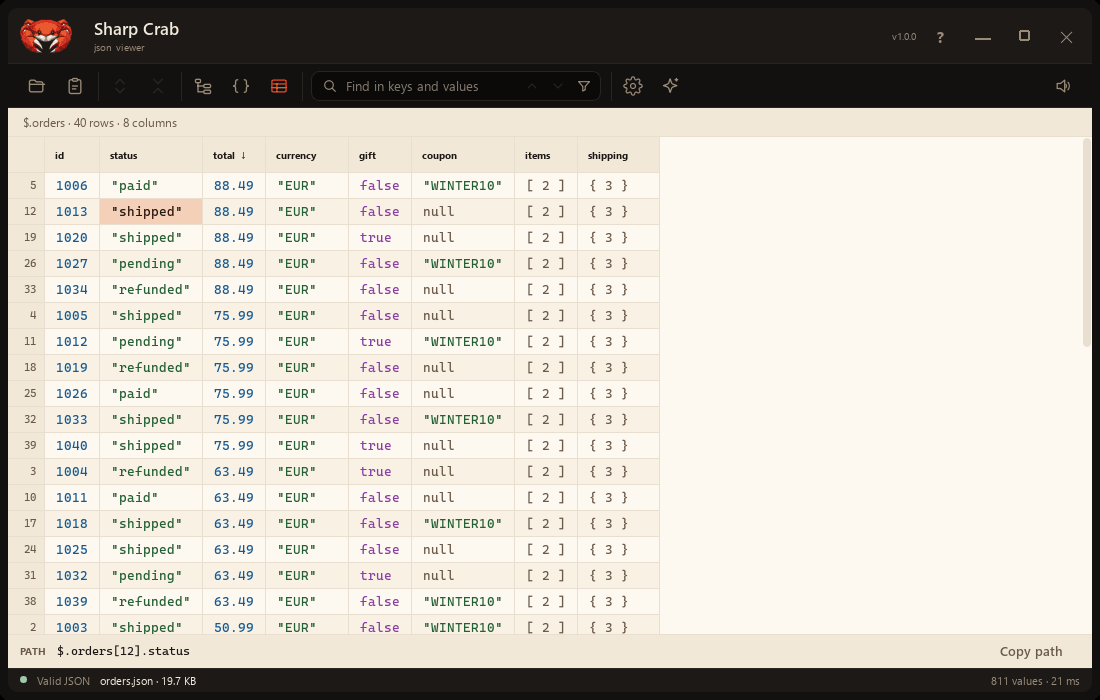
A list of objects, such as the records of an API response or the lines of a log, reads better as a table. Select the list in the tree, or anything inside it, and press Ctrl 3: each item becomes a row and each key a column, with the same colours as the tree.
▦ Rows and columns Ctrl 3
The number on the left is the item's real position in the list. An item that is not an object shows in a «(value)» column. A line above the table says which list it is and how many rows and columns it has.
↕️ Sort by any column
Click a header to sort, again to reverse, and a third time to go back to the order of the file. Numbers sort by value; empty cells always go last.
🌳 Back to the tree
Double-click a cell to see that value in the tree. The path bar, Ctrl C and the right-click menu work as in the tree.
⏬ Only the rows you need
Search with «Show only matches» on and the table keeps only the rows with a match, for example the orders that used a coupon.
8. Broken JSON & Fix It
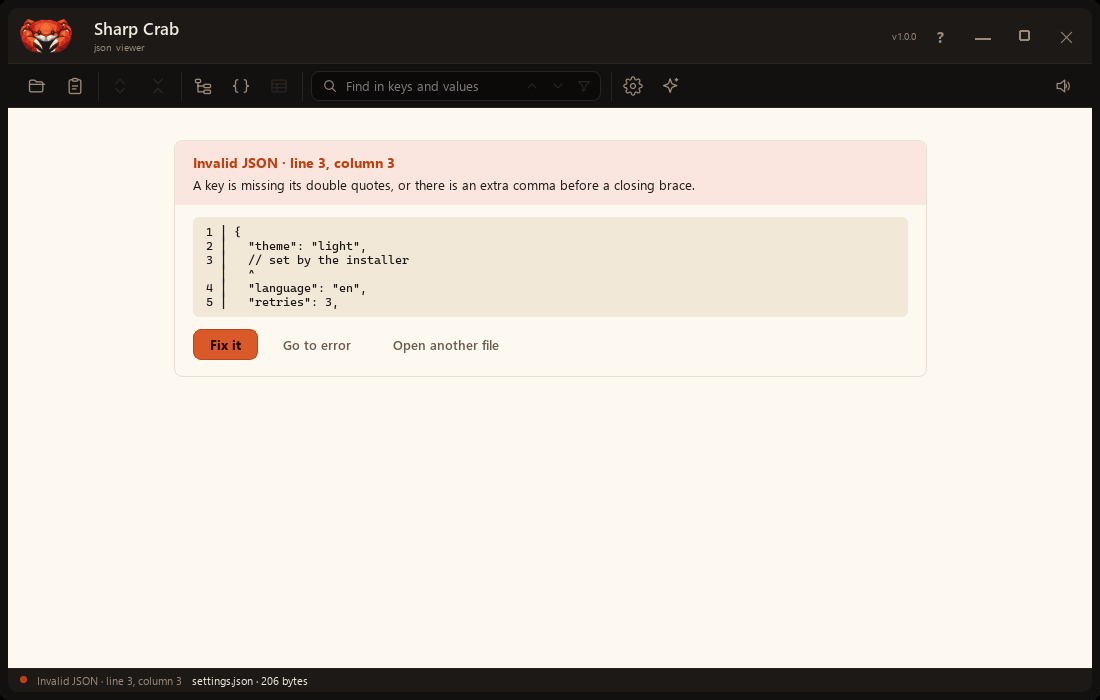
When a file is not valid JSON, Sharp Crab does not just say «error». It shows a card with the line and the column, for example Invalid JSON · line 3, column 3, a sentence that explains the problem in plain words, and the lines around it with a mark under the spot.
📍 Go to error
Opens the Raw view at the exact line and column, so you can see the problem in context.
🩹 Fix it
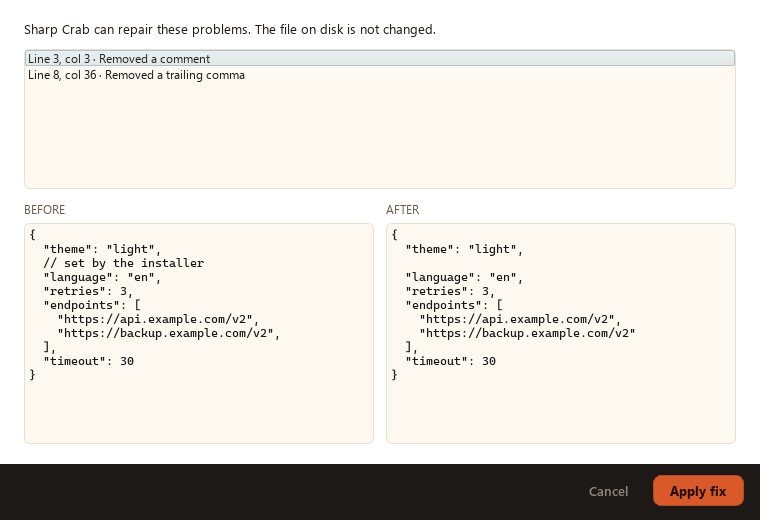
Proposes repairs for the usual problems: trailing commas, single quotes, keys without quotes, comments, brackets left open. It lists every change, with its line and column, and shows the text before and after.
🔒 Your file stays as it was
If you press Apply fix , Sharp Crab shows a repaired copy, with a banner that says so, and a Copy fixed JSON button. The file on disk is not changed, and the copy is not saved anywhere.
📂 Open another file
Leaves the broken file and lets you pick another one.
9. Optional AI
Sharp Crab works fully without AI. If you want it, add your own Gemini or Groq key in Settings (both have a free tier) and the AI button in the toolbar, or Ctrl J, offers two things:
📝 Describe this JSON
A short description of what the document seems to contain and how it is organised.
💬 Ask about this JSON
Ask a question, like where are the email addresses? The answer comes with the paths it found, as buttons: click one to jump to it in the tree.
✅ Paths checked
Every path the AI suggests is checked against your document. Only the ones that exist are shown; the panel says how many were left out.
What is sent
Not your file. Sharp Crab sends the shape of the document: its keys, the type of each value, and short samples (up to 40 characters). Samples whose key or content looks like a secret or personal data — passwords, keys, IBANs, card numbers, email addresses, phone numbers and the like — are sent as ‹hidden›. Before the first use with each provider, Sharp Crab asks for your permission.
10. Settings & Configuration
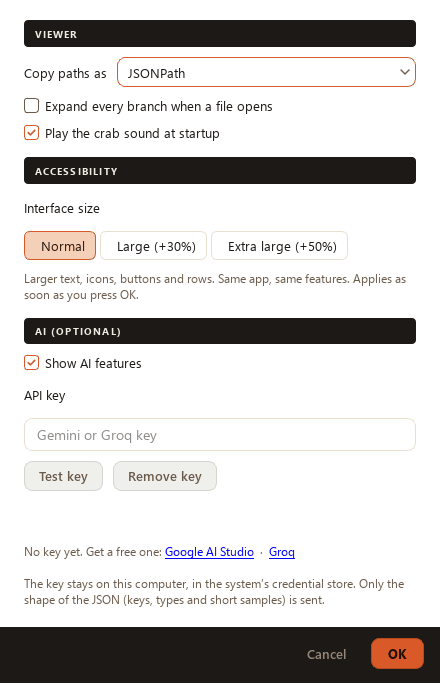
Open Settings with the gear in the toolbar or Ctrl ,. Changes apply when you press OK.
Viewer
- Copy paths as — JSONPath, jq, JavaScript or Python. It sets the path bar and Ctrl Shift C.
- Expand every branch when a file opens.
- Play the crab sound at startup. The speaker button in the toolbar does the same.
Accessibility
- Interface size — Normal, Large (+30%) or Extra large (+50%). Larger text, icons, buttons and rows; same app, same features.
AI (optional)
- Show AI features — turn it off to hide the AI button.
- API key — paste a Gemini or Groq key, then Test key. Remove key deletes it. The links take you to Google AI Studio and Groq to get a free one. The key is kept in the Windows credential store, not in a file.
Updates
When it starts, Sharp Crab checks in the background whether there is a newer version, against a signed list of the suite's apps. It does not send your JSON. If there is one, a notice offers Update (opens the download page in your browser), Skip this version and Later. It does not download or install anything on its own.
Good to know
- One window. If Sharp Crab is already open and you open another file with it, the file opens in the window that is already there.
- Limits. Files over 100 MB, and documents nested more than 1,000 levels deep, are not opened; Sharp Crab tells you why.
- Encodings. It reads UTF-8, UTF-16 and Windows-1252. One bad byte in a UTF-8 file does not spoil the rest.
- Reload. It does not watch the file for changes. Press F5 to read it again.
11. Tips
- Set your path syntax once. If you live in jq or in Python, choose it in Settings and every copied path comes out ready to paste.
- Paste instead of saving. A response in your browser's network tab or in a terminal: copy it and press Ctrl V. No need to save it to a file first.
- Read the counts before you open.
[ 3000 ]next to a key tells you it is the big list; open one item to see the shape of all of them. - Use the error card as a map. Even if you fix the file elsewhere, Go to error shows you the exact spot first.
- Need to edit? Sharp Crab only reads. To change the JSON, open it in Clever Cat.
- All the keys in one place: see Keyboard Shortcuts.
12. FAQ
Can I edit the JSON and save it?
No. Sharp Crab is a viewer: it does not edit or save JSON, and it does not save the repaired copy from «Fix it» to a file (you can copy it). To edit, use Clever Cat.
Can I filter with jq or JSONPath?
No. There is no query language: you search by text, in keys and values, and the funnel can hide everything that does not match. Sharp Crab gives you paths in jq or JSONPath syntax to copy, but it does not run them.
How big a file can it open?
Up to 100 MB. In our tests, a 50 MB file with more than 3 million values loaded in about 2 seconds, and the window kept responding. Above 100 MB it tells you the file is too big.
Does my JSON leave my computer?
Not unless you use the AI features. Then only the shape of the document goes to the provider you chose: keys, types and short samples, with anything that looks sensitive sent as ‹hidden›. The version check at startup does not send your JSON.
Can it convert JSON to CSV, YAML or XML, or generate types?
No. It does not convert to other formats and it does not generate code.
Can it validate against a JSON Schema, or compare two files?
No on both.
Can I open a URL or call an API from it?
No. It opens files and pasted text. Save the response, or copy it and paste it with Ctrl V.
Does it reload when the file changes?
No. Press F5 to read the file again.
Does it become my default program for .json files?
No. The installer adds it to Open with for .json, .jsonl and .ndjson, and leaves your default program as it was.
Is it free?
Yes. Sharp Crab is free, with no trial, no account and no licence key. The optional AI uses your own Gemini or Groq key; both have a free tier.
13. Keyboard Shortcuts
Files and views
| Action | Key |
|---|---|
| Open a file | Ctrl O |
| Paste JSON (or a file copied in the Explorer) | Ctrl V |
| Close the document | Ctrl W |
| Reload the file | F5 |
| Tree view | Ctrl 1 |
| Raw view | Ctrl 2 |
| Table view | Ctrl 3 |
| Cancel a load | Esc while loading |
Tree and copy
| Action | Key |
|---|---|
| Expand everything | Ctrl E |
| Collapse everything | Ctrl Shift E |
| Copy the value | Ctrl C |
| Copy the path | Ctrl Shift C |
Search
| Action | Key |
|---|---|
| Find | Ctrl F |
| Next match | F3 or Enter in the search box |
| Previous match | Shift F3 or Shift+Enter in the search box |
| Show only matches | Ctrl Shift F |
| Clear the search | Esc |
App
| Action | Key |
|---|---|
| Settings | Ctrl , |
| AI menu | Ctrl J with AI features on |
| Open this guide | F1 |
Ready to install?
Free. No account, no email, and your JSON stays on your computer.
See Sharp Crab →