🌋 The Stromboli Project
Free 🪟 Windows

Sharp Crab JSON Viewer

Paste JSON. Explore the tree.

Open or paste a JSON file, even a huge or a broken one, and find what you are looking for without the window freezing. Browse it as a tree, search keys and values, and copy the path of any value. If the file is broken, it tells you the line, the column and what is wrong, in plain words.

No account, no email, no licence key. Sharp Crab is free, and it stays free.

Windows desktop build

Windows may show a SmartScreen warning on first launch — click More info → Run anyway.

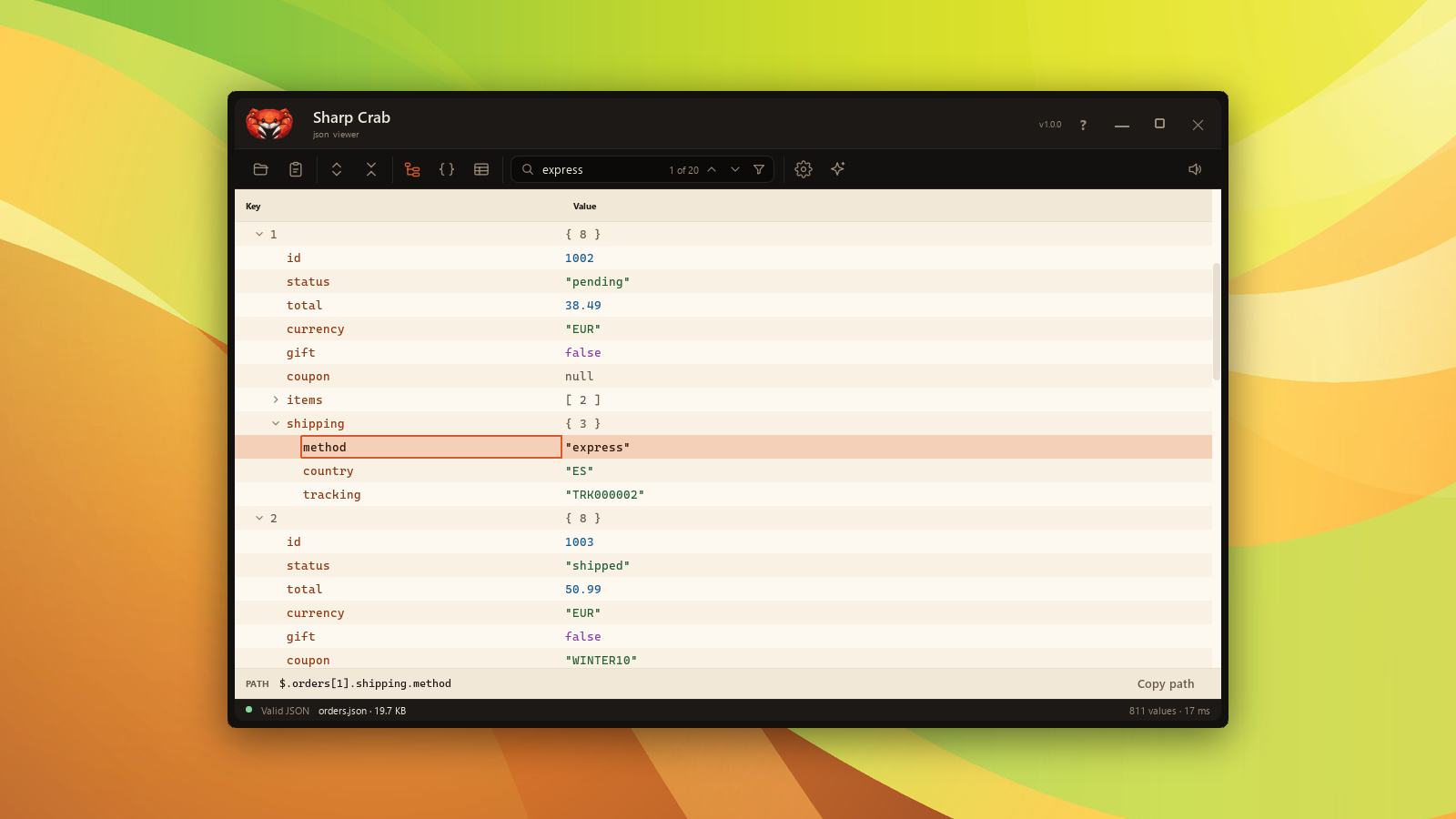
Sharp Crab with an orders file open as a tree: a search for «express» shows 1 of 20 matches, the matching value is highlighted and its path, $.orders[1].shipping.method, is shown at the bottom.

Sharp Crab does one thing: it shows you what is inside a JSON file, and where, without making you open an editor or a browser tab to find out.

Features

A tree, a search box and the path of every value.

Open it any way you have it.

  • Open a file with Ctrl O, drag it onto the window, or pick it from the recent list
  • Paste JSON straight from the clipboard with Ctrl V
  • .json, .jsonl, .ndjson, .geojson, .har, .map and .txt; JSON Lines files open record by record
  • «Open with» in Windows for .json, .jsonl and .ndjson, without taking over your default program

A tree you can read.

  • Key and Value columns, a colour per type, and the number of items next to every list and object
  • Numbers are shown exactly as they are written in the file, never rounded
  • Repeated keys are underlined so you can see them
  • Expand or collapse everything with Ctrl E and Ctrl Shift E, or one branch from the right-click menu
  • A list of objects also opens as a table with Ctrl 3: one row per item, sorted by any column

Search keys and values.

  • Ctrl F searches keys and values, ignoring capitals
  • A counter shows where you are: «1 of 20»
  • F3 and Shift F3 jump to the next or previous match and open the branches on the way
  • «Show only matches» hides everything else, in the tree and in the table

The path of any value.

  • The path of the selected value is always visible at the bottom of the window
  • Ctrl Shift C copies it as JSONPath, jq, JavaScript or Python, whichever you choose in Settings
  • Ctrl C copies the value; the right-click menu also copies the key

Broken JSON, explained.

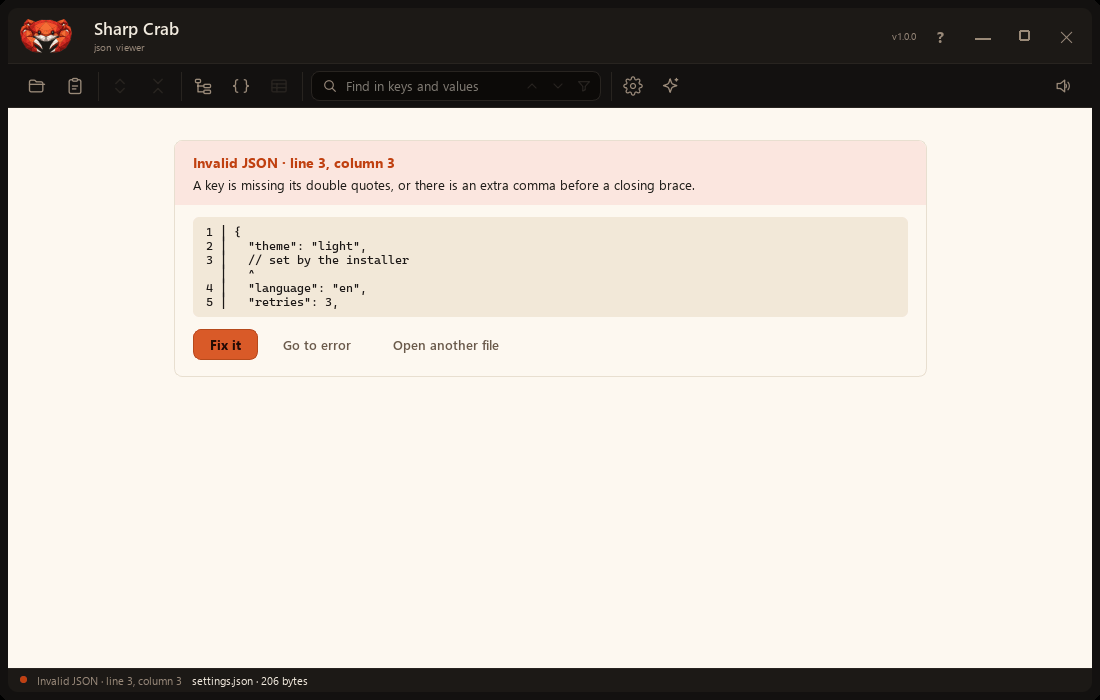
  • «Invalid JSON · line 3, column 3», the lines around it, and what is wrong in plain words
  • «Go to error» takes you to the exact spot in the text
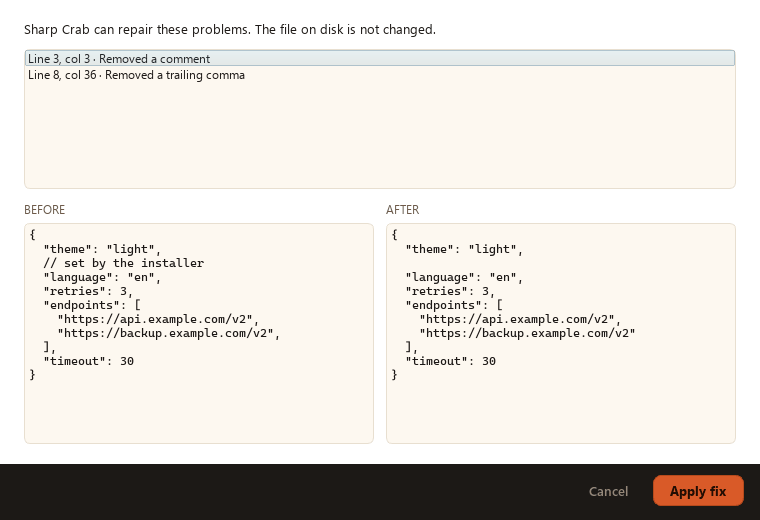
  • «Fix it» proposes repairs (commas, quotes, comments, missing brackets) and shows the text before and after
  • The repaired copy is shown and can be copied; the file on disk is never changed

Big files, no freezing.

  • Files load in the background; Esc cancels a load
  • In our tests, a 50 MB file with more than 3 million values loaded in about 2 seconds, with the window responding the whole time
  • Files up to 100 MB; reads UTF-8, UTF-16 and Windows-1252

Optional AI, with your own key.

  • «Describe this JSON» and «Ask about this JSON», with a Gemini or Groq key that stays in the Windows credential store
  • It sends the shape of the document (keys, types and short samples), never the whole file; anything that looks like a secret or personal data goes as «‹hidden›»
  • The paths it suggests are checked against your document, and only the ones that exist are shown, as buttons
  • Off until you add a key; it asks before the first use with each provider
The Fix it dialog: two repairs listed, «Removed a comment» and «Removed a trailing comma», with the JSON before and after side by side. The file on disk is not changed.

What you get

The value you were looking for, and where it lives.

See the structure, not a wall of text

Every list and object shows how many items it holds, so you know what is inside before you open it. Switch to the formatted text with Ctrl 2 when you need it.

Paths you can paste

Select a value and copy its path in the syntax you use: JSONPath, jq, JavaScript or Python. No more counting brackets to write orders[1].shipping.method by hand.

An error you can act on

Not just «invalid JSON»: the line, the column, the reason, and a repaired copy you can look at before you trust it. Your file stays exactly as it was.

Before you install it

What it needs, and what leaves your computer.

What it needs

  • Windows. A desktop app, installed for your own user, with no administrator prompt
  • No account. Nothing to register, nothing to sign in to
  • No cloud. Your JSON is read and shown on your own computer

What leaves your machine

  • A version check when it starts, against a signed list, to tell you if there is a newer build. It does not send your JSON, and you can turn it off in Settings
  • Only if you add an AI key and use it: the shape of the document (keys, types and short samples, with anything that looks sensitive hidden) goes to the provider you chose

How it goes

Open. Find. Copy.

The window opens on a drop zone with your recent files. Everything else is a toolbar button or a keyboard shortcut, and the path of what you selected is always at the bottom.

  • A long load never blocks the window, and Esc cancels it
  • Nothing changes your file: it is a viewer
Step 1 · Open it Drop a file on the window, press Ctrl+O, pick a recent file, or paste with Ctrl+V.
Step 2 · Look around Open branches in the tree, or Ctrl+E to expand everything. Ctrl+2 shows the formatted text.
Step 3 · Find it Ctrl+F, type a key or a value, and F3 walks through the matches.
Step 4 · Take it with you Ctrl+C copies the value, Ctrl+Shift+C copies its path, ready for your code or your jq command.
A broken settings file opened in Sharp Crab: «Invalid JSON · line 3, column 3», a plain-words reason, the lines around the error with a caret under it, and the Fix it, Go to error and Open another file buttons.

How you get it

  • Free. No trial, no licence key, no feature held back
  • No account. Download the installer and open your first file
  • Windows. A desktop app, installed for your own user

Get it

The honest test is the JSON your editor chokes on.

Open Sharp Crab with the API dump, the log in JSON Lines or the config file that refuses to load, and see how long it takes you to find the value you need.

Who it is for

Anyone who gets JSON several times a day and just wants to read it.

Backend developers, QA, support and analysts looking at API responses, JSON Lines logs, configuration files or exports. Especially when the file is big enough to make the editor or the browser stall, or broken enough that the browser only says «error».

Also for whoever has VS Code but does not want to open it just to look at a JSON, and for whoever knows jq but does not remember the syntax for a path.

Read the complete guide →

What it leaves out

A viewer, not an editor or a query tool.

  • It does not edit or save JSON, and it does not save the repaired copy to a file
  • No converting to CSV, XML or YAML, and no generating code or types
  • No query language: you search by text, not with jq or JSONPath filters
  • No JSON Schema validation and no comparing two files
  • It does not open URLs and it is not an API client
  • It does not reload by itself when the file changes (F5 reloads)
  • Files over 100 MB and documents nested more than 1,000 levels deep are not opened
  • It never repairs JSON on its own: «Fix it» only acts when you ask