Complete Guide
Silent Frog FTP Client
Connect to an FTP or SFTP server, move your files, disconnect. Nothing more.

1. What Is Silent Frog?
Most FTP clients want to be your everything: site trees you never finish organizing, synchronization engines, queues that survive across sessions, panels you didn't ask for. Fine if that's your daily job — overkill if you just need to publish a change, grab a file, or swap a version and move on.
Silent Frog does one thing: connect to an FTP or SFTP server, move files between your machine and theirs, and get out of the way. Open it, pick a saved site or type the address, drag what you need, close it. No background sync, no persistent state you have to manage, no consoles full of raw FTP commands.
It's built for the developer, technician, or front-end person who touches a server occasionally — not the person who lives in one all day. The flow is connect → move files → disconnect. Nothing in between demands your attention unless something actually goes wrong.
2. Installation
Go to thestromboliproject.com/tools/silent-frog/ and download the installer — Windows, or the Linux build (.deb or AppImage).
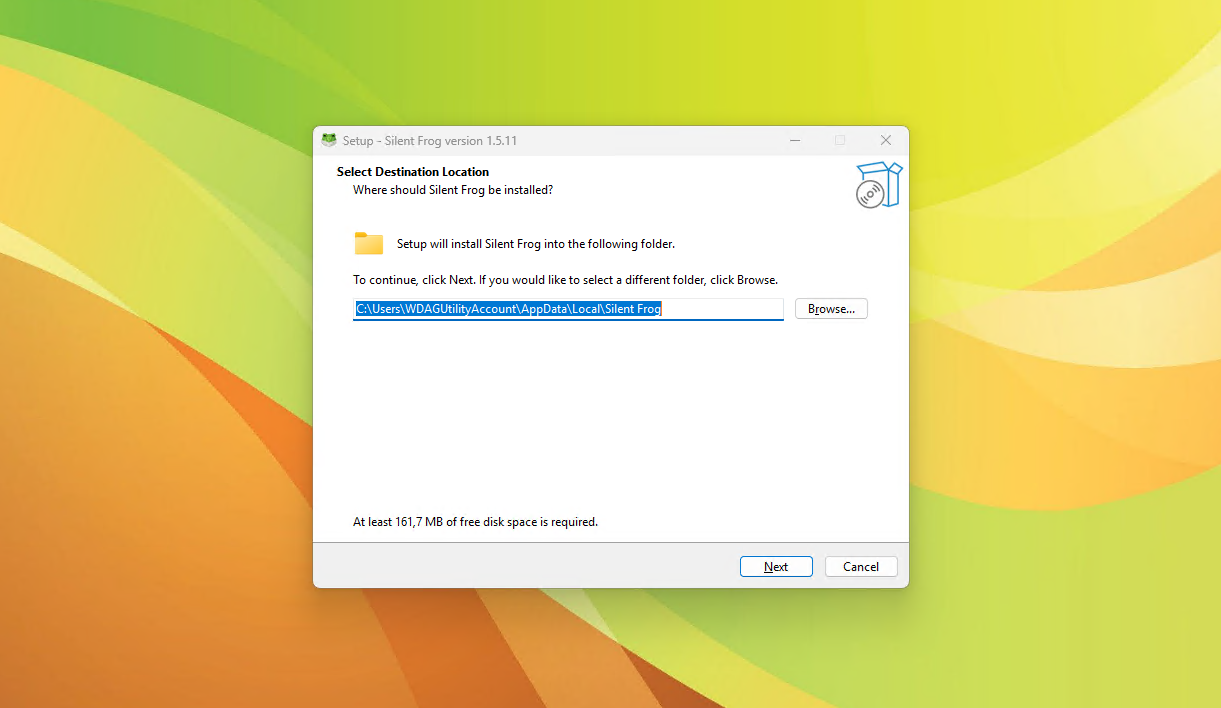
Double-click the installer and follow the prompts. No extra components are required.
Find it in your Start menu or desktop shortcut. The main window opens directly — no setup wizard.
Updates. When a new version is out, Silent Frog tells you when it opens. Update downloads the installer, checks it against the fingerprint we publish, and only runs it if the two match. Later asks again next time, and Skip this version stops asking about that one.
3. First Launch
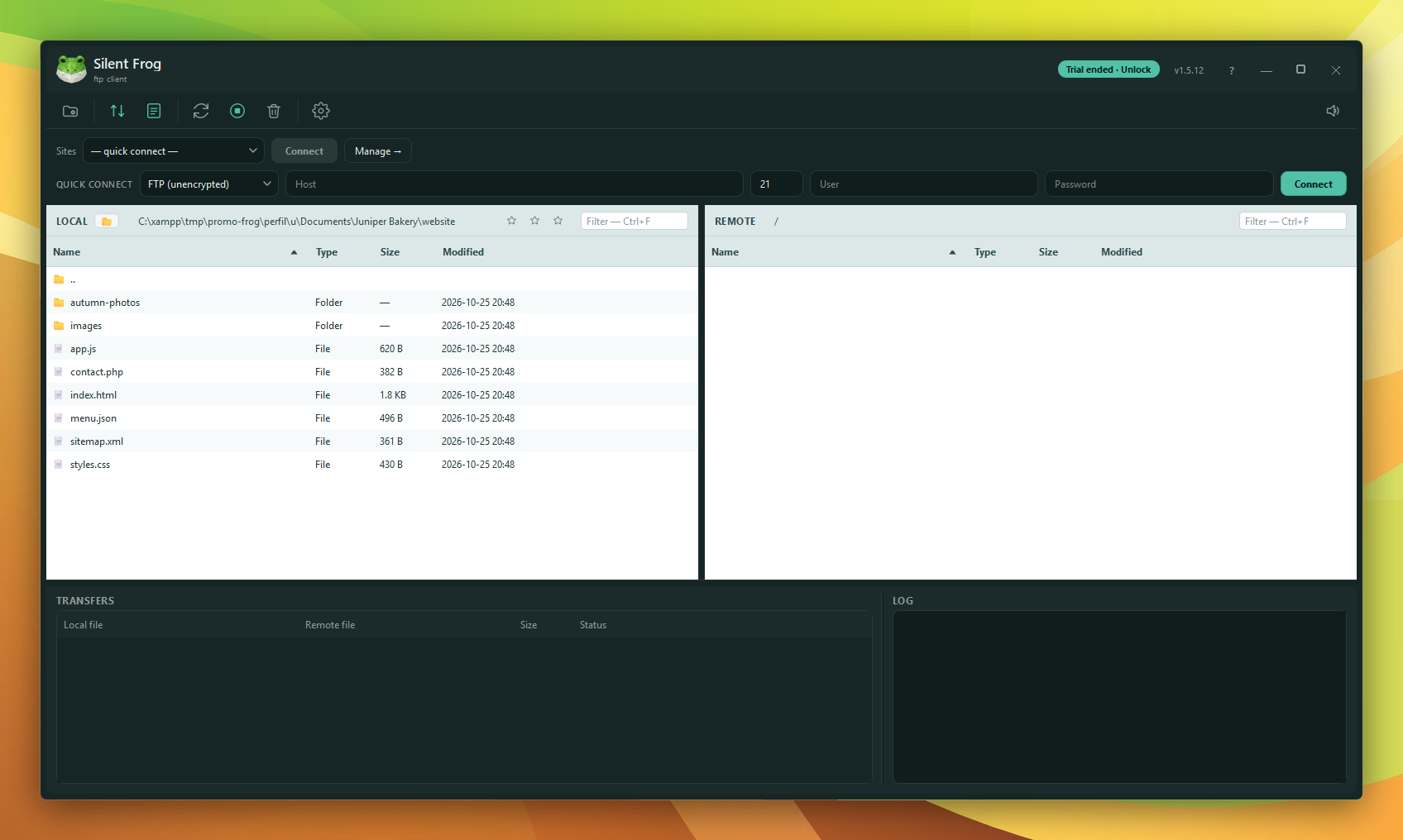
On first launch, Silent Frog opens with no saved sites and an empty connection bar. The window is split into a local file panel on the left and a remote file panel on the right — the remote side is empty until you connect.
The app remembers the last connection you used and pre-fills it the next time you open Silent Frog, so after your first session you rarely have to type a host again.
4. Managing Sites
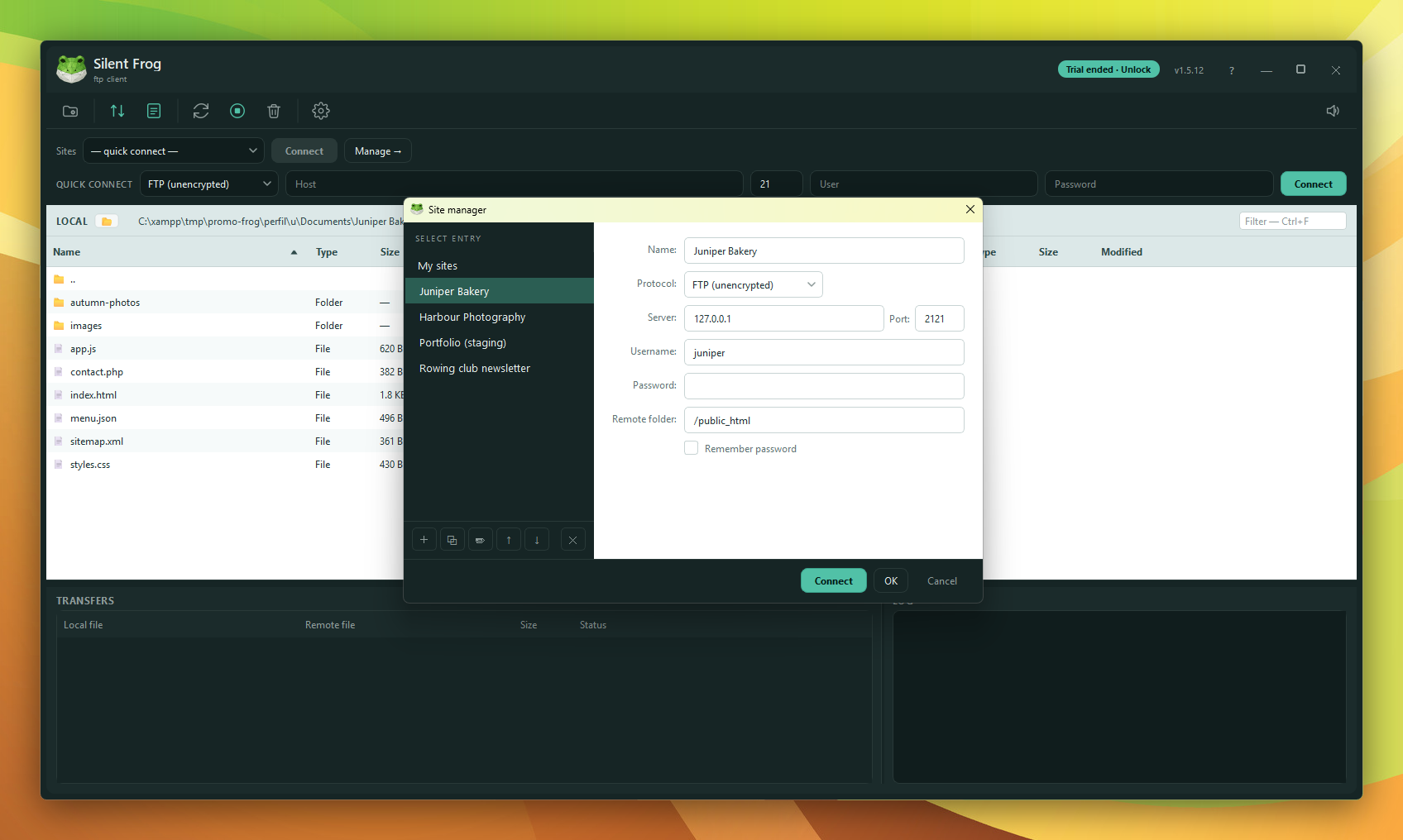
A "site" is a saved connection profile — host, port, protocol, username, and (optionally) password. Silent Frog connects over FTP on port 21 or SFTP on port 22.
💾 Save a site
Store host, port, protocol, and credentials once, reconnect with one click afterward.
✏️ Rename & duplicate
Rename a saved site or duplicate it as a starting point for a similar server.
🗑️ Delete
Remove a site you no longer need from the list.
📤 Import / Export
Import or export your saved sites as FileZilla-compatible XML — useful when moving between machines or clients.
🔑 Secure password storage
Passwords are saved to your operating system's secure keyring when one is available, instead of a plain config file.
🕒 Last connection remembered
Silent Frog pre-fills your most recent connection the next time you open the app.
5. Browsing & Transfers
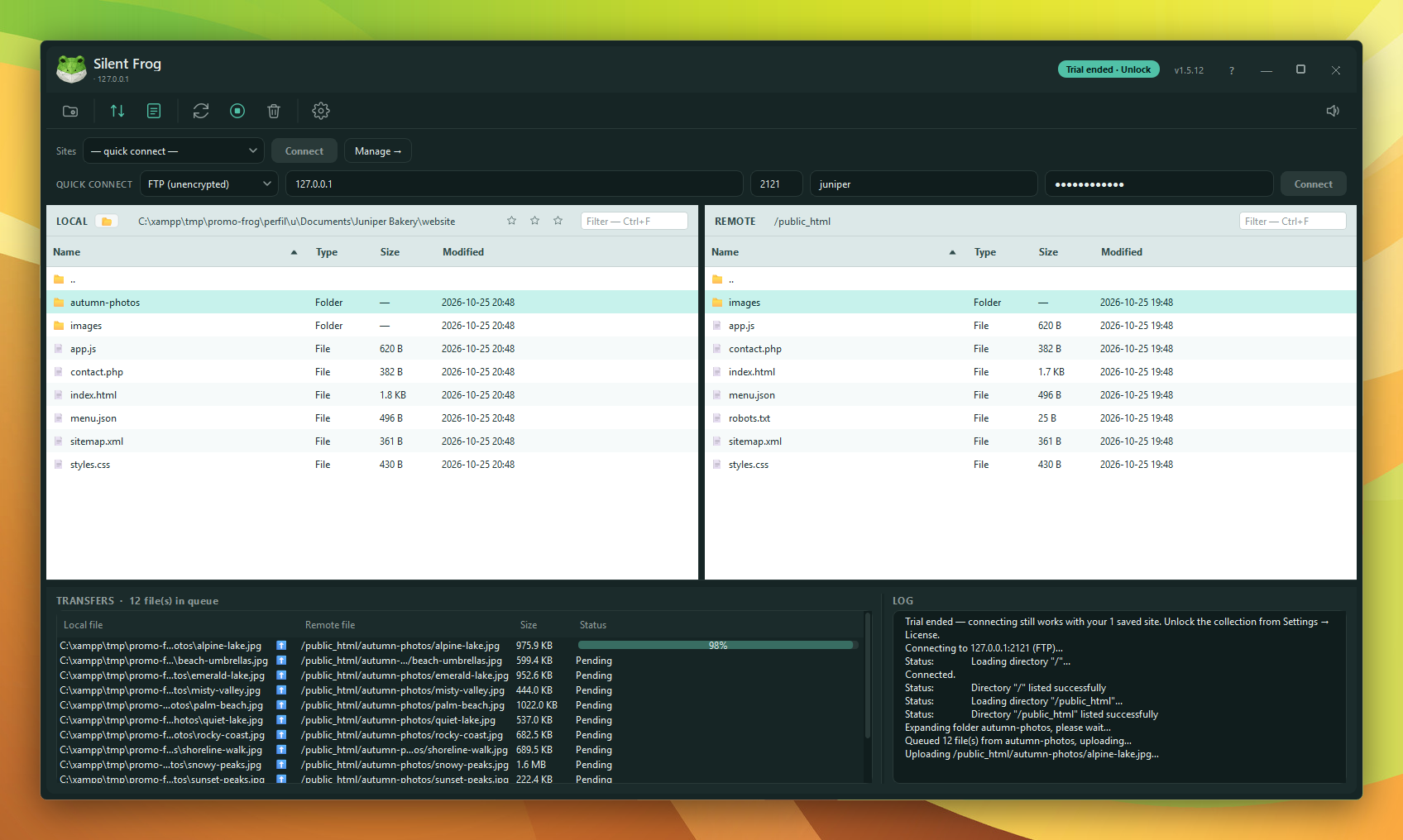
Once connected, the remote panel shows the server's directory tree. Double-click a folder to enter it, or type a path directly into the breadcrumb bar to jump straight there. Typing letters while a panel has focus filters the file list incrementally, so you can jump to a filename by typing its first few characters.
The local panel's breadcrumb bar also carries three star buttons for quick-access folders. Click an empty star to save the current local folder there; click a filled star to jump straight to it; right-click any star to save the current folder over it or clear it. Handy for the 2-3 folders you keep coming back to in a session, without retyping or re-browsing the path each time.
Double-click through the remote tree, or type the path into the breadcrumb. Use incremental search to jump to a specific file or folder by typing its name.
Double-click a local file, drag it into the remote panel, or use the right-click context menu — including dragging files straight from Windows Explorer into Silent Frog's remote panel.
Double-click, drag, or use the context menu on the remote side. Folders download recursively — the whole tree comes down in one action.
If a file with the same name already exists at the destination, Silent Frog applies your configured conflict policy — see Settings below. When the policy is "ask" and you dropped several folders and files at once, ticking apply to all in the first conflict dialog covers everything in that drop — you answer once, not once per folder.
Selection and sorting
Select multiple files with Ctrl+click or Shift+click in either panel. Click a column header — Name, Type, Size, or Date — to sort the file list by that column, in either panel.
6. Transfer Queue
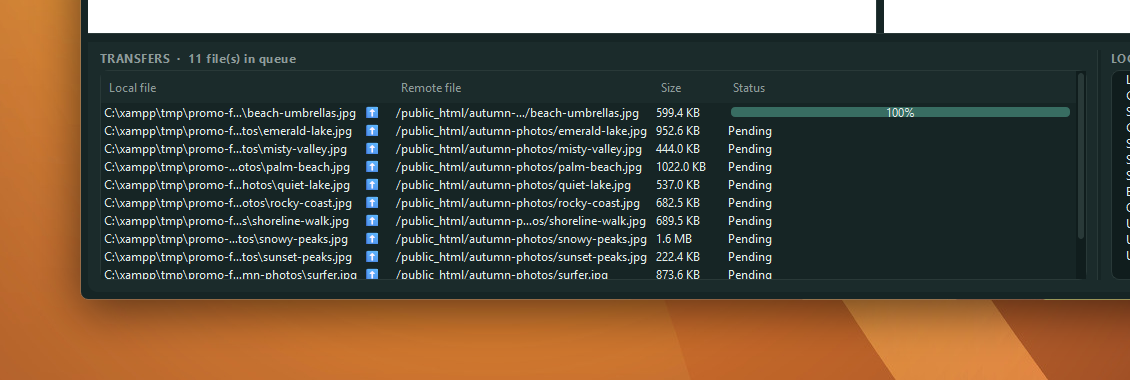
Every upload and download goes through the transfer queue, visible as its own panel below the file browser. Each row shows the file name and moves through pending → percentage → done or error.
⏸️ Stop & start the queue
Pause the whole queue from the toolbar. Transfers already in flight finish; new ones wait until you start it again.
🧯 Clear queue
One toolbar button drops every transfer still waiting to start. Anything already in progress keeps running.
🔢 Multiple at once
Run several transfers in parallel — a global cap (up to 10) plus optional separate limits for uploads and downloads (0 = no limit).
📊 Real-time progress
Each row shows live percentage as the transfer runs. The panel header counts what's left — TRANSFERS · 3 file(s) in queue .
↔️ Full paths, resizable columns
The Local and Remote columns show the full path, not just the file name, and are resizable — drag the header dividers, or hover for a tooltip when a path is clipped.
🧹 Self-cleaning queue
A row disappears as soon as it finishes — it doesn't wait for the rest of the queue. Rows that error out stay visible.
7. File Operations & Remote Editing
Beyond moving files, Silent Frog handles the everyday file management you'd otherwise need a separate FTP session or a local file manager for — on both sides of the connection.
- Remote: rename files and folders, create new folders, delete files and folders, copy a file's remote URL to the clipboard. Deleting a non-empty folder now removes it recursively — subfolders and files first, then the folder itself.
- Local: open a file in its default application, open the current folder in Explorer (📂 in the panel header), edit, rename, refresh, delete, and create a folder (and enter it) — all without leaving Silent Frog. The Delete key removes the selected item on the local side too (from disk, with a confirmation).
Editing a remote file directly
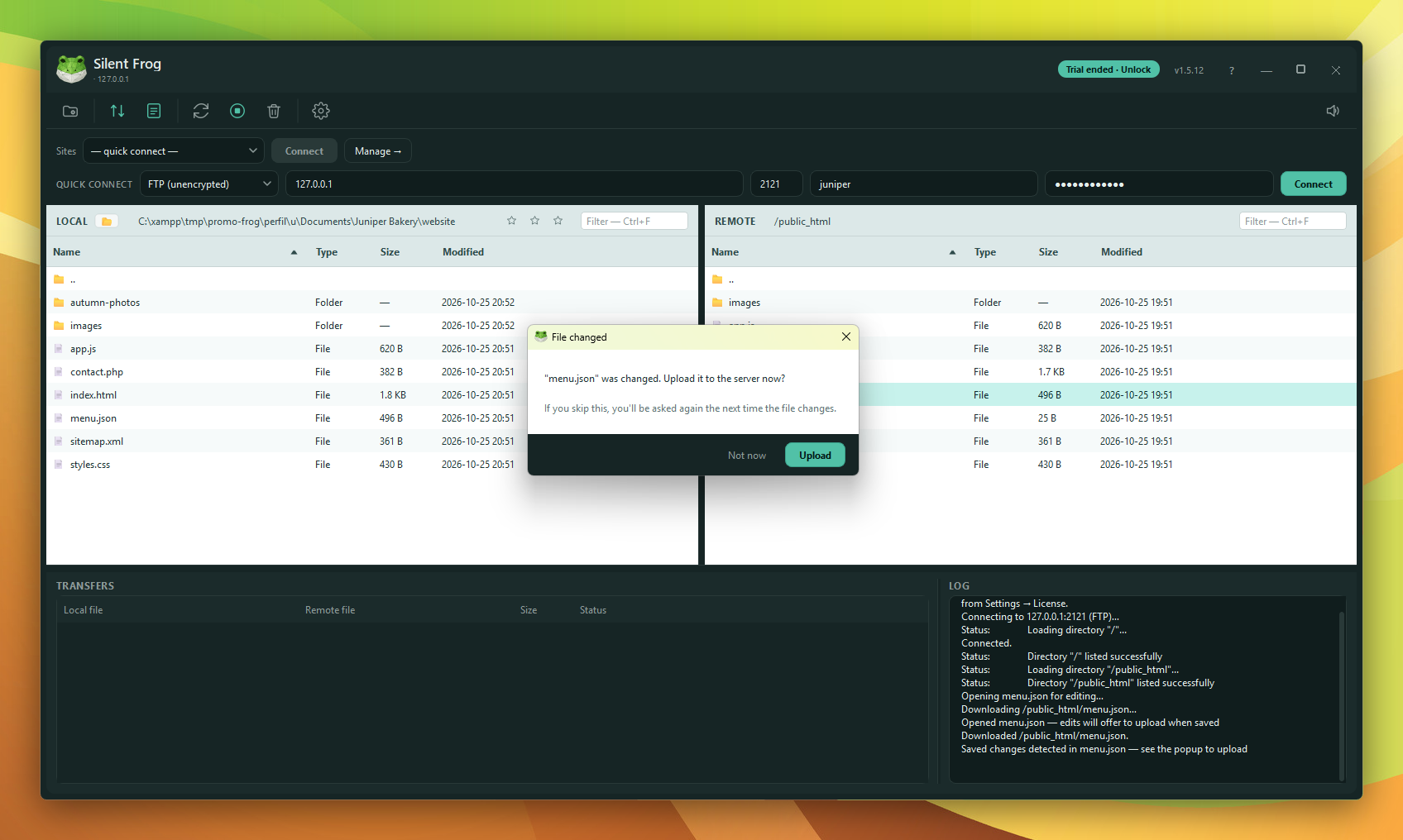
Right-click a remote file and choose Edit to open it in your usual text editor — not in a browser or built-in viewer. (Double-clicking a remote file downloads it instead.) Silent Frog downloads it to a temporary folder, opens it with your preferred text editor (set in Settings) or, if you haven't set one, whatever application your system already associates with that file extension, and watches it. As soon as it detects the file changed on disk, it offers to re-upload it — no manual download/edit/re-upload cycle.
.html, .php or .json often open in a browser under the OS default. Set a Preferred text editor in Settings so those open in a real editor instead. Since v1.3.4 that choice also applies to Edit on the local pane, so the same file opens in the same editor on either side.
8. Settings
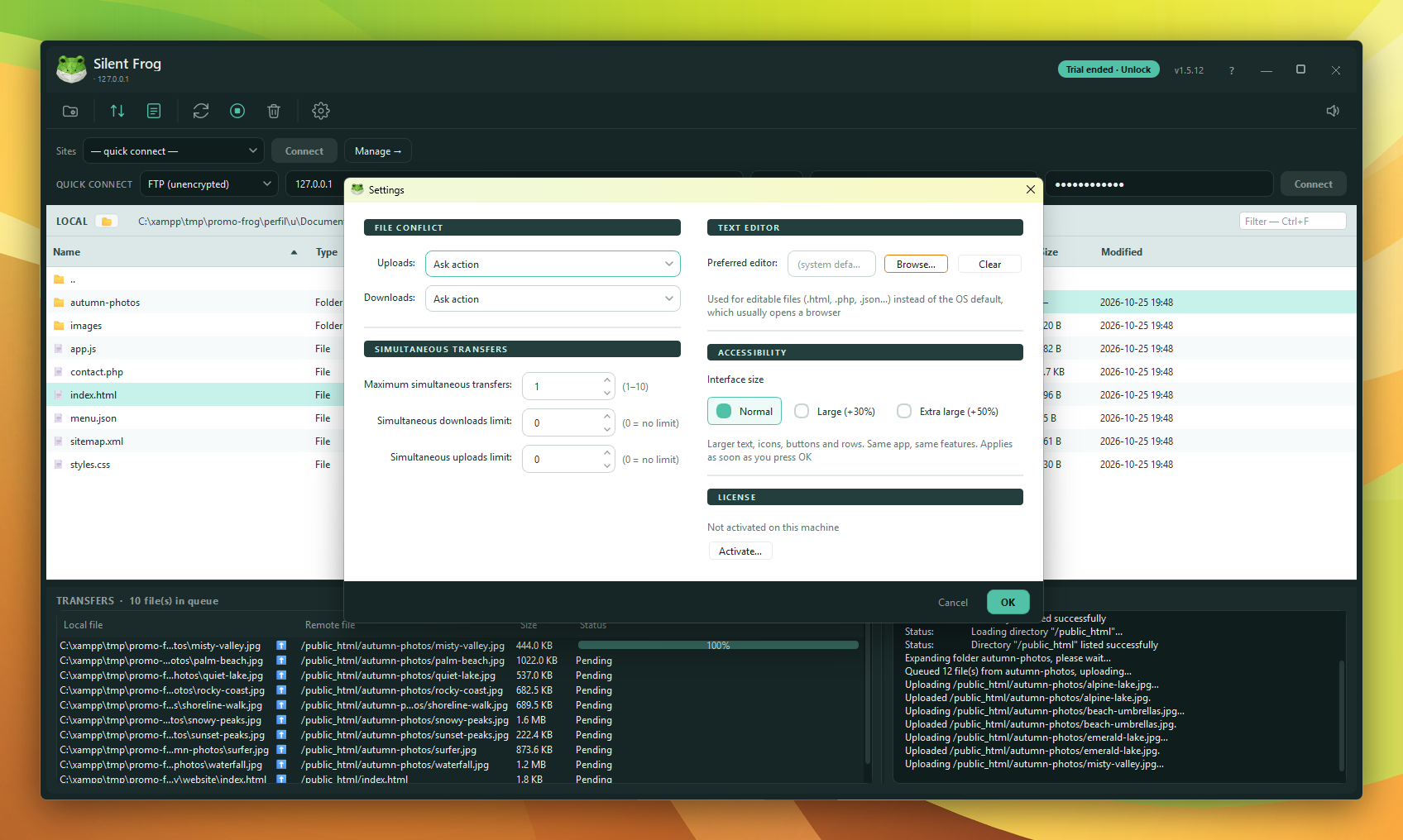
Settings covers conflict handling and transfer limits — the two things that shape how Silent Frog behaves once a transfer is already underway — plus the size of the whole interface.
- Upload conflict policy — what happens when a file with the same name already exists on the remote side: ask, overwrite, overwrite if size differs, skip, or rename automatically.
- Download conflict policy — the same set of choices, configured independently for downloads to your local machine.
- Simultaneous transfers — a global maximum (1–10) for how many transfers run at once, plus optional separate limits for downloads and uploads (0–10, where 0 means no limit, still capped by the global maximum).
- Preferred text editor — pick the editor used for editable files (
.html,.php,.json…) instead of the OS default, which for those extensions often opens a browser. Applies to Edit on both panes, remote and local. Leave it empty to use the per-extension system default. - Accessibility Mode — Interface size offers three options: Normal, Large (+30%) and Extra large (+50%). The larger ones grow the whole window: text, toolbar icons, buttons, fields, file rows, menus and tooltips. Nothing is hidden or simplified. It applies when you press OK, without restarting, and Silent Frog opens that way next time. In this mode, moving with Tab outlines the focused control clearly.
- Transfer sound — a sound plays when a transfer completes; mute it from a toggle directly in the toolbar.
- Error sound — whenever a red warning line appears in the log, a different, tenser sound plays, so a failure doesn't slip past you while you are looking somewhere else. It plays at most once every two seconds, and the same toolbar toggle mutes it.
9. Tips
- Export your sites before you need them elsewhere. A FileZilla-compatible XML export means you can move your saved connections to another machine or import them from an existing FileZilla setup.
- Let the queue clean itself. Don't wait for a "queue empty" state to move on — successful transfers vanish on their own, so anything still listed either failed or is still running.
- Edit remote configs without downloading manually. Double-click a remote file to open it in your normal editor and let Silent Frog handle the re-upload prompt when you save.
- Use incremental search to jump long lists. Instead of scrolling through hundreds of remote files, click into the panel and type the first letters of the name you want.
- Filter a panel down to what you're looking for. Press Ctrl+F to focus the filter box above the active panel and type a substring — the file list narrows live as you type, without touching the network. Esc clears it. From the filter box, Tab moves into the file list with the first match already selected, so you can filter, move with the arrow keys and open with Enter without reaching for the mouse.
- Star your regular local folders. Click an empty star next to the local breadcrumb to save the current folder there, then click it again anytime to jump straight back — no need to browse or retype the path.
- Set upload and download conflict policies separately. A safe policy like "ask" going up and a fast policy like "overwrite if different size" coming down (or vice versa) often fits real workflows better than one shared rule.
For a complete list of keyboard shortcuts, see Keyboard Shortcuts ↓.
10. FAQ
Does Silent Frog sync folders automatically?
No. Automatic directory synchronization needs persistent state and makes decisions that are hard to undo, which goes against what Silent Frog is for. It's built for deliberate, one-off transfers — you decide what moves and when.
Can I have multiple connections open at once?
No. Silent Frog is one tool, one connection, on purpose — it keeps the local and remote panels unambiguous. If you need to work across several servers at the same time, you'll need to close one connection before opening the next.
Does it support SCP or FTPS?
FTPS yes, SCP no. Silent Frog speaks FTP, FTPS (FTP over explicit TLS, same port 21) and SFTP. Pick the protocol in the connection bar or in the site's settings — plain FTP is labelled FTP (unencrypted) there, because it sends your password in the clear.
Why does it ask me to trust a key the first time I connect over SFTP?
Because that is how SSH proves the server is the one you meant. The first time you connect, Silent Frog shows the server's key fingerprint and remembers it once you accept. On every later connection it checks the key still matches — and refuses to connect if it changed, rather than handing your password to whatever answered. If the change is legitimate (the server was rebuilt), remove that host from %USERPROFILE%\.silentfrog\known_hosts and accept the new key on the next connection.
Why does it warn me when I export my sites?
Two reasons, and both are about what leaves the app. The exported FileZilla XML stores saved passwords in a form anyone can read back, so the file deserves the same care as the passwords themselves. And the FileZilla format has no flag for TLS: FTPS sites are written as plain FTP in it. Silent Frog restores them as FTPS when it imports its own export, but any other client will show them as unencrypted — which is why the import also tells you how many sites came in as plain FTP.
Why does it ask before opening some files I downloaded?
Because the server chose that file's name and contents. For extensions Windows would run rather than show, Silent Frog asks first and defaults to No. Text files and the extensions you would expect to edit open straight in your editor, with no prompt.
Can I drag a whole folder from my computer straight into the remote panel?
Yes. Drag a folder from the local panel — or straight from Windows Explorer — onto the remote panel, or right-click it and choose Upload. Silent Frog recreates the whole subdirectory structure on the server and queues every file inside it.
Can I create a new empty file directly on the server?
No. You can create folders remotely from the interface, but a new file has to arrive via upload, or by editing and saving an existing remote file.
11. Keyboard Shortcuts
Main window
| Action | Key |
|---|---|
| Refresh the remote listing | F5 |
| Open the site manager | Ctrl+M |
Site manager
| Action | Key |
|---|---|
| New site | Ctrl+N |
| Duplicate site | Ctrl+D |
| Rename site | F2 |
| Import sites (FileZilla XML) | Ctrl+I |
| Export sites (FileZilla XML) | Ctrl+E |
| Delete selected site | Delete |
Local panel
| Action | Key |
|---|---|
| Upload selected item to remote | Enter |
| Delete selected item (from local disk, with confirmation) | Delete |
| Incremental search by filename | Type letters while the panel has focus |
| Focus the name filter box | Ctrl+F |
| Clear the name filter | Esc (while the filter box has focus) |
| Move from the filter box into the file list | Tab (selects the first match) |
Remote panel
| Action | Key |
|---|---|
| Download selected item to local | Enter |
| Delete selected item | Delete |
| Incremental search by filename | Type letters while the panel has focus |
| Focus the name filter box | Ctrl+F |
| Clear the name filter | Esc (while the filter box has focus) |
| Move from the filter box into the file list | Tab (selects the first match) |
Selection
| Action | Key |
|---|---|
| Add individual items to selection | Ctrl+click |
| Select a range of items | Shift+click |
Ready to install?
Free trial download. No account, no cloud, no noise.
Download Silent Frog →