🌋 The Stromboli Project
Free + licence 🪟 Windows

Silent Frog FTP Client

Connect to your server, move the files, close it.

FTP, FTPS and SFTP in one window: your folder on the left, the server on the right, and the queue underneath. For the transfer you do now and again, not for a workflow you have to maintain.

Free to download and use. The first 14 days are the full version, with no account and no card. After that it keeps working with one saved site; an Animal Tools licence (€19.99, once) removes the limit.

Windows and Linux desktop builds · the Linux packages can be on an earlier version

Windows may show a SmartScreen warning on first launch — click More info → Run anyway.

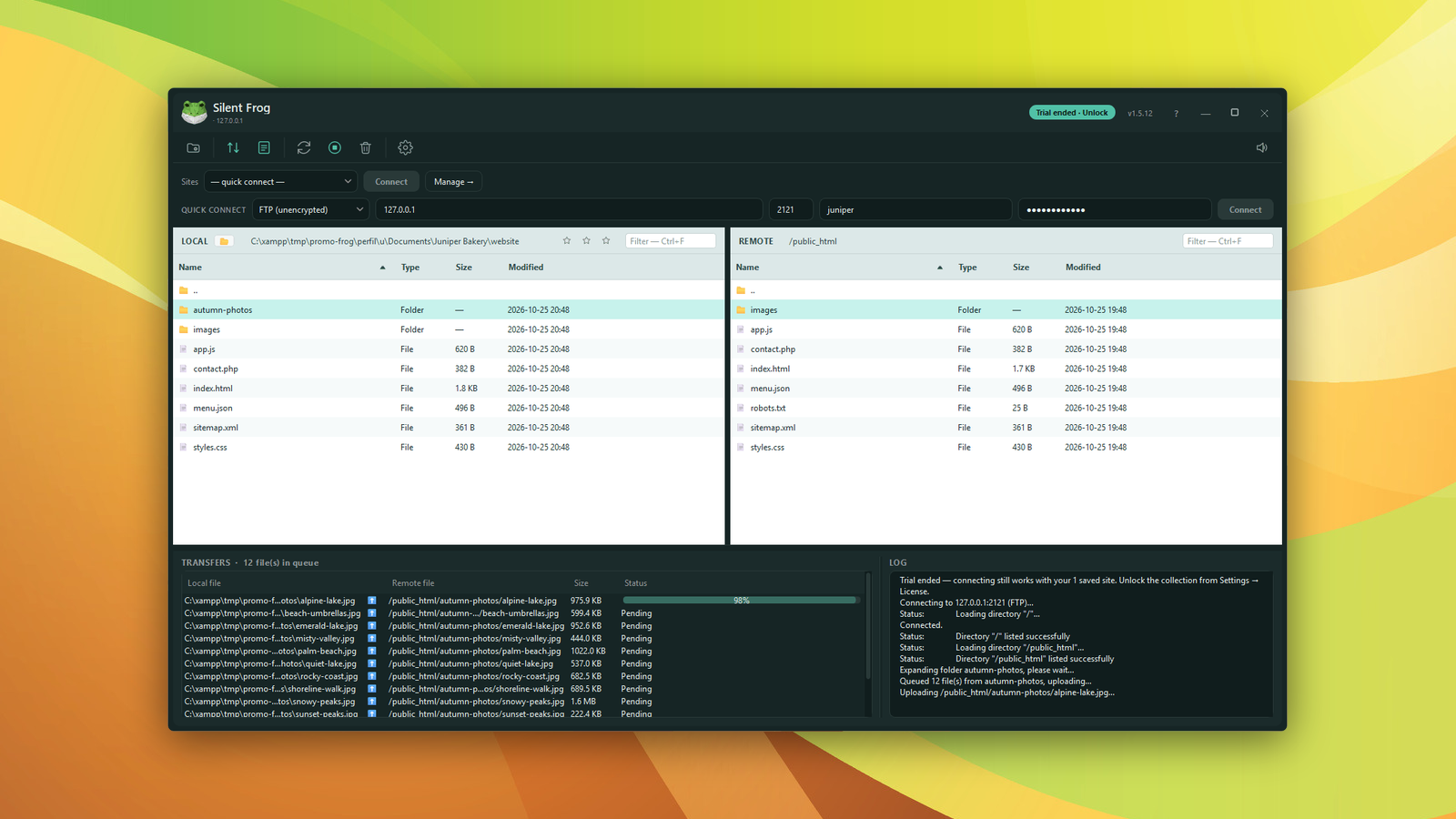
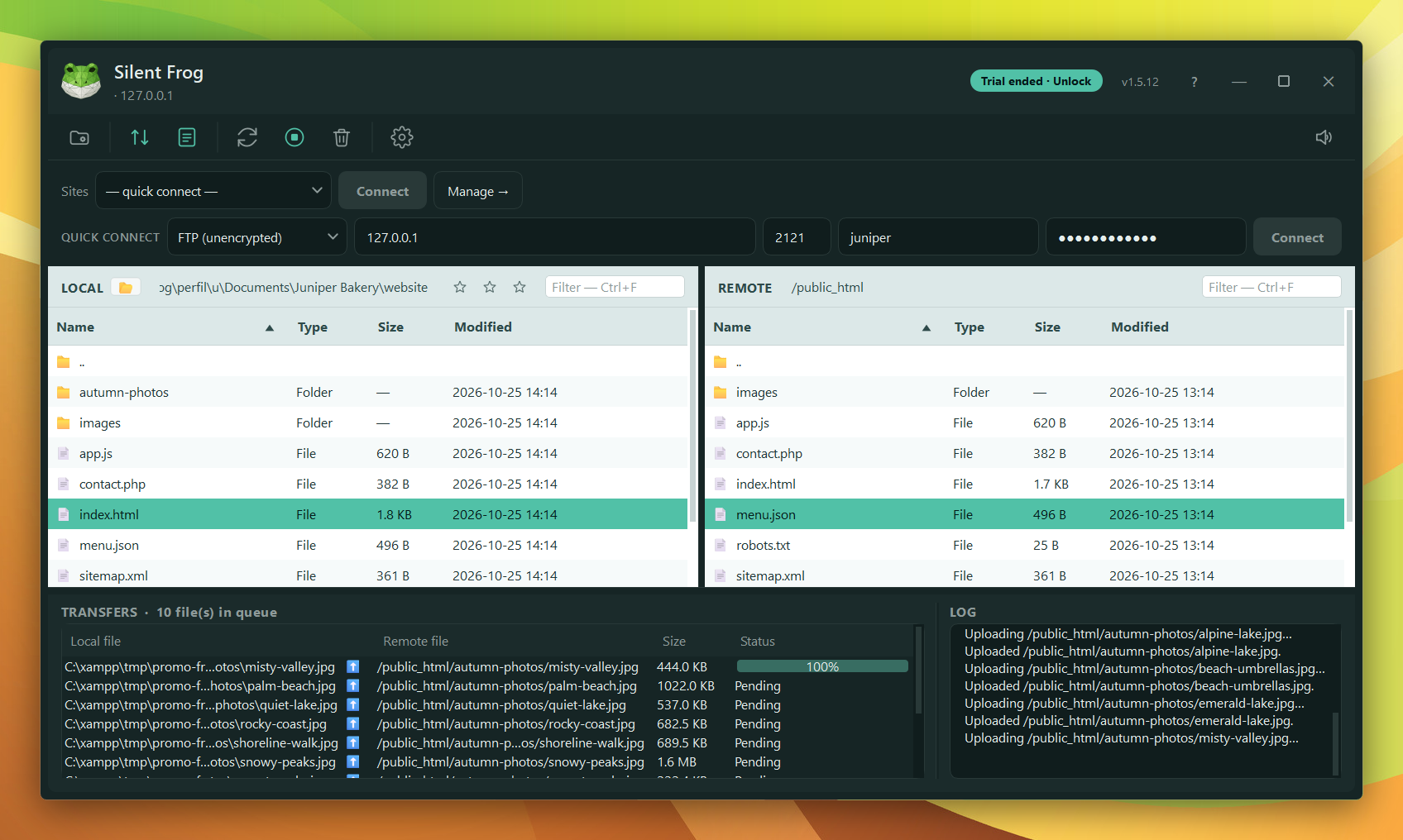
Silent Frog connected, a local folder on the left, the remote directory on the right and an upload in progress below.
Your files on the left, your server on the right, the upload already running. Connect, move, leave.

Silent Frog is an FTP/SFTP client to connect, move files and disconnect. No consoles, no extra panels — just what the job needs.

Features

Everything it does, before you install it.

FTP, FTPS and SFTP — one connection at a time.

  • Plain FTP on 21, FTP over TLS, SFTP on 22
  • One server open, so there is no ambiguity about where a file went
  • Your last connection pre-filled when it opens

Sites you set up once.

  • Save, rename, duplicate and delete connection profiles
  • Imports and exports FileZilla XML
  • Passwords in the operating system's keyring
  • Ctrl+M opens the manager, with its own shortcuts

Whole folders, in both directions.

  • Upload and download recursively, structure included
  • Drag straight from Windows Explorer
  • Queue with pause and resume
  • Up to 10 transfers at once, set per direction
  • Delete a huge remote folder, a whole WordPress included; over FTP and FTPS, if the server cuts the session, it reconnects and carries on

It asks before it overwrites.

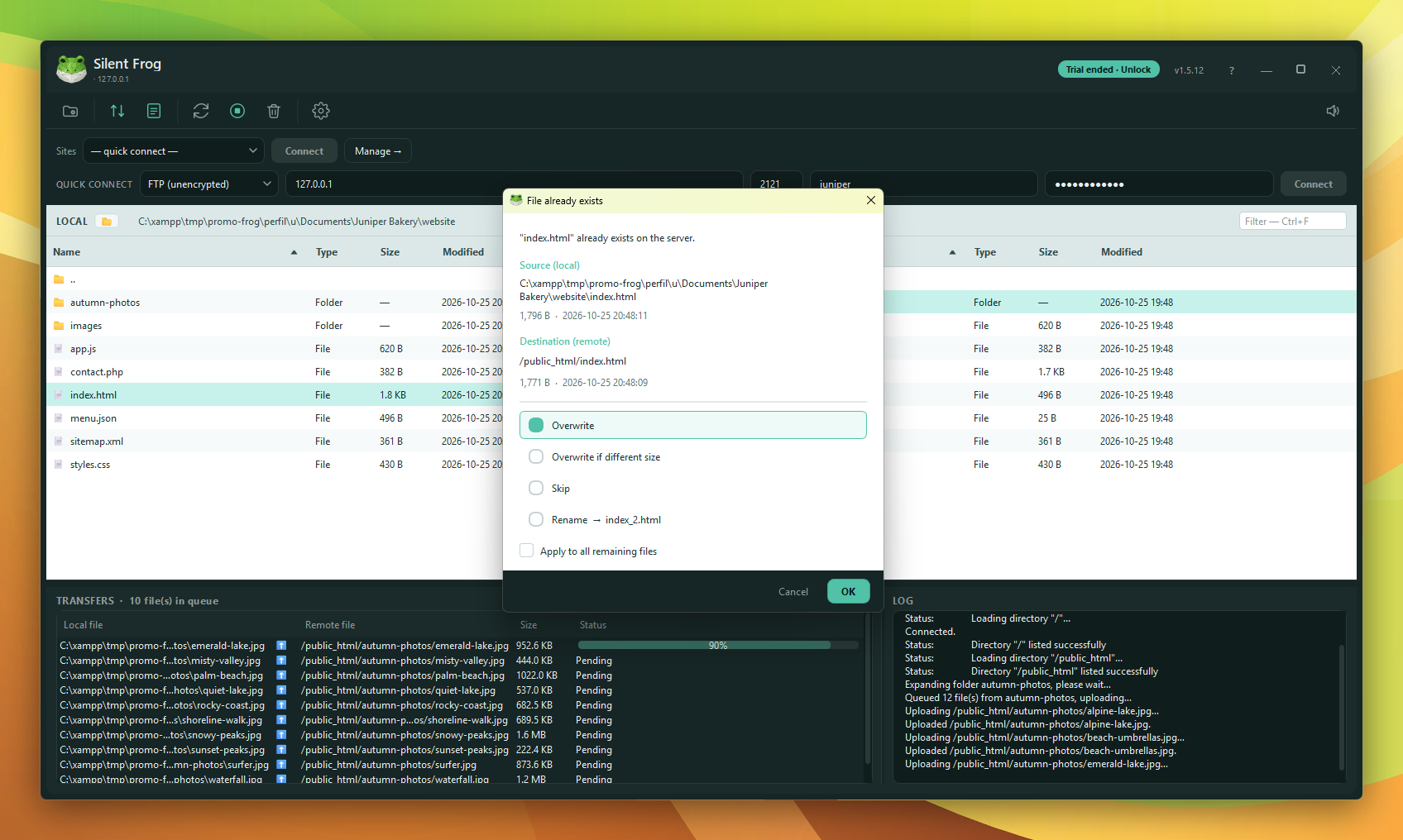
  • Full path, size and date of both files, side by side
  • Overwrite, skip, rename, or only if the size differs
  • One question for the whole batch, not one per file
  • The warning lists every file at risk, from every folder dropped

It checks who it is talking to.

  • SFTP host key shown the first time and remembered
  • The connection is refused if that key later changes
  • TLS certificate validated on FTPS
  • Plain FTP labelled unencrypted in the protocol list

Edit remote files in your own editor.

  • Right-click Edit downloads and opens your configured editor
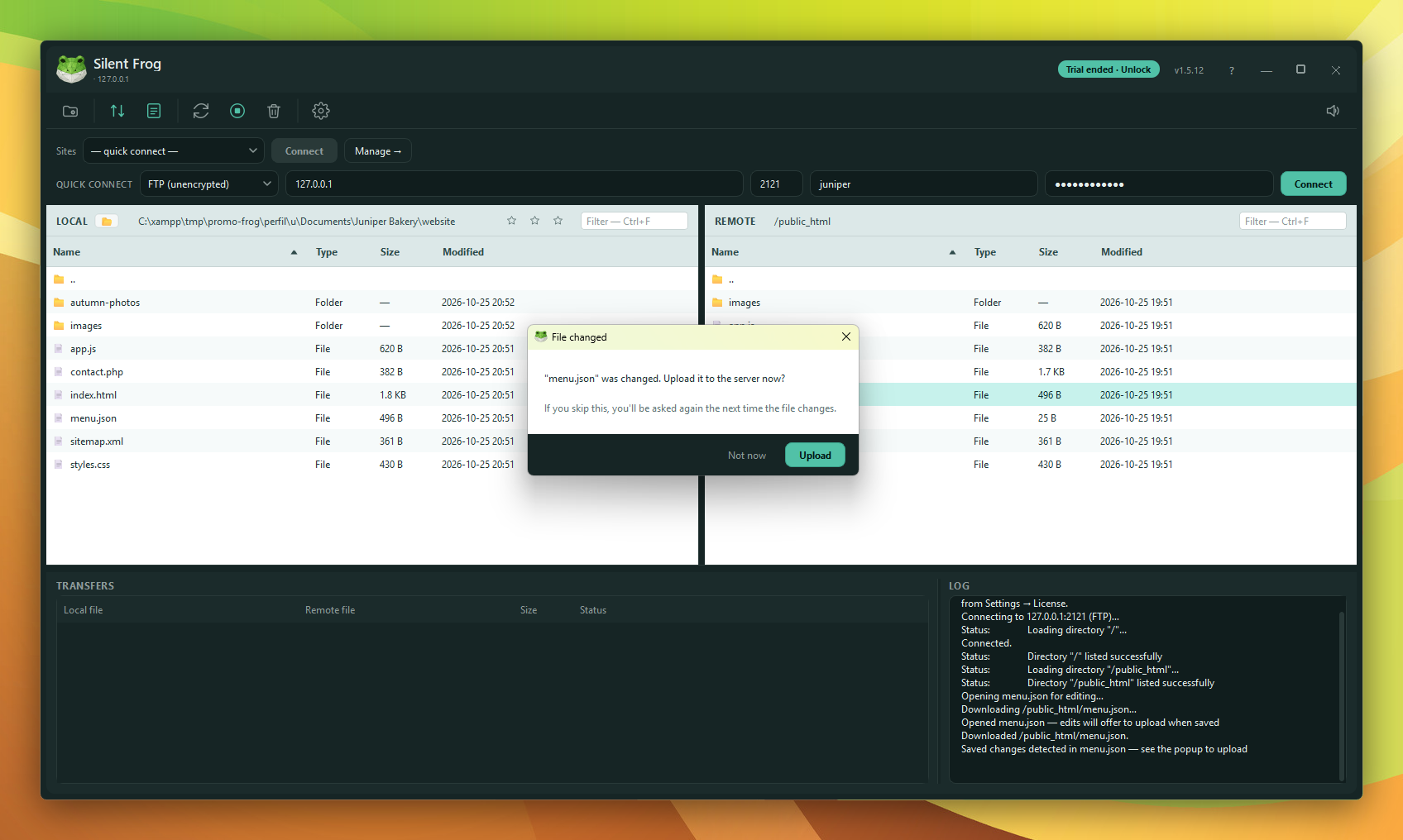
  • It offers to re-upload the moment the file changes
  • An open edit only goes back to the server it came from
  • The same Edit works in the local panel

Fast from the keyboard, loud when it fails.

  • Live filter in each panel (Ctrl+F), no network involved
  • Type letters to jump, Enter to upload or download, F5 to refresh
  • Three starred local folders, one click away
  • A different, tenser sound when the log shows an error

Bigger, with one switch.

  • Accessibility Mode makes the whole window 30% or 50% larger
  • Text, icons, buttons, rows and tooltips grow together
  • Applies the moment you press OK, and stays on next time
  • Nothing hidden: the same app, easier to see and to hit
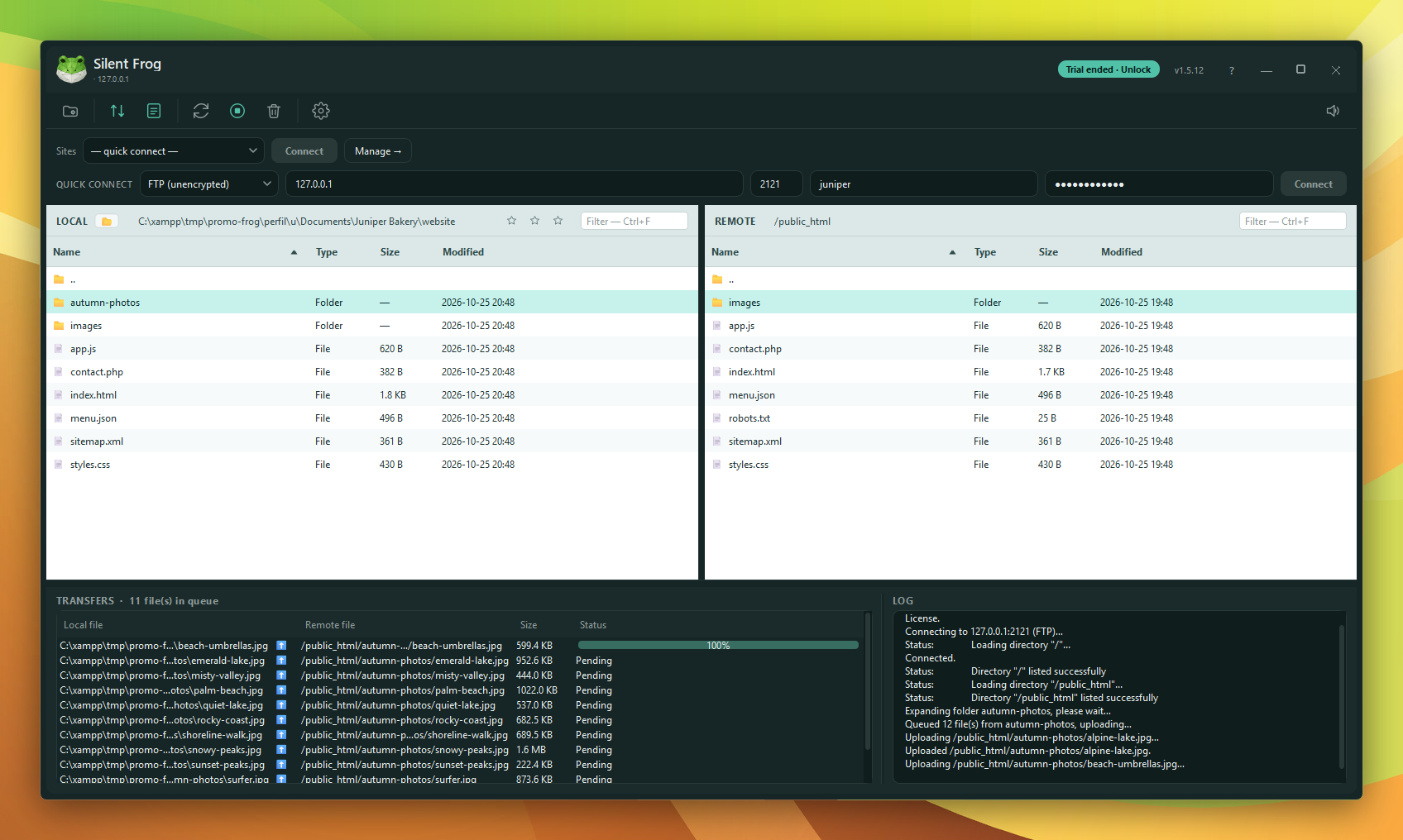
Silent Frog's transfer panel with a whole folder queued: its files listed one by one, some finished, others in progress or pending.
Drop in a whole folder and get on with your day: every file is queued, tracked and ticked off as it goes up.

What you get

Three things that decide how it ends.

It checks the server first

SFTP shows the key fingerprint once and refuses the connection if it ever changes; FTPS validates the certificate.

Whole folders, both ways

Upload and download recursively, structure included — with a queue you can pause and resume.

Edit remote, in your own editor

Right-click a remote file and it opens in the editor you set; when you save, it offers to put it back.

Accessibility Mode

The same Silent Frog, up to 50% bigger.

For tired eyes, reading glasses, or a screen across the desk. Pick Large (+30%) or Extra large (+50%) in Settings and the whole window grows — not a simplified version, the same one.

  • Everything grows together. Text, toolbar icons, buttons, fields, file rows, menus and tooltips. Toolbar buttons go from 34 to 48 pixels, easy to hit
  • Nothing is taken away. Same panels, same features, same shortcuts. It only changes the size
  • No restart. It applies when you press OK, and Silent Frog opens that way next time
  • Easier to follow. Selected files stand out, and when you move with Tab the focused control is clearly outlined
  • Still fits on a laptop. If a dialog runs out of room, it scrolls instead of spilling off the screen
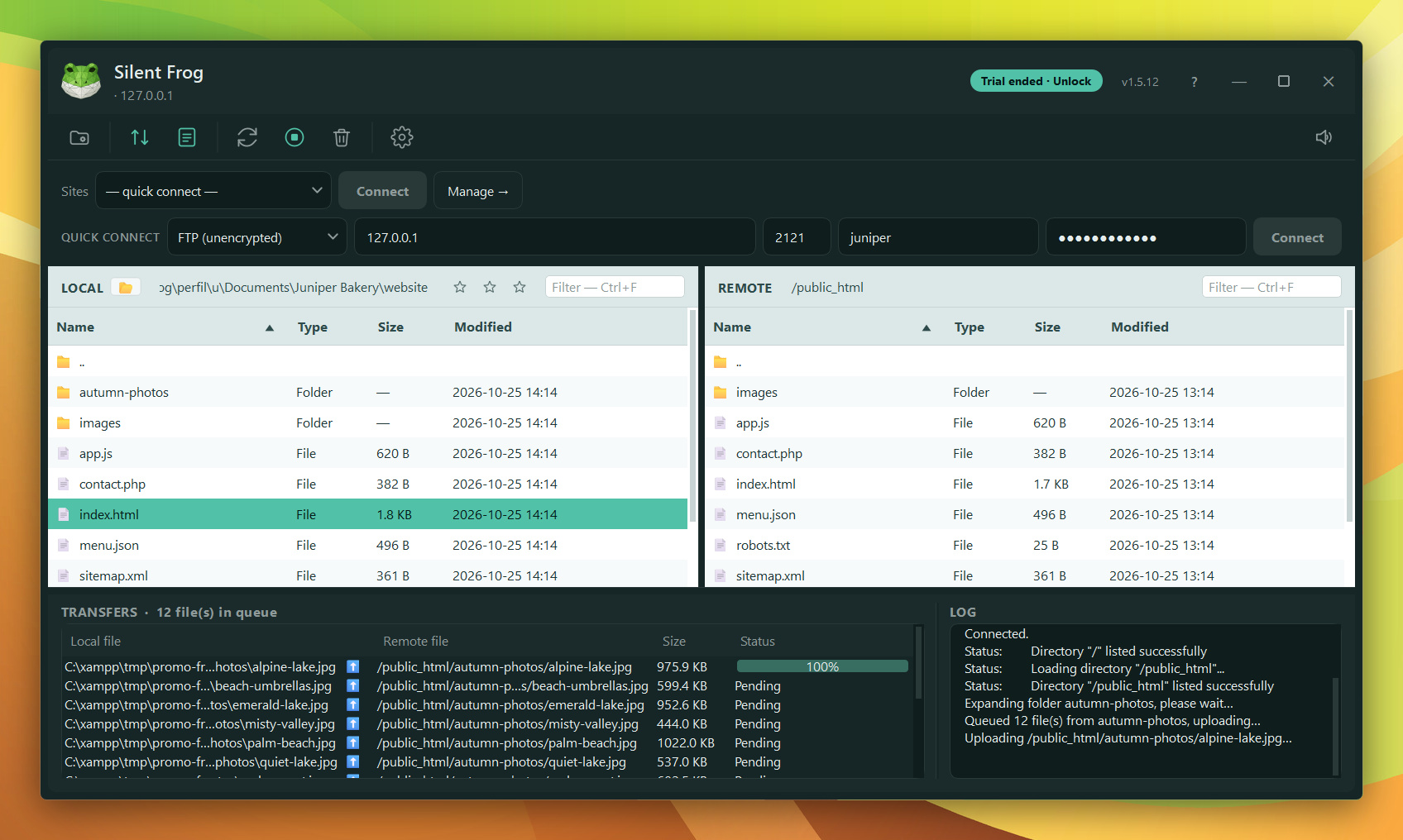
Silent Frog in Accessibility Mode, with larger text, icons and rows.
One switch makes the whole window up to 50% bigger. Same app, same shortcuts, easier on the eyes.

The one thing

Silent Frog is FTP without the fuss. One click to connect, drag files in to upload them, and your saved sites are always a shortcut away (you can bring them over from FileZilla). Everything an FTP client should have, and nothing that gets between you and your server.

— Javier, The Stromboli Project
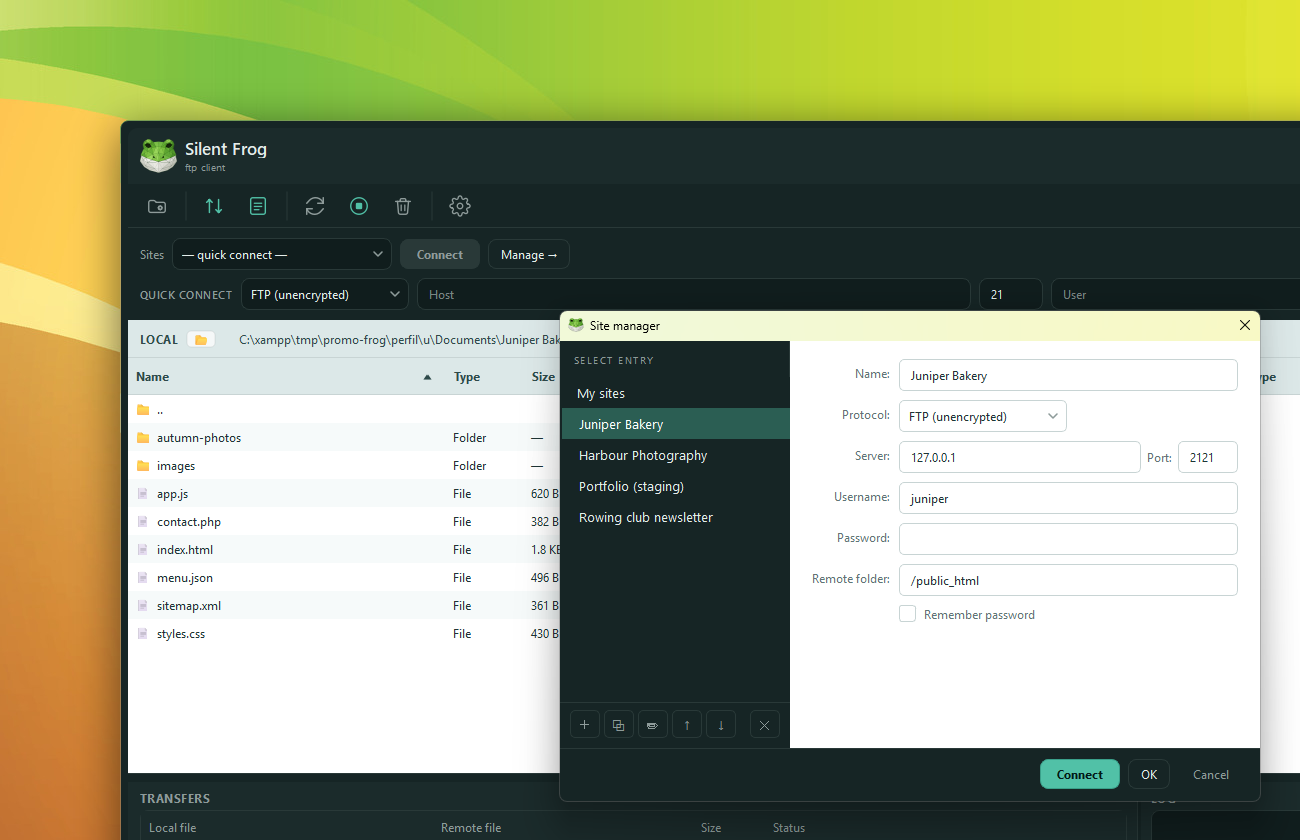
Silent Frog's Site Manager over the main window: saved sites on the left, and the selected site's protocol, server, user and remote folder on the right.
Save each server once and every visit after that is one click. Your FileZilla sites come along too.

Before you install it

What it needs, and what it cannot protect.

What it needs

  • Your own server. FTP on port 21, FTPS (explicit TLS) or SFTP on port 22, with user and password. The app hosts nothing
  • A connection. It is a network client: there is no offline mode and nothing works without the server answering
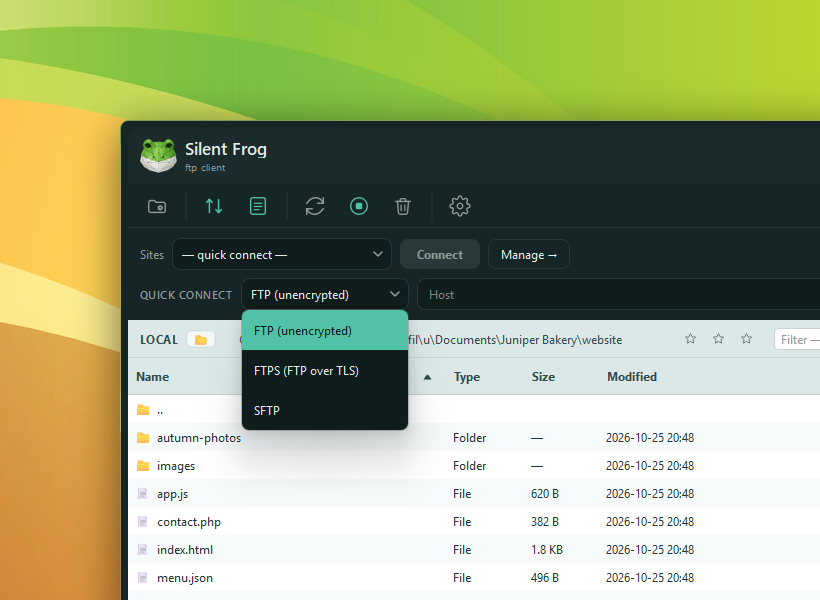
  • Plain FTP travels unencrypted. The protocol menu labels it FTP (unencrypted) — the app can warn you, it cannot secure it. Use FTPS or SFTP when the server offers them
  • Windows or Linux. The Linux packages can be on an earlier version; the version line above says which build is on which version
Silent Frog's quick-connect bar with the protocol dropdown open on its three options: FTP (unencrypted), FTPS and SFTP.
FTP, FTPS or SFTP — and the unencrypted one says so, so you always know how your files travel.

How it goes

Connect, move, leave.

It reopens on the last connection you used, so the second visit to a server is one click shorter than the first.

  • Saved sites can be imported and exported as FileZilla XML
  • Passwords go into the system keychain when one is available
Step 1 · Connect Host, user and port, and the protocol from the list. On SFTP the fingerprint is shown before anything is sent.
Step 2 · Find the folder Double-click down the tree, type the path in the breadcrumb, or filter the listing by name without touching the network.
Step 3 · Move the files Drag them in from Explorer, folders included. A name clash asks once for the whole batch, with size and date of both sides.
Step 4 · Leave Finished rows clear themselves from the queue; the ones that failed stay on screen so you know what did not go.
Silent Frog's File already exists dialog comparing the local and remote sizes and dates, with the options to overwrite, skip or rename.
A name clash asks once for the whole batch, with sizes and dates side by side. No overwriting by accident.

Free version and full version

  • The first 14 days are the full version. It starts on first launch — no account, no email, no card
  • Then it stays free, with one limit. One saved site: the sites you already have stay, only adding more is blocked
  • The licence removes the limit. €19.99 once, for the full version of Silent Frog and every other tool that has one. You paste the key into the app you already installed

What the licence includes →

Who it is for

Open it, publish, close it.

Developers, technicians and front-end people who publish a change, recover a file or replace a version — often enough to want a real client, not often enough to relearn one every time.

The guide covers the same ground slowly: the first connection, saved sites, transfers, conflicts and remote editing.

Read the complete guide →

What it leaves out

One connection, one job.

  • No automatic folder sync: you decide what moves, every time
  • One open connection at a time — no multiple sessions side by side
  • No SCP: FTP, FTPS and SFTP, and nothing else
  • It creates remote folders, but not empty remote files
  • It is not a cloud drive, a team space or a hosting panel

In the app

More screenshots

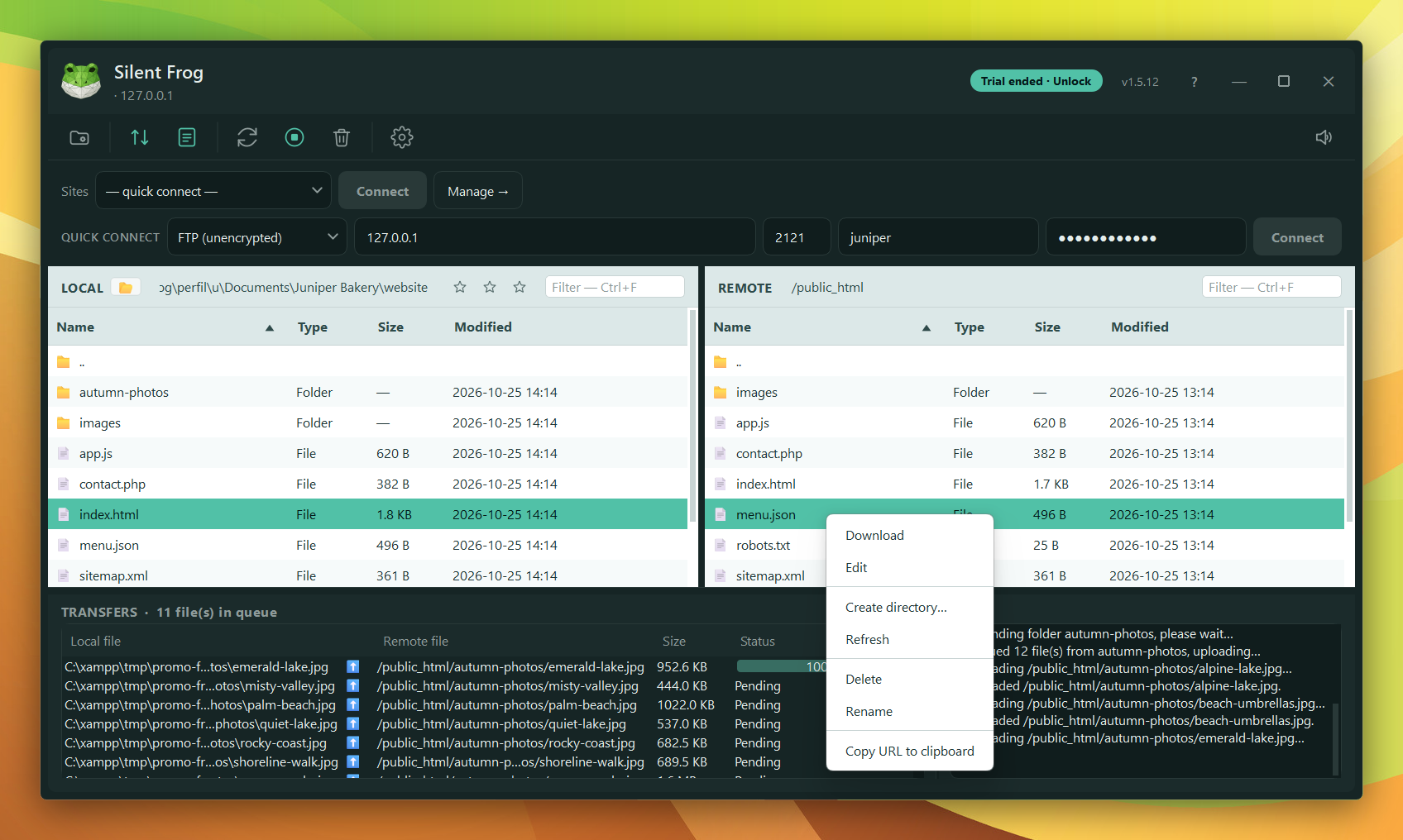
Right-click a remote file to download it, edit it in your own editor, rename it, delete it or copy its URL
Save a remote file in your editor and Silent Frog asks before uploading it back to the server
The log tells you every step in plain words: connecting, listing, queuing and uploading
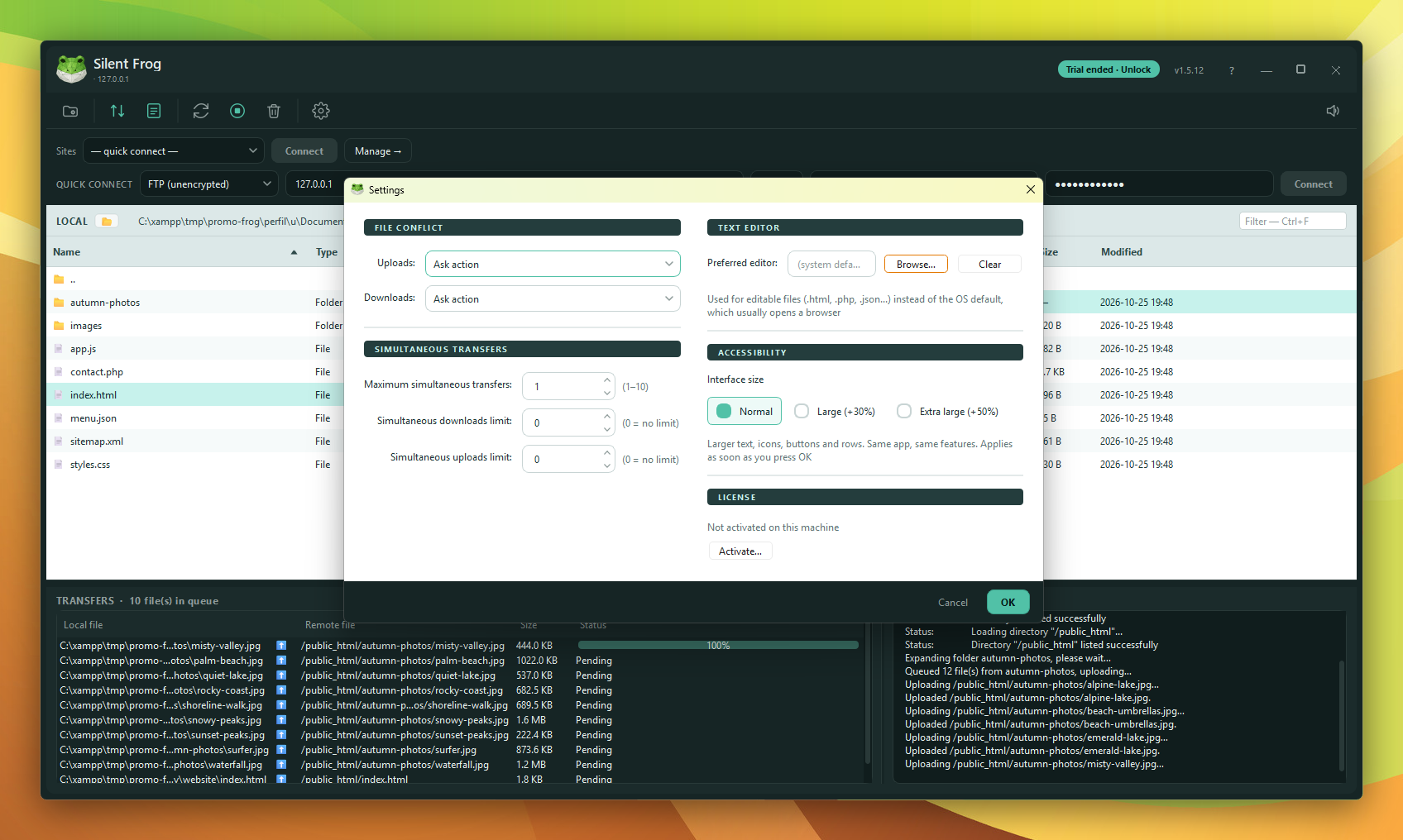
Settings: what to do when a file already exists, how many transfers at once, your text editor and the interface size