Complete Guide
Tidy Koala
Draw a zone, drop your icons in, and your desktop stays organized through every reboot — no subscription, no cloud, no account.

1. What Is Tidy Koala?
Most desktop-organizing tools for Windows have moved to a subscription as their default pricing — a recurring bill for something that used to be a one-time purchase. The free alternatives fix the price but not the trust: some are community projects with no polish, others bundle an AI chatbot or cross-sell screens you never asked for.
Tidy Koala groups your desktop icons, shortcuts, and folders into named, semi-transparent zones you can drag, resize, and collapse — the same core idea, with the suite's own visual identity, a pay-once model, and nothing extra riding along: no AI, no chatbot, no cross-sell.
The full app runs free for 14 days before you decide to buy — see Settings for where that trial status shows up.
It's built for anyone whose desktop has quietly filled up with downloads, project folders, and shortcuts, and who already knows this category of tool — but doesn't want to pay for it every year, or install freeware that comes with strings attached.
2. Installation
Download it directly and try the full app free for 14 days, or unlock it right away with an Animal Tools license — see thestromboliproject.com/tools/tidy-koala/ for details.
Two desktop icon organizers running at once get in each other's way over the same icons and cause flicker or erratic behavior. Close the other one completely first — check the system tray, not just the window.
The setup wizard shows this compatibility notice before installing, then offers to launch the app when it's done.
3. First Launch
Tidy Koala opens with the suite's splash screen and startup sound, then settles onto your desktop with an empty layout — no zones exist yet until you create one.
The one-time desktop notice
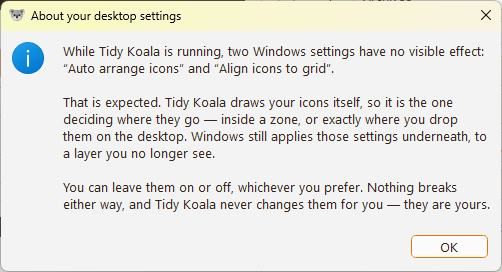
The very first launch shows a single dialog, About your desktop settings, about two Windows settings: "Auto arrange icons" and "Align icons to grid" (both under the desktop's right-click View menu). While Tidy Koala runs they have no visible effect, because it places your icons itself. Leave them on or off, as you prefer: Tidy Koala never changes them for you. The dialog appears exactly once — after that, a quiet permanent reminder line sits in the dock instead.
The control dock
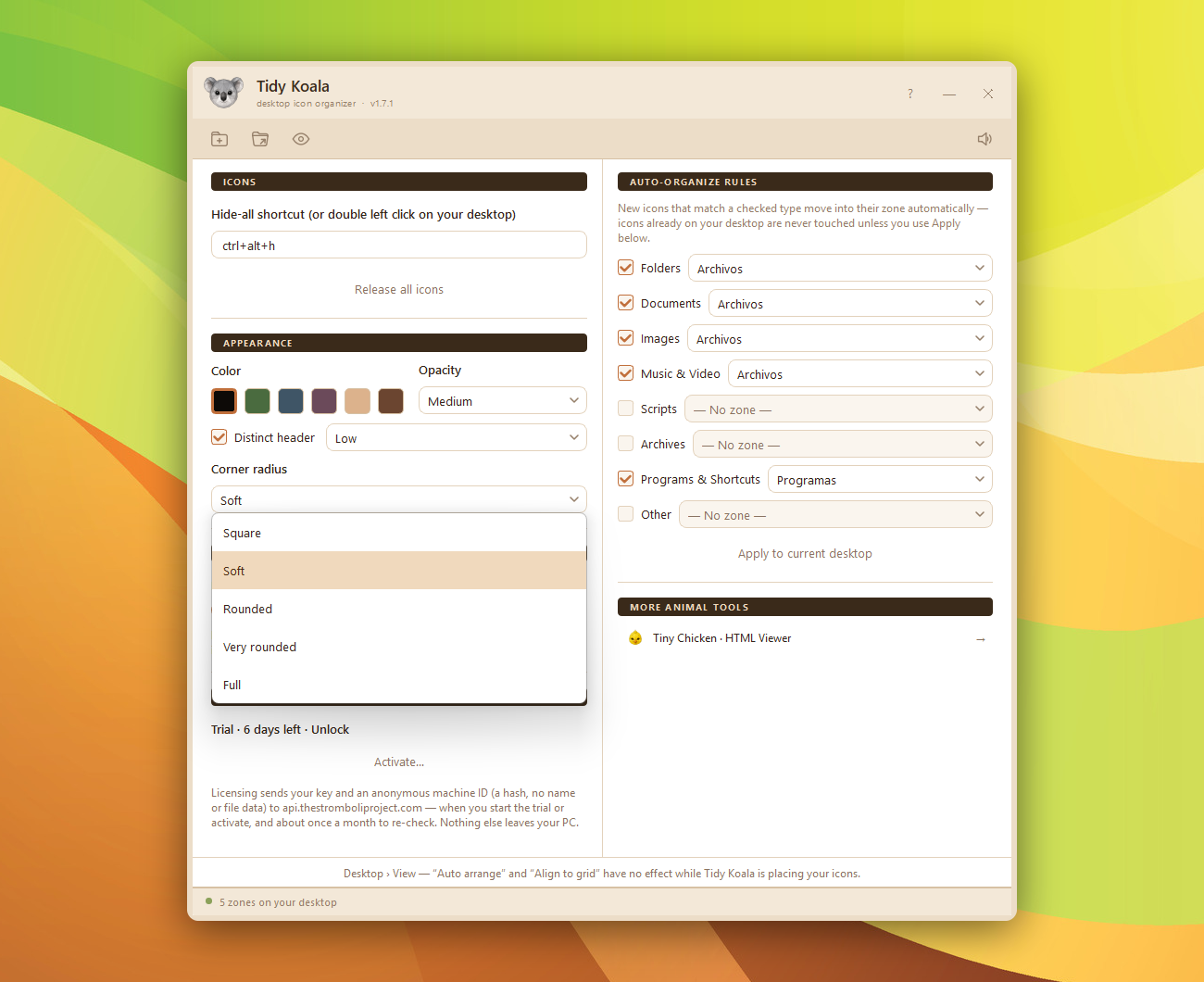
The dock is Tidy Koala's always-visible control panel — there's no separate Settings dialog. It's split into two columns: zone appearance, the hide-all hotkey, and "Release all icons" on the left; auto-organize rules and a quiet row promoting the rest of the suite on the right. Everything in it is covered in Settings.
4. Core Workflow
The whole point of Tidy Koala is this loop: draw a zone, drop icons in, arrange it once, and forget about it.
Left-click and drag on empty desktop space to draw the zone's size and position, and release: the zone appears right there — no button or menu needed first. Prefer a fixed default size instead? Use "New zone" in the dock or in the tray icon's menu.
Double-click directly on the zone's title text to rename it. Double-clicking anywhere else on the title bar collapses or expands the zone instead.
Drop desktop icons, shortcuts, or folders into the zone. Drag a tile between zones just as easily, or hold Ctrl and click to select several tiles before moving them as a group.
Drag the zone's edge to resize it, or drag the whole card to move it. Bring it near another zone or a monitor edge and it snaps into alignment automatically — hold Alt while dragging to move freely without snapping.
Double-click the title bar (away from the text itself) to roll the zone up to just its header, and again to expand it.
Click the small × in the corner of the zone card and confirm — any icons still inside are returned to visible desktop ground first, so nothing is lost.
Zones hold your real desktop items, so you can manage them right where they are. Select a tile and press Delete — or use Delete from the right-click menu — to send it to the Recycle Bin; select several first and they all go in one pass. Press F2, or pick Rename from the same menu, and the name becomes editable right on the icon: Enter confirms, Esc cancels, and Ctrl Z undoes it afterwards. The right-click menu is Windows' own, so whatever your other programs add to it is there too.
Anything that appears on your desktop — a download, a new folder, a file another program just wrote — shows up on its own, without restarting anything, and without disturbing icons you have already arranged.
5. Folder Portals
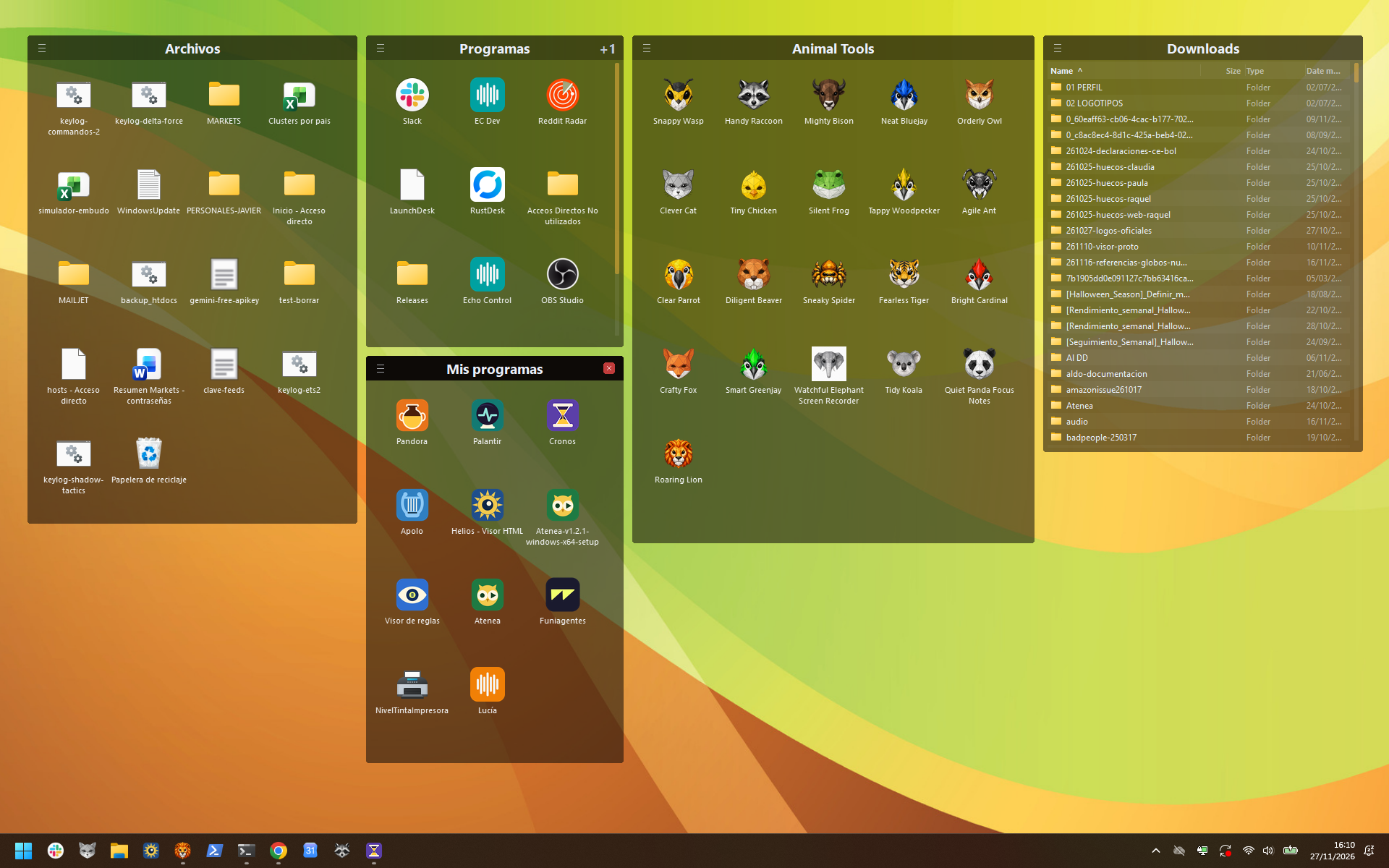
A regular zone holds desktop icons you dropped into it. A Folder Portal is different: point it at any real folder on your machine, and the zone shows that folder's live contents directly on the desktop — no need to open File Explorer for a folder you check constantly.
📁 Read-only by design
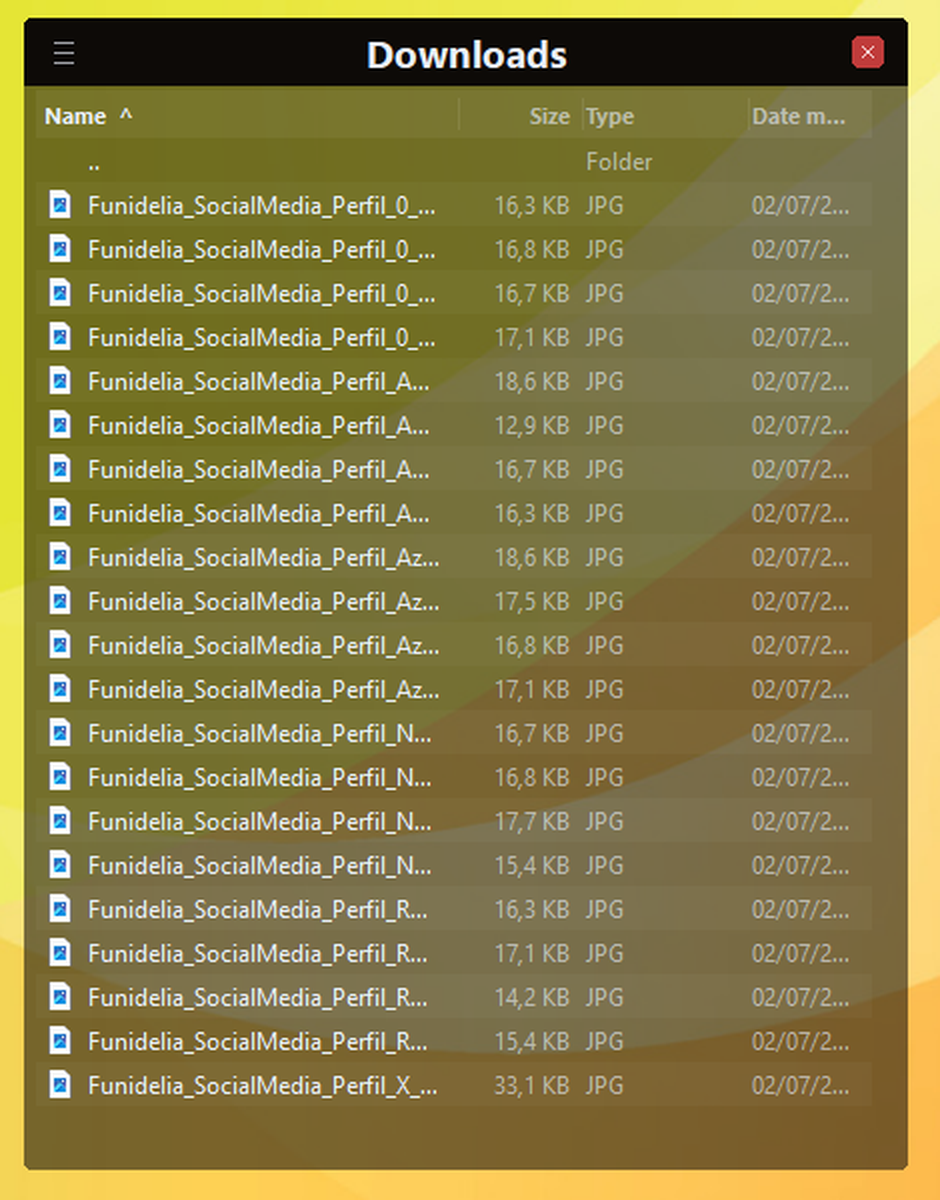
View and open with a double-click. You cannot rename, delete, or drag files out of a Portal — that stays in File Explorer.
🧭 Subfolder navigation
Open a subfolder and a .. row at the top of the list lets you step back up, without ever leaving the desktop.
↔️ Resizable columns
Drag a column border to resize name, date, or size — the widths are remembered per Portal across restarts.
Create one from the dock's New Portal button or the tray menu, then pick the folder you want mirrored.
6. Appearance & Skins
Zone appearance is controlled from the dock's left column — no per-zone dialog, changes apply immediately.
Sombra (default)
Warm near-black.
Prado
Olive green.
Cielo
Slate blue.
Flor
Muted floral pink.
Piel
Warm flesh tone.
Barro
Warm umber brown.
All six skins are "flush": the header and body render as one continuous surface, with no line between them.
Opacity and corners
An opacity slider controls how see-through zones are against your wallpaper. A separate corner-radius selector steps from Square to Full (0 to 16px) — pick a flatter or a more rounded card independently of the color skin.
7. Auto-organize Rules
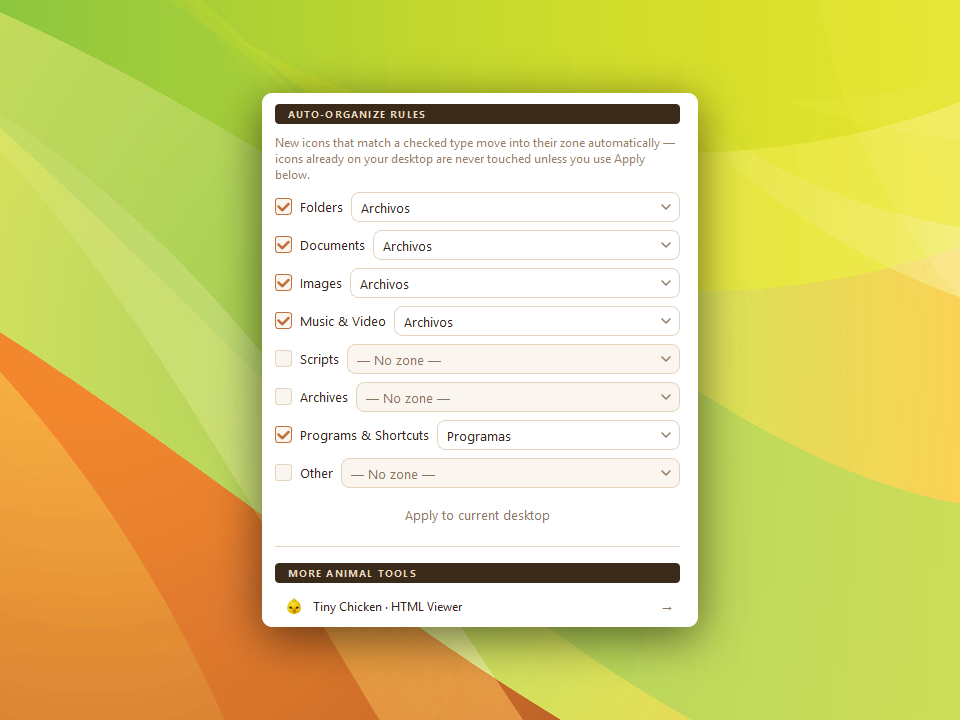
The dock's right column has a simple rules panel: tell Tidy Koala to route new icons into a zone by category — folders into one zone, programs into another — as soon as they land on the desktop, instead of dragging each one in by hand.
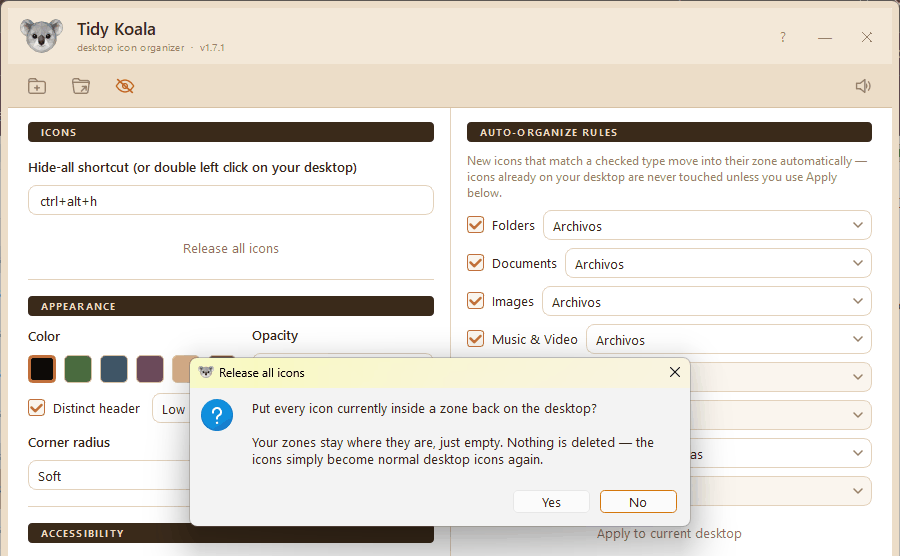
Rules are switched off automatically the moment you use Release all icons, so a release actually sticks instead of the rules immediately re-sorting everything back into zones. Turning zones back on is a separate step, not automatic.
8. Hide All & Release All
Two different actions, easy to mix up on purpose: one hides everything temporarily, the other empties your zones for good.
Hide all icons and zones
Press the global hotkey (default Ctrl Alt H, changeable in Settings), click the eye icon in the dock's toolbar, or double-click directly on empty desktop space, to hide every real desktop icon and every zone card at once. Once everything is hidden, a double-click anywhere on the desktop brings it all back — you don't have to remember where the free space was. If Tidy Koala ever crashes while hidden, it checks on the next launch and un-hides your desktop automatically, so nothing stays invisible forever.
Release all icons
This is the escape hatch: it un-parks every icon in every zone back onto visible desktop ground and empties the zones' membership lists, so you can stop using zones for a while — or start over — without losing a single icon. It's also what runs automatically when you uninstall Tidy Koala, so removing the app never leaves icons stranded off-screen.
9. Settings
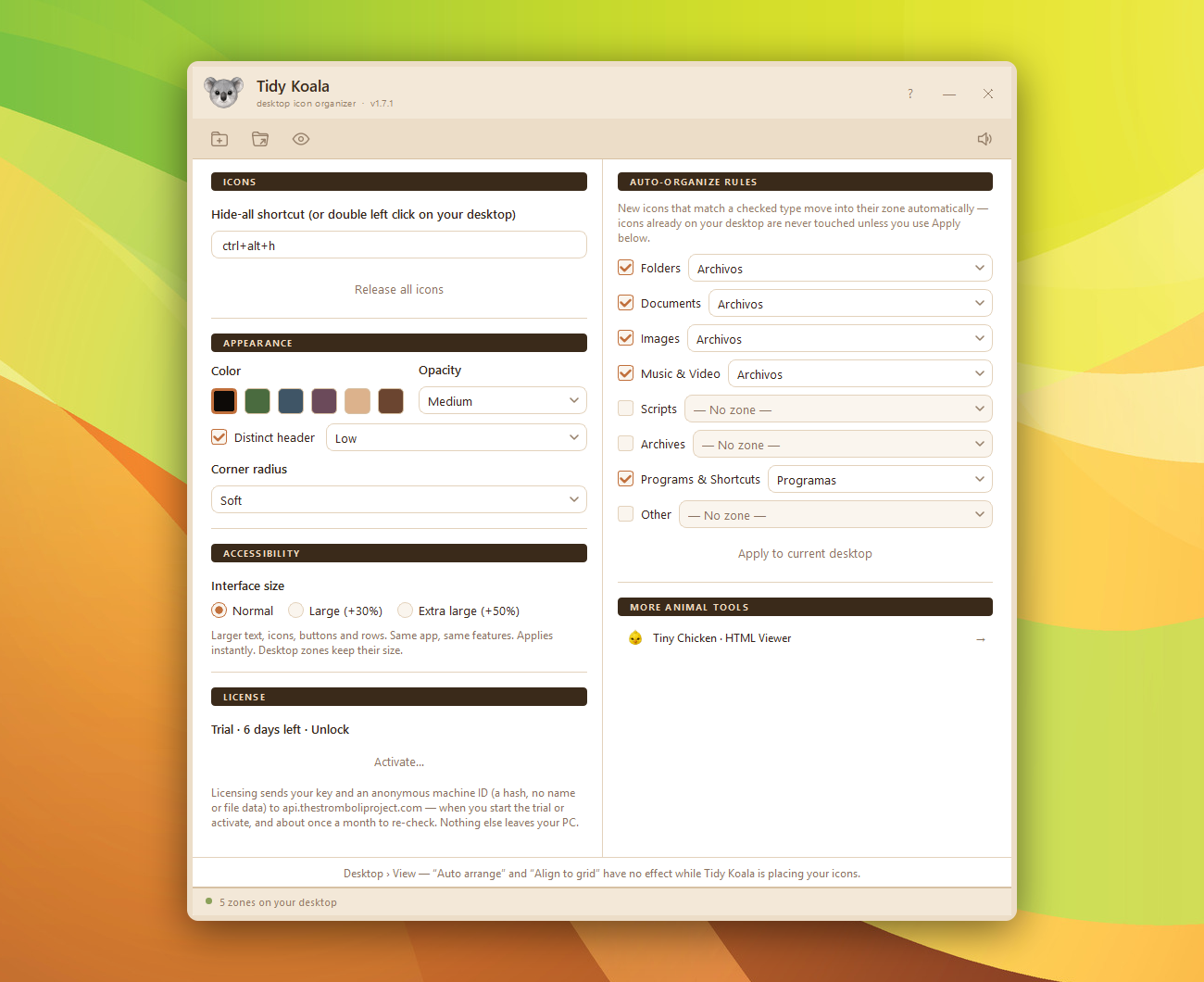
There's no separate Settings window — the always-visible dock is the settings panel, split into two columns.
- Zone color (skin) — one of six swatches; see Appearance & Skins.
- Zone opacity — 0–100%, applies to every zone's body (and header, a step darker).
- Zone corner radius — Square, Soft, Rounded, Very rounded, or Full.
- Hide-all hotkey — default Ctrl Alt H; type a new combination and it applies immediately if the registration succeeds, or reverts if another app already holds it.
- Auto-organize rules — category-to-zone routing; see Auto-organize Rules.
- Release all icons — the manual escape hatch; see Hide All & Release All.
- Interface size — at the bottom of the left column, under Accessibility: Normal, Large (+30%) or Extra large (+50%). The dock, its dialogs and the tray menu grow; the zones on your desktop never change size. It applies as soon as you click and is remembered.
- License — shows your trial status (days left, or "Trial ended") while unlicensed, or your masked key once activated; the same row is where you enter a key.
10. Tips
- Turn a Folder Portal into your Downloads shortcut. Point one at your Downloads folder and you'll never open File Explorer just to grab a recent file again.
- Leave the two Windows settings alone. "Auto arrange icons" and "Align icons to grid" have no visible effect while Tidy Koala runs, so there is nothing to untick: on or off, your zones stay put.
- Collapse, don't delete. A zone you rarely need still keeps its contents when rolled up to its title bar — no need to tear it down.
- Pair a light skin with more rounding. Piel's single-tone card reads especially well at the "Rounded" or "Full" corner-radius step.
- Multi-select before you drag. Ctrl+click each tile you want, then drag any one of them — the whole selection moves together.
For a complete list of keyboard shortcuts, see Keyboard Shortcuts ↓.
11. FAQ
Can I run Tidy Koala alongside another desktop icon organizer?
No. Two organizers on the same desktop get in each other's way, and icons can jump or flicker between the two. Close the other tool completely — check the system tray, not just the window — before using Tidy Koala, and vice versa.
Does it rename or delete my actual files?
Yes, on the desktop: select a file or folder and press Delete (to the Recycle Bin, never a permanent delete) or F2 to rename it in place, same as File Explorer, with Ctrl+Z to undo a rename. The one place that stays read-only is a Folder Portal — see the next question.
Can a Folder Portal edit or delete files in that folder?
No — a Portal is read-only: view and open with a double-click, nothing else. Renaming, moving, or deleting real files happens in File Explorer.
Does it use AI to suggest how to organize my desktop?
No, and it's not planned. You create the zones and decide what goes where — Tidy Koala only keeps the arrangement you built.
What happens to my zoned icons if I uninstall Tidy Koala?
The uninstaller automatically releases every icon back onto visible desktop ground before removing the app's files — you won't end up with icons stuck off-screen.
Is there a Mac or Linux version?
No — Windows only. Movable desktop icons work differently enough on macOS and Linux that the same concept doesn't translate directly.
What happens when the 14-day trial ends?
Every zone and Portal you already built keeps working exactly as before. The only change: you can't create a second one until you activate a license — the License row in the dock shows the trial's remaining days, then switches to "Trial ended" once it's over.
12. Keyboard Shortcuts
Global
| Action | Key |
|---|---|
| Hide/show all icons and zones | Ctrl Alt H default — configurable in Settings |
| Hide/show all icons and zones | Double-click on empty desktop space; anywhere once hidden |
| New zone | Ctrl N |
| New Portal | Ctrl Shift N |
Zones
| Action | Key |
|---|---|
| Rename zone | Double-click directly on the title text |
| Collapse / expand zone | Double-click anywhere else on the title bar |
| Delete the selected icons | Delete to the Recycle Bin — or Delete in the right-click menu |
| Rename the selected icon | F2 one icon at a time — or Rename in the right-click menu |
| Multi-select a tile | Ctrl + click |
| Select several tiles by area | Click-drag on empty zone body space |
| Move/resize without snapping | Hold Alt while dragging |
| Delete a zone or Portal | Click the × in the zone card's corner, then confirm |
Folder Portal
| Action | Key |
|---|---|
| Open a file or subfolder | Double-click |
| Go up one level | Double-click the .. row at the top of the list |
| Resize a column | Drag the column border |
Ready to try it?
Free for 14 days, then unlock it with an Animal Tools license. No account, no cloud, no noise.
See Tidy Koala's tool page →