🌋 The Stromboli Project
Free + licence 🪟 Windows

Tidy Koala Desktop Organizer

Your desktop icons, grouped into zones you drew yourself.

Draw a zone on the desktop, drop the icons in, and the layout is still there after the reboot. Windows only — and everything can be undone in one click.

Free to download and use. The first 14 days are the full version, with no account and no card. After that it keeps working with one zone; an Animal Tools licence (€19.99, once) removes the limit.

Windows desktop build

Windows may show a SmartScreen warning on first launch — click More info → Run anyway.

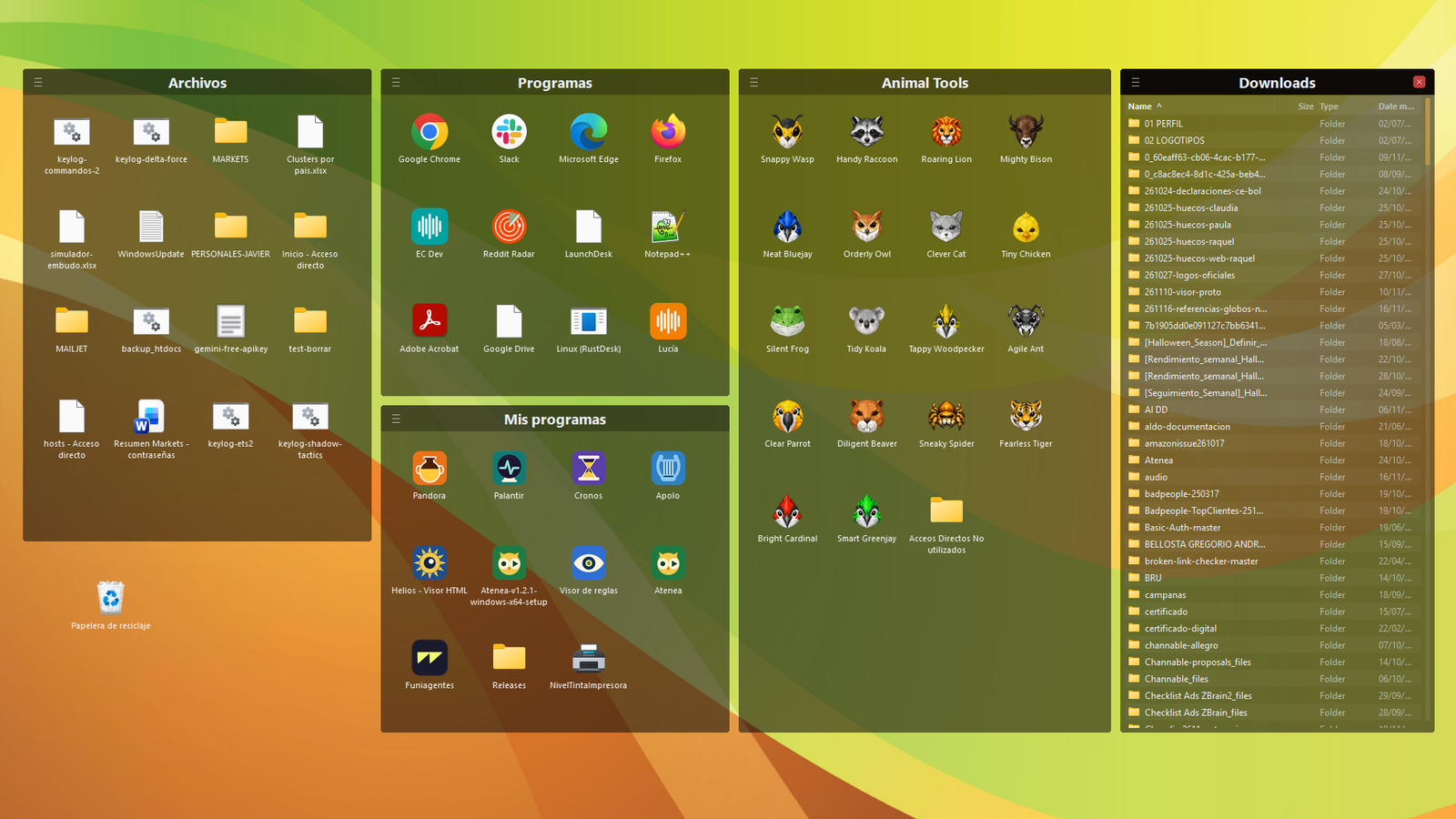
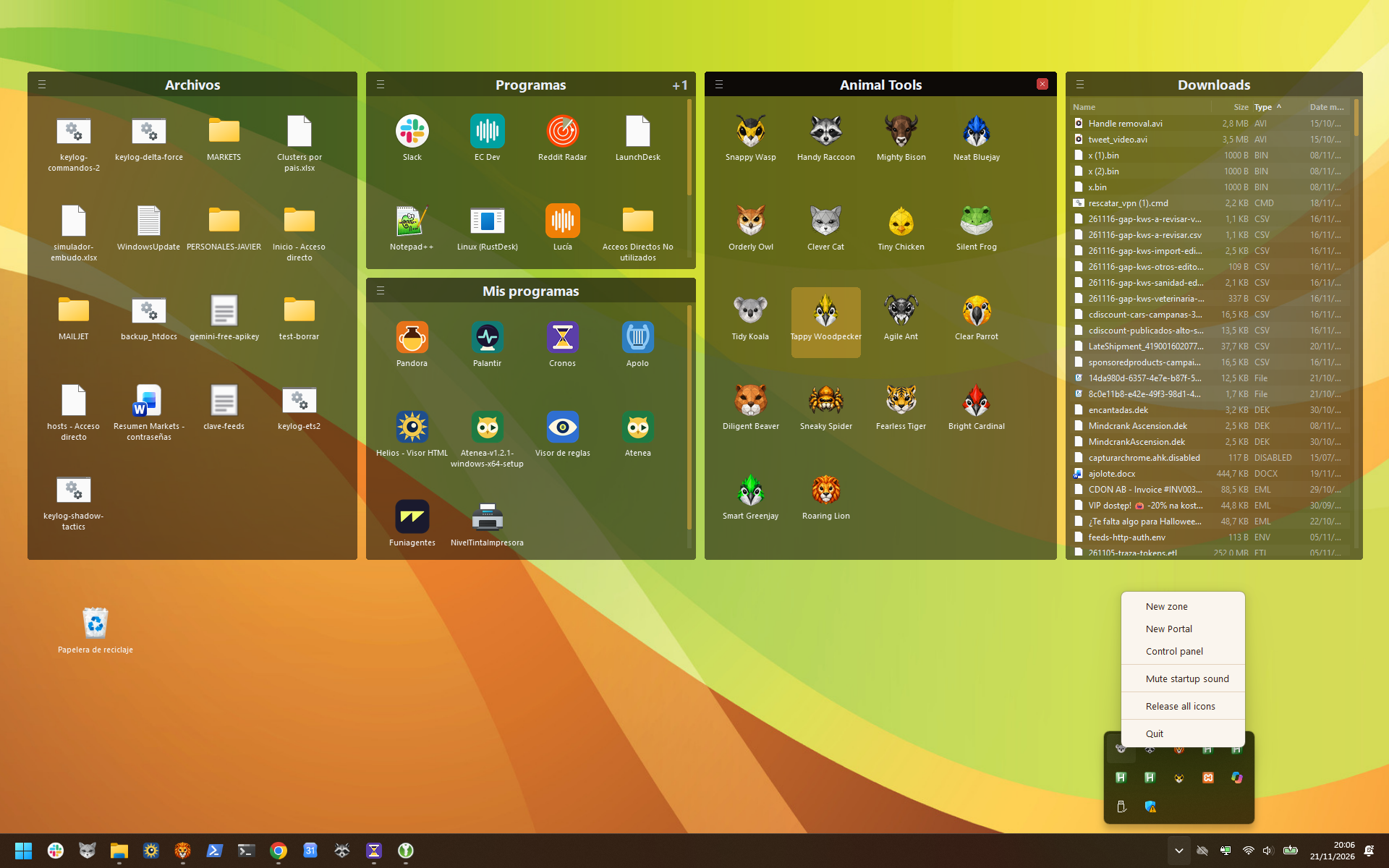
A Windows desktop organised by Tidy Koala into named zones such as Animal Tools and Downloads, each holding its icons under its own title bar.

Tidy Koala groups your desktop icons into named zones you draw yourself, collapsible and rule-based — keep your desktop icons tidy, at last!

Features

What a zone can do, before you draw the first one.

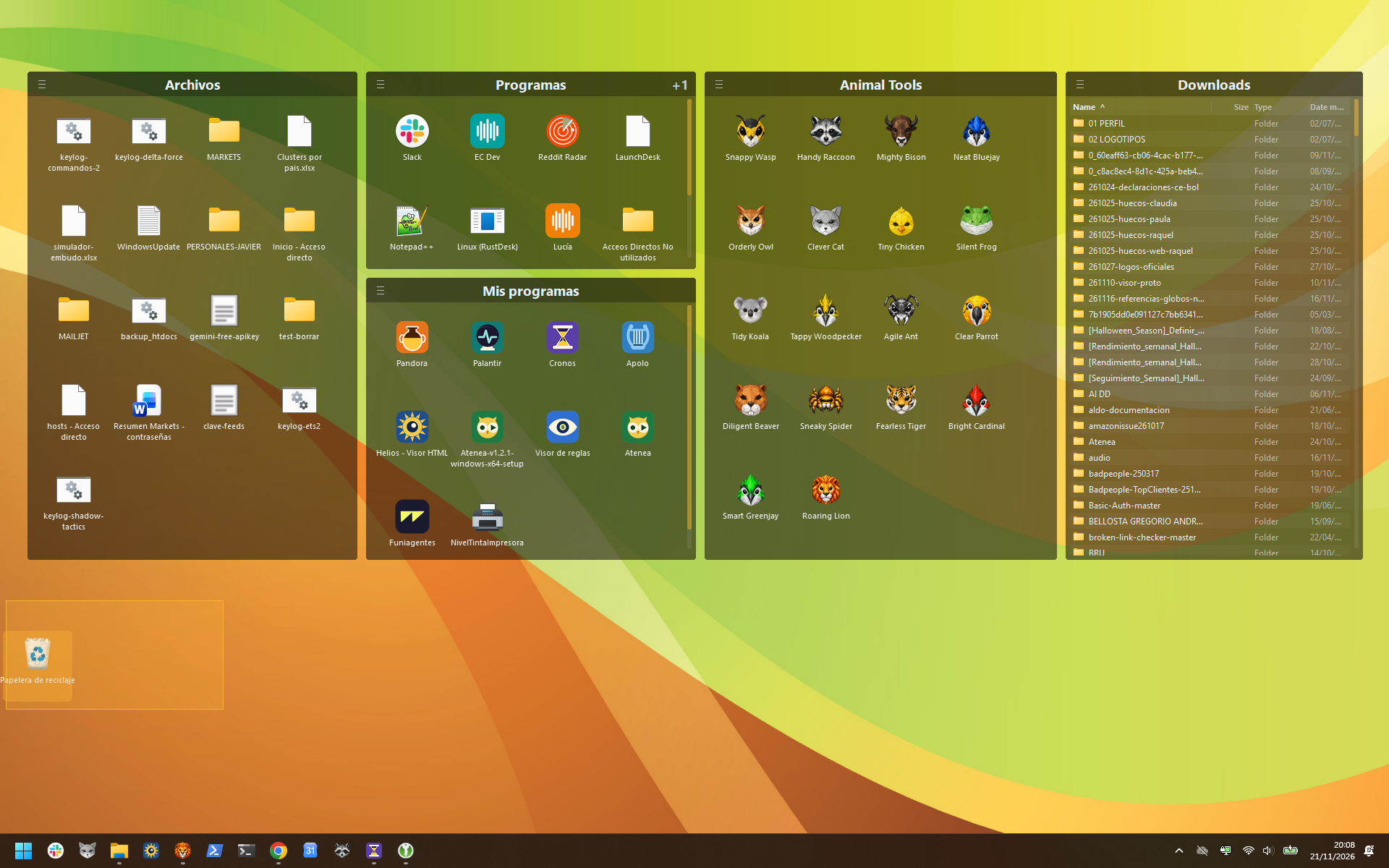
Draw a zone on the desktop itself.

  • Drag on empty desktop and let go — no button first
  • Choose a plain zone or a Folder Portal when you release
  • Also from the dock, the tray, Ctrl+N or Ctrl+Shift+N
  • Rename and delete right where they are

Zones that line themselves up.

  • Drop one near another and they align
  • Position only — it never resizes what you set
  • Move and resize freely across the desktop
  • Double-click the title bar to roll a zone up

New icons file themselves.

  • Eight categories, each pointing at the zone you choose
  • A shortcut counts as what it opens, not as a .lnk
  • Icons already placed stay put unless you say otherwise
  • “Apply to current desktop” runs the rules once over everything
  • Drag files in from File Explorer — moved from the same drive, copied from another (Ctrl copies, Shift moves)
  • Drop an icon on a folder in a zone and it goes inside, a real move on disk

Hide every icon at once.

  • Double-click empty desktop, and again to bring them back
  • Or a global hotkey — Ctrl+Alt+H by default
  • “Release all icons” hands everything back to the desktop

Six colours, five opacities.

  • Optional contrasting header, at three levels
  • Corner radius you can adjust
  • Tray icon for zones, portals, settings and sound
  • Interface size: Normal, +30% or +50% — the dock grows, your zones don't

Your layout survives the reboot.

  • Zones and their contents persist across restarts
  • Resolution and monitor changes included
  • No account, no cloud, no subscription
  • One of the Animal Tools: same look, same habits
Dragging a rectangle across the Windows desktop to draw a new Tidy Koala zone, with the icon inside it already highlighted.

What you get

Three things that make the tidying stick.

Zones you draw yourself

Drag across empty desktop and choose what it becomes. Resize, snap it to its neighbour, or fold it to its title bar.

The layout survives the reboot

Zones and their contents are saved, and they come back after a restart or a change of resolution or monitor.

Every icon back, in one click

Release all icons returns them to the desktop — and the uninstaller runs it for you, so removing the app never hides anything.

The one thing

Tidy Koala is one of my must-have apps. I can’t work unless every icon on my desktop is neatly arranged and kept in its zone: always at hand and in its place for when I need it.

— Javier, The Stromboli Project
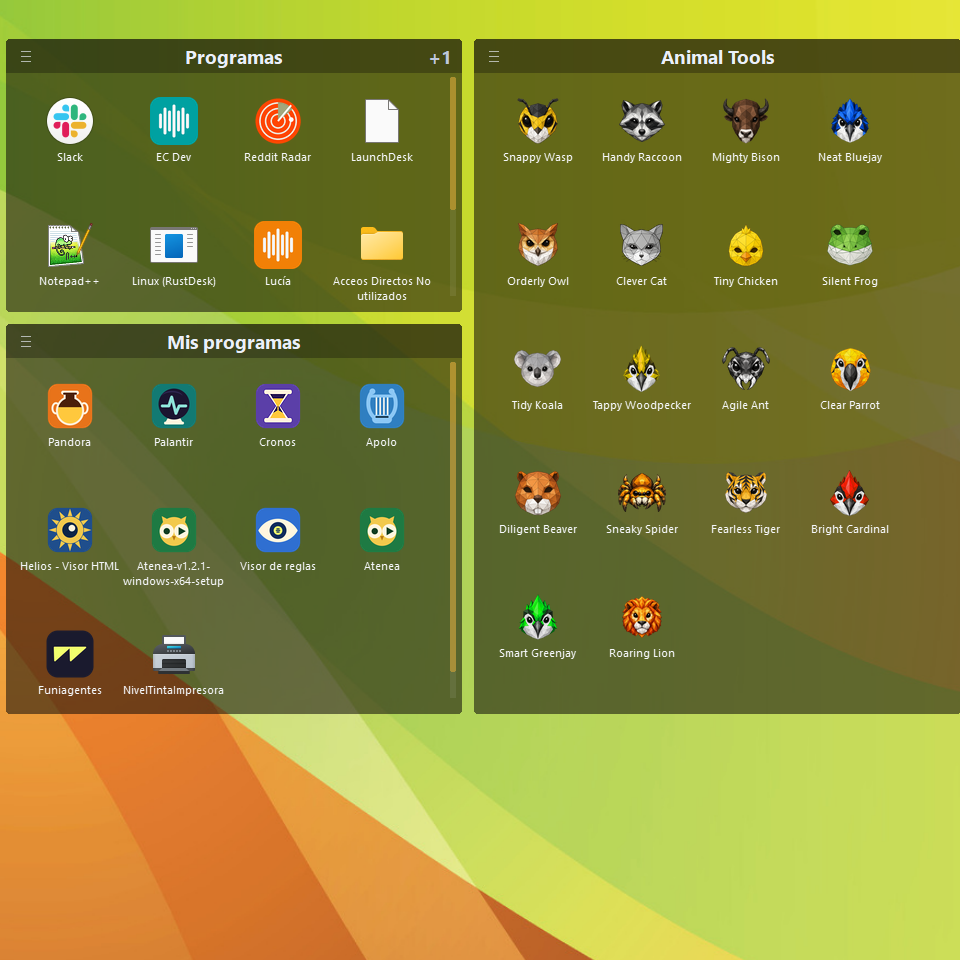
Tidy Koala zones on a Windows desktop: Programs, My programs and Animal Tools, each holding its icons in a tidy grid.

Before you install it

What it needs on your machine.

What it needs

  • Windows, by design. There is no macOS or Linux build: grouping desktop icons is a Windows idea
  • Your Windows settings as they are. Auto arrange icons and Align icons to grid have no visible effect while Tidy Koala runs: leave them on or off, it never changes them for you
  • No other icon organiser running at the same time. Two organisers on the same desktop get in each other's way and icons can jump or flicker between them. Nothing is at risk but the position: the files are never touched
  • Nothing else. No account, no cloud, and the installer leaves it starting with Windows
  • Updates from inside the app. The update button downloads the installer, checks its SHA256 against the one the manifest publishes and runs it only if they match; Tidy Koala then closes itself. With no hash published, it opens the downloads page instead
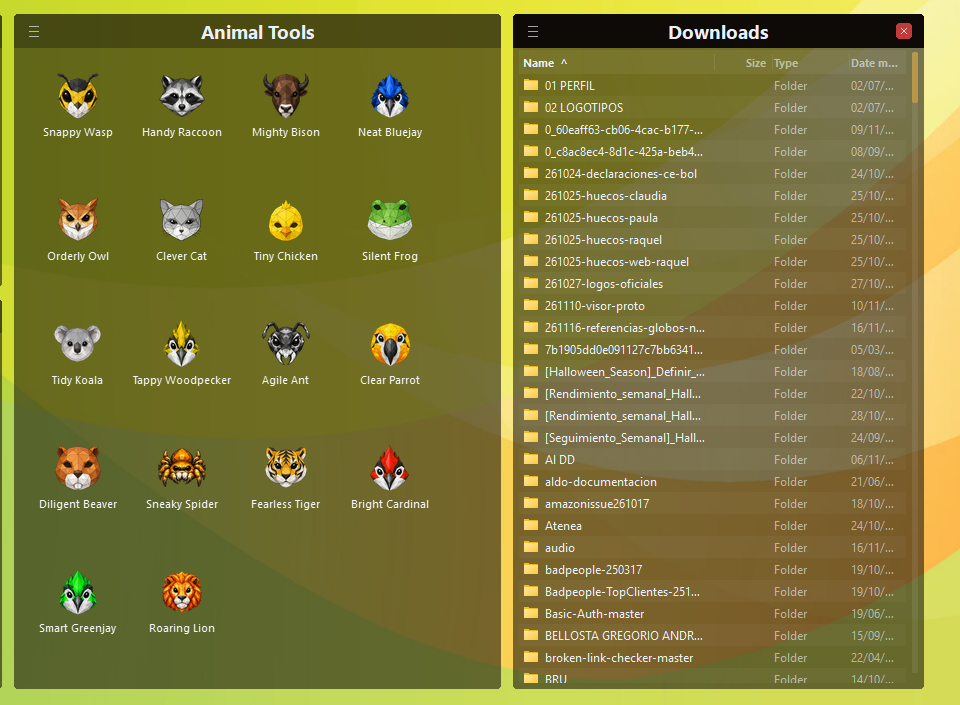
A Tidy Koala Folder Portal zone showing a folder's live contents in columns, beside an ordinary zone of icons.

How it goes

Draw it, fill it, and let it keep itself.

The app never decides for you: the zones exist because you drew them, and the icons go where you dropped them.

  • Six colours, five opacity levels and an optional distinct header
  • Hide or bring back every desktop icon at once with Ctrl+Alt+H
  • Delete with the Delete key and rename with F2, right on the icon — Windows' own right-click menu, with whatever your other programs add to it
  • New downloads, files and folders appear on their own, without disturbing what you already arranged
Step 1 · Draw the zone Left-click and drag across empty desktop; when you let go, the zone is there. A Folder Portal comes from the tray icon's menu or the dock.
Step 2 · Drop the icons in Drag them from the desktop or from another zone. Double-click the title bar to fold it away.
Step 3 · Let it sort Give a zone a category — folders, documents, images, media, programs — and new icons land there on their own.
Step 4 · Undo it whenever Release all icons puts everything back on the desktop, and uninstalling does it for you.

Compared

The same job as the category leader, without the yearly bill.

Fences invented this category and still does it well — zones, folder portals, rules, roll-up. Tidy Koala does those too. What the table is really about is the two rows below them: how each one is sold, and the two things Fences has that Tidy Koala does not.

Tidy Koala compared with Fences
Tidy KoalaFree + licence · closed source Fences 7Subscription by default · closed source
What it costs
Price Free; full version €19.99 once 1-year subscription from $10, or a permanent licence for version 7 at $30
Keeps working without renewing ✓Nothing to renew The subscription stops working if it lapses; the permanent licence keeps working
What it does
Zones you draw, name, move and resize ✓Drag on empty desktop, no button first ✓
Roll a zone up to its title bar ✓Double-click ✓
Folder Portals — a folder mirrored on the desktop ✓ ✓
Rules that file new icons by category ✓Eight categories, and shortcuts count as what they open ✓By file type, name, date or destination
Hide every desktop icon at once ✓Double-click, or a global hotkey ✓
What Fences has and Tidy Koala does not
Bring the zones over your open windows ✕ ✓Peek, on Win+Space
Tint the desktop icons ✕ ✓Icon tint
What comes with it
Part of a set that looks and behaves the same ✓One of the Animal Tools ✓Object Desktop, a 1-year subscription with more than a dozen apps

✓included✕not available—left out on purpose

Comparison based on Stardock’s product page for Fences 7 (stardock.com/products/fences), verified 2026-11-28: prices are the US store’s list prices that day ($10 Single and $20 Multi-Device for a 1-year subscription, $30 for the permanent licence, which covers version 7); other stores show other prices. Features and prices change: check stardock.com for current details. The Stromboli Project is an independent project, not affiliated with, endorsed by or sponsored by Stardock Corporation. All product names are trademarks of their respective owners.

Tidy Koala's tray menu open on the desktop with the Release all icons option legible and the zones still in place.

Free version and full version

  • The first 14 days are the full version. It starts on first launch — no account, no email, no card
  • Then it stays free, with one limit. One zone: the zones you already drew stay, only creating more is blocked
  • The licence removes the limit. €19.99 once, for the full version of Tidy Koala and every other tool that has one. You paste the key into the app you already installed

What the licence includes →

Try it

The honest test is your own desktop.

Install it, draw two zones over the corner that bothers you most, and reboot. The first fourteen days are the full version; after that it stays free, with one zone. If it is not for you, one click gives every icon back.

Who it is for

Anyone whose desktop got away from them.

A year of downloads, project folders and shortcuts, and no wish to reorganise the file system to fix it — or to pay a yearly fee for a utility that does one thing.

The guide covers the same ground slowly: the first zone, the categories, the Folder Portals and the settings that have to be off.

Read the complete guide →

What it leaves out

It tidies the desktop, not your folders.

  • No AI and no assistant: you drag the icons, it does not decide for you
  • Arranging a zone never touches the files themselves — only where they sit on screen. Files move or copy only when you drop an icon on a folder or bring files in from File Explorer, and deleting and renaming happen only when you ask for them. Windows handles all of it: it asks if a name is already taken, deletes go to the Recycle Bin, and you can undo from File Explorer or with Ctrl+Z
  • It does not reach outside your desktop: your other folders are Explorer's business
  • No rule language: categories are as complex as the sorting gets
  • Folder Portals are read-only — the real files are managed in Explorer
  • No virtual desktops or workspaces, no account and no cloud