Complete Guide
Tiny Chicken HTML Viewer
Paste an HTML snippet. Watch it render. No browser, no server, no account — just the preview, updated as you type.
1. What Is Tiny Chicken HTML Viewer?
Every frontend developer, email designer, and marketing technician runs into the same moment: you have an HTML snippet and you need to see what it looks like. The usual options — dragging the file into a browser, spinning up a dev server, or opening a full IDE — all add steps to something that should take two seconds.
Tiny Chicken removes those steps. Paste your HTML into the editor. The preview on the right updates as you type, powered by the same rendering engine your browser uses. No file to save, no server to start, no account to create. When you are done, close the window and move on.
It is built for email designers who verify templates before sending them to QA, frontend developers who test components in isolation without a full dev environment, and technical marketers who validate HTML snippets before integrating them into campaigns. The use case is narrow and specific: you have HTML in hand and you want to see it rendered, now, without switching context.
2. Installation
3. First Launch
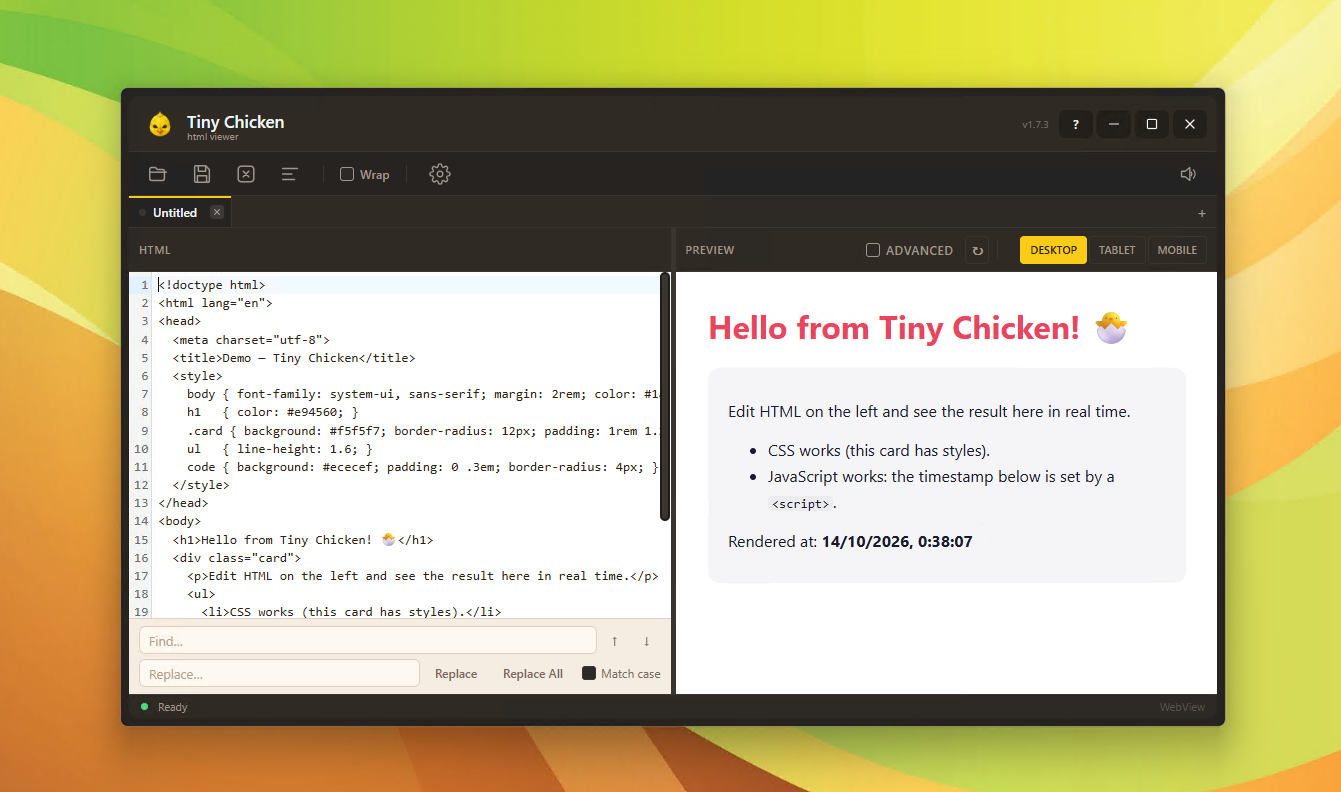
When Tiny Chicken opens for the first time, you see exactly what the app is: a split window with a text editor on the left and a live preview on the right. There is no welcome wizard, no empty configuration form, and no first-run tutorial to dismiss.
The divider between the two panels is draggable — slide it left to give more width to the preview, or right to give more width to the editor. The split can go anywhere between 20% and 80% of the total window width.
The toolbar
The toolbar runs along the top of the window and holds six controls:
- Open Ctrl O — loads an HTML file from disk into the editor.
- Save Ctrl S — writes the current HTML back to its file (Save As with Ctrl Alt S).
- Clear — wipes the editor and resets the preview to blank.
- Tidy Ctrl Shift F — reformats messy or minified HTML into clean, indented markup.
- Word Wrap — toggles line wrapping in the editor. Off by default.
- Mute — silences the app's sound effects.
The status bar
The status bar at the bottom of the window shows the current render state and any HTML errors that Tiny Chicken detects as you type — unclosed tags, bad nesting, close tags without a matching open.
4. Core Workflow
The whole interaction is four steps, and you will rarely need all four.
5. Editor Tools
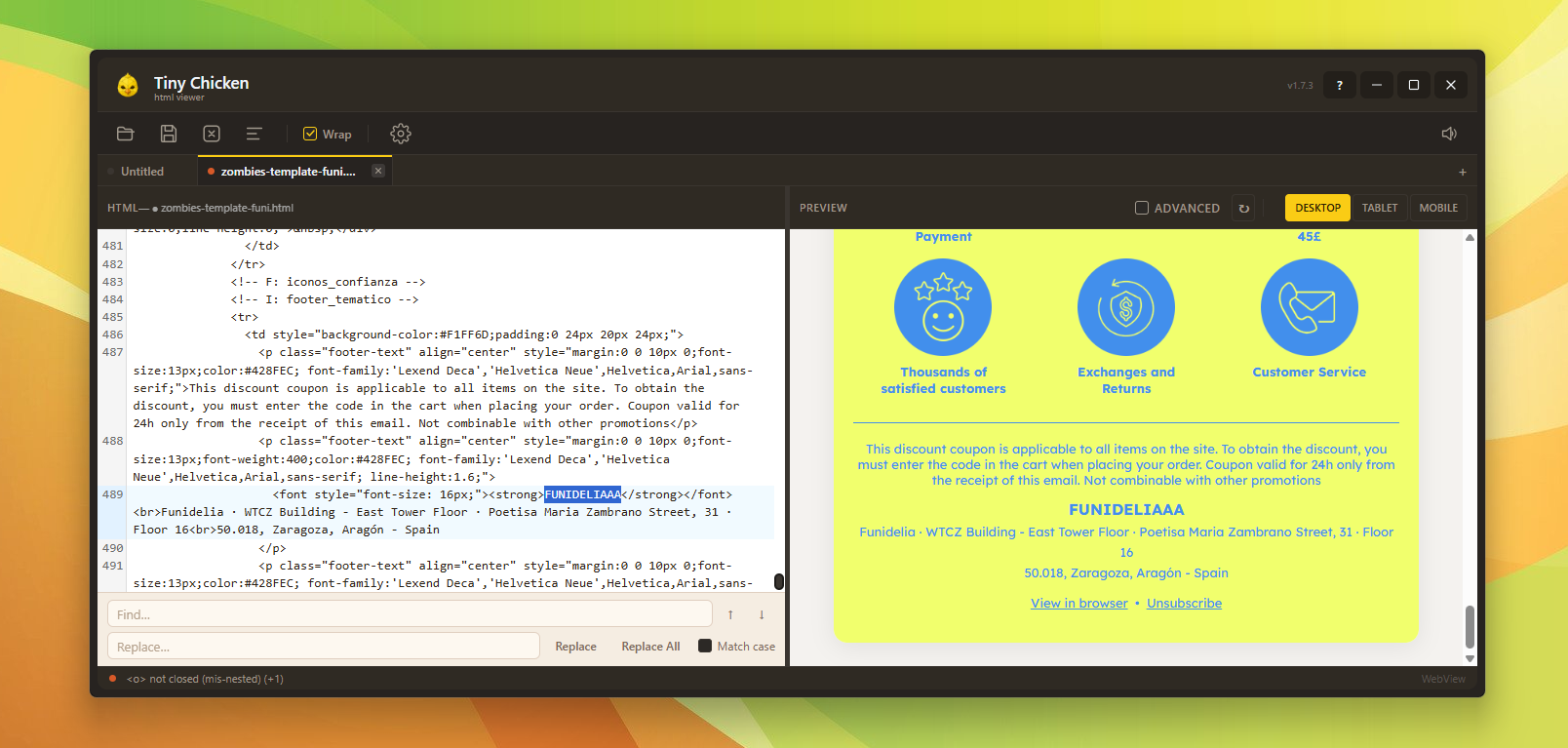
The editor panel has several tools beyond basic typing: Open, Save / Save As, Find & Replace, Tidy, Word Wrap, and Clear. They act on the content of the editor — they do not affect the preview directly.
💾 Save / Save As Ctrl S
Writes the current HTML to a file on disk, or saves a fresh copy with Ctrl Alt S . A ● in the title bar marks unsaved changes; the status bar confirms once the file is saved.
🧹 Tidy Ctrl Shift F
Re-indents minified or messy HTML into readable, properly nested markup — useful right after pasting a single-line snippet.
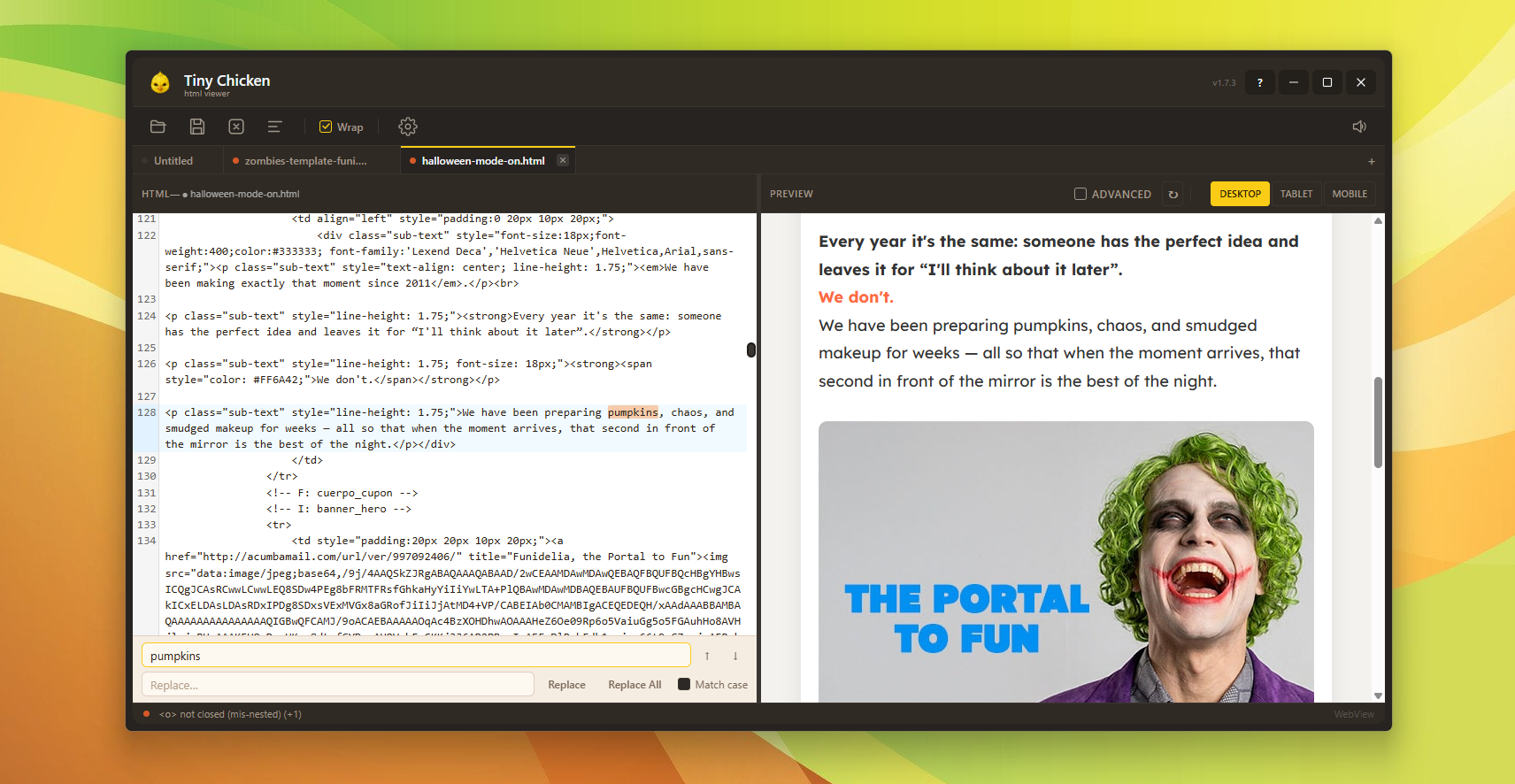
🔍 Find & Replace Ctrl F
Opens a search bar inside the editor. Navigate matches with the arrow buttons or Enter / Shift+Enter, toggle Match Case, and replace one or all occurrences.
↵ Word Wrap
Toggles line wrapping. Useful with minified HTML or long single-line content that would otherwise require horizontal scrolling.
✕ Clear
Wipes the editor and clears the preview immediately. Use it to start a new snippet from scratch without closing the app.
Find & Replace in detail
Press Ctrl F to open the find bar inside the editor. Type your search term and use the up and down arrow buttons to jump between matches. Enable Match Case to make the search case-sensitive. Use Replace to change the current match, or Replace All to change every occurrence at once. The find bar closes when you press Esc or click outside it.
6. Preview Controls
The preview panel does more than display the output. It can be zoomed, it detects HTML errors, and it can load files directly from disk.
🔎 Zoom Ctrl + −
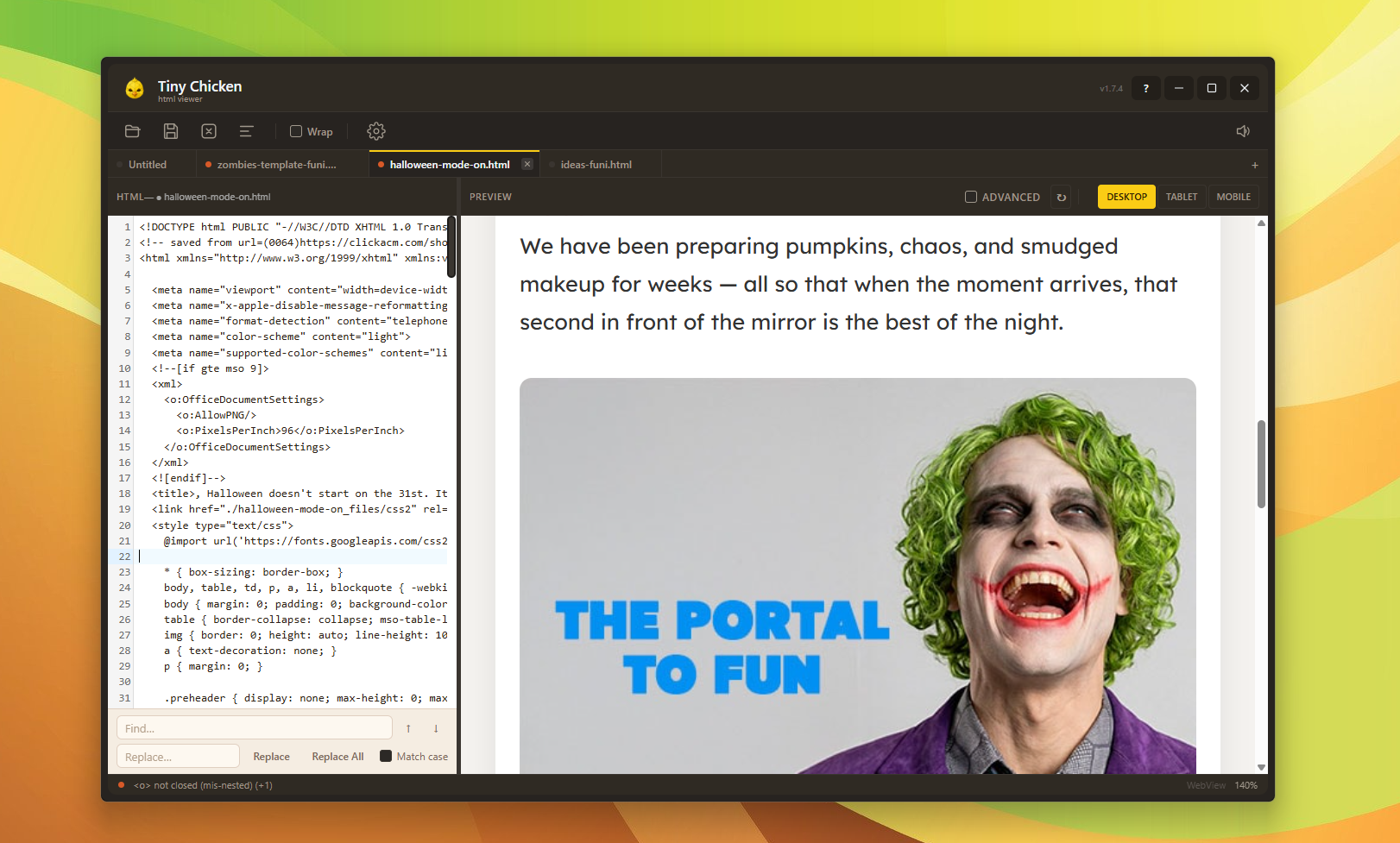
Scale the preview from 25% to 300%. Zoom in to inspect small elements; zoom out for a full-page view of longer content.
🌐 Native render engine
Uses the OS WebView — WebView2 (Chromium, same as Chrome and Edge) on Windows, WebKitGTK on Linux. No approximations.
⚠ Error detection
Flags unclosed tags, bad nesting, and close tags without a matching open in the status bar as you type.
📂 Open from disk Ctrl O
Load an HTML file from disk via the Open button, the keyboard shortcut, or by dragging the file onto the window. The file name appears next to the "HTML" label on the editor panel, with the full path as a tooltip.
📱 Device preview
Frame the output at Desktop, Tablet, or Mobile size with landscape rotation. Advanced mode adds exact device resolutions (iPhone, iPad, Pixel, laptop sizes), and mobile scales fixed-width emails to fit.
Zoom
Press Ctrl + to zoom in, Ctrl − to zoom out, and Ctrl 0 to reset to 100%. The zoom range is 25% to 300%. Zooming affects only the preview — the editor stays at its normal size. The current zoom level shows in the bottom-right corner of the status bar; click it to go back to 100%.
Native rendering engine
The preview uses the native WebView of your operating system: WebView2 on Windows — the same Chromium-based engine behind Chrome and Edge — or WebKitGTK on Linux, a different but equally modern engine. Either way, CSS Grid, Flexbox, custom properties, and modern selectors all render faithfully. What you see in Tiny Chicken is what you will get in the browser.
Error detection
Tiny Chicken monitors the editor content and highlights basic HTML issues in the status bar: unclosed tags, mismatched nesting, and close tags without a matching open. This does not block the preview — the browser engine still renders its best interpretation — but the status bar flags what might be causing unexpected output.
Device preview
Above the preview, the Desktop / Tablet / Mobile switch frames the output at a device width. Tablet is 768×1024 and Mobile is 390×844; the rotate button (⟳) swaps them to landscape. The active width×height is shown next to the switch, and the frame keeps its own scroll when the content is taller than the device.
Tick Advanced to turn the switch into a precise device picker: a dropdown lists real resolutions for the active device type — laptops and Full HD for Desktop, iPad Mini/Air/Pro and Galaxy Tab for Tablet, iPhone SE/14/15 Pro Max, Pixel 8 and Galaxy S24 for Mobile. Pick a model and the preview snaps to that exact resolution. Your choice is remembered per device type between sessions.
On Mobile, a fixed-width email — say a 600px newsletter — does not overflow the narrow frame with a horizontal scrollbar. It is scaled down to fit the device width, exactly as a phone mail app shows it. This only kicks in when the content is wider than the frame; responsive layouts still render at their true size.
7. Settings & Configuration
Tiny Chicken works with nothing to configure first. This is intentional. The gear icon in the toolbar opens a small Settings window with two things: the interface size, and a button to enter your licence key.
- Accessibility Mode — Interface size offers Normal, Large (+30%) and Extra large (+50%). The larger ones grow the whole interface: bars, buttons, tabs, dialogs and the editor text. The preview keeps its real size, so the device presets stay true to scale. It applies when you press OK and is remembered next time. In this mode, moving with Tab outlines the focused control clearly.
- Licence — Enter licence key… opens the Licence window, which you can also open by clicking the status shown at the bottom of the window (Trial · N days left, Trial ended or Licensed). Paste the key from your purchase email and press Activate; Deactivate this computer frees the place for another one. The first 14 days are the full version. After that Tiny Chicken keeps one document at a time: nothing you have written is closed or removed, but you cannot open another file or tab until you close the one you have. The Animal Tools licence removes the limit, and if the app cannot reach the licence server it does not apply it.
The toolbar controls (Open, Save, Clear, Tidy, Word Wrap, Mute) and the divider position are the only adjustments available. Word Wrap and the divider reset each time you reopen the app; the Mute state and your preview device / Advanced-mode selection are remembered between sessions.
8. Tips
- Inspect small details at 200–300% zoom. Alignment problems and spacing bugs that look fine at 100% become obvious when enlarged. Use Ctrl + to zoom in before concluding a snippet looks right.
- Turn on Word Wrap immediately after pasting minified HTML. Single-line minified content is hard to scan horizontally; wrapping it makes the structure readable without reformatting.
- Drag files directly onto the window. You do not need the Open button — drop an HTML file onto the Tiny Chicken window and it loads into the editor.
- Check the status bar first when the preview looks wrong. An unclosed
<div>or mismatched tag is often the culprit, and the status bar flags it as you type. - Tiny Chicken renders fully offline. Once your trial has started (or a key is activated) no network connection is needed for rendering or editing. Take it on a plane.
- External stylesheets on the web load fine; relative paths do not. A
<link href="https://...">works. A<link href="../styles.css">does not, because there is no file on disk to resolve from. Use inline styles or absolute URLs for external resources when testing snippets.
For the full list of keyboard shortcuts, see Keyboard Shortcuts below.
9. FAQ
Can I save the HTML I'm editing?
Yes. Save with Ctrl S to write the HTML back to its file, or Save As (Ctrl Alt S) for a fresh copy; a ● in the title bar marks unsaved changes. Tiny Chicken stays a fast previewer rather than a full IDE, though — for heavier code editing with syntax highlighting and session restore, Clever Cat is the Stromboli editor built for that.
Can I use it to preview a full website with multiple files?
No. Tiny Chicken works on individual snippets, not on multi-file projects. Relative paths to CSS files or images will not resolve because there is no base file on disk to resolve from. For testing a local site with full assets and relative paths, you need a local server tool.
Does JavaScript run in the preview?
Yes, JavaScript executes. For safety the preview runs inside a sandboxed iframe (allow-scripts without same-origin access), so scripts run but same-origin features — cookies, localStorage, credentialed fetch — are unavailable. That is expected for a previewer: your snippet renders and its scripts run, but it cannot read or write files or reach your site's stored credentials.
Does it work offline?
Yes, once the trial has started or a key is activated (both need a connection, once). The rendering engine is native to the operating system and requires no internet connection. The only case where a network connection matters is if your snippet references external resources — a CDN stylesheet, a remote image — which will fail to load without internet, just as they would in an offline browser.
Can I edit the preview directly, like a visual editor?
Yes. Click into the rendered side and type: the change is written back into the HTML on the left as you go, and typing in the HTML still updates the preview. It is the fastest way to fix a word or a number without hunting for it in the markup. For structural changes — moving a block, closing a tag — the HTML side is still the place to do it.
10. Keyboard Shortcuts
General
| Action | Shortcut |
|---|---|
| Open HTML file from disk | Ctrl O |
| Save | Ctrl S |
| Save As… | Ctrl Alt S |
| Tidy (reformat HTML) | Ctrl Shift F |
| Open Find & Replace | Ctrl F |
Preview zoom
| Action | Shortcut |
|---|---|
| Zoom in | Ctrl + |
| Zoom out | Ctrl − |
| Reset zoom to 100% | Ctrl 0 |
Find & Replace
| Action | Shortcut |
|---|---|
| Next match | Enter |
| Previous match | Shift Enter |
| Navigate matches (buttons) | ↑ / ↓ arrow buttons in the search bar |
| Close Find & Replace | Esc |