🌋 The Stromboli Project
Free + licence 🪟 Windows

Agile Ant Bulk Image Converter

A size, a format and a weight limit. Once, for the whole folder.

Open a folder of photos, switch on the steps you need and Agile Ant writes the converted copies to another folder. You see how heavy each result will be before you press Convert, and your originals are never touched.

Free to download and use. The first 14 days are the full version, with no account and no card. After that it keeps converting, up to 200 images a month; an Animal Tools licence (€19.99, once) removes the limit.

Windows desktop build

Windows may show a SmartScreen warning on first launch — click More info → Run anyway.
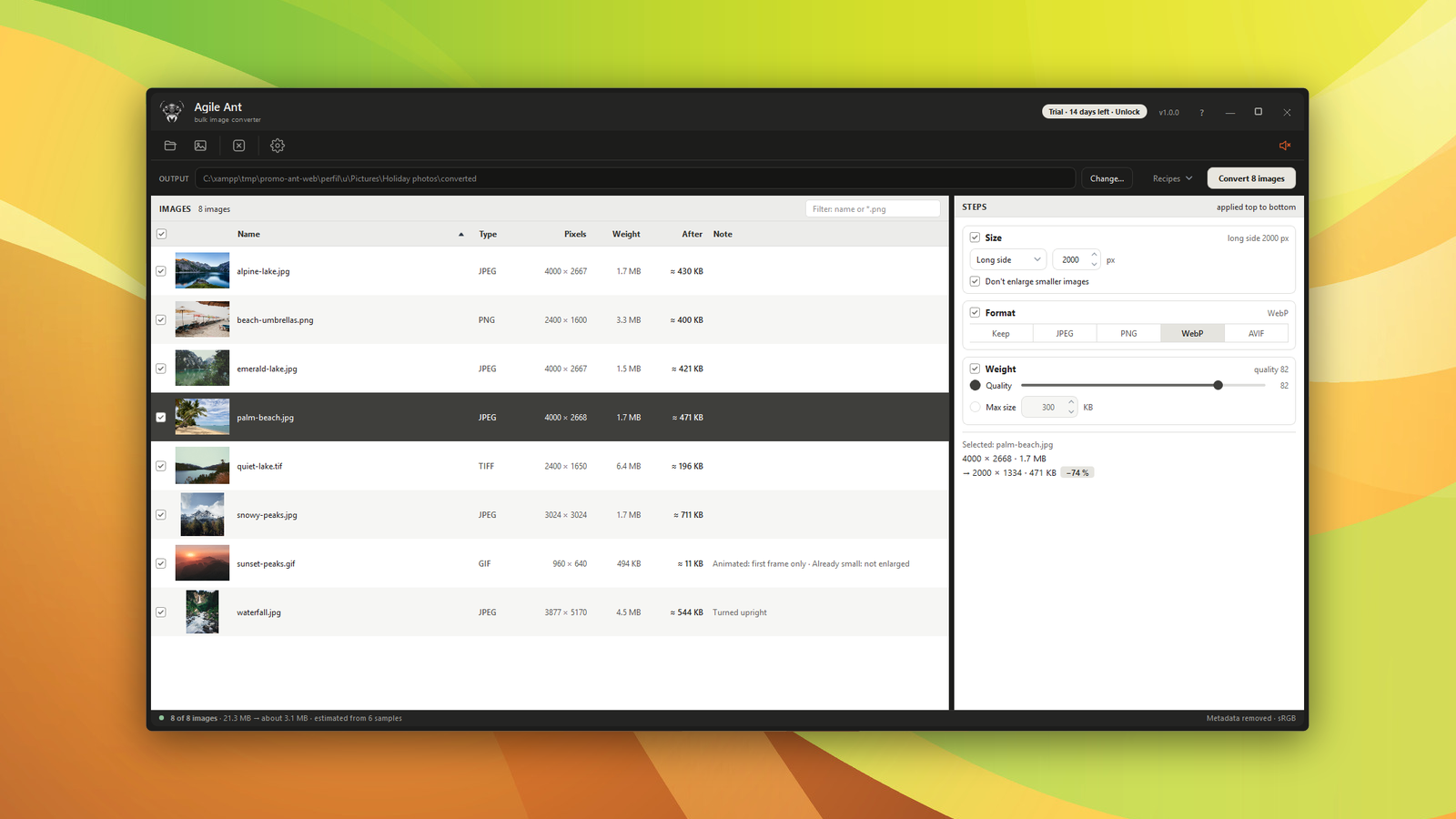
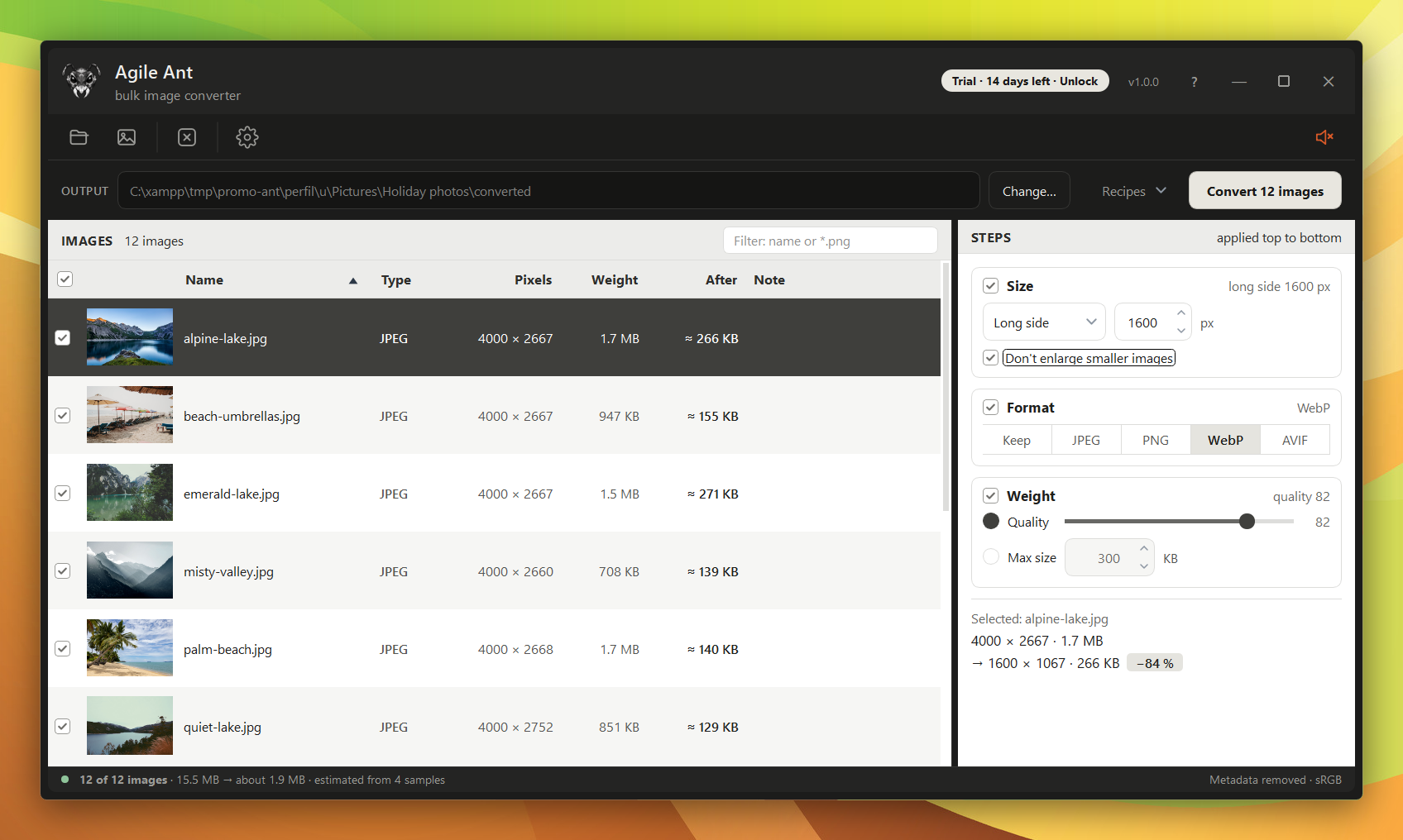
Agile Ant with a folder of photos loaded, the three steps on the right and the preview of the selected image showing the size it will have.

Agile Ant resizes, converts and compresses a whole folder of images in one pass, and tells you what each result will weigh before it writes a single file.

Features

Everything it does, before you install it.

A folder in, converted copies out.

  • Open a folder, add loose images, or drop folders and images on the window
  • Reads JPEG, PNG, WebP, AVIF, TIFF, BMP and GIF
  • Every image listed with its thumbnail, type, pixels and weight
  • Untick the ones you want left out, or filter by name or by type (*.png)
  • Double-click an image to open it in your default viewer

Three steps you switch on or off.

  • Size: long side, width, height, or fit inside a width × height
  • Format: keep the original, or JPEG, PNG, WebP or AVIF
  • Weight: a quality from 1 to 100, or a maximum size in KB
  • Always applied in that order, and smaller images are not enlarged unless you turn that off
  • A result over 200 megapixels is flagged “Too large after resizing” and not converted

A maximum size that holds.

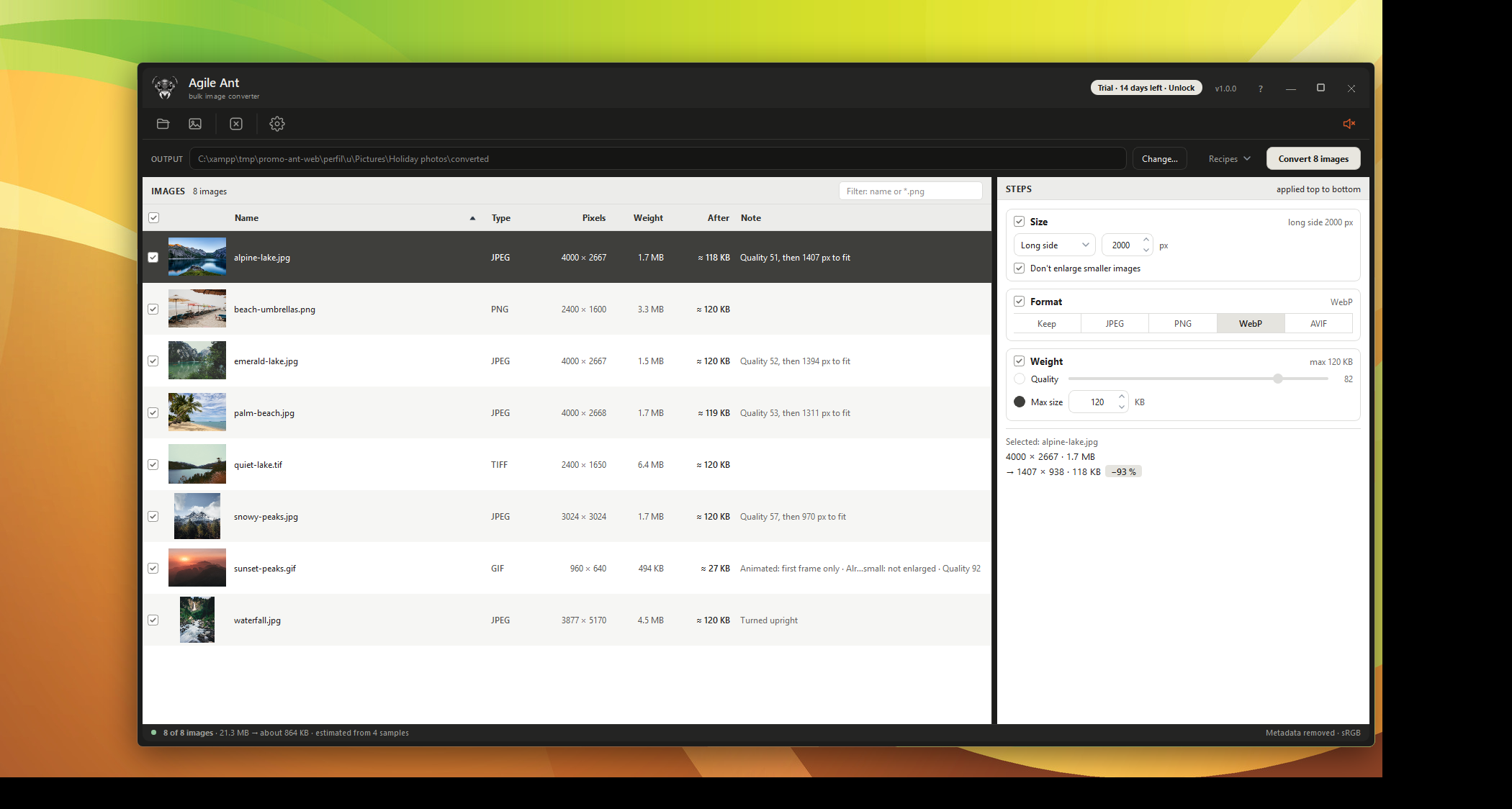
  • Ask for «none over 300 KB» and it lowers the quality first, down to a sensible floor
  • If that is not enough, it reduces the pixels, and the note tells you which it did
  • Works for JPEG, WebP and AVIF; a PNG falls back to 256 colours when it has to

You see the result before you convert.

  • The selected image shows its real output size and weight, encoded for real
  • An estimate for the whole batch, taken from a handful of your own images
  • The «After» column fills in as you change the steps

Sensible on every image.

  • Photos the phone saved sideways come out upright
  • Colours are converted to sRGB from the embedded profile; CMYK and 16-bit images become ordinary RGB
  • A transparent PNG going to JPEG gets a white background, and the note says so
  • Location and camera data are removed — unless you tick «Keep metadata»
  • An animated GIF becomes its first frame, and it tells you

Your originals are never touched.

  • Copies go to a converted folder next to the images, or wherever you choose
  • If a name is already there it adds a number — photo (2).webp — and never overwrites
  • Stop at any moment: what is finished stays, and nothing is left half-written

When something fails, it says which.

  • Files it cannot read are flagged in the list, before you convert, and left unticked
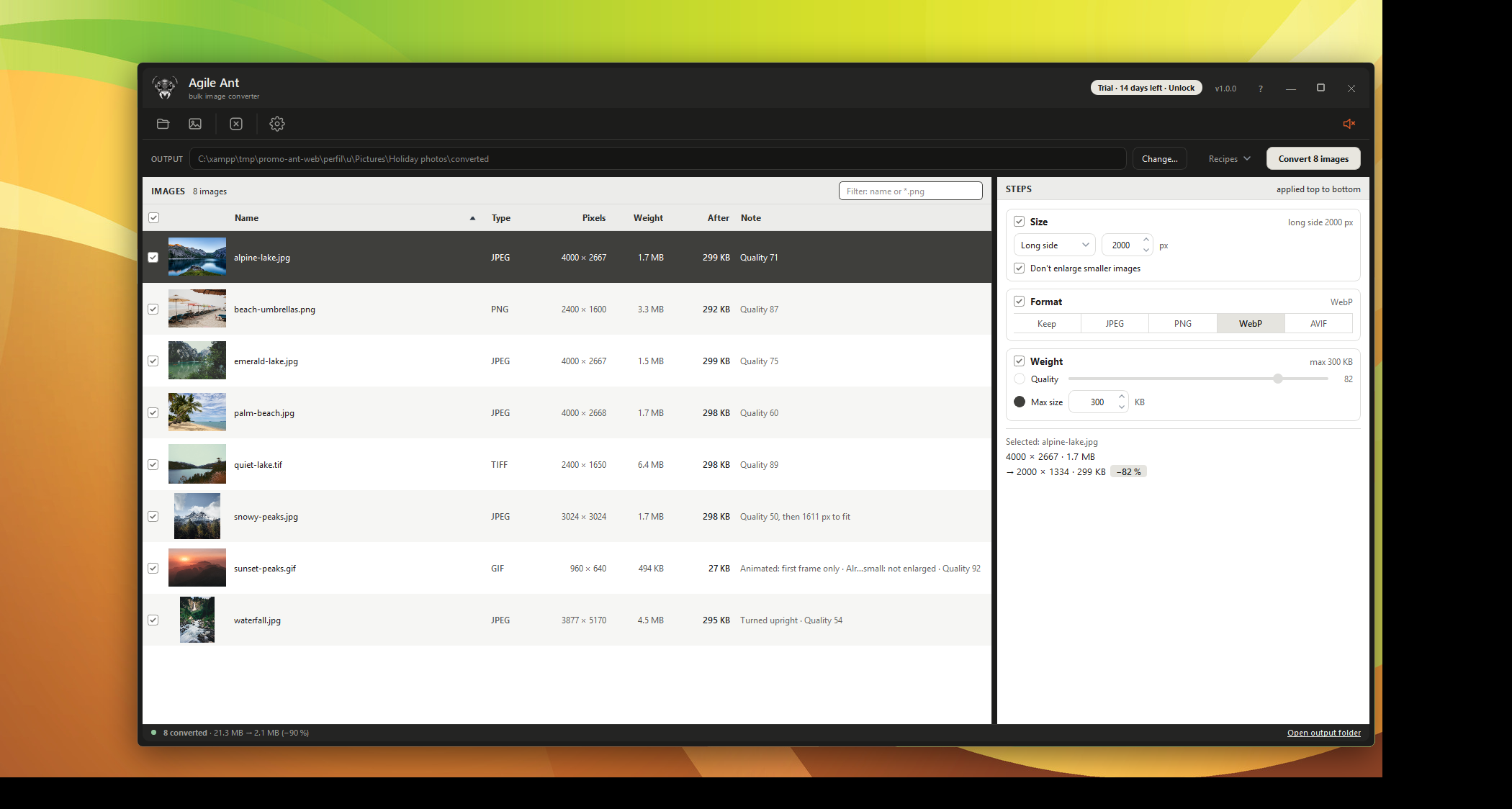
  • At the end: how many were converted, how much weight you saved, and «Show which» for the ones that failed, with the reason
  • A button opens the output folder

Your recipe, saved.

  • Save the three steps as a named recipe and apply it again with one click
  • The last settings are remembered between sessions
  • Row size of the list in four sizes, and the interface at Normal, +30% or +50% — the same app, larger
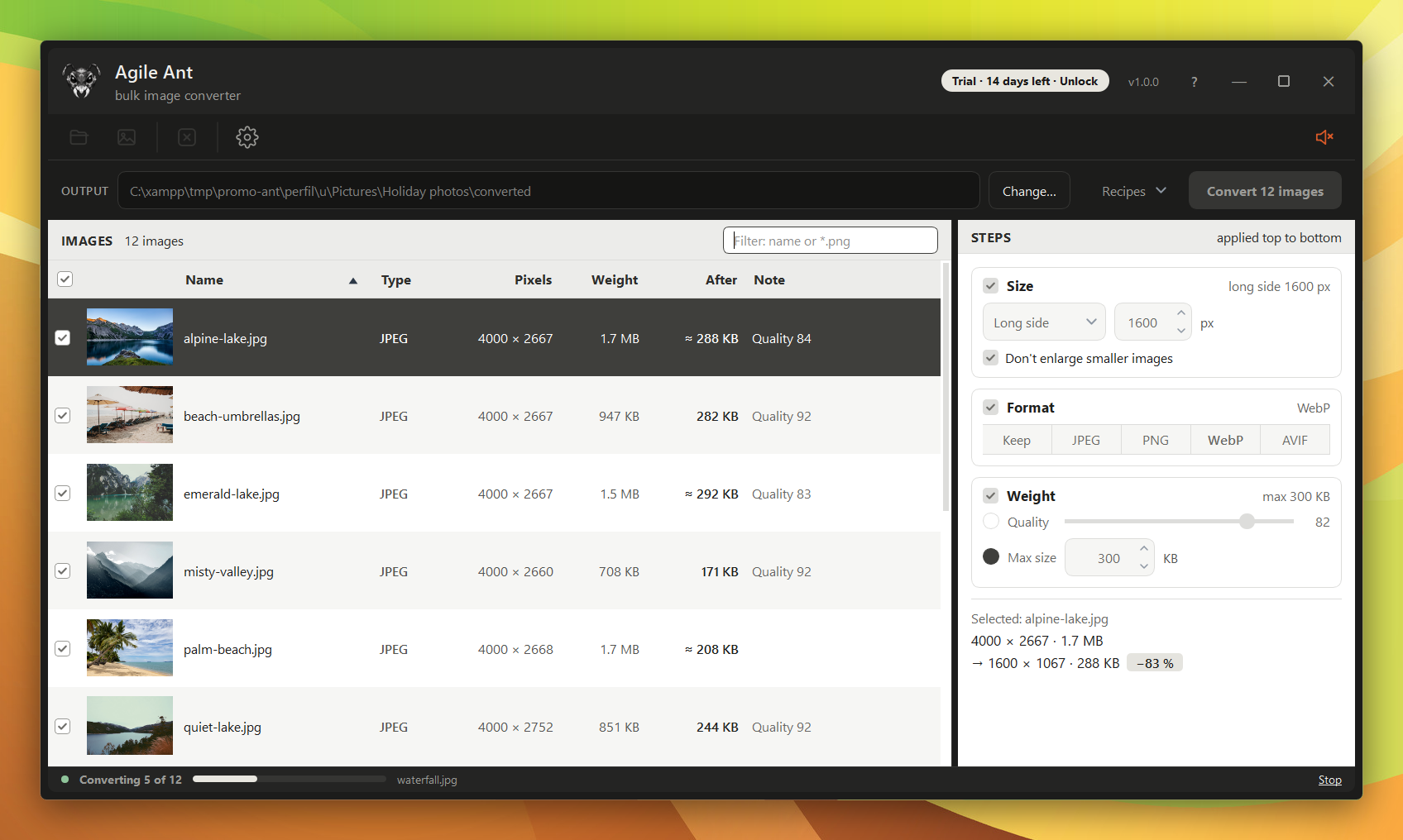
Agile Ant with a maximum size of 120 KB set, the list showing for each image what was done to fit it, such as lowering the quality and then reducing the pixels.

What you get

Three things that decide how it ends.

Images that fit the limit you set

A maximum size in KB, not a quality number you have to guess at. The note on each image says what it took to get there.

No surprises when you press Convert

The size of each result and the weight of the whole batch are on screen before anything is written, and nothing runs until you press the button.

Originals exactly as they were

Agile Ant only ever writes copies. A setting you got wrong costs you a folder to delete, not a photo you cannot get back.

Before you install it

What it needs, and what it leaves out.

What it needs

  • Windows, 64-bit. A signed installer that sets itself up in your own user folder, with no administrator prompt, and takes about 190 MB. Tested on Windows 11
  • Images in a format it reads. JPEG, PNG, WebP, AVIF, TIFF, BMP or GIF. It writes JPEG, PNG, WebP and AVIF. HEIC from an iPhone is not supported yet
  • One folder at a time. It lists the images in the folder you open; it does not go into the subfolders
  • No account. Nothing to register, nothing to verify

What leaves your machine

  • The licence and trial check
  • A version check when it starts, to tell you whether there is a newer build
  • Nothing else. Your images, the copies and the settings stay on your computer

How it goes

Open the folder. Set the steps. Convert.

Save the combination as a recipe and the same job next week is one click: pick the recipe, open the folder, convert.

  • Nothing is written until you press Convert
  • Press Stop and what is already finished stays
Step 1 · Open the folder Open a folder, add images, or drop them on the window. Untick what you do not want converted.
Step 2 · Switch on the steps Size, Format and Weight, each with its own switch. The list shows what every image will weigh as soon as you change one.
Step 3 · Check the preview Click an image to see its real result and the estimate for the whole batch.
Step 4 · Convert Copies appear in the output folder. The summary says how many were converted and how much weight you saved, and lists any that failed with the reason.
Agile Ant after converting a folder: the summary with how many images were converted and the weight saved, and the After column showing the real size of each one.

Free version and full version

  • The first 14 days are the full version. It starts on first launch — no account, no email, no card
  • Then it stays free, with one limit. Up to 200 images a month: each image written to the output folder counts as one. If a batch is bigger than what is left of the month, it tells you before you press Convert and converts the ones that fit
  • The licence removes the limit. €19.99 once, for the full version of Agile Ant and of the other tools in the collection that have one. You paste the key into the app you already installed
  • The licence does not expire. There is no renewal date and no year in which it stops working

What the licence includes →

Try it

The honest test is the folder you were going to resize anyway.

Install it, open the photos you have to send out this week, and see whether the copies that come out are the ones you would have made by hand. The first fourteen days are the full version, and it stays free after that.

Who it is for

The photos that have to go out by Friday.

Someone in marketing for an online shop with sixty product photos to put on the website as light WebP and on a marketplace as a 2000 px JPEG, who today depends on a designer or an online converter. A designer who repeats the same macro every week. Anyone back from a trip with three hundred huge photos who wants to email them.

The guide covers the same ground slowly: the first folder, the three steps, the maximum size, the results and the recipes.

Read the complete guide →

What it leaves out

A converter, not an editor.

  • No cropping by hand, filters, retouching, watermarks or background removal
  • No renaming beyond the number that stops a name being overwritten
  • No HEIC, RAW, PDF or SVG output, and no video
  • Animations are not converted: a GIF becomes its first frame, and it tells you
  • No command line and no scheduled jobs: you open it, convert and close it
  • It never works on your originals, not even as an option

In the app

More screenshots

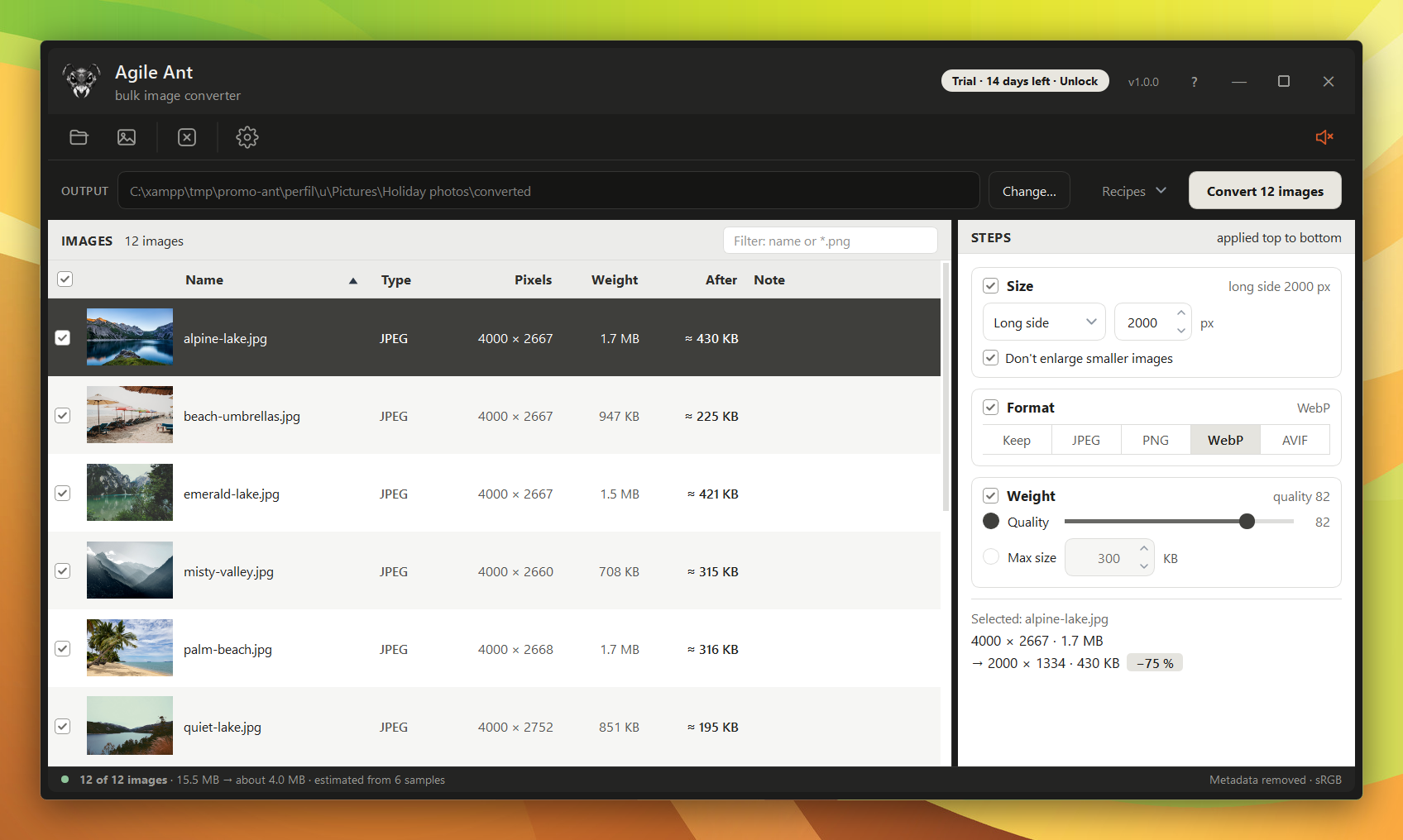
A folder of twelve holiday photos, each listed with its type, pixels, weight and an estimate of what it will weigh after
The Size step: long side 1600 px, and smaller images are never enlarged
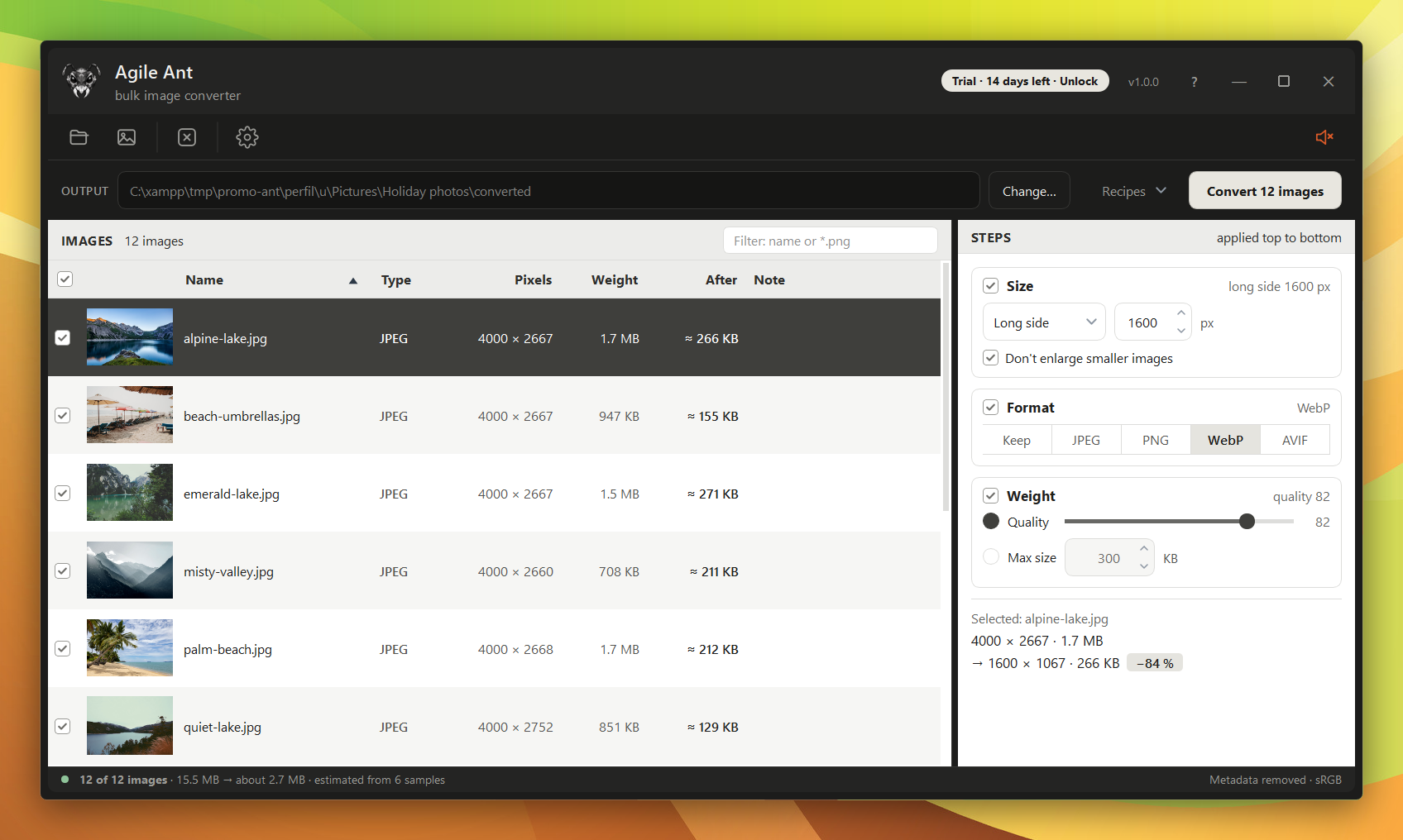
Pick the output format — keep it, JPEG, PNG, WebP or AVIF — and the After column shows the result before you convert
Converting: the progress bar says which image it is on, and Stop is always at hand
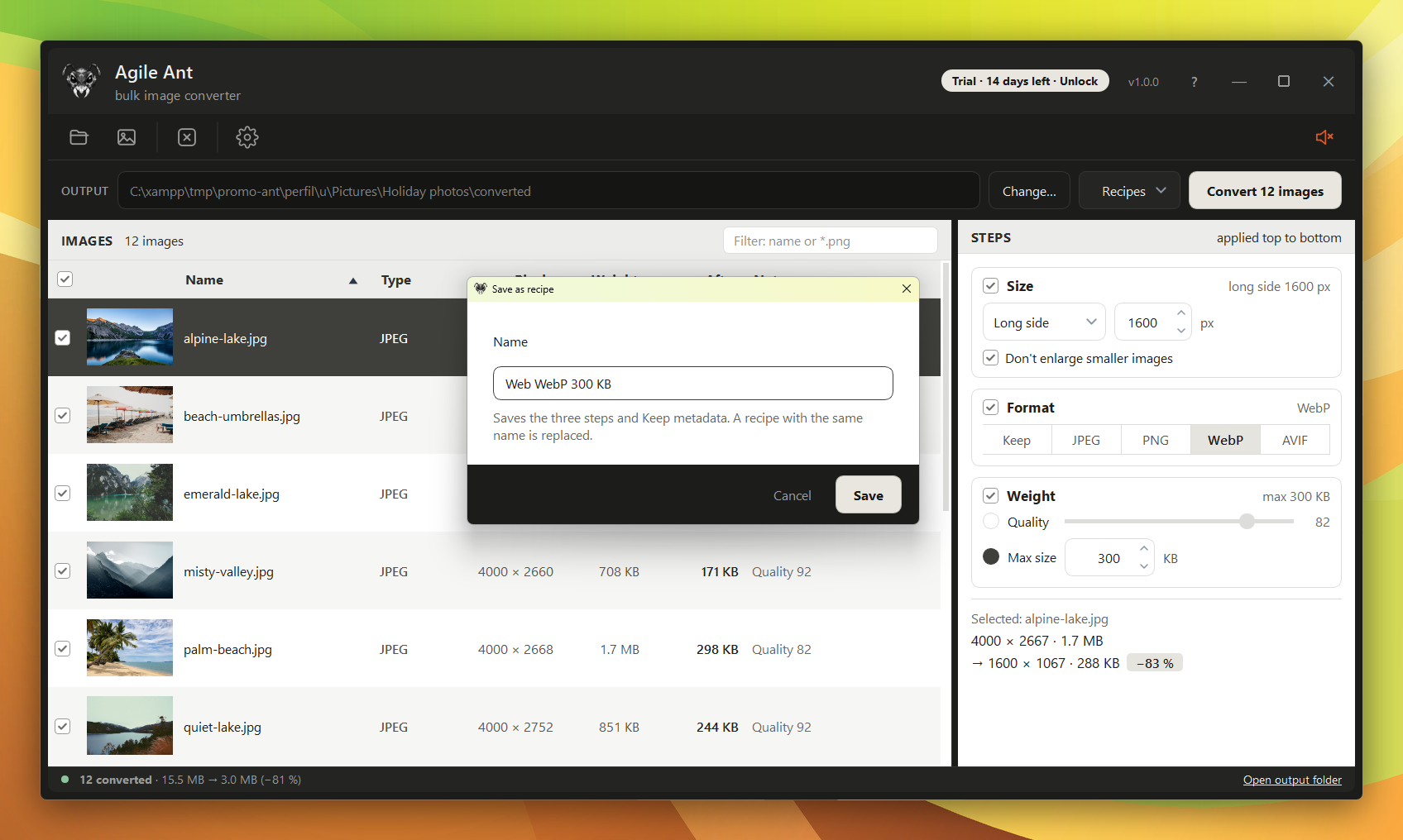
Save the three steps as a recipe, and next time the same setup is one click away