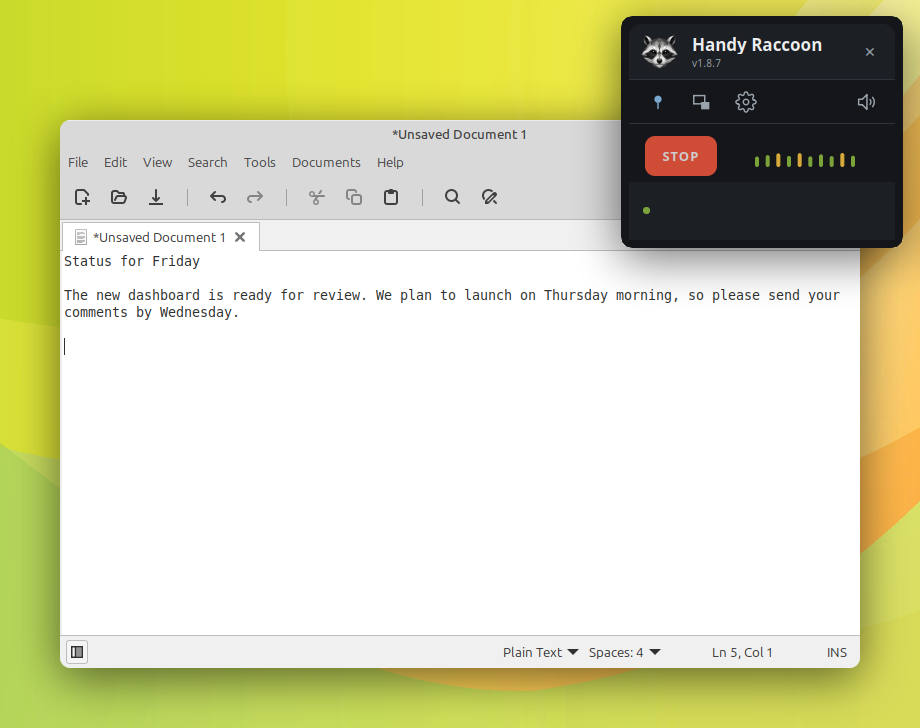
Speak anywhere on the machine. The text lands in the window you
were typing in.
For people who think faster than they type. Press the hotkey,
say it out loud, and a speech engine running on your own computer turns it into
text: the audio never leaves the machine, and there is no account to create.
Free to download and use. The first 14 days are
the full version, with no account and no card. After that it keeps dictating with 30
free minutes a month, up to 15 per recording; an
Animal Tools licence
(€19.99, once) removes the limit.
Windows and Linux desktop builds · the Linux packages can be on an earlier version
Windows may show a SmartScreen warning
on first launch — click More info → Run anyway.
Talk for a minute, get a punctuated paragraph back — transcribed on your computer, never uploaded.
Handy Raccoon is a voice dictation tool: fast and accurate thanks to the Parakeet
model, running entirely on your machine so nothing you say ever leaves it.
Features
What it can turn into text, and what it does with that text.
⚡
A short dictation, about a second.
NVIDIA Parakeet TDT v3, the default engine
100% on your machine — no cloud, no account
Measured: 2.3s of speech, 1.1s of waiting
whisper.cpp models still available in Settings
Frees about 0.7 GB of memory after 15 idle minutes (adjustable in Settings); the first dictation after that takes 3–6 s longer to finish, with a low beep each second while the model reloads
🎙️
Speak without leaving the app you are in.
Global hotkey, Ctrl+Alt+D by default
It remembers the window you were typing in
Pastes the text straight back in there, Enter optional
Tray icon, compact overlay, and pin-on-top
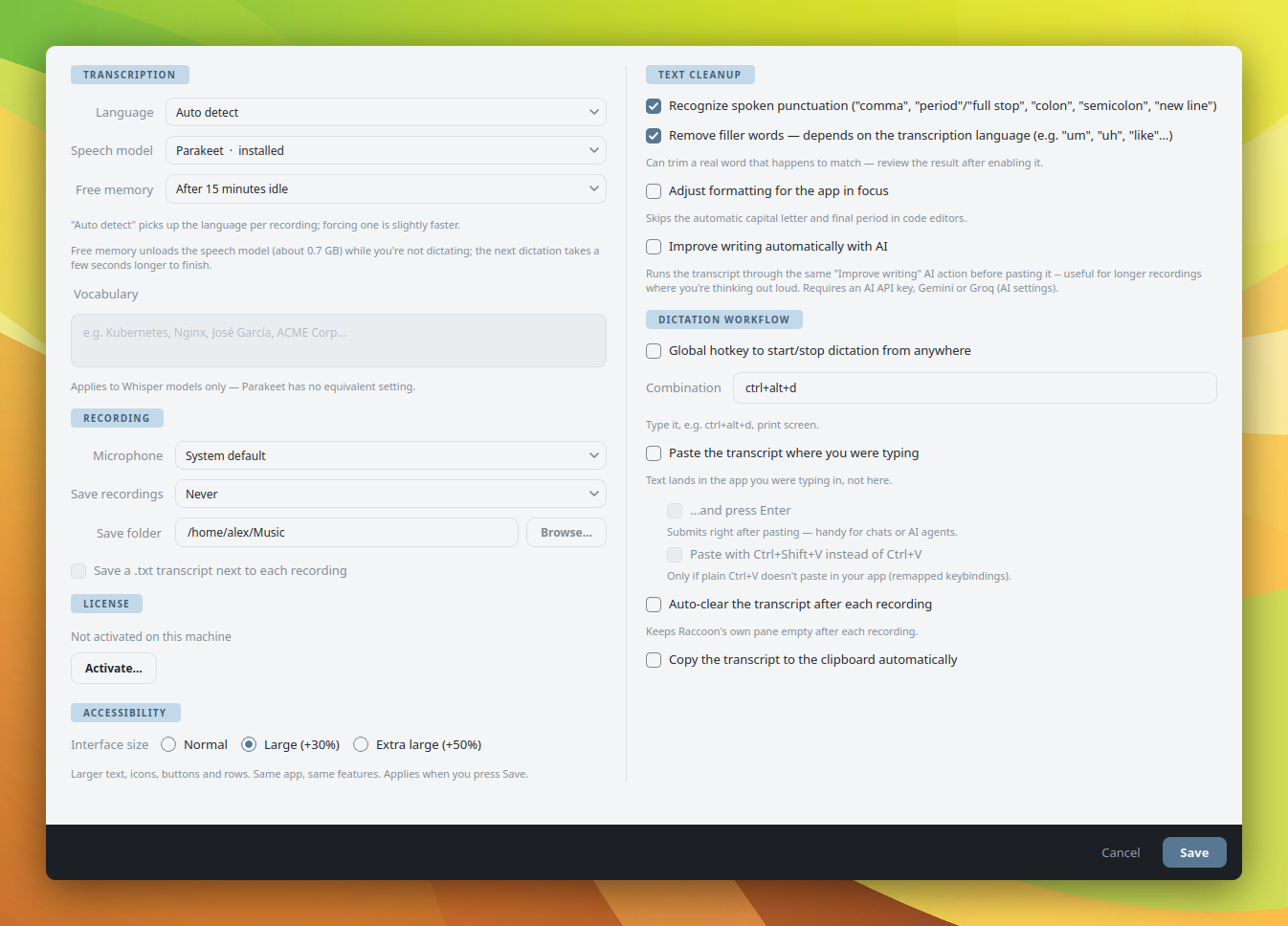
Interface size: Normal, +30% or +50% — the same app, larger
📁
Audio and video you already have.
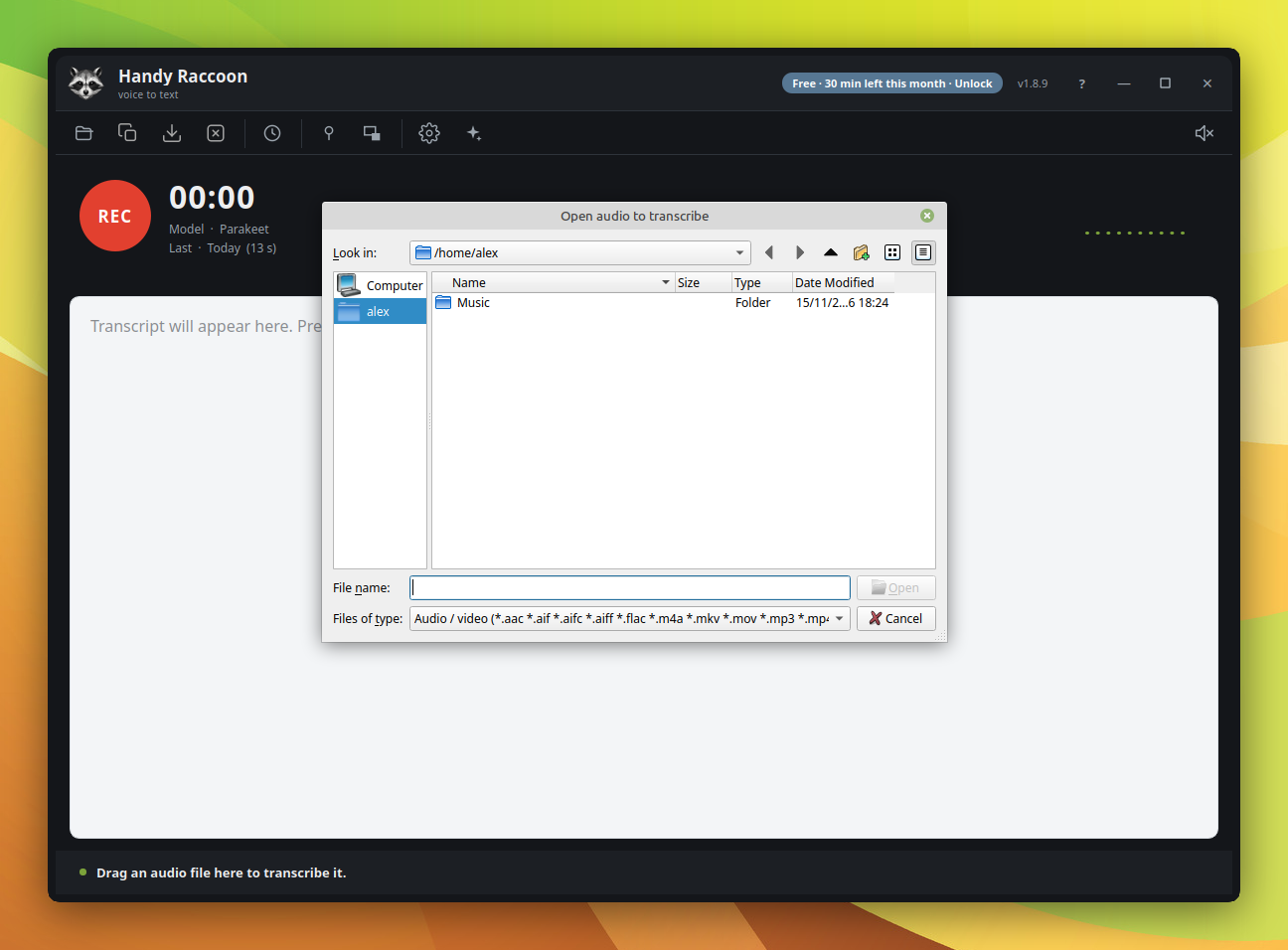
Drag the file in, or Ctrl+O
wav, mp3, flac, ogg, opus and aiff, out of the box
m4a, aac, wma and the mp4, mkv, mov and webm videos (it takes the audio track) need ffmpeg installed
Your own Google Gemini or Groq key, entered once and kept locally; the model is picked automatically from your key
Optional auto-improve for long, hesitant recordings
📤
Keep the text, or the audio.
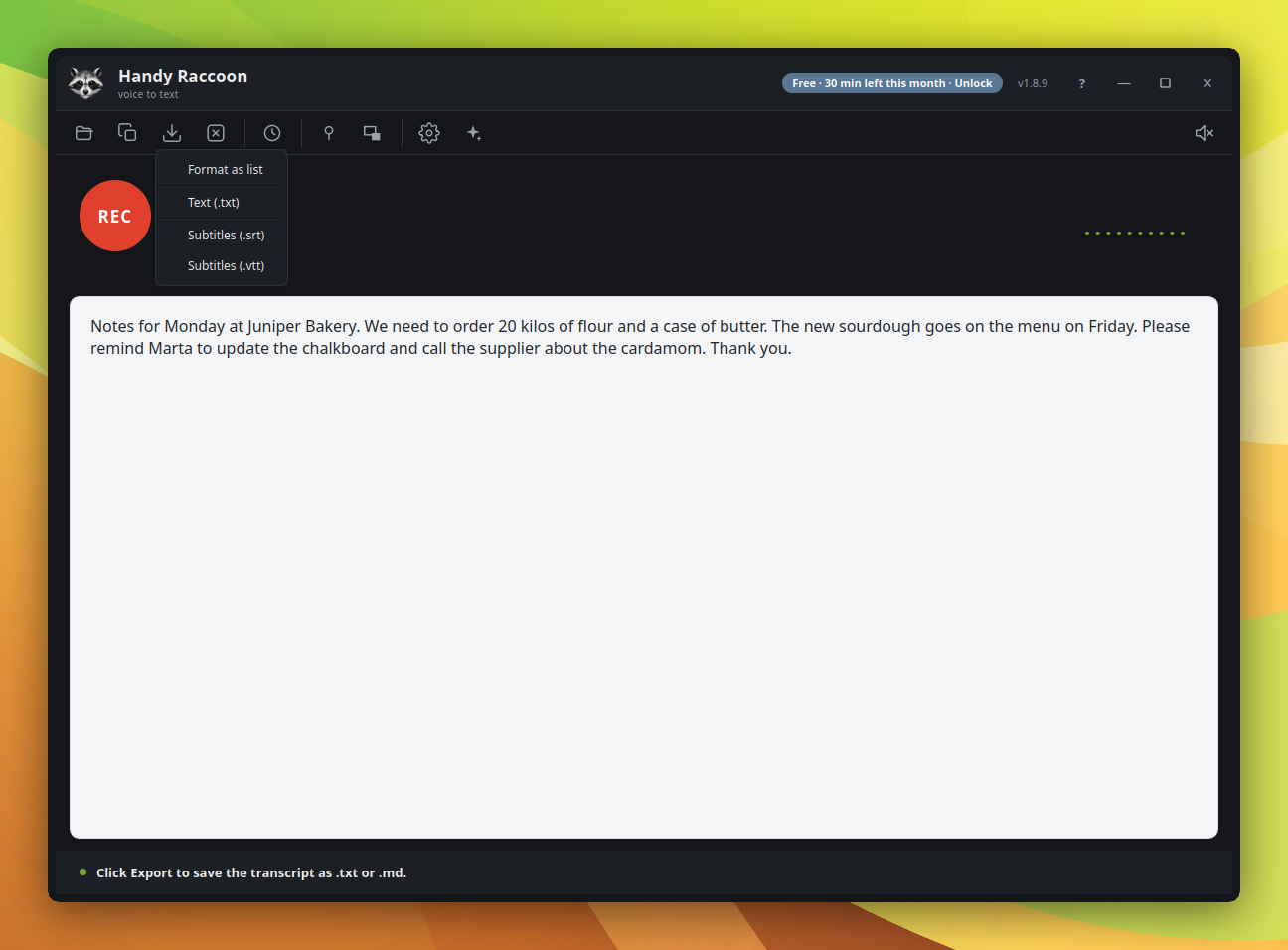
Export to TXT, as plain text or a list
SRT and VTT subtitles, with real per-sentence timings
MP3 of the recording, with an optional .txt beside it
A simple history: name, date, duration, folder
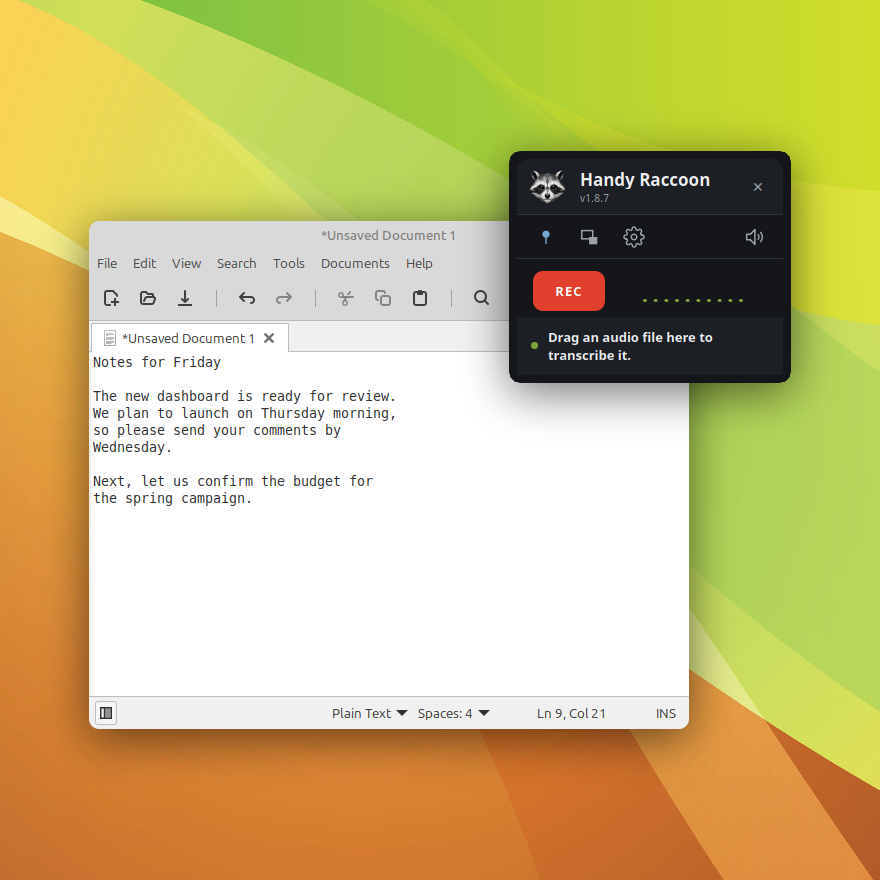
A small panel that stays on top while you dictate into the app you are actually using.
What you get
Three things that decide whether dictation is worth it.
⚡
The wait is about a second
It runs a new-generation local engine (NVIDIA Parakeet TDT v3) that returns a short
dictation in roughly a second on the machines we measure on. A long one takes a handful
of seconds — it is fast, not magic, and the number depends on your computer.
⌨️
It types into the app you were using
A global hotkey (Ctrl+Alt+D by default) starts and stops dictation without the window
in front. Raccoon remembers where you were writing and pastes the text there when it is
done — optionally followed by Enter, so a chat box sends it on its own.
🔒
The recording stays on your computer
Transcription is 100% local: no cloud, no account, no telemetry by default. The audio
and the transcript never leave the machine unless you press the AI button yourself —
and that is a separate, opt-in step, explained below.
★The one thing
Handy Raccoon is for people who’d rather talk than type. Say what you have to say and it turns into text: copy it, save it, or let it paste itself straight into whatever program you’re using, so you can forget about the keyboard. A bit of optional AI to tidy it up.
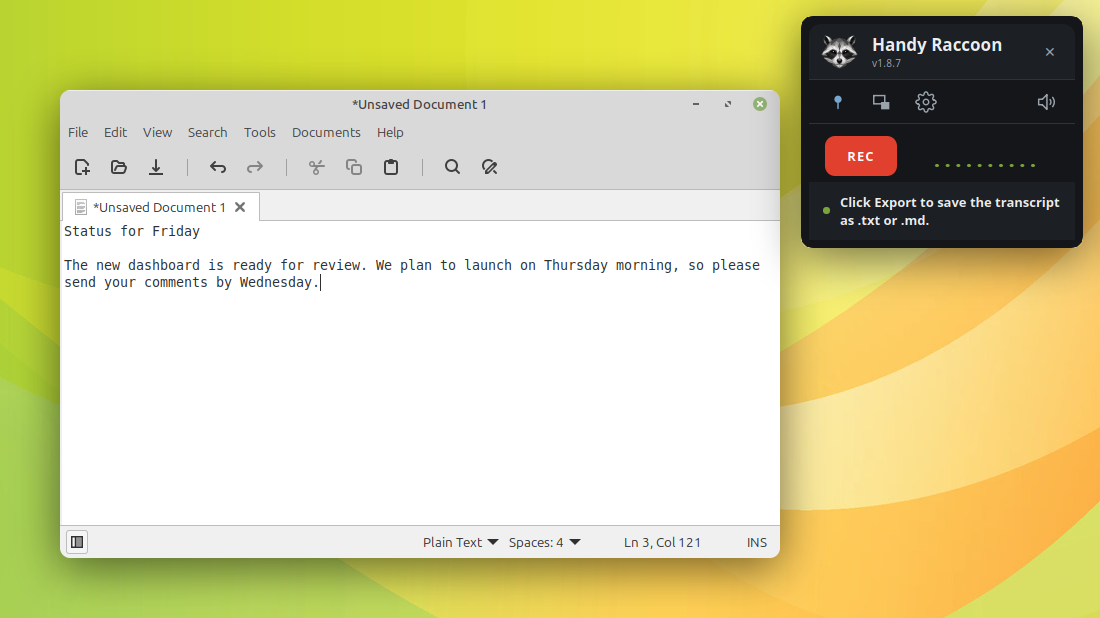
Talk instead of typing: the words land in the document you were writing in.
Before you install it
What it needs, and where the AI sits.
What it needs
A microphone. Any system one works; you pick which in Settings
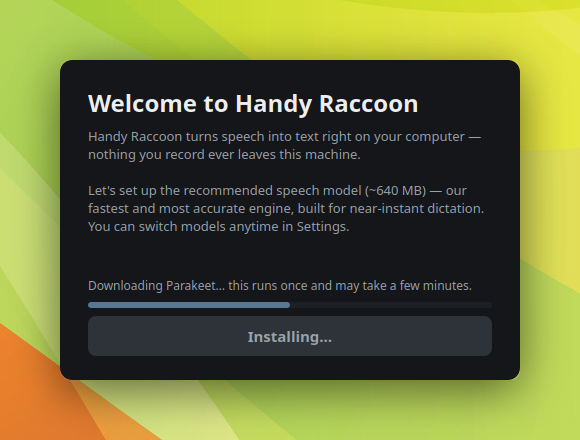
A one-time model download. On first launch it installs the
recommended speech model, about 640 MB, guided from the app. After that it
transcribes offline
ffmpeg, only for some files. m4a, aac, wma and video files are
decoded with the ffmpeg on your PATH; without it the app tells you to install it.
Dictating and the other formats don't need it
Windows or Linux. The Linux packages need
X11 for the global hotkey and paste-in-place; the version line at the top of this
page says which build is on which version
No macOS build. This is a Windows and Linux desktop app
One download on first launch. After that, every word is transcribed on your computer.
Local by default. The external AI is a separate switch.
Two different things share this app, and they are not the
same: the dictation — recording, transcription, the punctuation and
filler-word cleanup — runs entirely on your machine, with no key and no connection.
The AI actions (spelling and grammar, improve writing, summarize, split
into paragraphs, convert to a bullet list) are optional, off by default, and need your
own Google Gemini or Groq key: only the text you send travels, and it goes to the provider
of your key, not to us. The result always stays in the language you dictated: it is
checked, and a text in another language is never pasted.
Each one shows you the result before it touches the transcript.
There is one exception, and it ships switched off: an
option that runs "improve writing" automatically on every transcription, for long or
hesitant dictations. It is the only AI action that writes without a preview, which is
exactly why you have to turn it on yourself.
Speech engines
Parakeet by default. Whisper when you need another language.
Handy Raccoon comes with two speech engines. NVIDIA Parakeet TDT v3 is the one it installs: it is why a short dictation comes back in about a second, and on our own Spanish recordings it also caught words Whisper Small got wrong. OpenAI’s Whisper models stay in Settings for what Parakeet does not cover, above all languages from outside Europe. Switching is one menu choice; each model downloads once and then works offline.
Handy Raccoon's speech engines compared: Parakeet v3 and the four Whisper models
Criterion
Parakeet v3Default
Whisper Base
Whisper Small
Whisper Medium
Whisper LargeTurbo
Speed and size
One-time download
About 640 MB
About 140 MB
About 460 MB
About 1.5 GB
About 1.6 GB
A 2-second dictation, back in
About 1 second
Quicker than Small
6.5 to 14 seconds
Slower than Small
Slower than Small; wants a strong CPU
A 30-second dictation, back in
About 6 seconds
Quicker than Small
About 11 seconds
Slower than Small
Slower than Small
Languages
Languages it understands
25 European languages, detected on its own
About 100
About 100
About 100
About 100
What changes with each engine
Exports SRT and VTT subtitles
✓YesReal timing for every sentence
✕No
✕No
✕No
✕No
Uses your vocabulary list for names and terms
✕NoThe engine has no way to take it
✓Yes
✓Yes
✓Yes
✓Yes
Pick it if
You dictate in a European language. That is most people
Disk space is tight and the notes are quick
Your language is not on Parakeet’s list
Same, and you will wait for more accuracy
Same, on a fast computer
Parakeet v3 understands Bulgarian, Croatian, Czech, Danish, Dutch, English,
Estonian, Finnish, French, German, Greek, Hungarian, Italian, Latvian, Lithuanian, Maltese,
Polish, Portuguese, Romanian, Russian, Slovak, Slovenian, Spanish, Swedish and Ukrainian.
Times were measured on our test computer, processor only, with real dictations in Spanish
and the engine already loaded; we timed Parakeet and Whisper Small, and the other Whisper
models are placed relative to Small. Yours will depend on your computer.
How it goes
From your voice to the other app, in four steps.
Step 1 · Press the hotkeyCtrl+Alt+D from wherever you are writing — an email, a chat, a code editor. Raccoon
lives in the system tray, so there is no window to find first and the focus never
leaves your document.
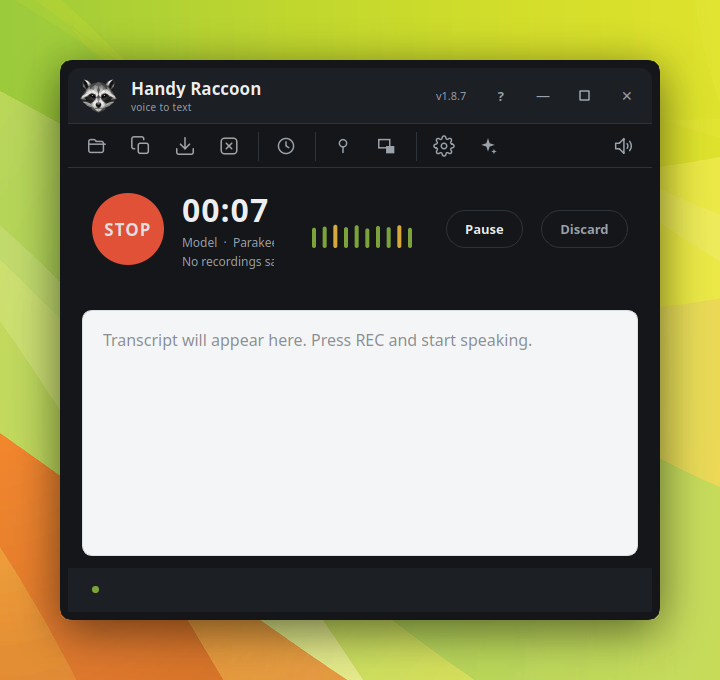
Step 2 · Say itThe timer and the level meter show it is listening. You can pause and resume, and a
compact always-on-top overlay keeps the recording visible without covering your work.
Step 3 · StopSame hotkey again. The local engine transcribes what you said — about a second for a
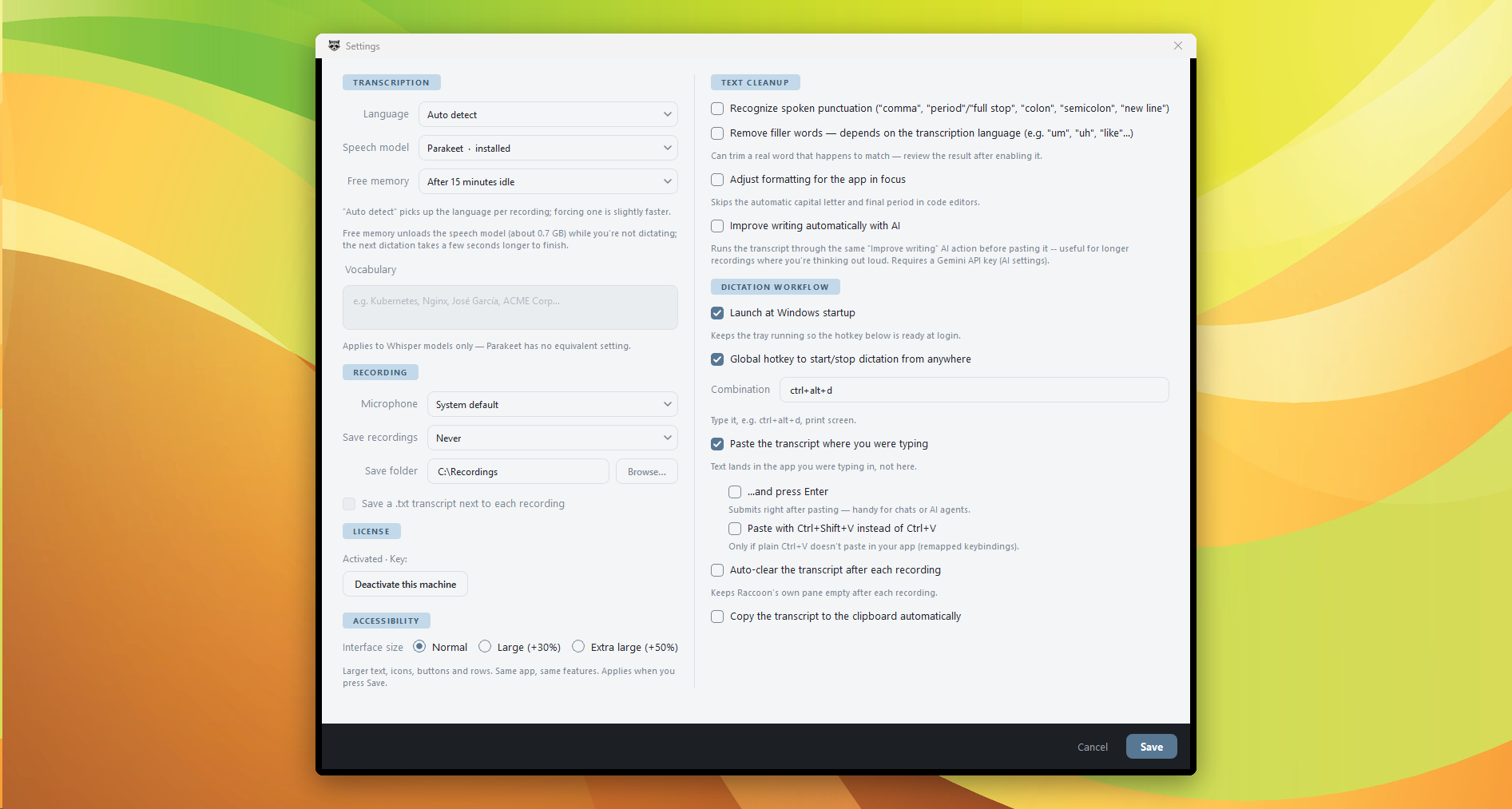
short dictation — and the deterministic cleanup you enabled (spoken punctuation,
filler words, formatting for the app in focus) is applied without any AI.
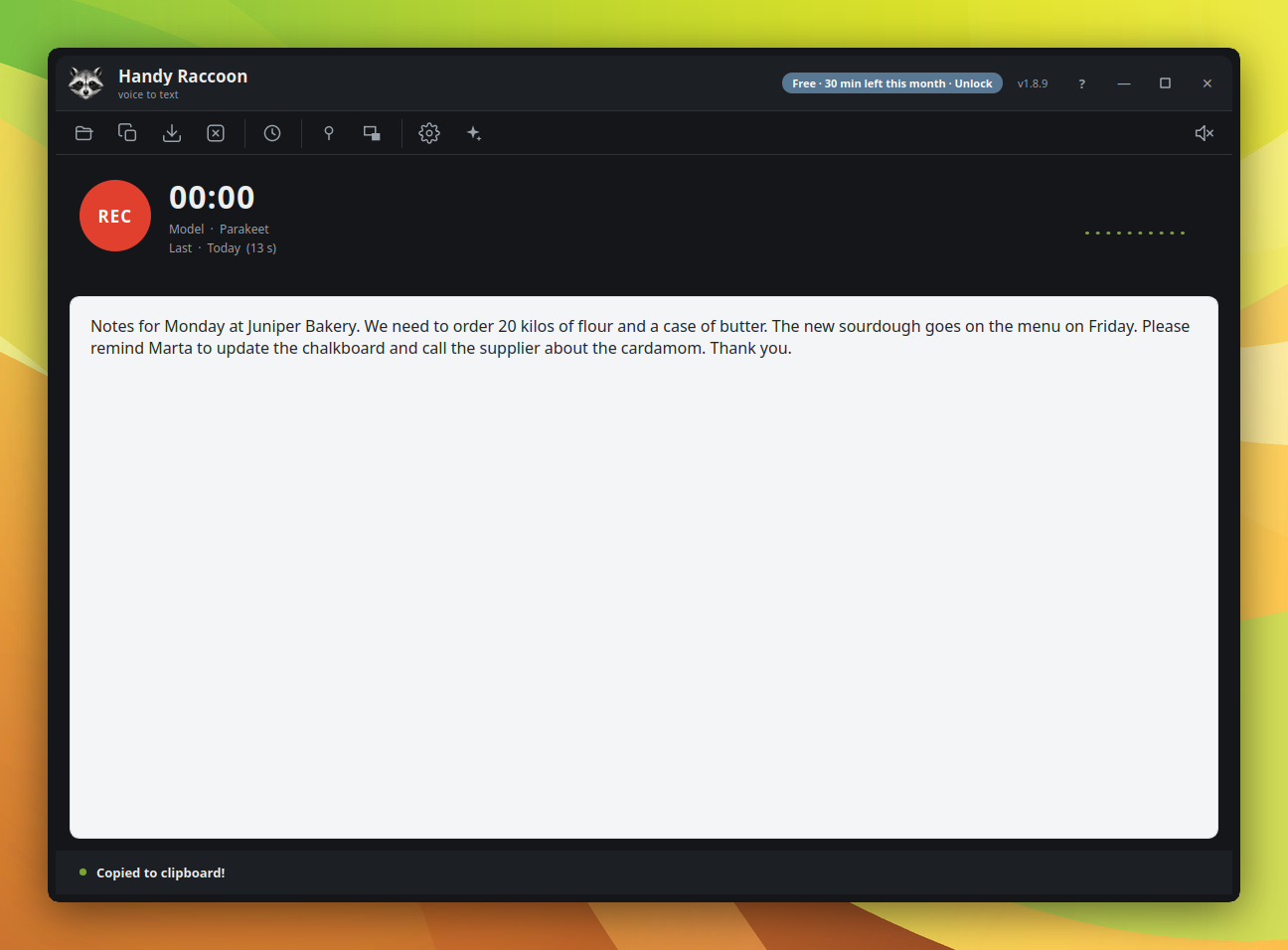
Step 4 · The text arrivesIt is pasted into the window you were typing in, and it stays in the transcript pane,
editable. From there you can export it to TXT, to subtitles (SRT or VTT, with the
default engine), or keep the audio as MP3.
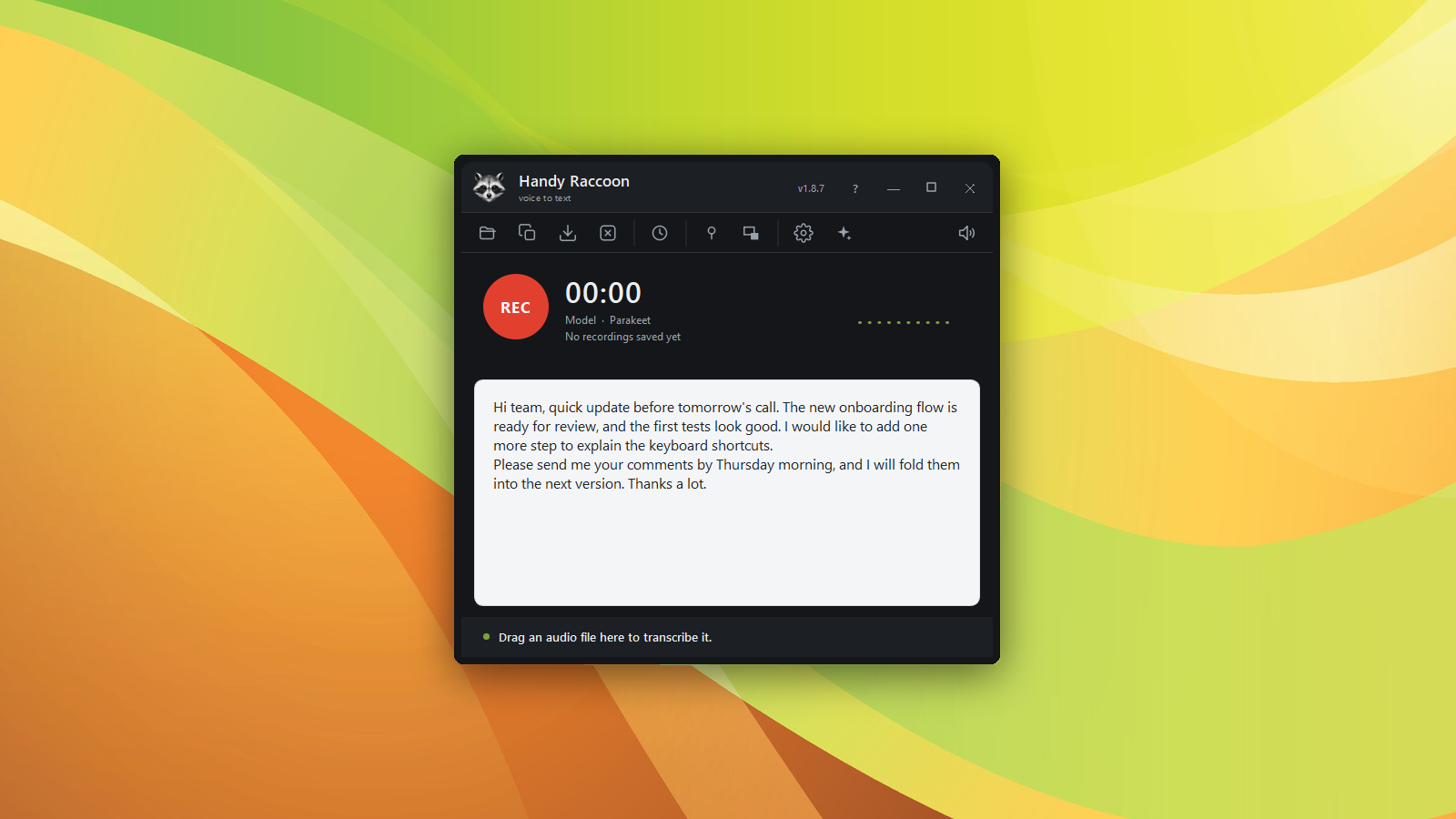
Press REC and talk. The timer and the level meter show it is listening.Press your hotkey, speak, and the text lands in whatever window you were typing in.
Compared
Dictation that never uploads your voice.
Otter.ai is the subscription service people use for meetings; Windows has voice typing built in. Both send what you say to a server. Handy Raccoon transcribes on your own machine, and the rows below are where that changes what you can do with it.
Handy Raccoon compared with Otter.ai and Windows voice typing
Handy RaccoonFree + licence · closed source
Otter.aiSubscription · cloud
Windows voice typingFree · built in
Where your voice goes
Transcribes with no internet connection
✓The engine runs on your machine
✕Cloud service
✕“Uses online speech recognition, powered by Azure Speech services”
Transcribes audio and video files you already have
✓Drag it in, or Ctrl+O
✓3 lifetime imports on the free plan
✕It types what you say, into a text box
Puts the text back in the app you were typing in
✓It remembers the window and pastes there
✕It is a notetaker, not a keyboard
✓Types where the cursor is
What it costs
Price
Free; full version €19.99 once
$8.33–$16.99 per user per month (Pro)
Free, part of Windows
Minutes you can transcribe
✓30 a month free; no limit with the licence
✕300 a month, 30 per conversation, on the free plan
✓No limit
Keeps working without a subscription
✓Nothing to renew
✕Billed monthly or yearly
✓
What comes with it
Part of a set that looks and behaves the same
✓One of the Animal Tools
✕A service on its own
✕A Windows feature
macOS
✕
✓
✕
What it leaves out on purpose
Meetings, sharing and team notes
—It dictates and transcribes, nothing else
✓Zoom, Teams and Meet
✕
✓included✕not available—left out on purpose
Comparison based on the published pages of each product — otter.ai for Otter and Microsoft’s own support documentation for Windows voice typing — verified 2026-09-26, against Otter’s free and Pro plans. Features and prices change: check their sites for current details. The Stromboli Project is an independent project, not affiliated with, endorsed by or sponsored by Otter.ai or Microsoft. All product names are trademarks of their respective owners.
Your words land in the document you were writing, cursor at the end, ready to carry on.
Free version and full version
The first 14 days are the full version. It starts on first launch — no account,
no email, no card
Then it stays free, with one limit. 30 minutes of transcription a
month, 15 per recording; dictation itself never stops, and the app tells you where
you stand
The licence removes the limit. €19.99 once, for the full version of Handy Raccoon
and every other tool that has one. You paste the key into the app you already installed
The honest test is your own voice, on your own machine.
Install it, let it fetch the model once, and dictate the next thing you were going to
type. The first fourteen days are the full version, and it stays free after that.
The student dumping thesis ideas before they evaporate. The
developer writing technical notes who would rather their voice never left the machine.
The writer drafting a chapter while walking around the house. In every case: no
subscription, and nothing uploaded to anyone's server.
The guide covers the same ground slowly: installation,
first launch, the hotkey, the settings that matter and the export formats.
Not a chatbot: it transcribes, and offers a few one-shot cleanups on the result
No meeting recording — it does not capture the system audio alongside your
microphone, and it does not identify who is speaking
No translation: it writes down the language you speak
No cloud sync, no notes manager, no calendar or task extraction
No account, ever — the model installs once and then it works offline
Leaving out the meeting recorder was a decision, not an
oversight: personal dictation, fast and accurate, is a different job from sitting in on
a call.
In the app
More screenshots
Open any audio or video file to transcribe it, or just drop it on the windowSeconds later the transcript is on the page, copied and ready to paste anywhereExport as text, or as SRT and VTT subtitlesSpoken punctuation, filler-word removal and a larger interface, all in Settings
Next door
Where the transcript usually goes next.
Neat Bluejay Document Editor Free + licence
When the dictated draft has to become a document someone else reads: Neat Bluejay
imports .docx, .rtf and .odt and exports to .docx and .pdf. Same licence — it has a full version too.
When the transcript is just text to keep: Clever Cat holds your notes in tabs, colours
them by file type and brings the session back on the next launch. It is free, with no
account.