🌋 The Stromboli Project
Free 🪟 Windows

Vivid Butterfly Color Picker

Pick any color from any pixel.

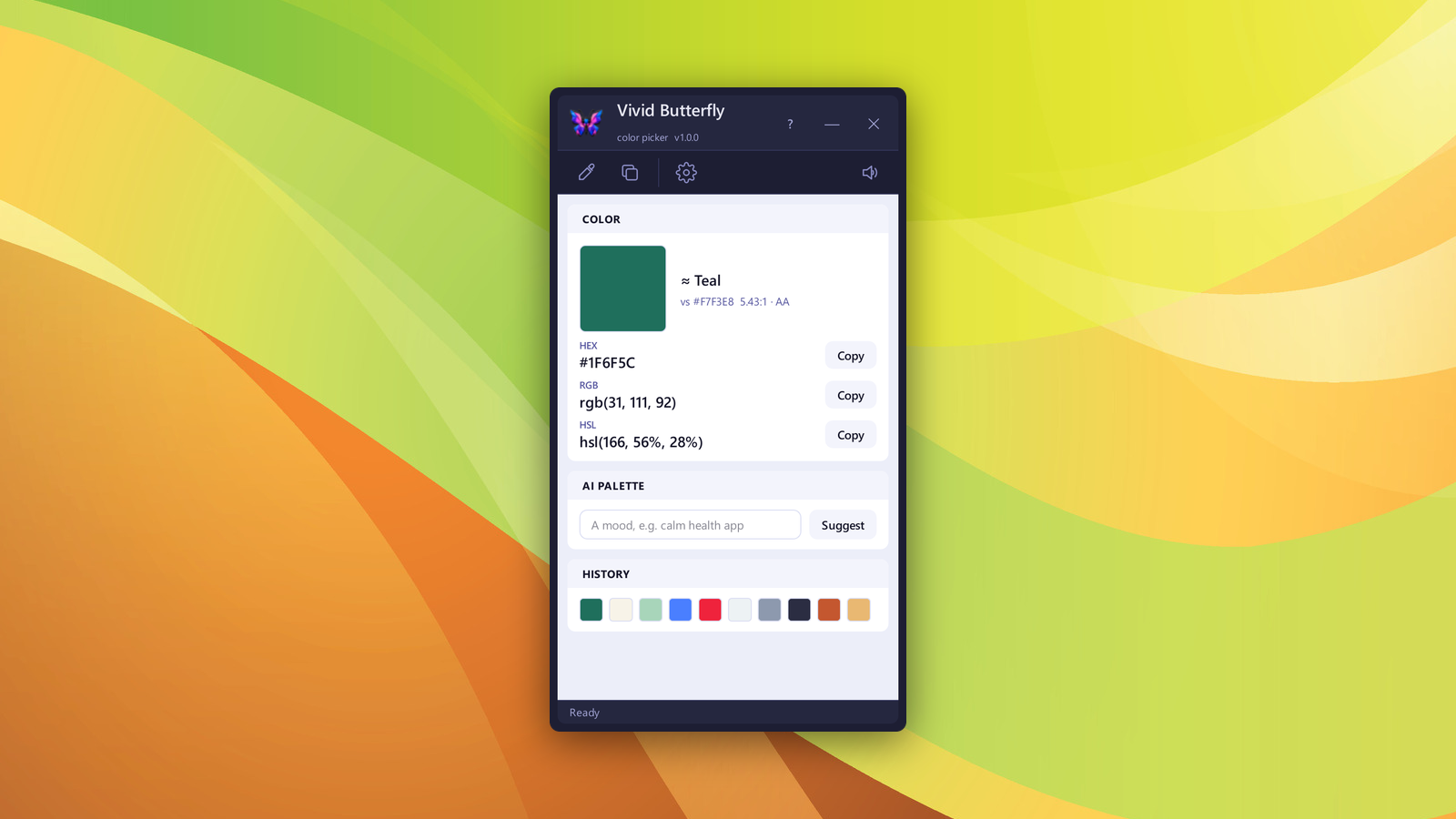
A screen color picker for designers and developers who need the exact value. Press Ctrl Alt C from any app, aim at a pixel and click: the color is already on your clipboard, as HEX unless you choose another format. The window shows the color as HEX, RGB and HSL, with its nearest CSS name and its contrast against the color you picked before.

No account, no email, no licence key. Vivid Butterfly is free, and it stays free.

Windows desktop build

Windows may show a SmartScreen warning on first launch — click More info → Run anyway.
Vivid Butterfly with a teal picked: its HEX, RGB and HSL values with a Copy button each, the nearest CSS name, the contrast against the previous color, the AI palette line and the history of the last ten colors.

Vivid Butterfly does one thing: it reads the exact color of the pixel you point at, and gets out of the way.

Features

One shortcut, one click, one exact value.

The pixel under the cursor, on any monitor.

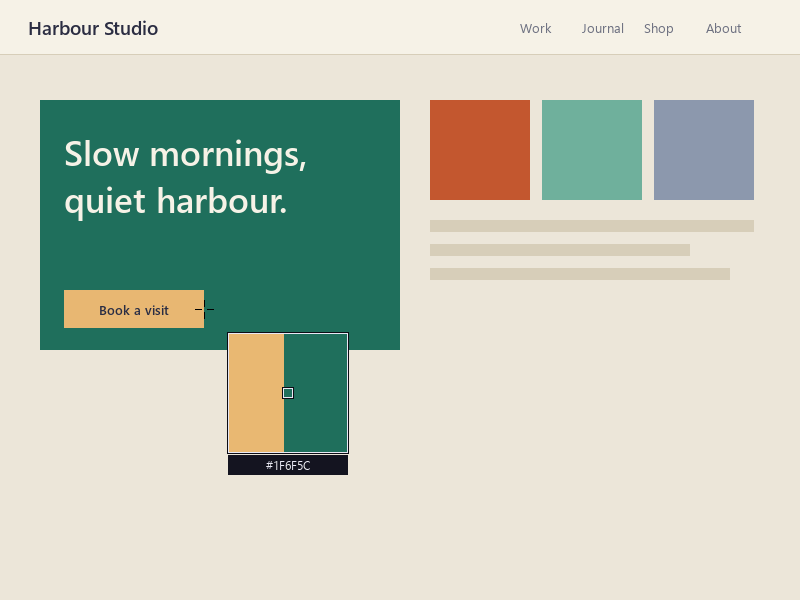
  • One overlay per monitor, with a cross cursor, an 8× loupe of the surroundings and the HEX right below it
  • The loupe and the click read the same pixel, and the loupe's frame never leaks into the value
  • Monitors with different scales (100 to 200 %) and monitors to the left of or above the main one are handled: it converts to physical pixels monitor by monitor

From any app, and a keyboard for the last pixel.

  • Ctrl Alt C opens the picker from anywhere, even with the window minimized; other presets in Settings, or switch it off
  • If another app already holds the shortcut, the status bar says so
  • Inside the overlay, ← → ↑ ↓ move 1 px and Shift with an arrow moves 10 px
  • F freezes the screen as it was when you called the picker, to catch hover colors
  • The stopwatch in the toolbar waits 3 seconds and opens the picker already frozen: open a menu meanwhile and pick its color
  • Enter or Space picks; Esc or a right click cancels

HEX, RGB and HSL at once.

  • A big square with the color, and the three values below it, each with its own Copy button
  • Picking copies the color to the clipboard, in the format you choose (HEX by default)
  • Ctrl C copies the color in the default format you set: HEX, RGB or HSL
  • The nearest CSS color name, from the W3C's CSS4 list, with no internet connection

Does it read? Contrast against the last color.

  • The WCAG 2.1 contrast ratio against the color you picked before, as a number
  • Labelled AAA, AA, AA Large or Fail
  • Calculated on your computer, with no connection

The colors you picked, still there.

  • A row of swatches with the latest colors, kept between sessions
  • One click on a swatch brings that color back
  • A short list, not a library: no named palettes, no projects

An optional palette, with your own key.

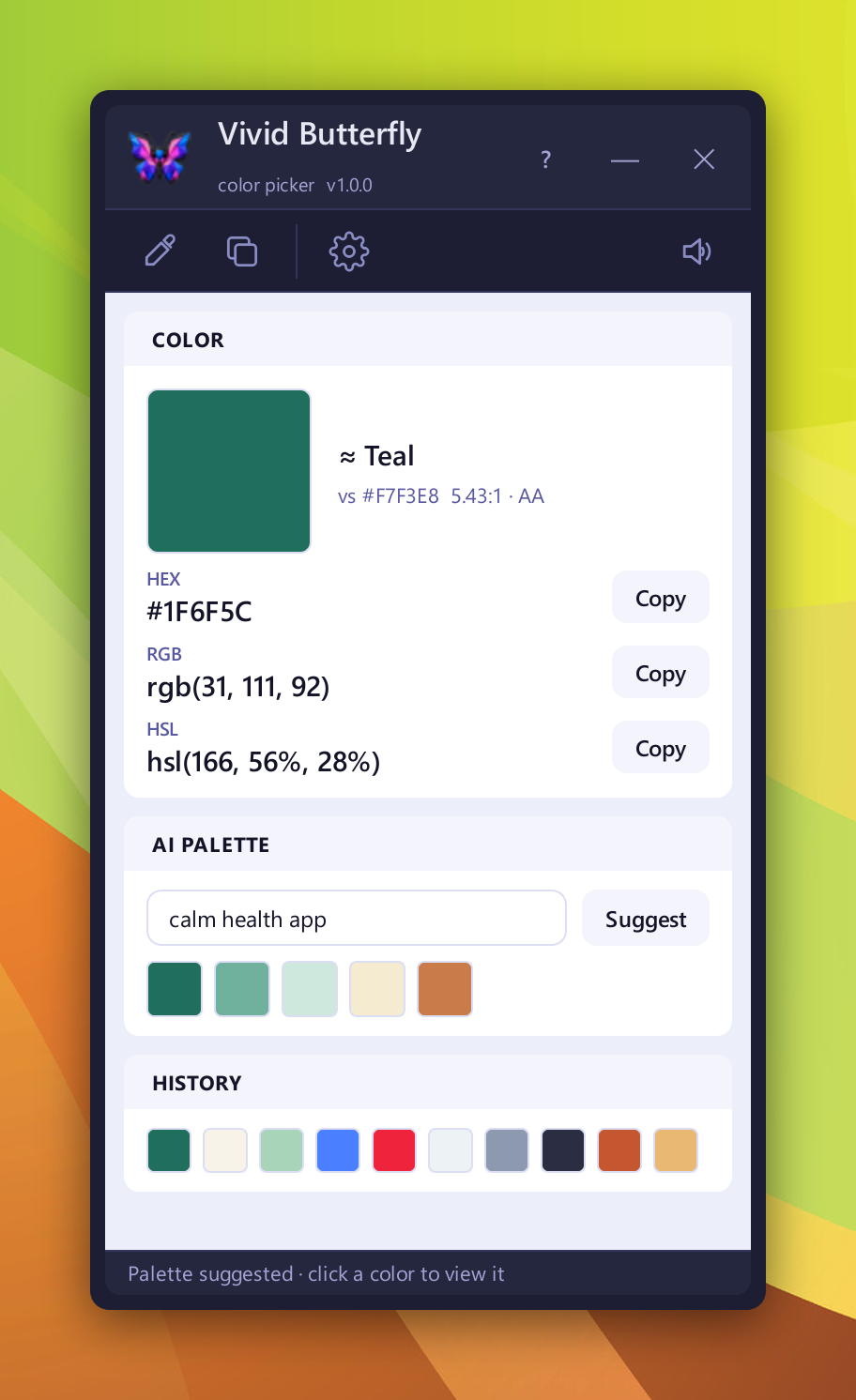
  • Add a Google Gemini or Groq key in Settings, type an idea such as «calm health app» and get a 5-color palette built around your color, with each color's contrast against it one hover away
  • Only the HEX code and your idea are sent: never a screenshot. A notice says so the first time
  • The reply is checked by code (five distinct, well-formed HEX values) before it is shown
  • The key lives in the Windows credential store, never in a file. Without a key, everything else works the same

Small and quiet.

  • A short splash with the butterfly and one of three start-up sounds, softly, with a mute button that remembers your choice
  • Open it twice and the window that is already open comes to the front
  • The version shows next to the name, and ? or F1 opens the online guide
  • On launch it tells you if a newer, signed version exists; you can skip that version
The picking overlay on a web page: the cross cursor on the edge between a teal block and a yellow button, and the 8× loupe with the picked value, #1F6F5C, below it.

What you get

The right pixel, and the value already copied.

The pixel you meant, not the one next to it

The loupe and the click read the same pixel, also on a second monitor with another scale. Arrow keys move it one pixel at a time when the mouse is not precise enough.

Copied before you let go

You click, and the color is on the clipboard in the format you set (HEX by default). There is no editor to close and no extra step: the other formats are one Copy button away.

You know whether it reads

Every color comes with its WCAG 2.1 contrast against the one before: a ratio and a label, AAA, AA, AA Large or Fail. Pick the text color, then the background, and the answer is already there.

Before you install it

What it needs, and what leaves your computer.

What it needs

  • Windows. A desktop app. The installer is signed and sets up for your own user, with no administrator prompt
  • No account. Nothing to register, nothing to sign in to
  • No cloud. The colors, the names and the contrast are all worked out on your computer

What leaves your machine

  • A version check when it starts, to tell you if there is a newer signed build
  • The optional AI palette, only if you add your own Gemini or Groq key and run it: it sends the HEX code and your idea, never a screenshot

How it goes

Call it. Aim. Click. Read.

The window is a single column: a big square with the color, three values, a line for AI ideas and your last colors. It is as much as the shortcut leaves to look at.

  • Esc or a right click cancels, with nothing copied
  • The window can stay minimized: the shortcut still works
Step 1 · Call it Press Ctrl+Alt+C from any app, or the eyedropper in the window.
Step 2 · Aim The loupe shows the area at 8×. Use the arrow keys to move one pixel, or Shift and an arrow to move ten.
Step 3 · Click Click, or press Enter or Space. The color is copied, as HEX unless you choose another format.
Step 4 · Read it The three values, the nearest CSS name and the contrast against the previous color. The swatch goes into the history.
Vivid Butterfly with the idea «calm health app» typed in and a palette of five colors suggested below it, built around the picked teal.

How you get it

  • Free. No trial, no licence key, no feature held back
  • No account. Download the installer and pick your first color
  • Windows. A desktop app, installed for your own user

Who it is for

Anyone who needs the exact color, again and again.

A web or UX designer who pulls colors from mockups, sites and screenshots all day, and a front-end developer who wants the exact HEX of an element without installing a whole utility suite. Especially if you work with two monitors of different scale and the picker has ever read the pixel next to the one you meant.

The guide covers the same ground slowly: the overlay and its keys, the formats, the contrast, the history, the optional AI palette and Settings.

Read the complete guide →

What it leaves out

A picker, not a color studio.

  • No editor or mixer after the click: you pick, it is copied
  • No named palettes, no projects and no export: the history is a short list
  • No color harmonies (complementary, analogous, triad)
  • HEX, RGB and HSL only: no HSV, OKLCH or CMYK, and no custom formats
  • No zoom with the mouse wheel and no averaging of pixels
  • No HDR or ICC profile correction: it reads the value Windows hands over
  • The live screen only: it does not open image files, and it has no Figma, Adobe or browser integration
  • It does not install updates by itself: it opens the download page
  • Windows only for now