Complete Guide
Bright Cardinal
Make a few slides, give them a theme and show them full screen. The thumbnails, New slide and F5 you know from PowerPoint — only the parts a family uses, and no account.
1. What Is Bright Cardinal?
Bright Cardinal is a slide program for Windows, with experimental Linux packages, built for the presentations people make at home. It looks and answers like PowerPoint where it matters — thumbnails on the left, the slide in the middle, New slide, F5 to present and the usual shortcuts — and it leaves out the parts a family never opens: object animations, Morph, SmartArt, charts and the slide master.
It reads and writes .pptx, so the presentation you make here, or the one somebody emails you, opens in PowerPoint and back again. Eight themes and seven layouts decide the colours, the fonts and where things go, so the slides look finished without designing anything. There is no account and no cloud: every presentation is a file on your computer, pictures included.
Who it is for
Whoever prepares a presentation now and then: the children’s school project, the photos of the birthday or the trip to watch on the TV, the four slides for the residents’ meeting. Someone who can type a title and drag a photo, and would rather not pay for Microsoft 365 or upload the family photos to someone else’s cloud. And whoever receives a .pptx and only needs to open it, change a few things and show it.
2. Installation
Get it from the Bright Cardinal page. It is a single .exe for 64-bit Windows, signed with our code-signing certificate.
It installs into your own user folder, so Windows does not ask for administrator rights. It also registers itself for .pptx, so presentations open with a double-click or from Open with.
Find it in the Start menu as Bright Cardinal - Presentations. It is named by what it does, so Windows Search finds it whether you type the bird or “presentations”.
3. First Launch
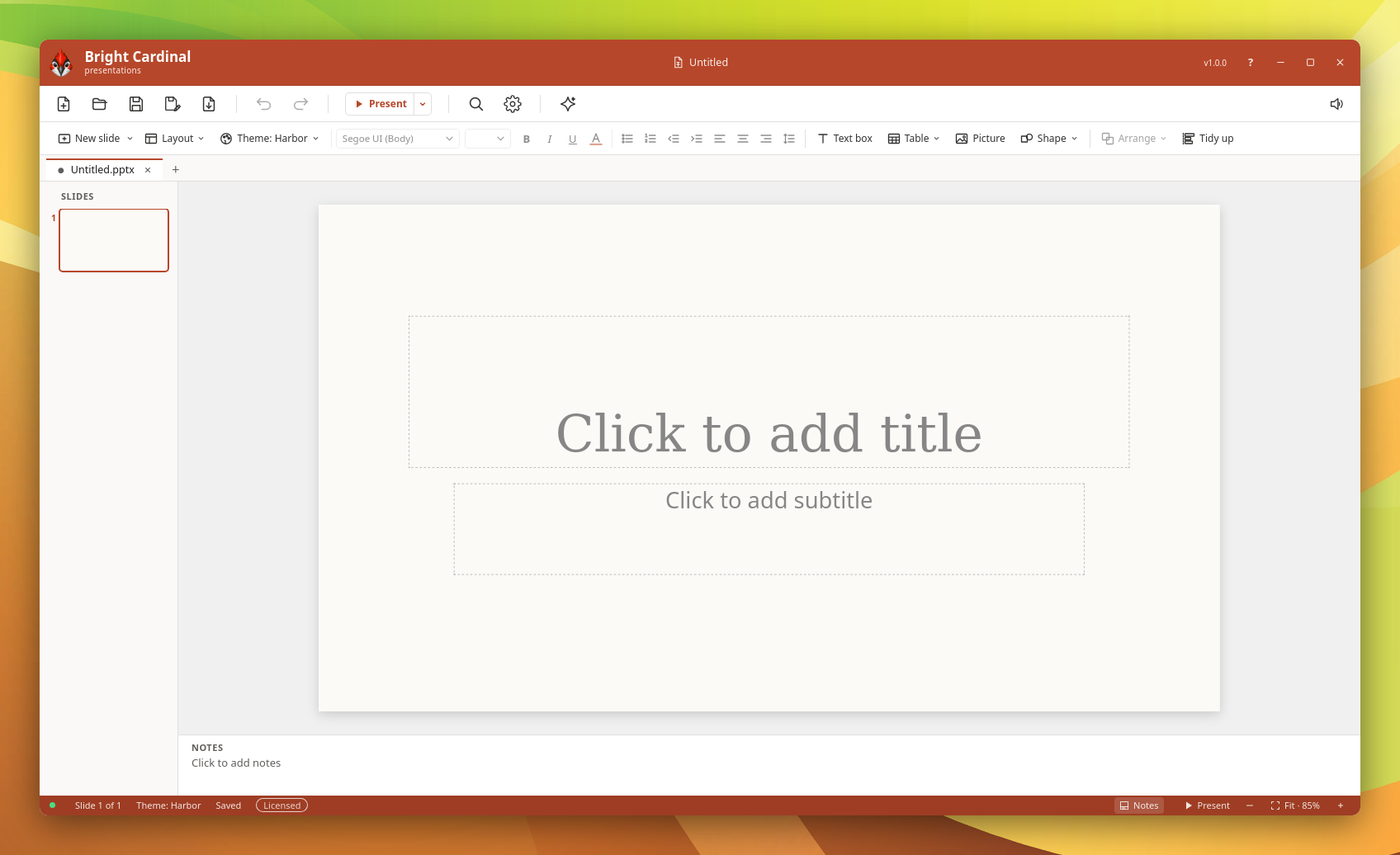
Bright Cardinal opens with a short call from the cardinal and an empty presentation, Untitled, with a title slide ready to type in. From top to bottom: the red title bar with the version, an icon bar (new, open, save, save as, print, undo, redo, find, the Present button, settings and, on the right, the speaker to mute the sound), the ribbon, the presentation tabs, then the slide thumbnails on the left, the slide in the middle with the notes under it, and the status bar.
The status bar is worth a look: it says which slide you are on, the theme and whether everything is saved, and on the right it has the Notes switch, a Present button and the zoom. Next to the save state is the licence indicator, with the days left of your trial; click it to enter your Animal Tools key.
Your free trial
There is no “start my trial” button. The first 14 days are the full version, and they start by themselves on first launch. You do not sign up, and you do not enter anything.
4. Core Workflow
Most uses of Bright Cardinal are this short: a handful of slides with titles and photos, a theme, and a slide show.
Ctrl N for a new one; Ctrl O, a double-click on a .pptx, or dropping it on the window to open one. Each presentation gets its own tab.
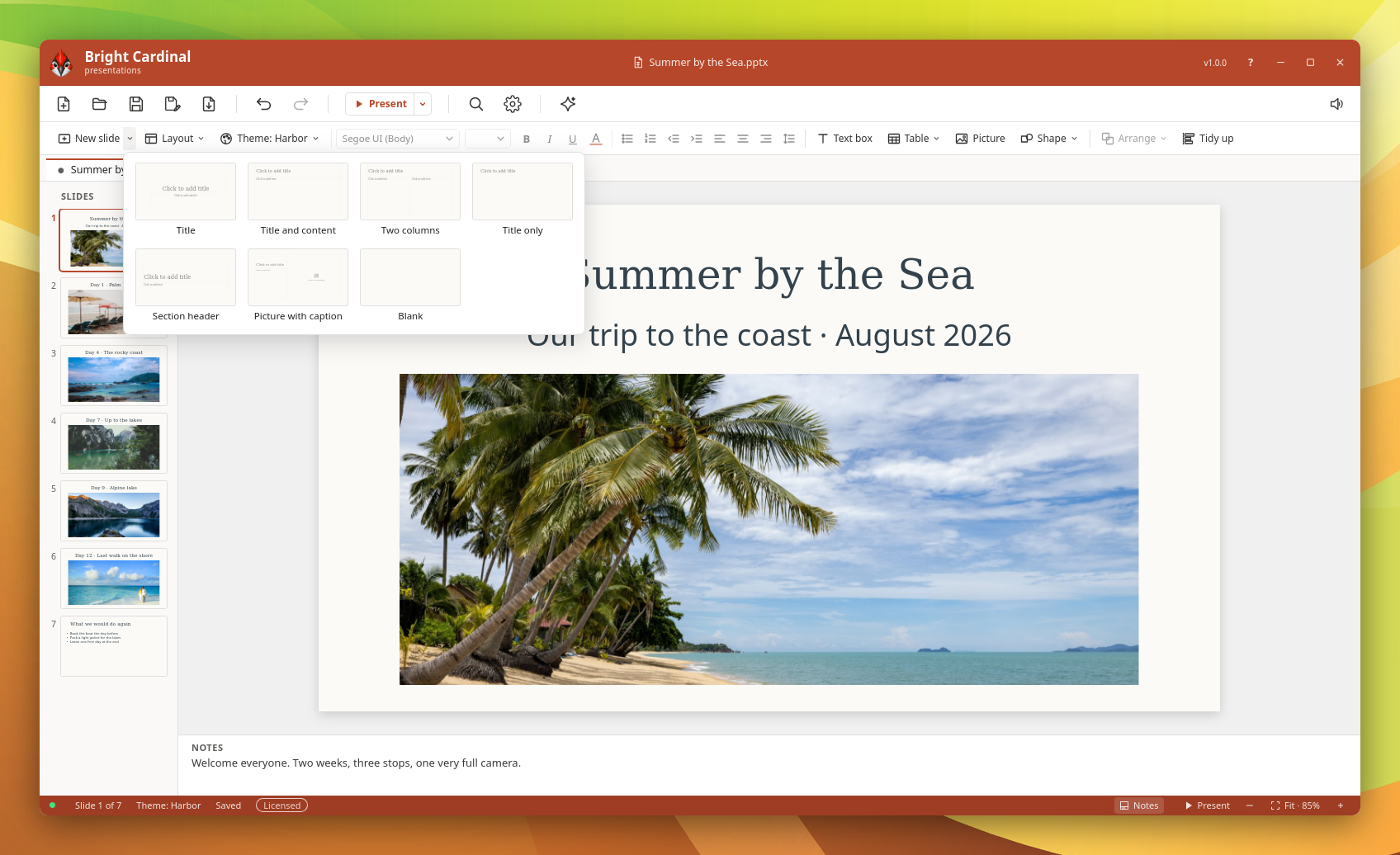
Ctrl M or New slide adds one after the current slide; the arrow under the button lets you choose its layout first — Title and content, Two columns, Picture with caption and the rest.
Click a box and type. Drag photos from File Explorer straight onto the slide, or paste a picture with Ctrl V.
Theme in the ribbon opens the gallery; one click changes the background, colours and fonts of every slide.
F5 starts the slide show from the beginning. Ctrl S saves as .pptx; Ctrl P opens the print preview, where you can also save a PDF.
5. Slides, Layouts & Themes
The thumbnails on the left are the presentation. Click one to edit it, drag it to move it, and right-click for New slide, Duplicate slide, Delete slide, Layout, cut, copy and paste. Ctrl+click and Shift+click select several slides, to move, duplicate or delete them together.
➕ New slide CtrlM
After the current one, with the layout you pick from the arrow; a plain click repeats the current layout (Title and content after the title slide).
📑 Duplicate CtrlD
A copy right after the original, with everything on it. Copied slides also paste into another presentation.
🧩 Layouts
Title, Title and content, Two columns, Title only, Section header, Picture with caption and Blank. Layout changes the layout of the selected slides.
🎨 Themes
Harbor, Terracotta, Paper, Night, Meadow, Classroom, Sunset and Slate — background, six colours and a pair of fonts each.
📐 Slide size
Widescreen (16:9) or Standard (4:3), at the bottom of the Theme gallery.
🌄 Background
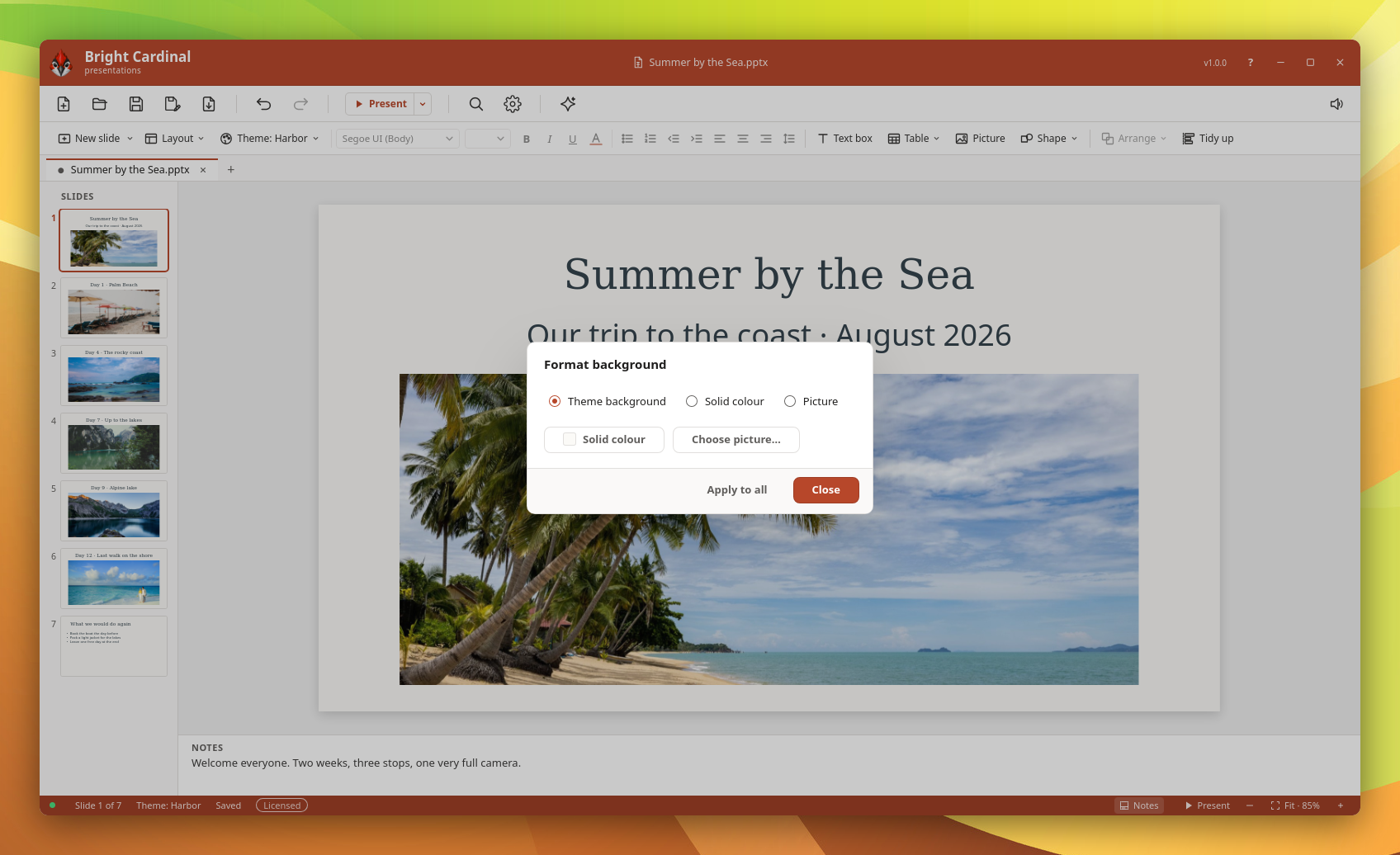
Format background… : the theme’s, a solid colour or a picture, for this slide or, with Apply to all , for every slide.
6. Text, Pictures & Shapes
Text
Click a box to type in it. With the box selected but not being edited, the ribbon formats all of its text at once; while you type, it formats only what you select. Font, size, bold, italic, underline, colour, alignment, bullets, numbering and line spacing (1.0, 1.5 or 2.0) are all in the ribbon. Tab and Shift Tab move a list item one level in or out. Text that does not fit its box runs over the edge, and the frame is marked so you notice.
Pictures
🖼️ Insert
Picture in the ribbon, dragging files from File Explorer, or Ctrl V with a picture copied. PNG, JPG, GIF, BMP and WebP.
↔️ Resize
The corner handles keep the proportions; hold Shift to stretch freely.
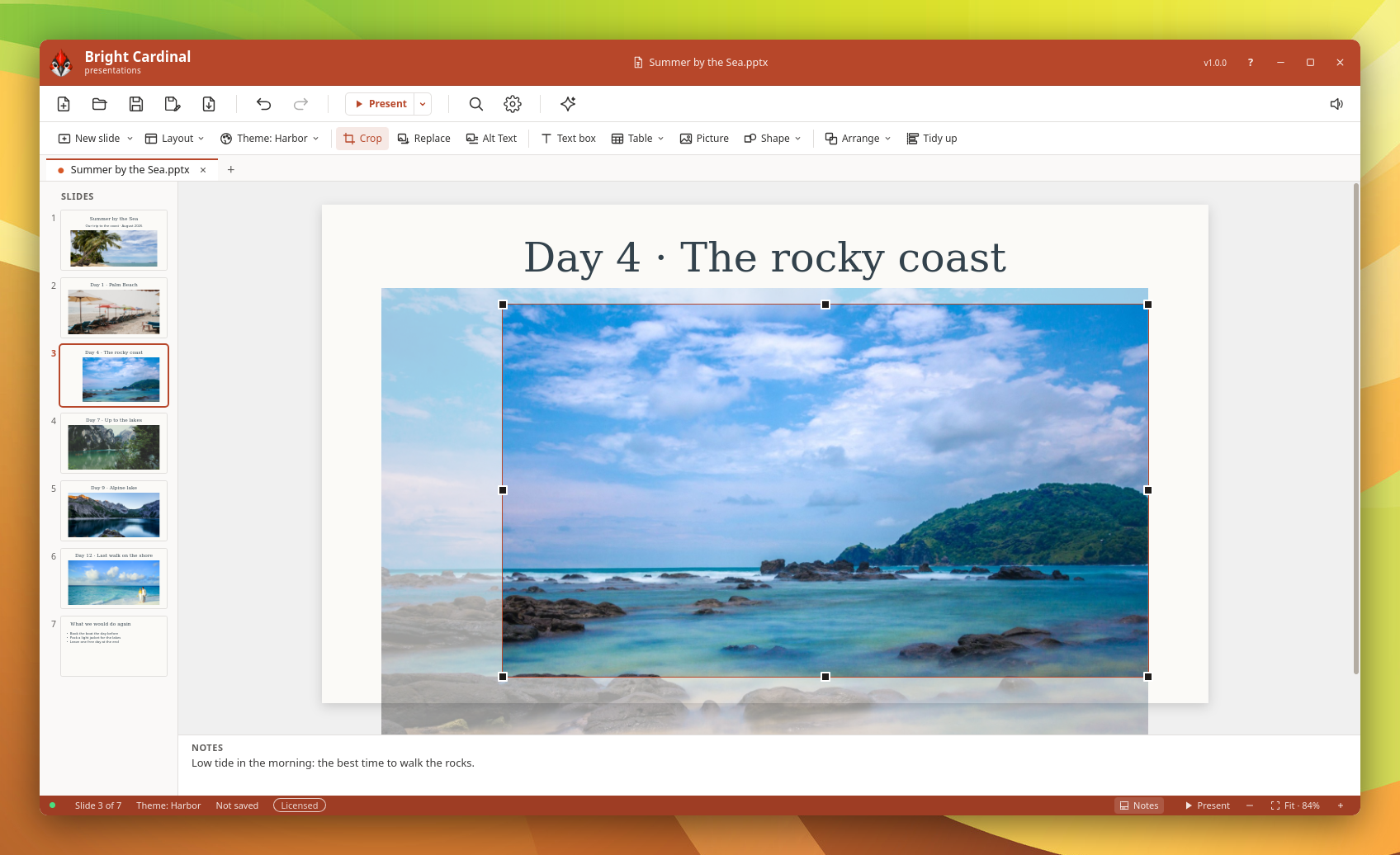
✂️ Crop
Crop shows handles on the edges; drag them in, and Enter or Esc to finish.
🔄 Replace
Swaps the picture for another, keeping its size and place on the slide.
Shapes and arranging
⬛ Shapes
Rectangle, rounded rectangle, oval, line and arrow. Fill and Outline set their colours; all but the line take text inside.
📏 Smart guides
While you drag, lines show when an object lines up with another or with the centre of the slide.
🧲 Arrange
Bring to front or forward, send backward or to back; align left, centre, right, top, middle or bottom; distribute evenly.
🔗 Group CtrlG
Several objects move as one; Ctrl Shift G ungroups them.
Select several objects with Ctrl+click or by dragging a box around them. The arrow keys nudge the selection a little, and with Shift a little more.
7. Presenting
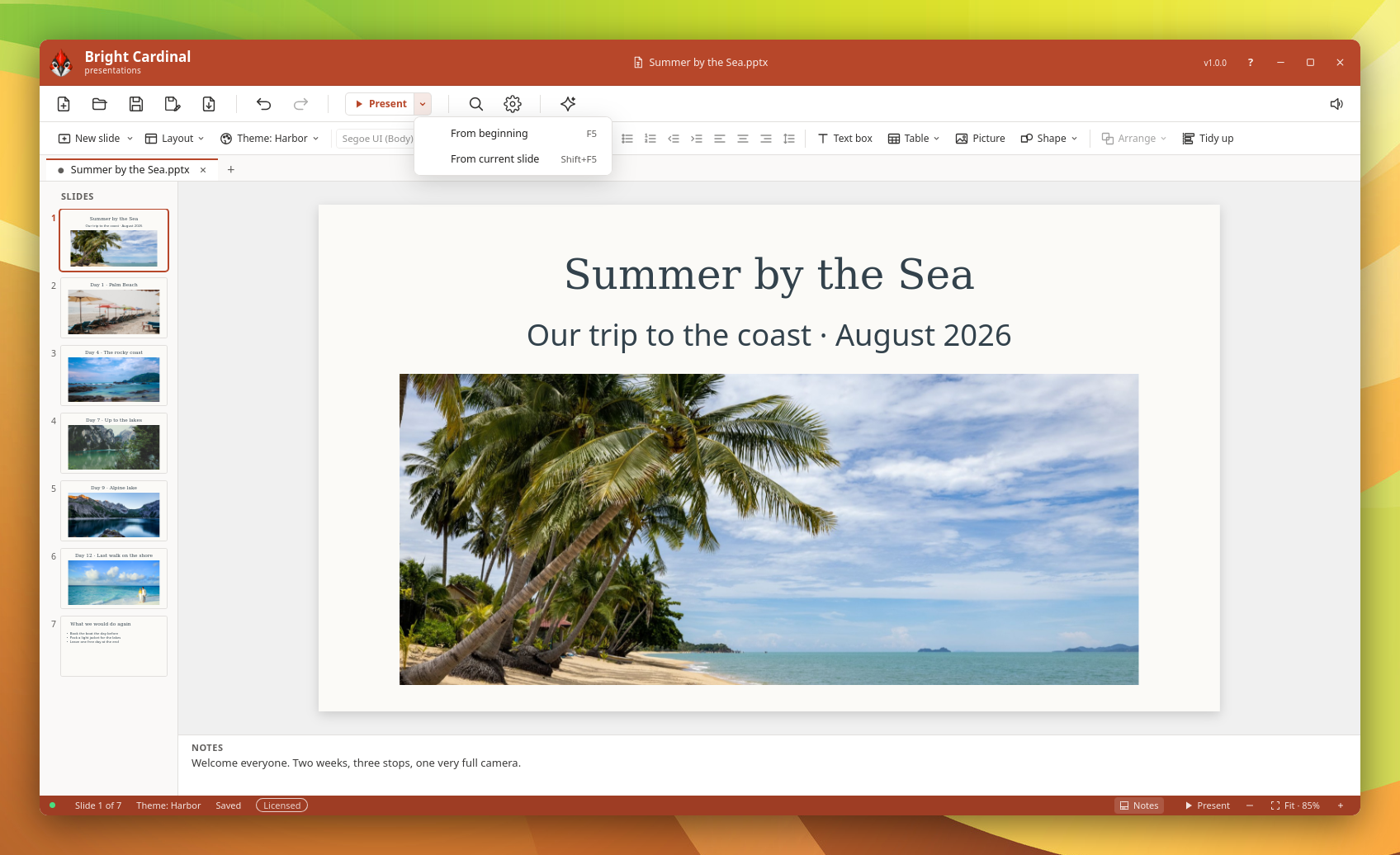
F5 or the Present button starts the slide show from the first slide; Shift F5, or From current slide in the arrow next to Present, starts it from the slide you are on. The slides fill the screen on black, and a short hint of the keys shows for three seconds; the mouse cursor hides when you stop moving it.
➡️ Next
Click, → , ↓ , Space , PgDn or N . A presentation remote sends PgDn, so it just works.
⬅️ Previous
← , ↑ , PgUp , P or Backspace .
🔢 Jump
Type a slide number and press Enter ; Home and End go to the first and the last.
⚫ Black or white B W
Blanks the screen while you talk; the same key, or moving on, brings the slide back.
🚪 Leave Esc
Ends the slide show at any point. After the last slide, a black screen says so; one more click closes it.
On the TV or the projector
With a second screen connected, the slide show opens there by default and your laptop stays free. If you would rather show it on the same screen you work on, change it in Settings → Presenting.
8. Files, Tabs & Printing
Presentations in tabs
Several presentations stay open at once, each in its own tab. Their contents are saved as you go, and the next time you open Bright Cardinal the same tabs come back. Closing a tab with unsaved changes asks first. Slides and objects copied in one presentation paste into another.
What it opens and writes
.pptx, both ways. What Bright Cardinal makes — text, pictures, shapes, backgrounds, notes, layouts and theme — comes back exactly as it was saved, and pictures travel inside the file.
Find and replace
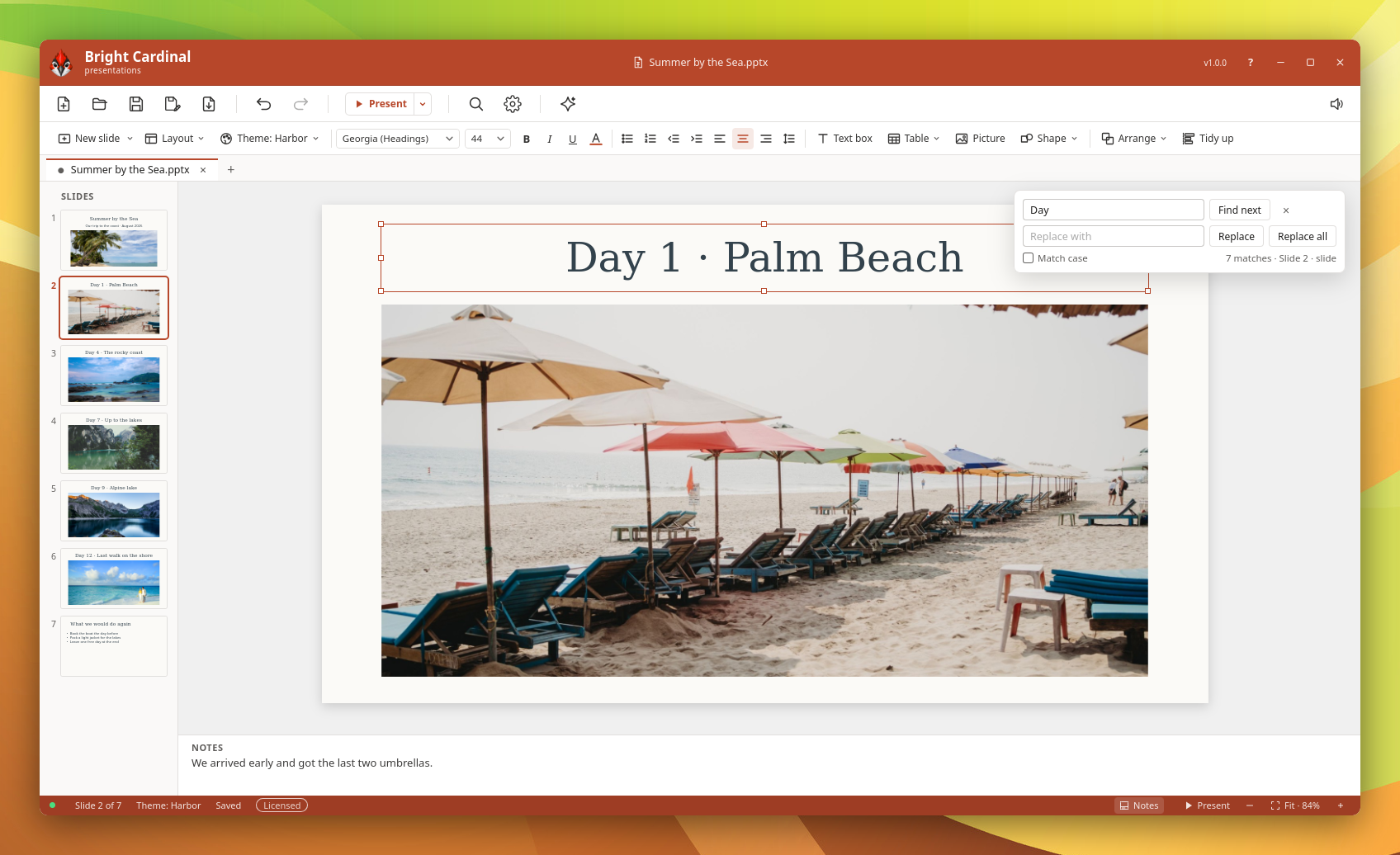
Ctrl F finds text in the slides and in the notes, saying on which slide and where; Ctrl H adds the replace box, with Match case, Replace and Replace all.
Printing and PDF
Ctrl P opens Bright Cardinal’s own preview: Slides, one per page, or Slides with notes, each slide with its notes underneath. The slides keep their theme colours. Save as PDF… writes the file directly; Print… hands over to the Windows print dialog.
9. Settings & Configuration
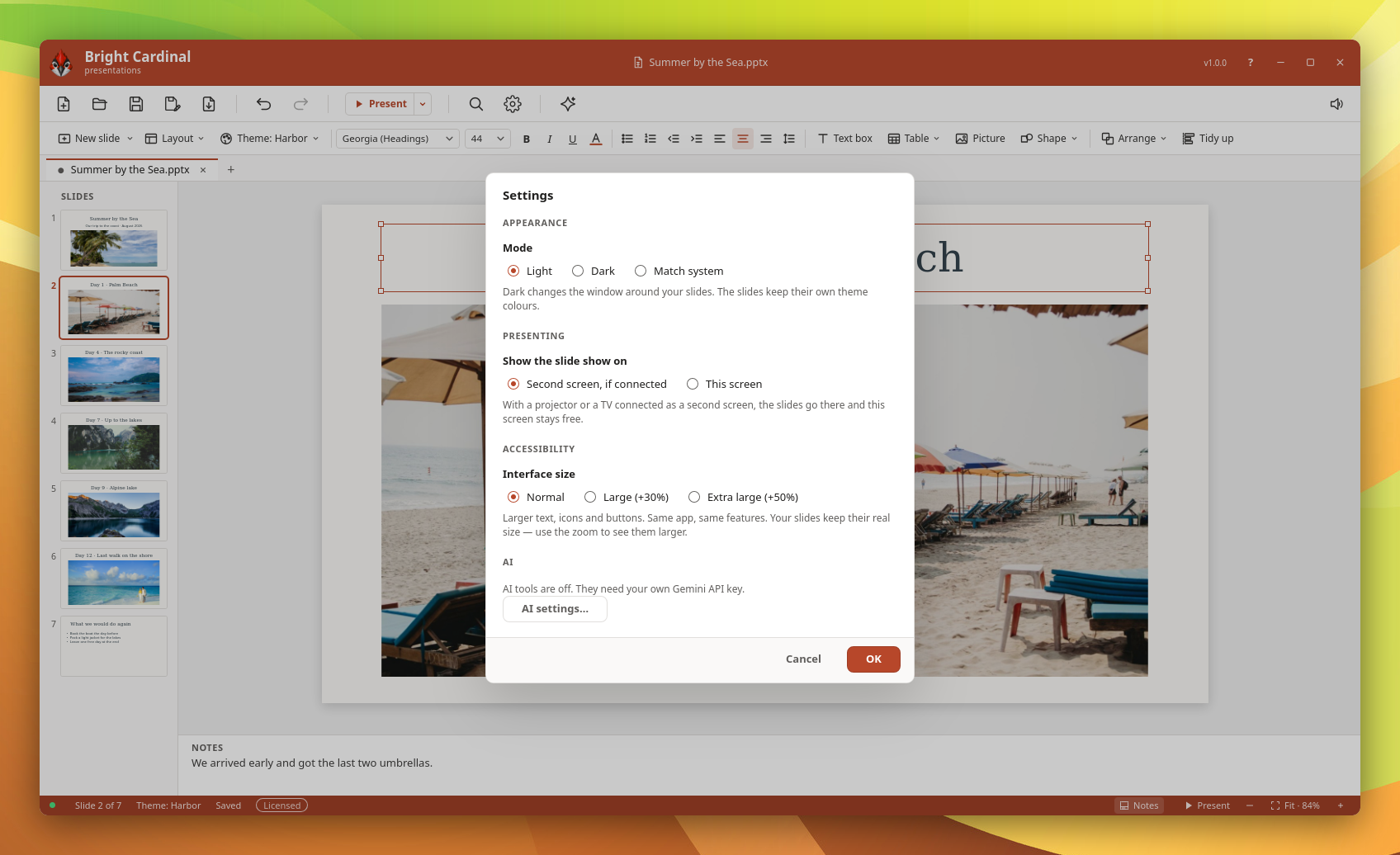
There is very little to configure, and it all lives in one dialog: the gear in the icon bar opens Settings.
Appearance
Mode: Light (the red title bar, the default), Dark or Match Windows. Dark changes the window around your slides; the slides keep their own theme colours.
Presenting
Show the slide show on: Second screen, if connected (the default) or This screen. With a projector or a TV connected as a second screen, the slides go there and this screen stays free.
Interface size
Under Accessibility → Interface size: Normal, Large (+30%) or Extra large (+50%). Text, icons and buttons grow; your slides keep their real size — use the zoom to see them larger.
Sound, updates and licence
The speaker at the right of the icon bar mutes the start-up sound. When a new version is available, the app says so and installs it with one click on Update now. The licence indicator in the status bar opens the licence dialog: paste the key from your Animal Tools purchase email and press Activate; Deactivate this computer frees the licence to move it to another one.
10. Tips
- Choose the theme last. Make the slides first; a theme changes every slide at once, so you can try a few at the end.
- Use Picture with caption for photo slides. The layout places the photo and its line of text for you, and every photo slide looks the same.
- Drop several photos at once. Select them in File Explorer and drag them onto the slide together.
- Start from where you are. Shift F5 checks the slide you just changed without going through the whole show.
- Press B during a question. The screen goes black so people look at you; any key brings the slide back.
- Print with notes before you present. Slides with notes gives you a page per slide with what you wanted to say.
The complete list is in Keyboard Shortcuts.
11. FAQ
Can it animate text or add transitions between slides?
No. Object animations, Morph and SmartArt are left out on purpose: they are the part of PowerPoint a home presentation does not need, and the part that makes it hardest to use. Transitions between slides are not in this version either. Animations in a .pptx you open are dropped, and the line in the status bar says so.
Can I see my notes on the laptop while the slides are on the TV?
Not in this version: there is no presenter view. The notes are for preparing and printing — Slides with notes in the print preview puts each slide with its notes on a page.
Does it do tables, charts or video?
Simple tables, yes: insert one from the ribbon, edit its cells like any text box, and a table from PowerPoint opens with its style. Charts, video and audio are not in Bright Cardinal; a .pptx that has them opens without them, with a warning. If the numbers matter, a picture of the chart dropped onto the slide works.
Can it open .ppt or LibreOffice’s .odp?
No: only .pptx. Save the file as .pptx from the program that made it, and it will open here.
My phone photos are huge. Will the presentation be slow?
Bright Cardinal keeps each picture whole inside the file and shows a lighter copy on screen, so editing stays responsive. The .pptx still carries the full photos, though; to keep it small enough to email, Agile Ant Bulk Image Converter turns a folder of photos into lighter copies of the size you set before you drop them in.
Where are my presentations stored? Do I need an account?
No account, and no cloud. Presentations are ordinary files on your computer, wherever you save them, and nothing is synced anywhere. It is not meant for editing with other people at the same time.
What happens when the 14 days are up?
Nothing you have made is deleted or locked. You can keep editing, saving, printing and presenting the presentation you have open. What you cannot do is have more than one presentation open: to open another, close the one you have. A licence, included with Animal Tools (€19.99, once), lifts that.
12. Keyboard Shortcuts
Bright Cardinal follows PowerPoint’s keys. If your fingers already know them, they work here.
Presentations & files
| Action | Shortcut |
|---|---|
| New presentation | Ctrl N |
| Open | Ctrl O |
| Save | Ctrl S |
| Save as | F12 or Ctrl Alt S |
| Close presentation | Ctrl W |
| Next / previous presentation | Ctrl Tab add Shift to go back |
| Print preview | Ctrl P print or save as PDF from there |
| Find / find and replace | Ctrl F / Ctrl H |
Slides & objects
| Action | Shortcut |
|---|---|
| New slide | Ctrl M |
| Duplicate slide or object | Ctrl D the slide if nothing on it is selected |
| Delete the selection | Delete |
| Previous / next slide | PgUp / PgDn with nothing selected |
| Copy / cut / paste | Ctrl C / Ctrl X / Ctrl V |
| Undo / redo | Ctrl Z / Ctrl Y up to 200 steps |
| Select everything on the slide | Ctrl A |
| Next / previous object | Tab / Shift Tab |
| Move the selection | arrows with Shift, bigger steps |
| Group / ungroup | Ctrl G / Ctrl Shift G |
| Edit the text of the selected box | Enter or F2 or just start typing |
| Deselect, or finish cropping | Esc |
| Zoom | Ctrl + mouse wheel |
Text
| Action | Shortcut |
|---|---|
| Bold | Ctrl B |
| Italic | Ctrl I |
| Underline | Ctrl U |
| List item one level in / out | Tab / Shift Tab while typing in a list |
Slide show
| Action | Shortcut |
|---|---|
| Start from the beginning | F5 |
| Start from the current slide | Shift F5 |
| Next slide | → ↓ Space PgDn N or a click |
| Previous slide | ← ↑ PgUp P Backspace |
| First / last slide | Home / End |
| Go to slide number | number, then Enter |
| Black / white screen | B / W or . / , |
| End the slide show | Esc |
Ready to install?
Free for 14 days. No account, no cloud, no subscription.
Get Bright Cardinal →