Complete Guide
Mighty Bison
Drop in your videos, choose a format and a quality, and let the queue convert them one after another. Your originals are never touched.

1. What Is Mighty Bison?
Someone sends you a .mov your player will not open, or a screen recording is too heavy to upload as it is, or you need a short .gif from a clip. Converting video usually means learning what a codec and a bitrate are, or sending the file to a website. Mighty Bison does it on your own computer: you drop the videos in, choose a format and High, Medium or Low, and press Convert.
Behind it is FFmpeg, the converter most video software is built on, installed together with the app. What it is asked to do for each format and quality is already decided, so there are no codecs, bitrates or presets on screen. The videos you add form a queue, and the queue is converted one video after another.
It is for anyone who works with video as a tool rather than as a craft: community managers, trainers, support staff, office workers. It is a converter, not an editor, and it is free, with no limits and no licence.
2. Installation
Go to thestromboliproject.com/tools/mighty-bison/ and download the Windows installer. It is free, with no account and no email. A portable ZIP is on the downloads page if you prefer not to install.
Double-click it and follow the prompts. It installs for your user, in your own AppData folder, so it does not ask for administrator rights. FFmpeg is included: there is nothing else to install.
Open the Start menu and look for Mighty Bison.
3. First Launch
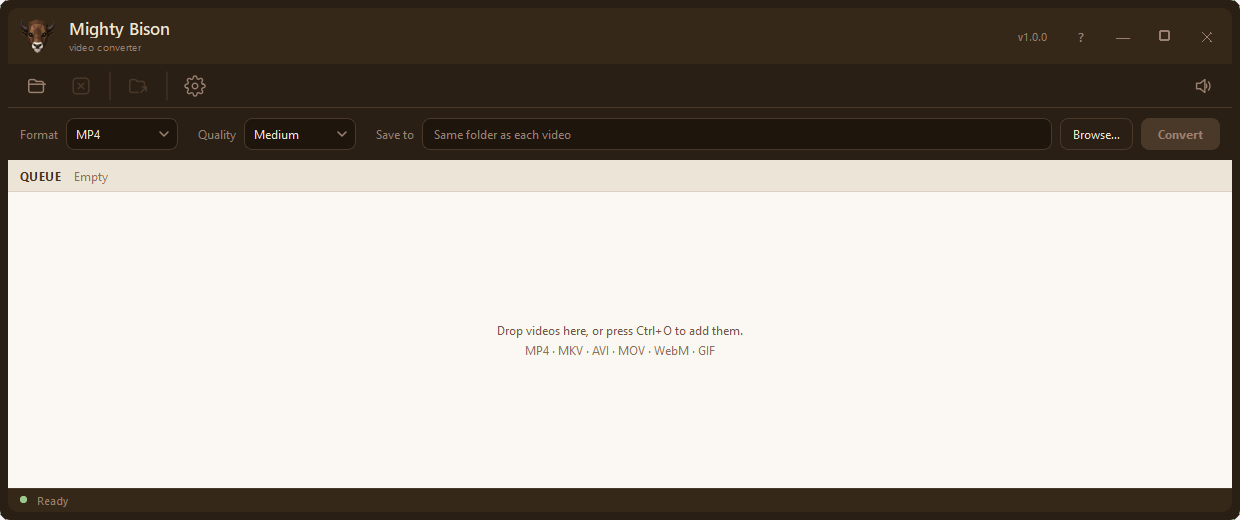
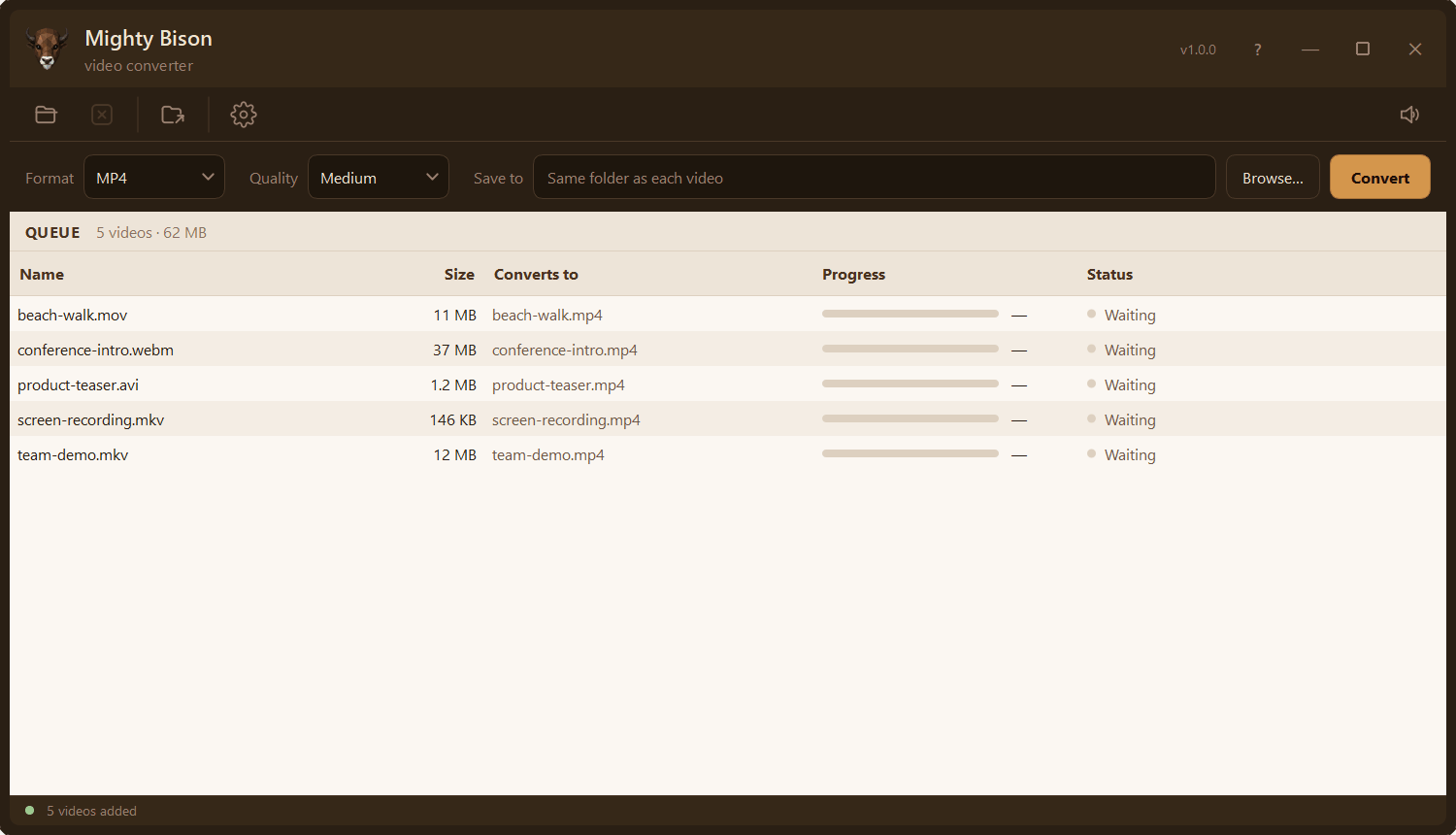
Mighty Bison opens with a short splash — the bison and a call — and then the main window. It is deliberately plain: a toolbar, one line with Format, Quality and Save to, the Convert button, and a queue that says Drop videos here, or press Ctrl+O to add them. Convert stays greyed out until there is something to convert.
If you would rather start in silence, click the speaker button at the far right of the toolbar, or tick Mute the startup sound in Settings. The ? in the title bar opens this guide.
4. Core Workflow
The whole loop, from a folder of mixed videos to copies in the format you need.
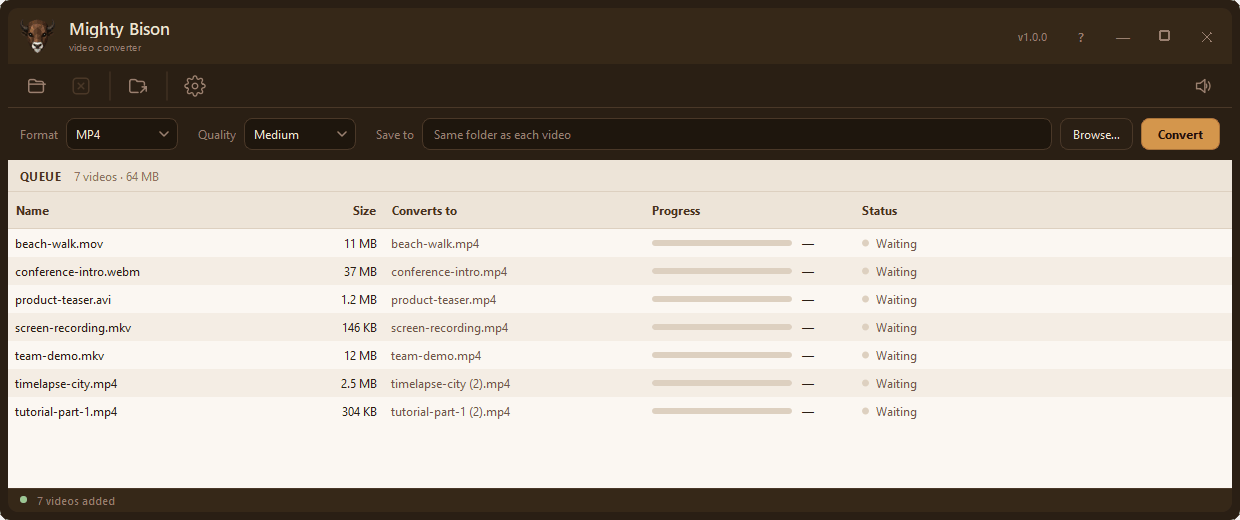
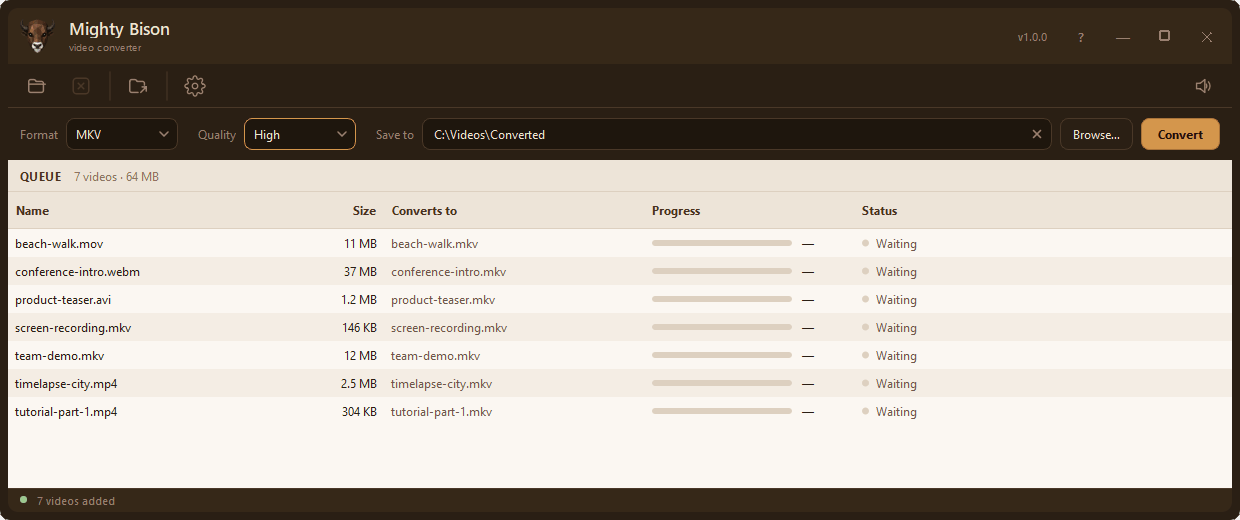
Drop them on the window, or press Ctrl O (or the folder button) and select several at once. They appear in the queue with their size, and the header counts them: 7 videos · 64 MB.
Format is MP4, MKV, AVI, MOV, WebM or GIF; quality is High, Medium or Low. The Converts to column changes as you choose and shows the name each file will have.
By default, each copy is saved next to its original. Press Browse… to put them all in one folder instead.
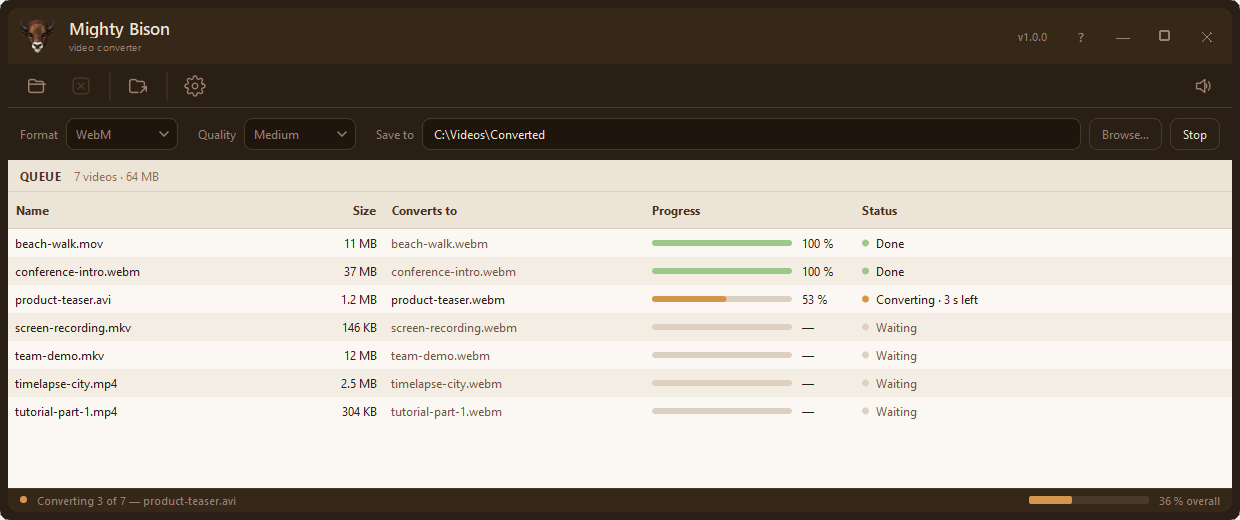
Press Convert or Ctrl Enter. The button turns into Stop, and the videos are converted one after another.
When the last row says Done, the output folder opens by itself (you can turn that off in Settings). The Open output folder button on the toolbar opens it any time.
5. Formats & Quality
Format and Quality are the only two choices that change the result. Both apply to every video in the queue, and they are locked while it converts.
🎬 MP4, MKV, MOV
H.264 video and AAC audio, which any player or phone opens. The three differ in the container the video comes in.
📼 AVI
For older players that still ask for it.
🌐 WebM
For the web, with VP9 video and Opus audio.
🖼️ GIF
A silent animation. High, Medium and Low give 15, 12 or 10 frames per second and a width of at most 640, 480 or 320 pixels. A video narrower than that is not enlarged.
🎚️ High, Medium, Low
High keeps the most detail and makes the biggest files; Low makes small ones. Medium is the default. The exact settings are chosen for each format.
What stays the same
- Apart from GIF, the picture keeps its size: nothing is resized.
- Only the first video track and the first audio track are kept. Subtitles and extra tracks are left behind.
- Format and quality go back to MP4 and Medium every time you open the app; the destination folder is remembered.
6. The Queue
Every video you add is a row, and the queue is converted in the order you see it. Click a column header to sort by it: that changes the order they convert in.
| Status says | What it means |
|---|---|
| Waiting | Added, not converted yet. |
| Converting · 4 s left | The one in progress: its bar fills, and the time left is shown next to it. |
| Done | The copy is finished and written. |
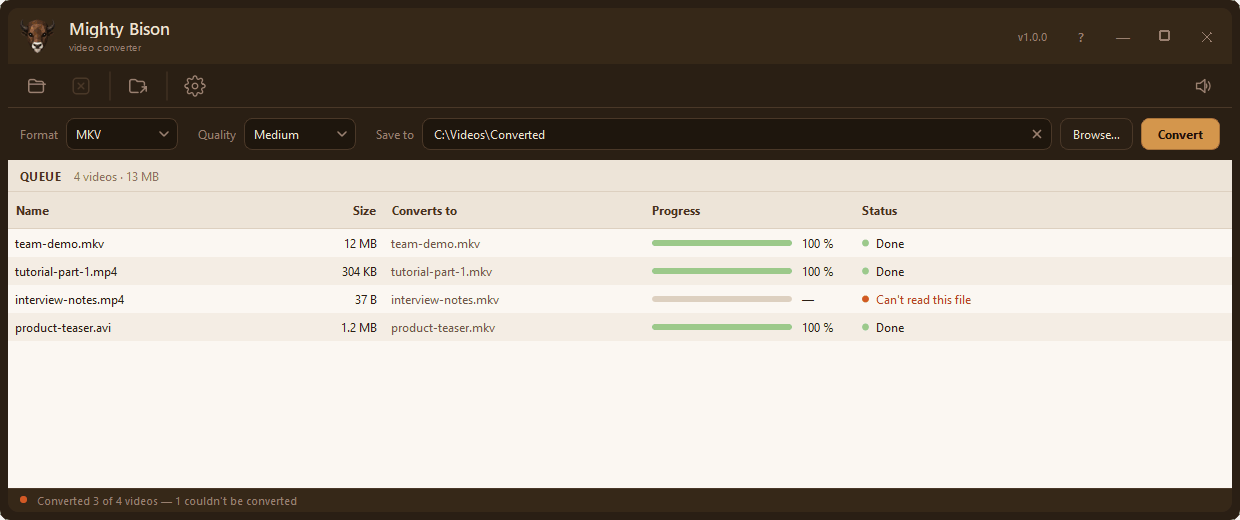
| Can't read this file | FFmpeg could not open it: damaged, or not really a video. |
| No video in this file | FFmpeg opened the file but found no picture in it. |
| File not found | The original was moved or deleted after you added it. |
| Save-to folder not found | The folder you chose no longer exists. |
| Can't write to the folder | Windows does not let the app save there. |
| The disk is full | There is no room left for the copy. |
| Conversion failed | FFmpeg stopped without a clearer reason. |
While it converts
- The status bar says which video it is on — Converting 3 of 7 — and shows the overall progress of the queue at the right.
- Stop ends the video in progress at once and removes the unfinished file. The videos still waiting stay in the queue, and Convert picks up from there: only the ones still Waiting are converted, so the ones already Done are not repeated.
- A video that fails turns red and the queue carries on with the next one. At the end the status bar counts them: Converted 3 of 4 videos — 1 couldn't be converted.
Taking videos out
Select a row and press Delete, or use the Remove from list button. It only leaves the queue: the file on disk is untouched. Dropping something that is not a video, or a video that is already in the list, does nothing.
7. Where the Copies Go
The Save to line says where. It starts as Same folder as each video: every copy lands next to its original. Browse… picks one folder for all of them, and the small ✕ in the field goes back to the default. The folder you choose is remembered the next time you open the app.
🔒 Never overwrites
If the name is taken, the copy becomes clip (2).mp4 , then (3) and so on. This also applies when you convert an MP4 to MP4 in its own folder: the original is never the target.
🧹 Nothing half-done
A copy is written under a temporary name and only gets its real one when it finishes without error. Stop, or a failure, leaves nothing broken behind.
📂 Open output folder
The toolbar button opens the folder the copies went to. If the queue converted nothing yet, the status bar says so.
8. Settings & Configuration
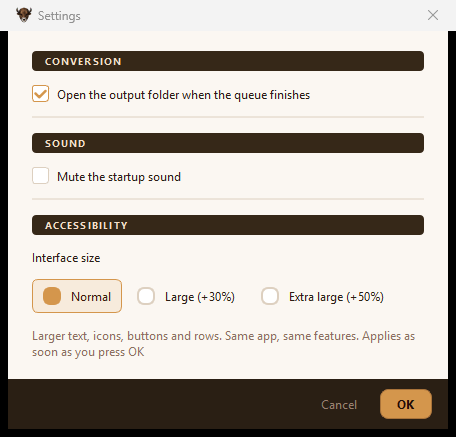
The gear button in the toolbar opens Settings, with three options:
- Open the output folder when the queue finishes — on by default.
- Mute the startup sound — the same switch as the speaker button in the toolbar.
- Interface size — Normal, Large (+30%) or Extra large (+50%). Text, icons, buttons and rows grow together; it is the same app with the same features. It applies as soon as you press OK.
All of them are remembered between sessions, and so is the folder you last opened a video from. The window can be resized from any edge or corner, maximized with the square button, and minimized with the dash or Win D.
9. Tips
- Try one short video first. Convert a clip at each quality and compare before you set a long queue going.
- Read the Converts to column before you press Convert. It shows the exact name each copy will get, including any (2).
- One format per queue. The format applies to everything in the list. For a mix, convert one batch, then change the format and add the rest.
- Pick a folder for big batches. One Save to folder keeps the copies apart from the originals.
- Stop is safe. It removes the unfinished file, and what was already Done stays.
- Make it bigger if the text is small. Settings has two larger interface sizes.
Every shortcut is listed in Keyboard Shortcuts.
10. FAQ
Can I choose the codec, the bitrate or the resolution?
No. You choose a format and High, Medium or Low, and the rest is decided for you. Apart from GIF, the picture keeps its size.
Can I cut, join or add text to a video?
No. Mighty Bison converts what you give it, whole. It does not edit, and it keeps only the first video track and the first audio track: no subtitles, no extra tracks.
Can I convert a video to MP3 or another audio format?
No. The six output formats are all video; GIF has no sound at all.
Can it download a video from YouTube or another site?
No. It only works on video files already on your computer, and it never sends them anywhere.
Does it use my graphics card?
No. The conversion runs on the processor. How long it takes depends on your computer, the length of the video and the format; the window shows the time left for the video in progress.
Will it replace my original files?
Never. A converted copy is always a new file; if the name is taken, it adds (2), (3) and so on, even when you convert to the same format in the same folder.
What is the card that sometimes appears when I close it?
Now and then, not on the first sessions, closing the app shows a small card about the other Animal Tools. Close it and that is all; nothing is installed or bought from there.
I need to do the same for photos. Can Mighty Bison help?
Not with images: it only handles video. For a folder of photos, Agile Ant (Free + licence) resizes, converts and compresses them in one pass and never touches the originals.
11. Keyboard Shortcuts
Queue
| Action | Key |
|---|---|
| Add videos | Ctrl O select several at once |
| Remove the selected rows from the list | Delete |
Convert
| Action | Key |
|---|---|
| Convert every waiting video | Ctrl Enter |
Window
| Action | Key |
|---|---|
| Minimize the window a Windows shortcut | Win D or Win+M |
Ready to convert?
Free. No account, no email, nothing uploaded.
See Mighty Bison →