🌋 The Stromboli Project
Free 🪟 Windows

Mighty Bison Video Converter

Pick a format. Convert the whole pile.

Drop your videos on the window, choose MP4, MKV, AVI, MOV, WebM or GIF and a quality, and press Convert. They go one after another, with the progress of each one in view, and your originals stay exactly as they were.

No account, no email, no licence key. Mighty Bison is free, with no limits, and it stays free. FFmpeg comes inside, so there is nothing else to install.

Windows desktop build Linux: .deb and AppImage (experimental)

Windows may show a SmartScreen warning on first launch — click More info → Run anyway.

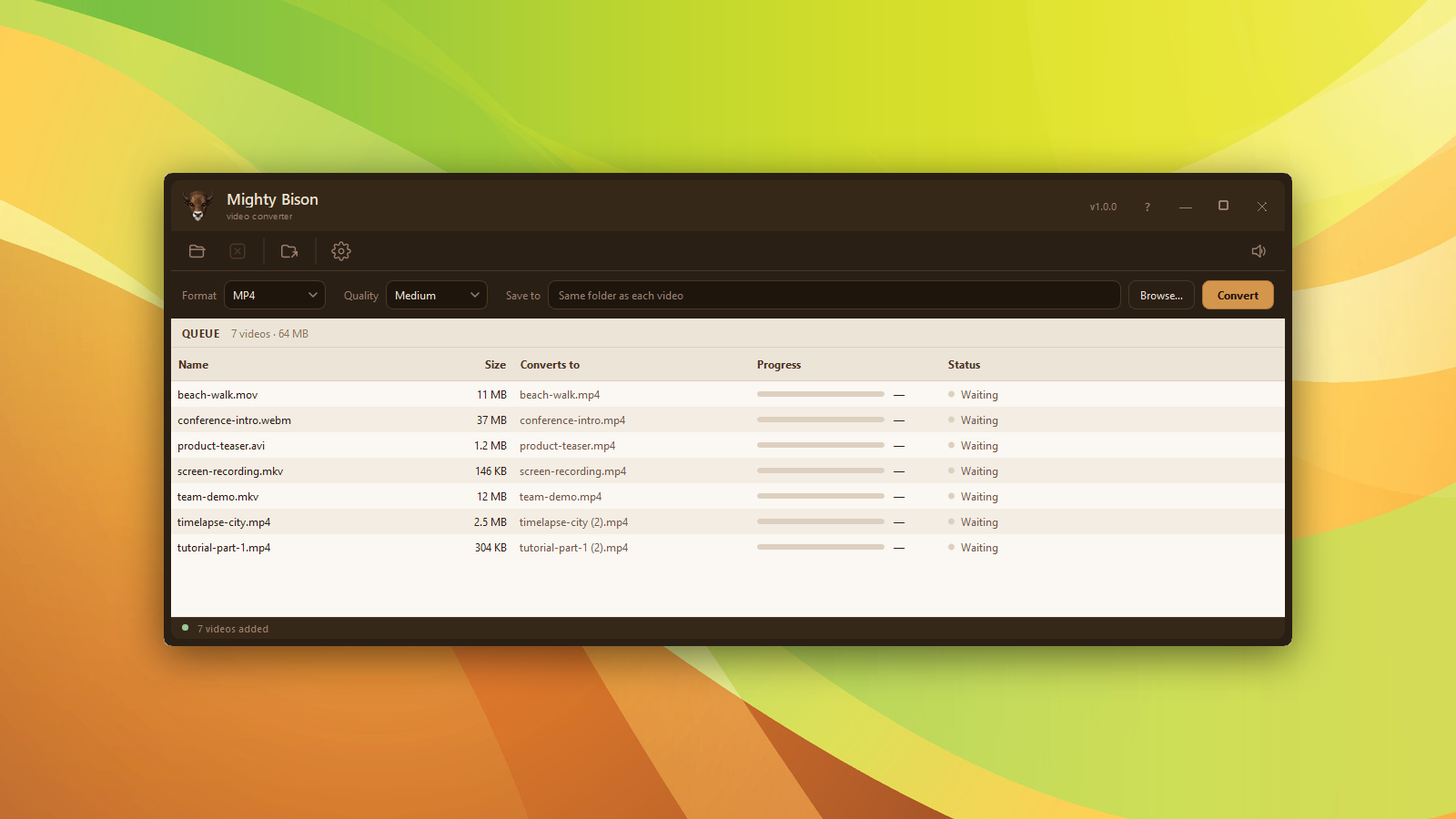
Mighty Bison with seven videos in the queue, each row showing the name the converted file will have, the format and quality chosen above, and the Convert button ready.

Mighty Bison converts a pile of videos between the formats people actually ask for, and keeps codecs and bitrates out of sight.

Features

Six formats, three qualities, one queue.

Videos in, as many as you like.

  • Drop them on the window, or press Ctrl O and pick several at once
  • Reads MP4, MKV, AVI, MOV, WebM and GIF, and other common video files such as WMV, FLV, MPEG or 3GP
  • Anything that is not a video, and a video already in the list, is left out quietly
  • Remove a row with Delete

Six formats out.

  • MP4, MKV and MOV: H.264 and AAC, which any player or phone opens
  • AVI for older players, and WebM for the web
  • GIF as a silent animation: 15, 12 or 10 frames per second, at most 640, 480 or 320 pixels wide
  • Every other format keeps the picture at its original size

Quality in three words.

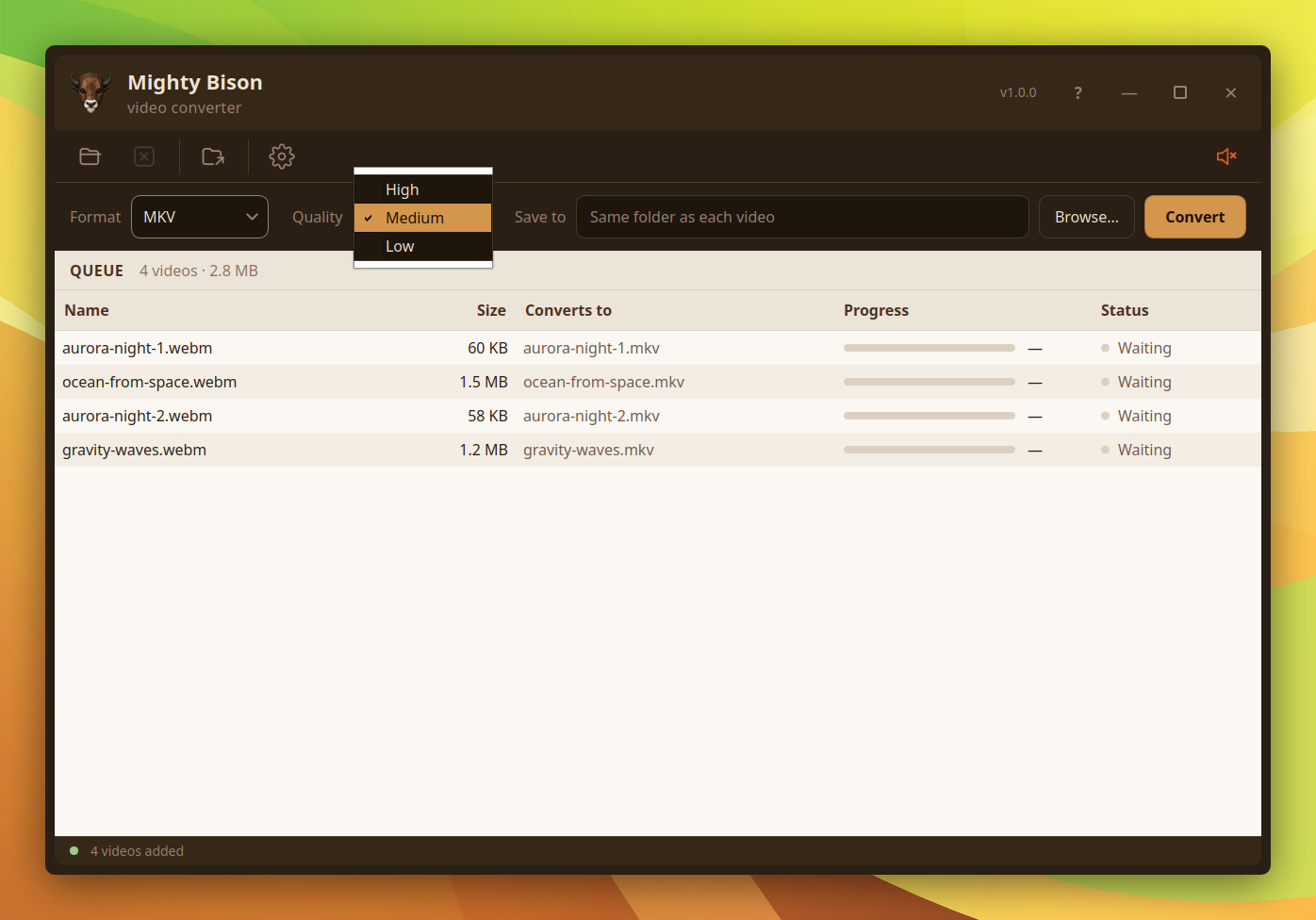
  • High keeps the most detail and makes bigger files
  • Medium is the default, and a good place to start
  • Low makes small files
  • No codecs, no bitrates, no presets to read

A queue you can read.

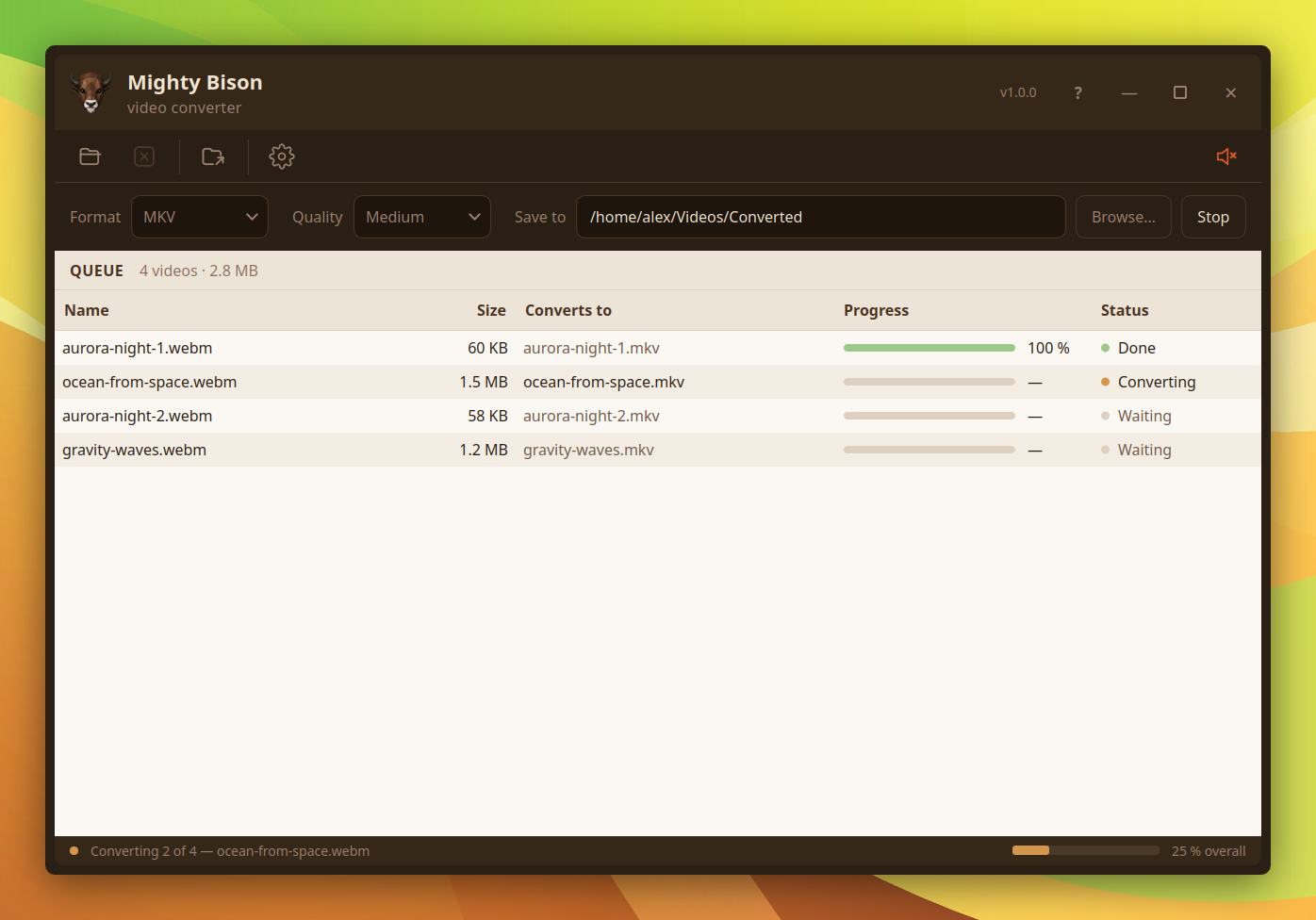
  • One video after another, with a bar and a percentage on every row
  • The time left for the one in progress, and the progress of the whole queue at the bottom
  • Each row says Waiting, Converting, Done, or why it could not be converted
  • The «Converts to» column shows the name each file will get before you press Convert
  • Sort by any column: that is the order they convert in

Nothing overwritten, nothing half-done.

  • If the name is taken, it adds (2), (3) and so on, even when the new file would land on top of the original
  • Press Stop and it stops at once, with no half-written file left in the folder
  • The videos still waiting stay in the queue

Where the copies go.

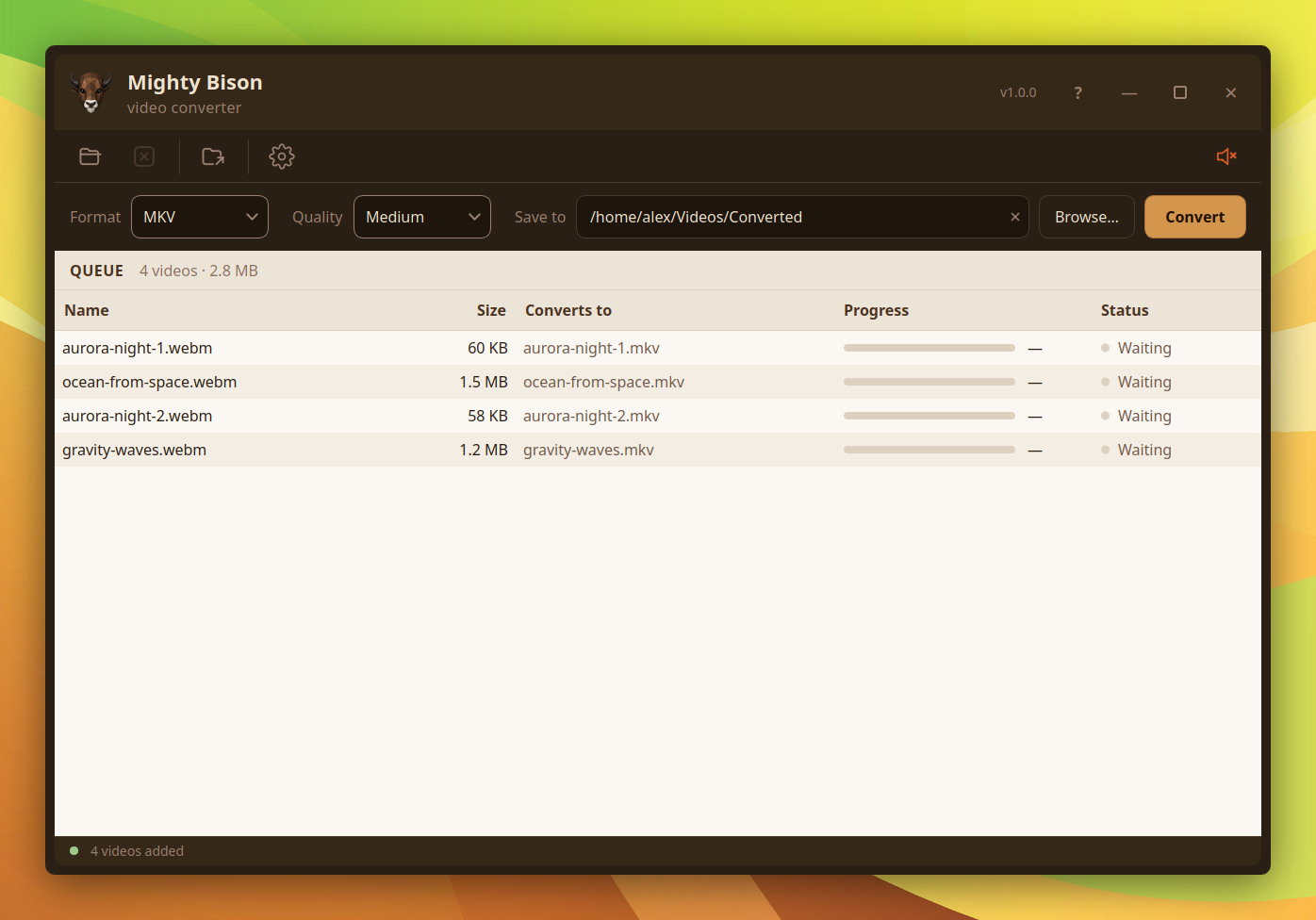
  • Next to each original, or all in one folder you pick with Browse
  • The folder you pick is remembered the next time you open it
  • A button opens the output folder, and a setting, on by default, opens it for you when the queue ends

Larger, if you need it.

  • Interface size Normal, Large (+30%) or Extra large (+50%): text, icons, buttons and rows grow together
  • A window you can resize from any edge, maximize or minimize
  • A startup sound you can mute
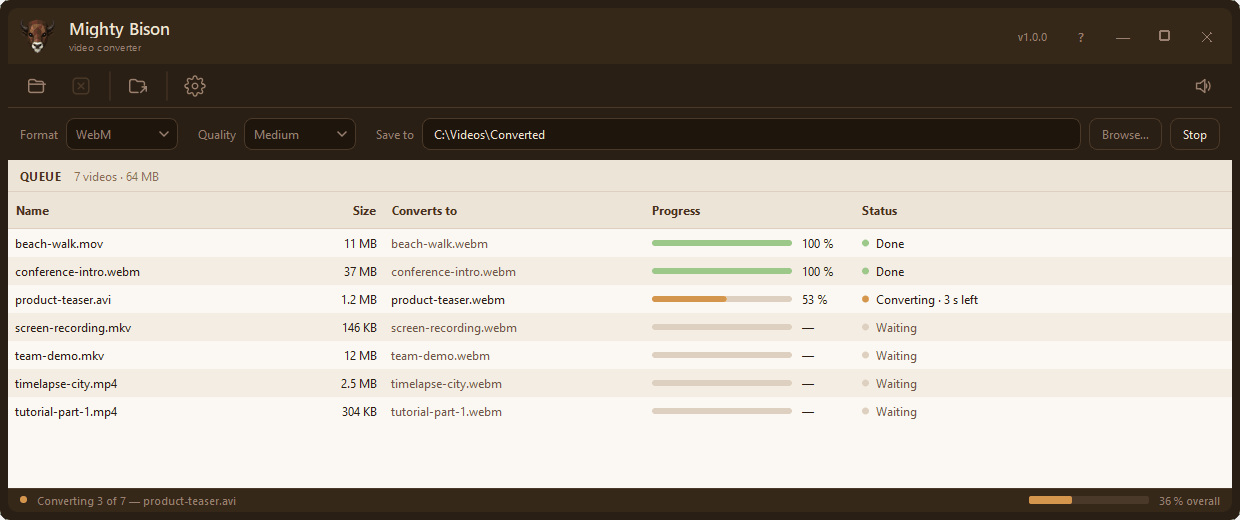
Mighty Bison halfway through a queue of seven videos: two are Done, the third is at 53 percent with the time left, the rest are Waiting, and the status bar shows the progress of the whole queue.

What you get

The videos in the format you needed, and no settings to get wrong.

The right format, without the vocabulary

You choose a format and High, Medium or Low. What FFmpeg is asked to do for each one is already decided, so there is no codec or bitrate to look up.

You can see where the queue is

Every video has its own bar, the one in progress shows the time left, and the status bar tells you which one it is on and how far along the whole queue is.

Originals exactly as they were

Mighty Bison only writes new files, and never on top of an existing one. A wrong choice costs you a file to delete, not a video you cannot get back.

Before you install it

What it needs, and what leaves your computer.

What it needs

  • Windows, 64-bit. A signed installer of about 70 MB that sets itself up in your own user folder, with no administrator prompt. Tested on Windows 11. There is also a portable ZIP on the downloads page
  • Nothing else to install. FFmpeg, the program that does the converting, comes inside
  • Linux, experimental. A .deb for Ubuntu and Debian, or an AppImage for other distros (no extra libraries needed), both with FFmpeg inside and tested on Linux Mint 22 on X11. No macOS build yet
  • No account. Nothing to register, nothing to verify, no licence key

What leaves your machine

  • A version check when it starts, to tell you whether there is a newer build
  • Nothing else. Your videos, the converted copies and your settings stay on your computer

How it goes

Drop. Choose. Convert.

The window opens on an empty queue and a short hint. Format and quality are two boxes on one line, and Convert is the only big button.

  • Nothing is written until you press Convert
  • Press Stop and the file in progress is removed, not left half-written
Step 1 · Add the videos Drop them on the window, or press Ctrl+O and select several.
Step 2 · Choose format and quality The «Converts to» column shows the name each file will get.
Step 3 · Choose where they go Leave it next to each video, or press Browse and pick one folder.
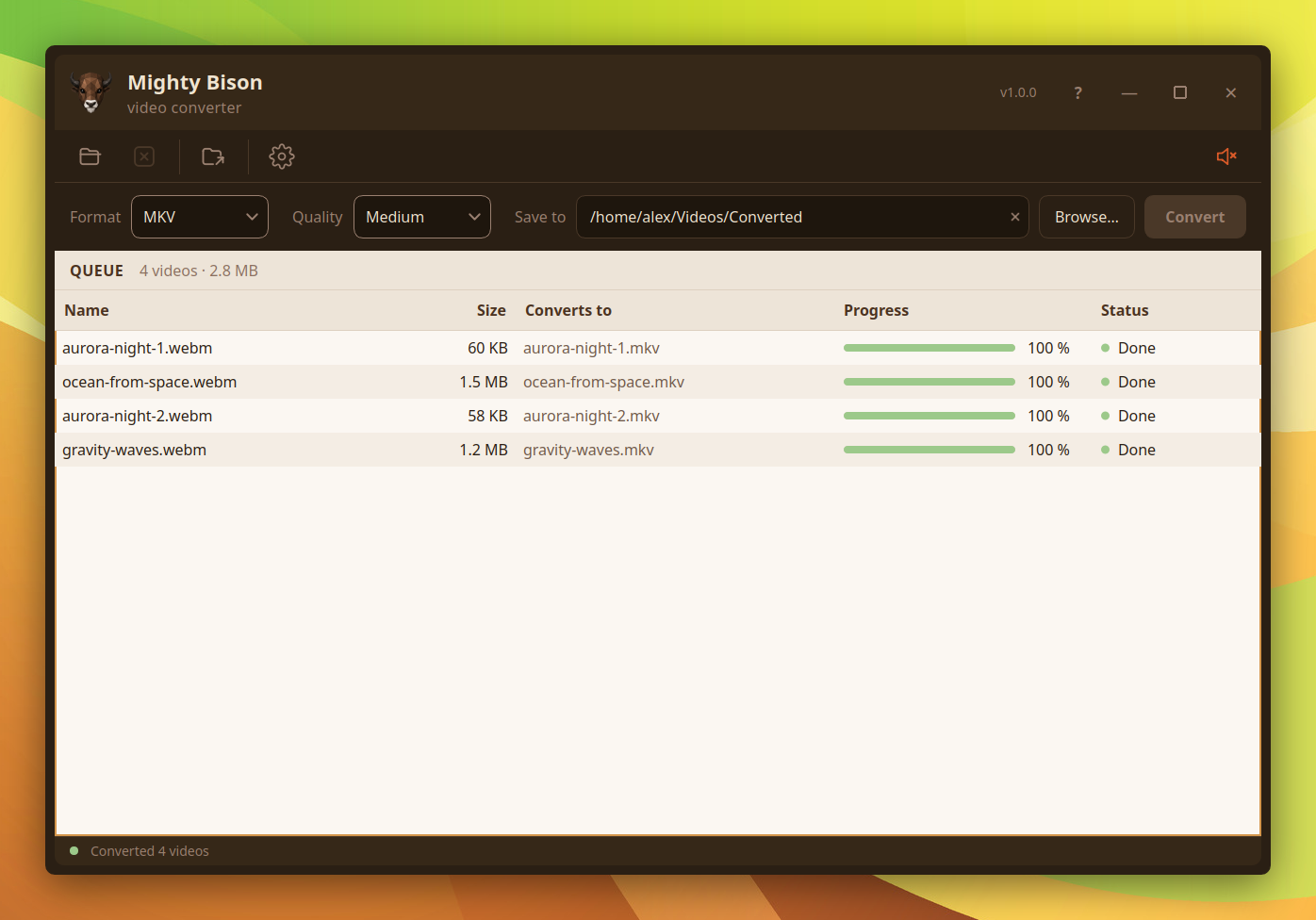
Step 4 · Convert Watch the queue go. When it ends, every row says Done and the folder opens.
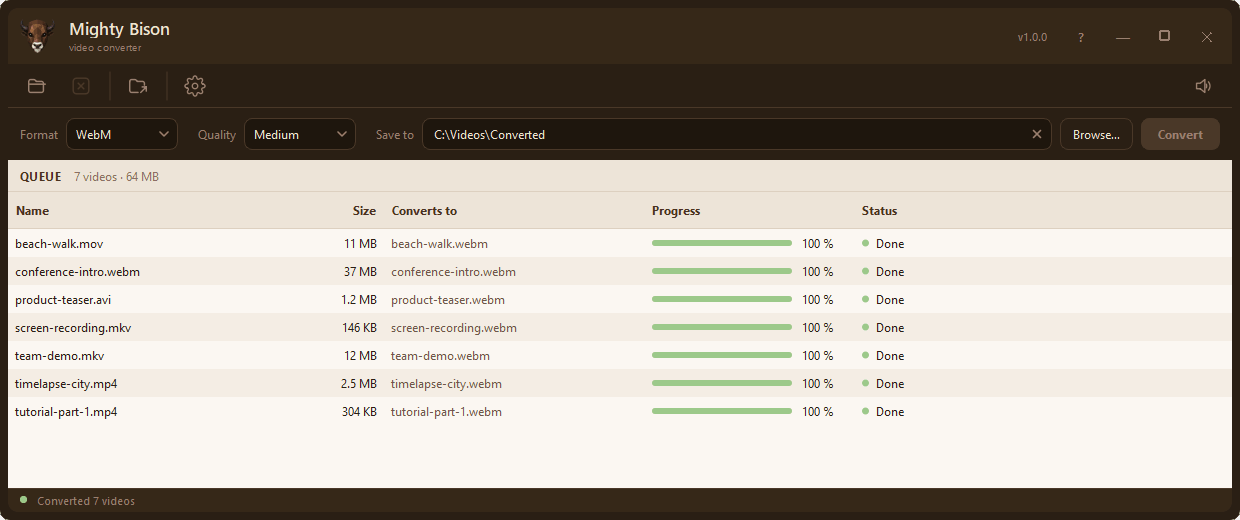
Mighty Bison after converting seven videos to WebM into a folder it was told to use: every row says Done and the status bar says Converted 7 videos.

Try it

The honest test is the pile of videos you were going to convert anyway.

Install it, drop in the videos you have been putting off, and see whether the copies are the ones you needed. It is free, with no limits, and there is nothing else to set up.

Who it is for

Anyone who gets a video in the wrong format.

A community manager with a screen recording that will not upload, a trainer with a handful of clips in three different containers, someone in support who has to send a video a colleague can open. You do not want to learn FFmpeg or send a recording to a website; you want the file in another format.

The guide covers the same ground slowly: the queue, the formats and qualities, where the files go and what the status column says when something fails.

Read the complete guide →

What it leaves out

A converter, not an editor.

  • No editing: no cutting, joining, text or filters
  • No downloading videos from YouTube or any other site
  • No graphics card encoding: it uses the processor
  • No subtitles and no choice of audio track: it keeps the first video track and the first audio track
  • No audio-only output such as MP3, AAC or WAV
  • No codec, bitrate or resolution settings: three qualities, and that is all

In the app

More screenshots

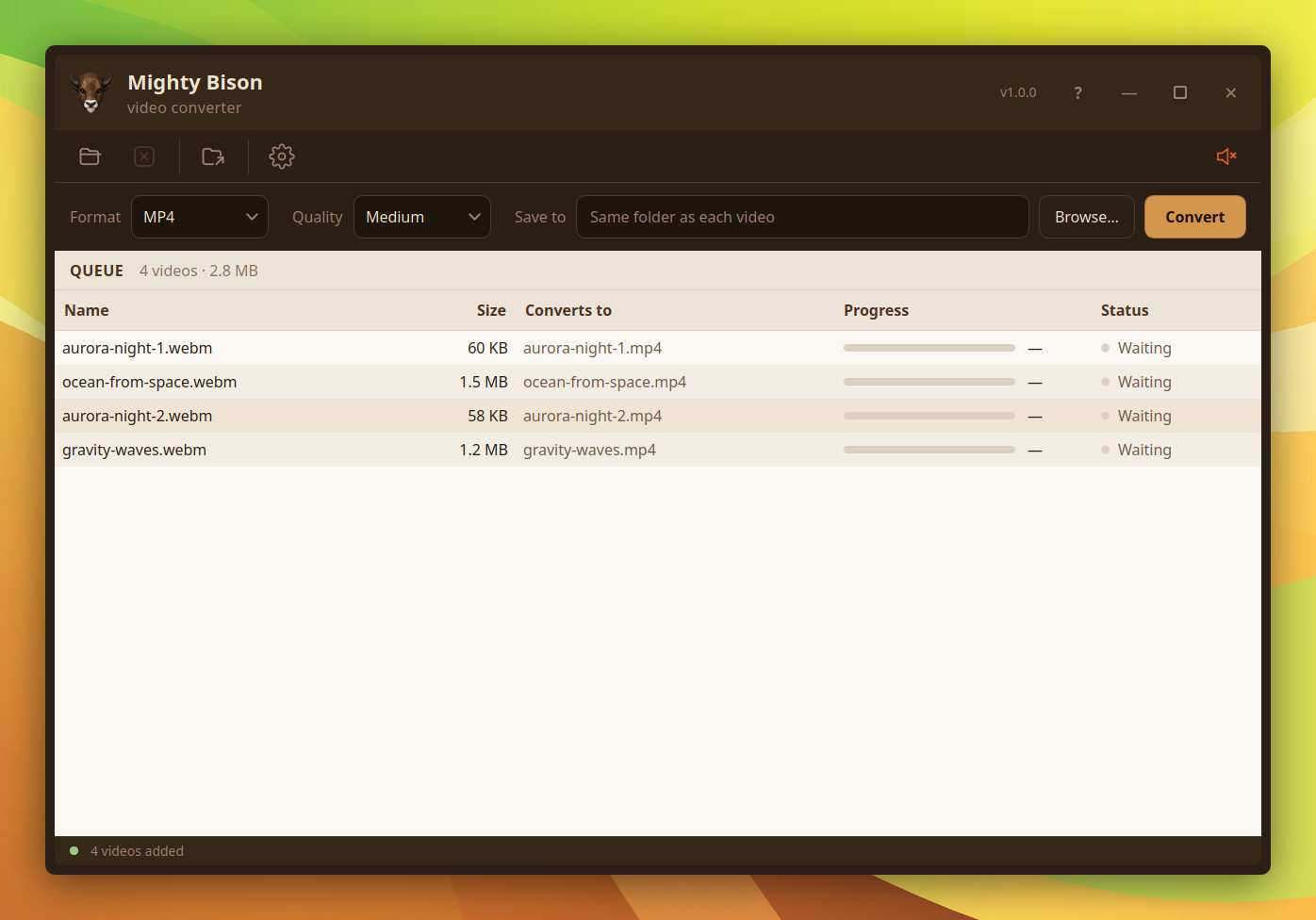
Add as many videos as you like: each one lines up in the queue with its size and what it will become
Choose a quality: High keeps the most detail, Low makes the smallest files
Save every converted video to one folder of your choice
Each clip shows its progress, and the bar at the bottom the whole queue
Every clip Done, converted on your own computer