Complete Guide
Orderly Owl
Open a folder, add the steps you need and watch every new name appear next to the old one. Rename them all with one click, and undo it with another.

1. What Is Orderly Owl?
You come back from a holiday with three hundred photos called IMG_4397.JPG, IMG_4398.JPG and so on, and you want them as menorca_001.JPG. Renaming them one by one takes an afternoon. Orderly Owl does it in two steps: you open the folder, tell it what the new name looks like, and every file gets it at once.
The new name is built from steps you add one at a time: replace the name with a text, find and replace, change the case, remove characters, add a prefix or suffix, number the files. Nothing else is on screen. Each step shows its effect in the list as you type, so you see exactly what will happen before anything changes on disk — and if the result is not what you wanted, Undo puts it back.
It is for anyone with a folder of photos, episodes, invoices or voice notes named every which way, who wants them in order in a couple of minutes without reading a manual first.
2. Installation
Go to thestromboliproject.com/tools/orderly-owl/ and download the Windows installer (or the portable zip), or the Linux build (.deb or AppImage) from Downloads. It is free, with no account and no email.
Double-click it and follow the prompts. It installs for your user, in your own AppData folder, and can add a desktop shortcut if you tick that option.
Open the Start menu and type rename or owl: the shortcut is called Orderly Owl - Bulk File Renamer. On Linux, the .deb adds Orderly Owl to the applications menu; the AppImage runs once you make it executable (chmod +x).
3. First Launch
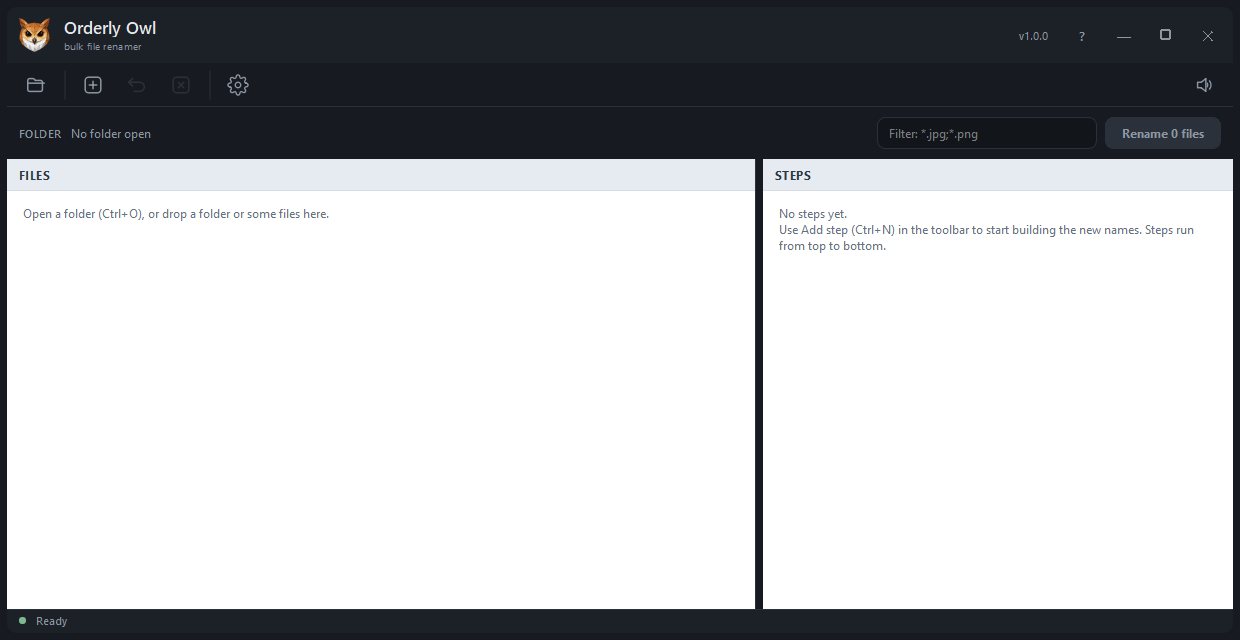
Orderly Owl opens with a short splash — the owl and a hoot — and then the main window. It is deliberately quiet: on the left, FILES, waiting for a folder; on the right, STEPS, with nothing in it yet. Above them, the toolbar and a bar with the open folder, a filter box and the Rename button.
If you would rather start in silence, click the speaker button at the far right of the toolbar. It mutes the startup sound and remembers your choice. The ? button in the title bar opens this guide.
4. Core Workflow
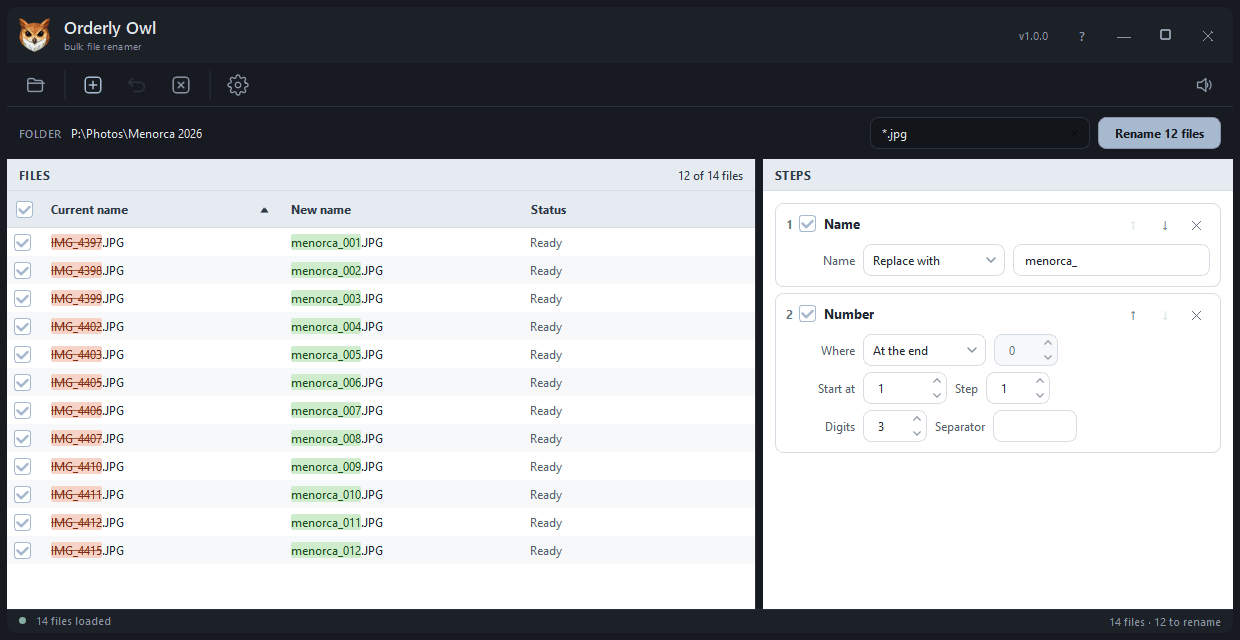
Here is the whole loop, with the holiday photos as the example: turning IMG_4397.JPG and friends into menorca_001.JPG, menorca_002.JPG…
Click the folder button or press Ctrl O, or drop the folder onto the window. Its files appear in FILES, in natural order: IMG_2 comes before IMG_10.
Press Ctrl N (or the Add step button) and choose Name. It switches to Replace with and puts the cursor in the box: type menorca_.
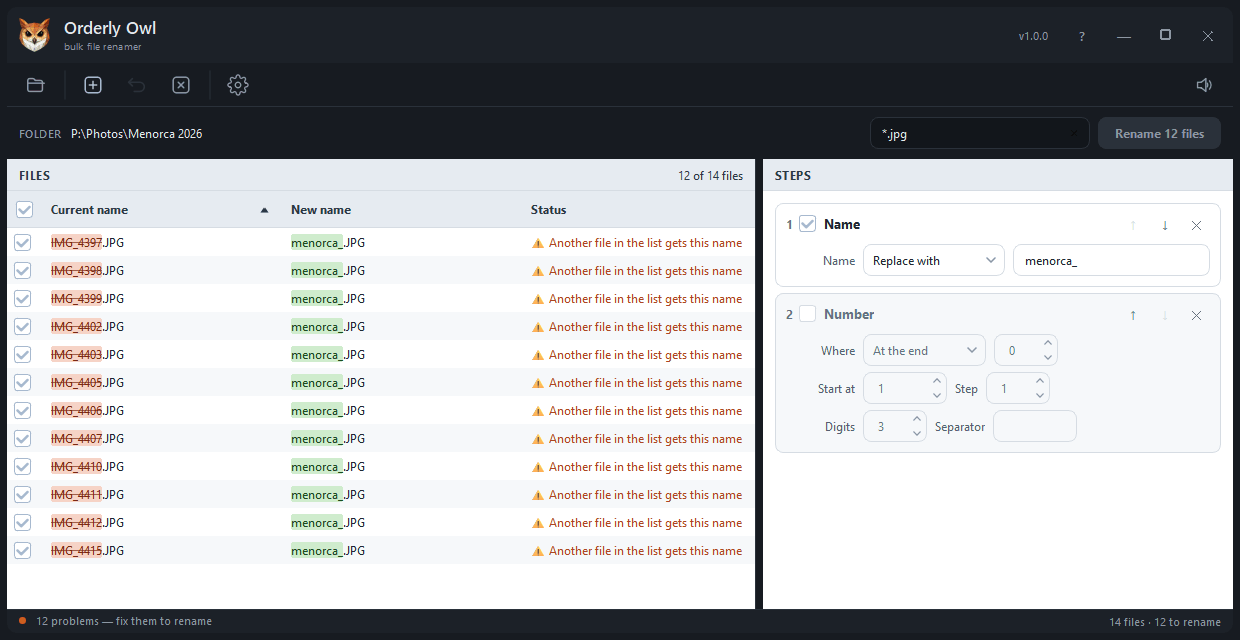
Add Number, leave it At the end and set Digits to 3. The New name column now reads menorca_001.JPG, menorca_002.JPG… with the added text marked, and the part that goes struck through in the current name.
Every row should say Ready in the Status column. Untick any file that should keep its name, or type *.jpg in the filter to leave other files out.
Click Rename 12 files — the number is how many will change — or press Ctrl Enter. There is no confirmation dialog: the list was the preview. The status bar says how many were renamed, with an Undo link right there.
5. The Six Steps
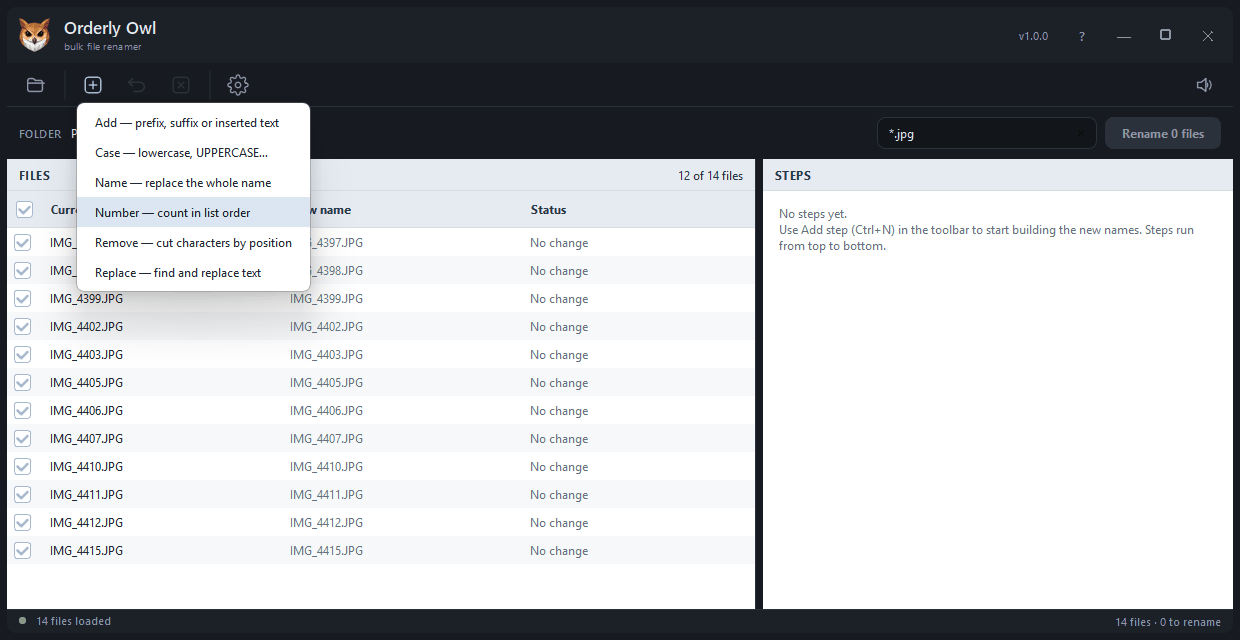
Add step opens a short menu with the six kinds of step. Each one you add becomes a card in STEPS, numbered in the order it runs: steps apply from top to bottom, each one working on the name the previous one left. None of them touches the extension — .JPG stays .JPG.
🏷️ Name
Keep the name, or replace the whole name with a text. The usual start for a numbered series.
🔁 Replace
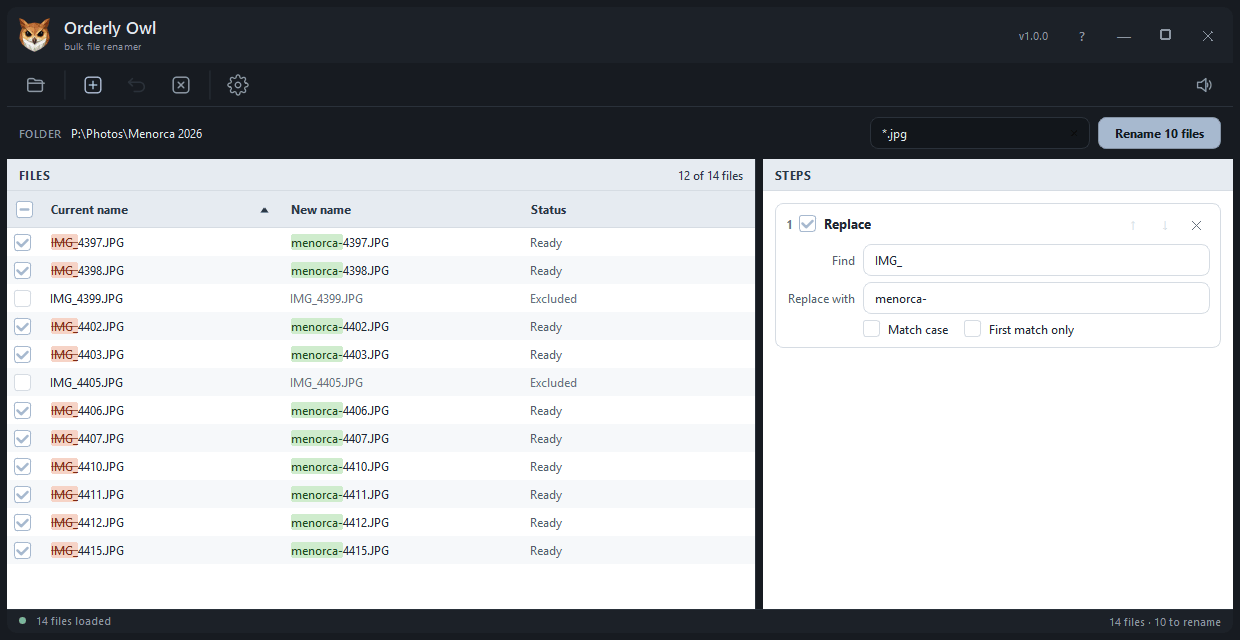
Find a piece of text and replace it with another. Plain text, never a pattern. Options: Match case and First match only .
🔠 Case
lowercase, UPPERCASE, Title Case or Sentence case. Title Case does not capitalise after an apostrophe or a digit.
✂️ Remove
Cut the first N characters, the last N, or from position X to Y — any combination, counted on the name as it reaches the step. Positions start at 1.
➕ Add
A prefix, a suffix, and a text inserted at a position. The inserted text goes in first, then the prefix and suffix, so positions count on the name you see.
🔢 Number
At the start, at the end or at a position. Choose where it starts, the step between numbers, the digits (leading zeros) and a separator.
Working with the cards
- The checkbox next to a step's title turns it off without deleting it — handy to compare the result with and without it.
- The ↑ and ↓ arrows change the order; ✕ removes the step.
- Start over in the toolbar removes every step at once. The files stay loaded.
6. Choosing the Files
Orderly Owl renames every file that is checked and visible whose name changes. You never have to select rows first; you only take out what should stay as it is.
📂 Open a folder CtrlO
Lists the files in that folder — not its subfolders, and not hidden or system files.
🖐️ Drag and drop
Drop a folder to open it, or drop loose files, even from different folders. Drop files and folders together and the folders are ignored; drop several folders and only the first opens.
🔍 Filter
Type masks like *.jpg;*.png , separated by ; or a space. A word without wildcards matches anywhere in the name: jpg works like *jpg* .
☑️ Tick to exclude
Untick a row and it shows Excluded : it keeps its name and does not use up a number.
↕️ Sort by column
Click a column header to sort. Numbering follows the order you see, so sort first and number second.
7. Problems & Undo
Before anything is renamed, Orderly Owl checks every new name. If one has a problem, the Status column says what it is in red, the status bar counts them, and Rename stays off until there are none left. Only names that actually change are checked.
| Status says | What it means |
|---|---|
| Another file in the list gets this name | Two files would end up with the same name — usually a missing Number step. |
| A file in the folder already has this name | Something else in the folder, even a file you cannot see in the list, already uses it. |
| Windows doesn't allow < > : " / \ | ? * | The name contains a character Windows rejects. |
| Windows reserves this name | Names like CON, NUL, COM1 or LPT1 cannot be used, with or without extension. |
| Can't end with a dot or a space | Windows does not allow it. |
| The name would be empty | The steps removed everything before the extension. |
| Longer than 255 characters / Full path longer than 259 characters | The name, or the folder plus the name, is too long for Windows. |
On Linux the same rules apply, so a name that passes also works on a Windows computer or a USB stick.
How the rename itself works
- Two files can swap names (
a→bandb→a), and changing only the case (foto.jpg→Foto.jpg) works too. - If one file cannot be renamed halfway through — it is open in another program, say — every file goes back to its old name and the status bar says which one failed.
- While it runs, the window stays responsive; you just cannot open another folder or rename again until it finishes.
Undo
After a rename, Undo is in three places: the Undo link in the status bar, the Undo button in the toolbar and Ctrl Z. It puts back the last rename. Opening another folder, dropping other files or closing the app forgets it — there is no history.
8. Settings & Configuration
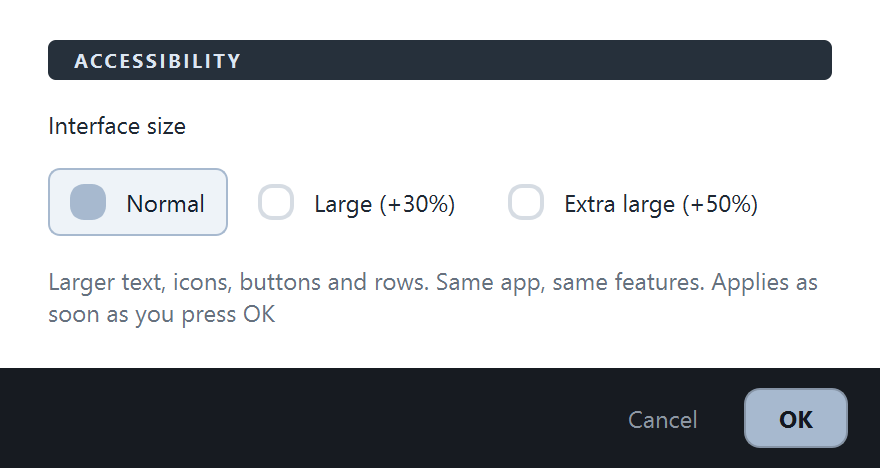
There is very little to configure, on purpose. The gear button in the toolbar opens Settings, with one option:
- Interface size — Normal, Large (+30%) or Extra large (+50%). Text, icons, buttons and rows grow together; it is the same app with the same features. It applies as soon as you press OK.
The other preference lives in the toolbar itself: the speaker button mutes the startup sound. Both choices are remembered between sessions, and so is the last folder you opened, which is where the Open folder dialog starts next time.
9. Tips
- Sort before you number. Numbers follow the order on screen, so click the column header you want first, then add the Number step.
- Compare with a step switched off. Untick a step's checkbox to see the names without it, then tick it back; nothing is lost.
- Watch the button. "Rename 12 files" counts only the files whose name will change — if it says fewer than you expected, look for rows marked No change or Excluded.
- Order matters. A Case step after a Name step changes your new text too; put it first if you only want it on the original name.
- Ctrl+Z after renaming undoes the rename, even if you pressed Ctrl+Enter from a step's text box: the focus moves to the list so the shortcut reaches the window.
Every shortcut is listed in Keyboard Shortcuts.
10. FAQ
Can I change the extension, say from .JPG to .jpg?
No. No step touches the extension — changing it does not convert a file, and a wrong one leaves it unable to open. The one exception is a file with no extension at all: a suffix such as .txt added to it ends up working as its extension.
Can it rename the files in subfolders, or the folders themselves?
No. It works on the files of one folder at a time, and leaves folders as they are. Loose files dropped from several folders are fine; each keeps its own folder.
Does it support regular expressions, or the date a photo was taken?
No. Find and replace is plain text, and it does not read photo dates or music tags. For most folders, Name, Replace and Number cover it.
Can it copy or move the files to another folder while renaming?
No. It renames files where they are; copying and moving is a file manager's job.
Can I undo a rename from yesterday?
No. Undo covers the last rename while that folder is still open. Close the app or open another folder and it is gone.
The mess is on my desktop, not in a folder. Can Orderly Owl help?
Not with the layout: it renames files, it does not arrange icons. For a desktop that fills up with downloads and screenshots, Tidy Koala (Free + licence) groups icons into zones and files new ones by type on its own.
11. Keyboard Shortcuts
Files
| Action | Key |
|---|---|
| Open folder | Ctrl O |
Steps
| Action | Key |
|---|---|
| Add step (opens the menu) | Ctrl N |
Rename & undo
| Action | Key |
|---|---|
| Rename the checked files | Ctrl Enter only when there are no problems |
| Undo the last rename | Ctrl Z inside a step's text box, it undoes your typing instead |
Ready to rename?
Free. No account, no email, nothing uploaded.
See Orderly Owl →