🌋 The Stromboli Project
Free 🪟 Windows

Orderly Owl Bulk File Renamer

See every new name before a single file changes.

Open a folder, add the steps you need — a new name, a number, a prefix — and the new name appears next to each file. One click renames them all, and one more puts them back.

No account, no email, no licence key. Orderly Owl is free, and it stays free.

Windows desktop build

Windows may show a SmartScreen warning on first launch — click More info → Run anyway.

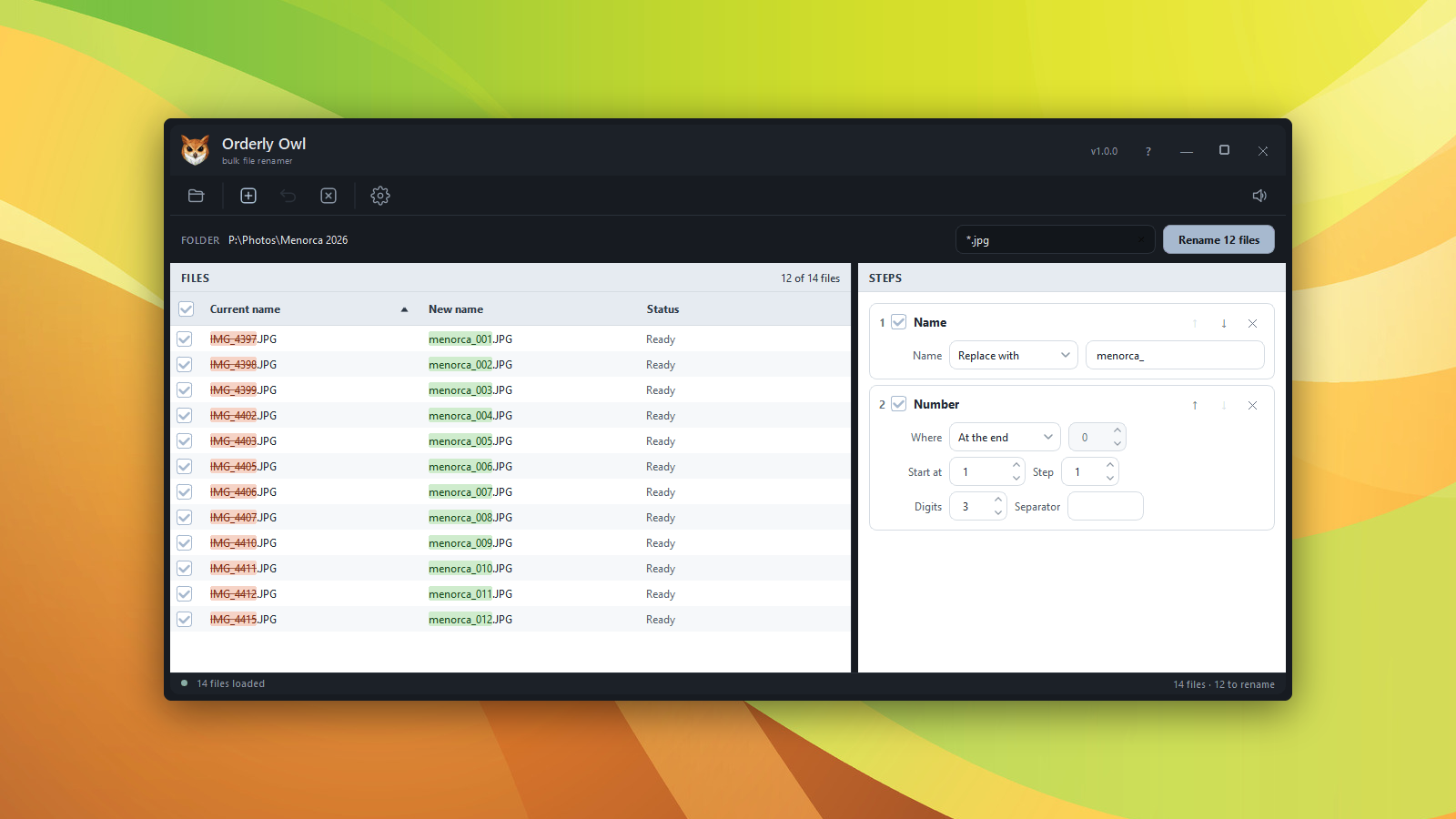
Orderly Owl with a folder of holiday photos open: each IMG name is struck through on the left, and its new name, menorca_001 to menorca_012, is marked on the right next to the two steps that build it.
Turn IMG_4397 into menorca_001 — and see every new name before a single file changes.

Orderly Owl renames a whole folder in one go, and shows you every new name before anything changes on disk.

Features

Six kinds of step, a preview that is the list itself, and a way back.

Only the steps you add.

  • Name, Replace, Case, Remove, Add and Number
  • Replace can match case or change only the first match
  • They run from top to bottom, in the order you see
  • Turn a step off without deleting it
  • Move it up or down, or start over

The preview is the list.

  • What goes is struck through in the current name
  • What comes in is marked in the new name
  • A status for every file
  • Sort by any column, natural order (IMG_2 before IMG_10)
  • Three interface sizes (Normal, +30%, +50%) in Settings

Numbers that follow the list.

  • At the start, at the end or at a position
  • Start at, step, leading zeros and separator
  • Filter with masks like *.jpg;*.png
  • Unticked files keep their name and skip their number
  • One checkbox in the list header ticks or unticks every visible file at once, half-ticked when they are mixed

Problems first, Undo after.

  • Duplicate names and names already in the folder
  • Characters and names Windows does not allow
  • Nothing renames until every problem is fixed
  • Undo the last rename with one click or Ctrl+Z
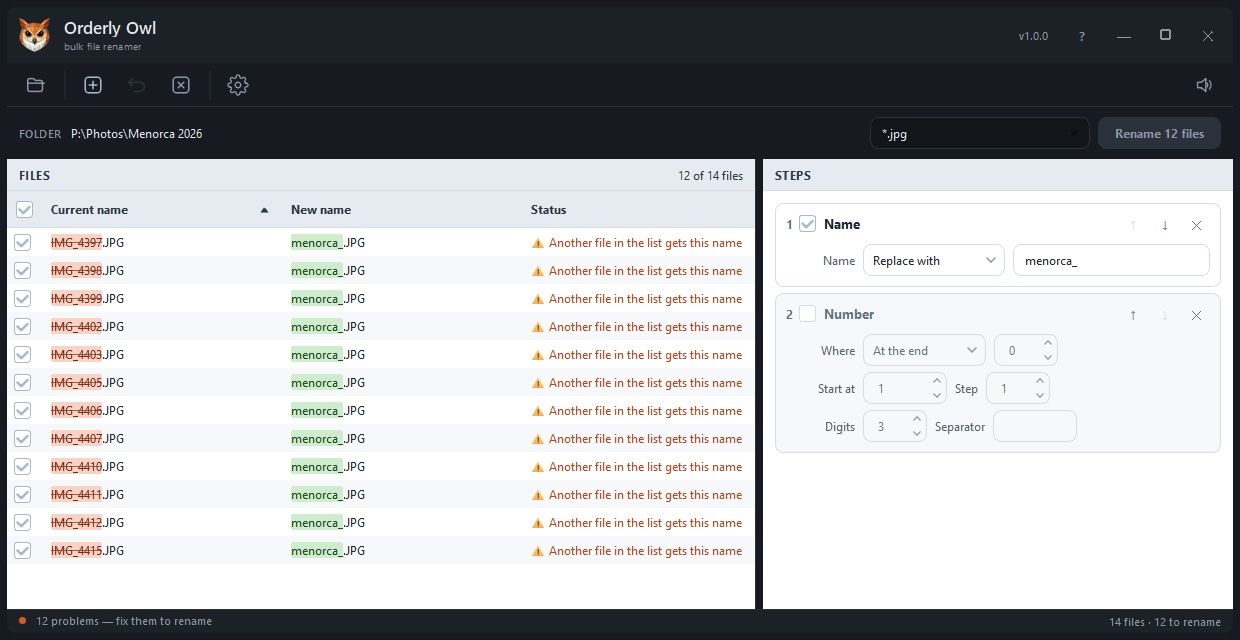
Orderly Owl blocking a rename: with the Number step switched off, every photo would get the same name, so each row says another file in the list gets this name and the Rename button is greyed out.
Two files about to get the same name? Orderly Owl stops you before anything is renamed.

What you get

Three hundred photos renamed, and no surprises.

Every new name, in advance

The new name sits next to the old one while you type, with the change marked. What you see in the list is exactly what gets renamed.

Mistakes stopped before they happen

Two files with the same name, a character Windows rejects, a name that is too long: it says so on that row and keeps the Rename button off.

One click back

No confirmation dialogs. If the result is not what you wanted, Undo puts the last rename back, file by file.

The one thing

Orderly Owl renames a whole folder of files at once, and you see every new name before a single file changes. Add only the steps you need (replace, number, change case) and it warns you about clashes before they happen. Got it wrong? One click and everything’s back the way it was.

— Javier, The Stromboli Project
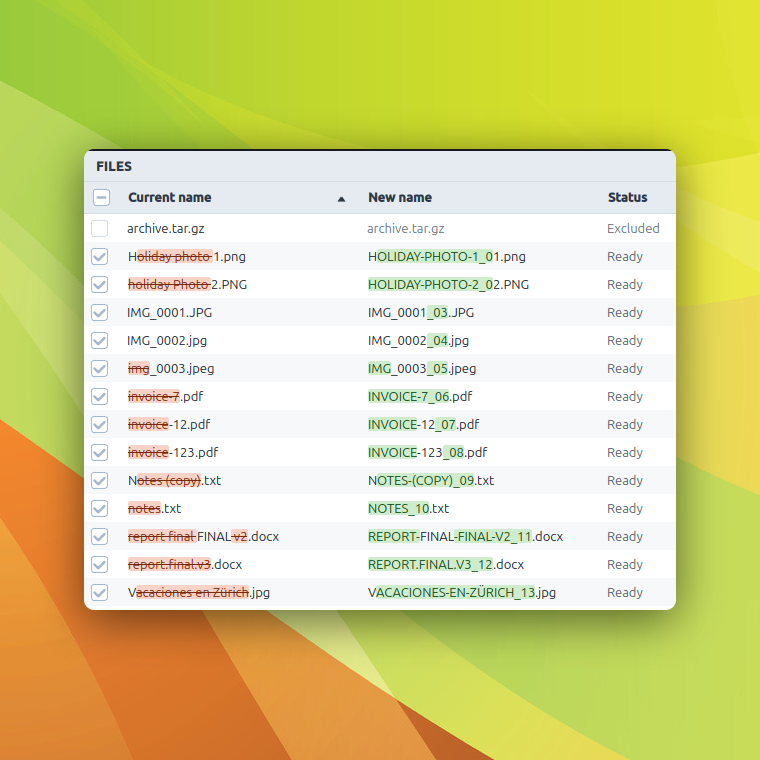
Orderly Owl previewing every new name before anything is renamed: what goes away struck through in red, what comes in highlighted in green.
Struck through in red, highlighted in green: you know exactly what will change before you click.

Where it fits

For the folder you keep meaning to tidy.

It is the right tool when…

  • the camera named three hundred photos IMG_4397.JPG and you want menorca_001
  • a folder of episodes, invoices or recordings needs one consistent pattern
  • you want to see the result before you commit to it
  • two minutes is all the time you want to spend on it

What it needs

  • Windows, 64-bit. A signed Windows installer or a portable zip
  • Linux: experimental packages, .deb and AppImage. No macOS build
  • No account and no key — it opens on an empty list, ready for a folder
  • Local. Your files are renamed where they are; nothing is uploaded

How it goes

Open, add a step, check, rename.

The window starts with the list and nothing else. Every option you see is one you added, so there is nothing to switch off first.

  • Every checked file is renamed — no need to select them first
  • Swapping two names, or changing only the case, just works
Step 1 · Open Open a folder with Ctrl+O, or drop a folder or some files on the window.
Step 2 · Add steps Add step (Ctrl+N): a new name, a number, a prefix. Each one shows up in the list as you type.
Step 3 · Check Untick what should stay as it is, and fix anything the Status column flags.
Step 4 · Rename Rename N files (Ctrl+Enter). Changed your mind? Undo, or Ctrl+Z.

Compared

Two renamers people already know, and what Orderly Owl does differently.

Bulk Rename Utility lays its options out in fourteen numbered sections; PowerRename is Microsoft’s search and replace, opened from the Explorer right-click menu. Rows where all three behave the same — a preview before renaming, numbering — are left out: they are not a reason to pick one.

Orderly Owl compared with Bulk Rename Utility and PowerRename
Orderly OwlFree · closed source Bulk Rename UtilityFree at home · closed source PowerRenameFree · open source
What it does
Renames every file in the list unless you untick it ✓No need to select them first ✕Renames the files you select ✓Untick the ones to skip
Prefix, insert or trim without a regular expression ✓A step for each ✓Add and Remove sections ✕Done with a regular expression
Opens from the Explorer right-click menu ✕Open a folder or drop files ✓ ✓
What it costs, what comes with it
Price for use at work Free US$92.95 per computer, one-time Free
Part of a set that looks and behaves the same ✓One of the Animal Tools ✕Standalone product ✓One of the PowerToys
Open source ✕ ✕ ✓MIT licence
What it leaves out on purpose
Regular expressions —Plain find and replace instead ✓ ✓
Renames folders and goes into subfolders —Files in one folder at a time ✓ ✓
Names from photo or song tags — ✓EXIF and ID3 ✓Photos only: EXIF and XMP
Changes the file extension —A new extension does not convert the file ✓ ✓

✓included✕not available—left out on purpose

Comparison based on the published pages of each product — bulkrenameutility.co.uk and its version 4.1.1 manual for Bulk Rename Utility, learn.microsoft.com and the PowerToys repository on github.com for PowerRename — verified 2026-10-15, against the Bulk Rename Utility single-computer commercial licence and PowerRename as shipped in Microsoft PowerToys. Features and prices change: check their sites for current details. The Stromboli Project is an independent project, not affiliated with, endorsed by or sponsored by TGRMN Software or Microsoft Corporation. All product names are trademarks of their respective owners.

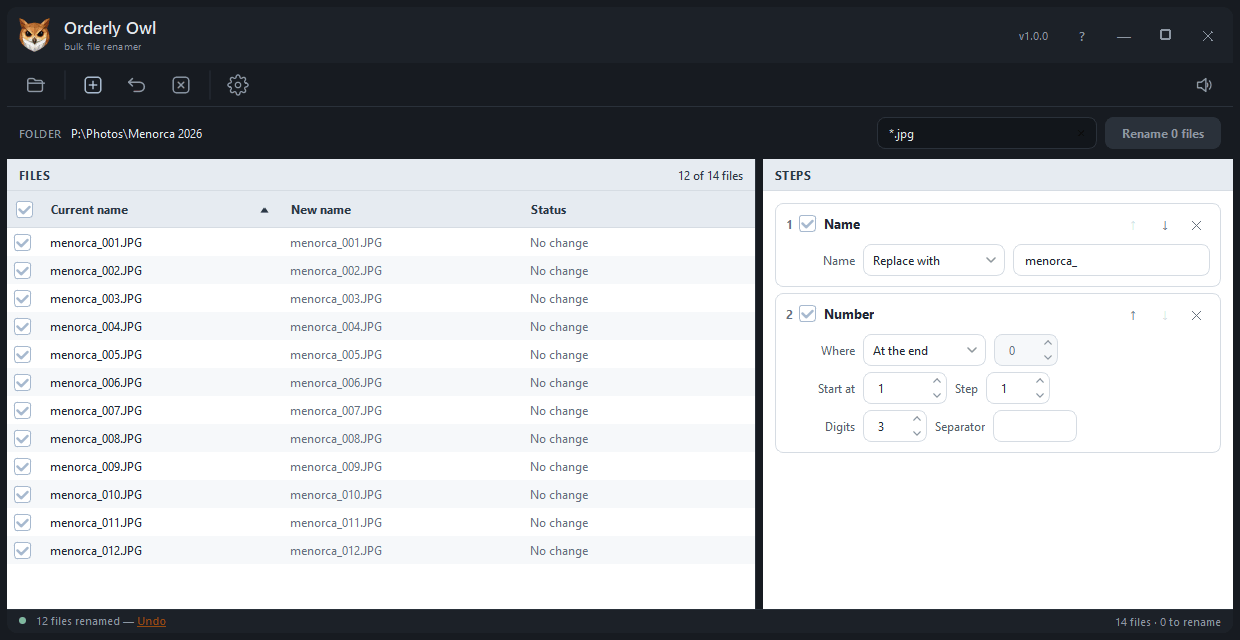
Orderly Owl right after renaming twelve photos to menorca_001 to menorca_012, with the status bar offering Undo.
Twelve photos renamed in one click, and Undo right there if you change your mind.

Who it is for

Anyone back from a trip with a camera full of IMG files.

Or with a folder of episodes, invoices or voice notes named every which way. You open it, add two steps and the names line up — no manual first. The guide covers each step and what the Status column means.

Read the complete guide →

What it leaves out

One folder, plain text, on purpose.

  • No extension changes: a step never touches .JPG, because a new extension does not convert the file
  • No subfolders and no renaming of folders
  • No regular expressions, photo dates or music tags — find and replace is plain text
  • No copying or moving to another folder
  • No history: Undo covers the last rename while the folder is still open

In the app

More screenshots

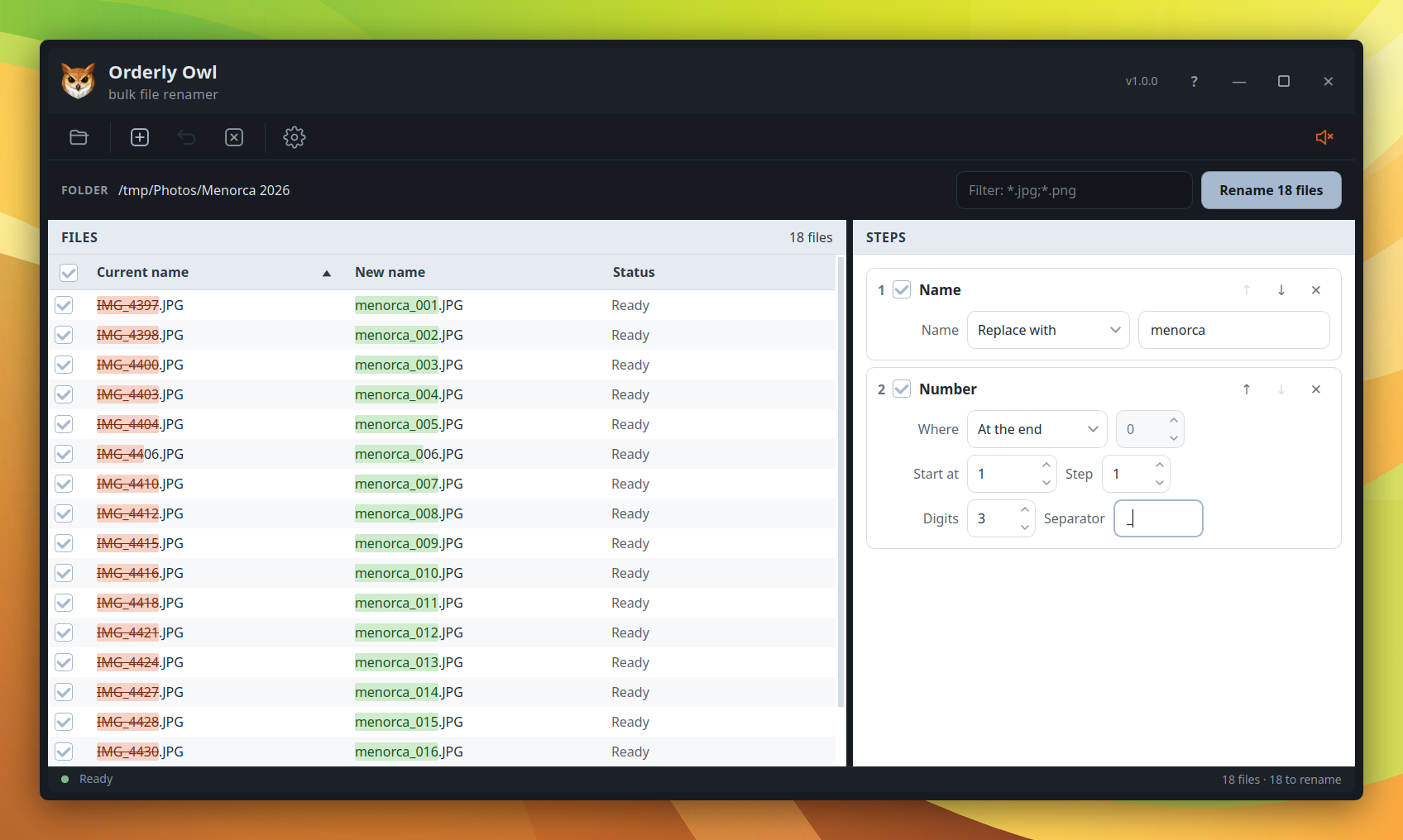
Two steps chained, Name and Number: sixteen holiday photos become menorca_001 to menorca_016, old name struck through and new one highlighted
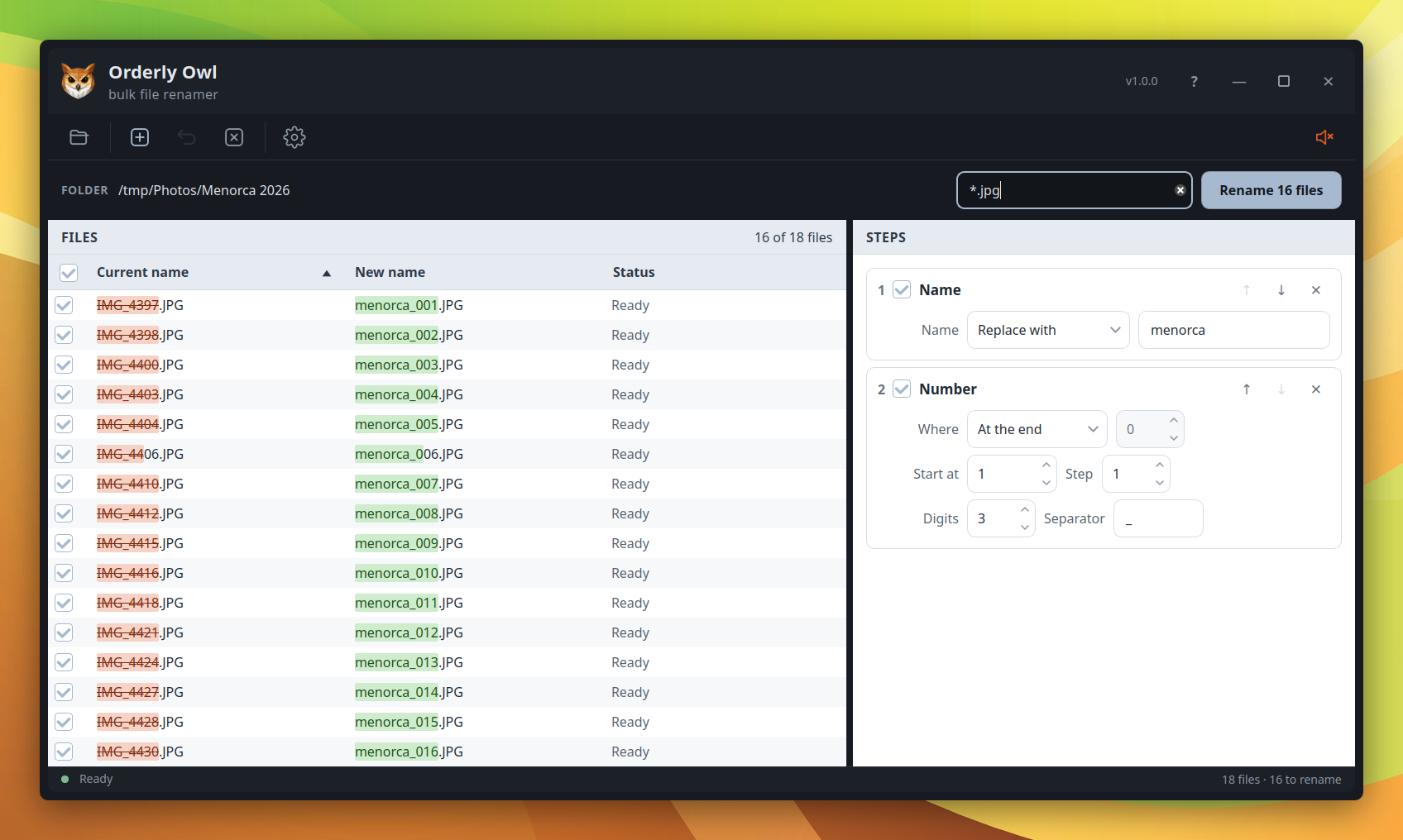
Filter by type: *.jpg keeps the 16 photos in the list and leaves the two videos out of the rename
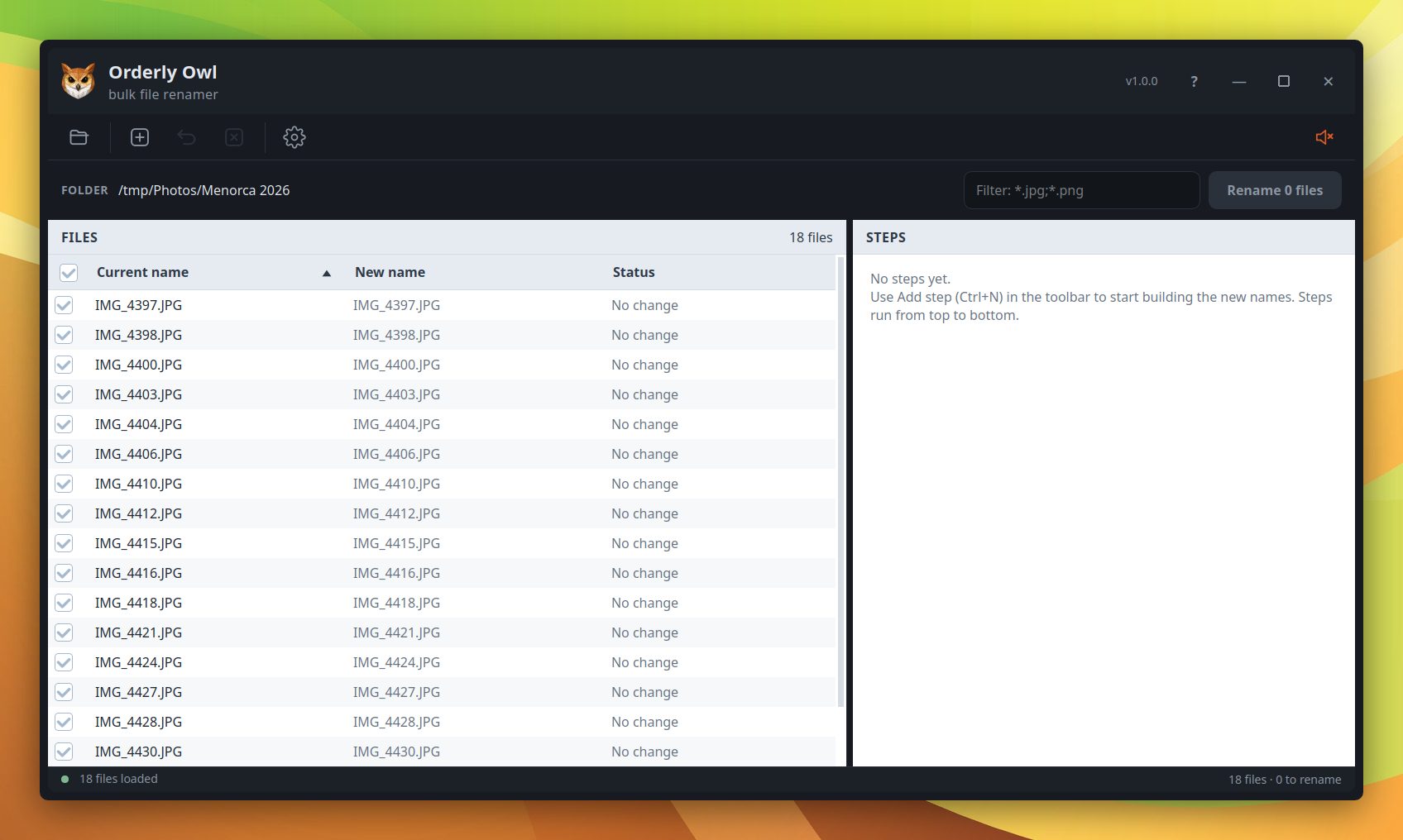
A folder just opened: 18 files from the camera in natural order, nothing renamed yet
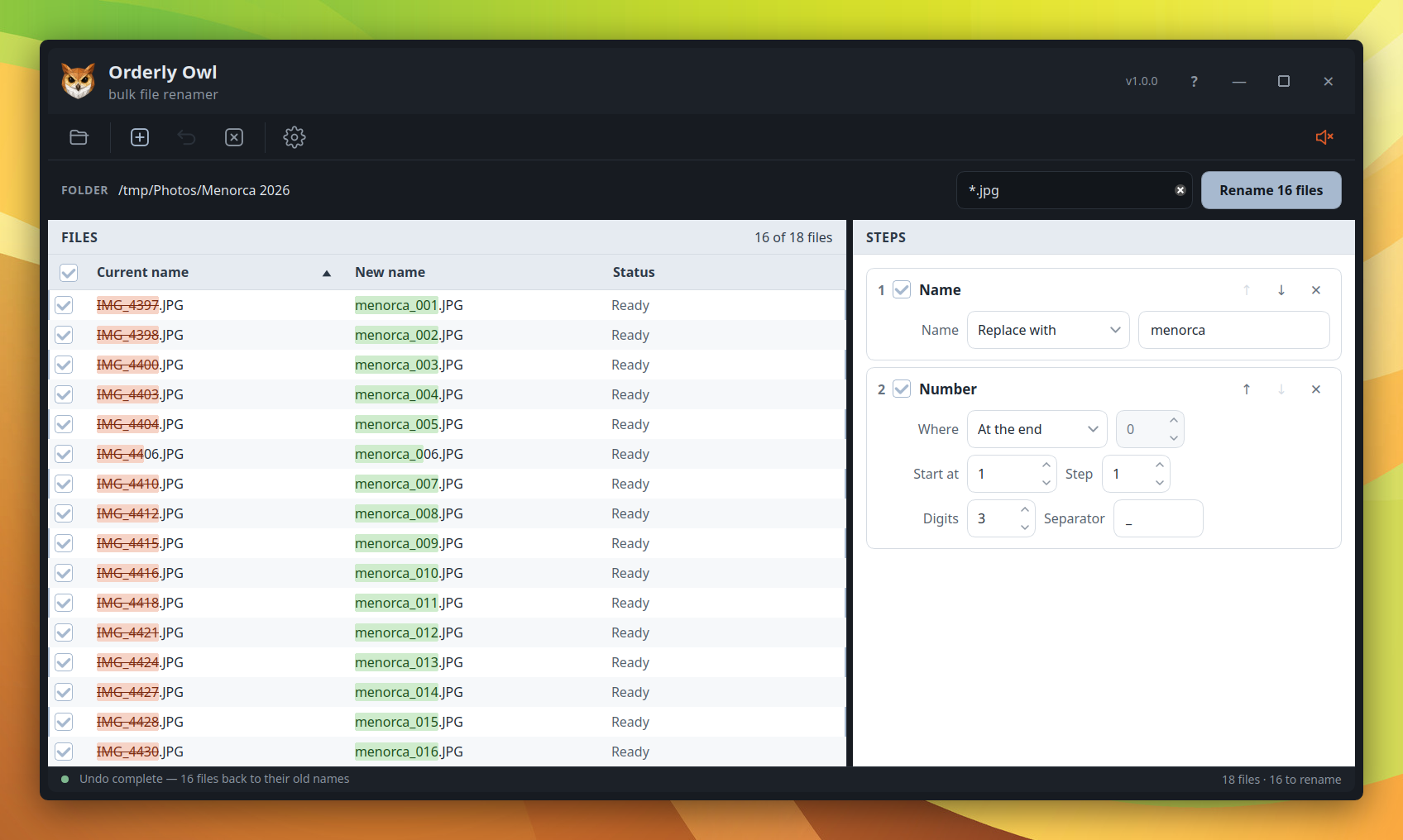
Undo complete: all sixteen files are back to their old names, and the steps are still there to adjust