Complete Guide
Quiet Panda
Write on a clean page, keep every note as a plain text file, and find it again with tags, links and search. Press F11 when you want nothing else on the screen.

1. What Is Quiet Panda?
Most editors ask you to set something up before you type: a project, a file name, a layout. Quiet Panda Focus Notes opens on a blank page and lets you write. What you write saves itself, takes its first line as its name, and ends up in one folder of plain text files.
From there it adds only what helps you find your notes again: tags you write inside the text (#idea), links between notes ([[Another note]]), one search for everything, pinned notes, a note for today and a version history for every note. When you want nothing else on the screen, F11 hides it all.
It is free, for Windows, with no account and no cloud. The extras stay out of the way until you ask for them: spell check works offline, the AI needs a key of your own, and a password can lock the window.
It is for people who write — a long README, a journal entry, a first draft, a quick note — and want to find it later without building a system.
2. Installation
Go to thestromboliproject.com/tools/quiet-panda/ and download the Windows installer.
Double-click the file and follow the wizard. It installs for your own user (in %LOCALAPPDATA%\Quiet Panda), so it does not ask for administrator rights. A desktop icon is offered but unchecked by default.
Open the Start menu and look for Quiet Panda - Focus Notes in the The Stromboli Project group, or tick Launch on the last page of the wizard.
%APPDATA%\QuietPanda. Your notes are in your Documents folder and are never touched by it.
3. First Launch
Quiet Panda opens with a short splash — the panda and a spinning arc — a soft startup sound, and then the main window. There is nothing to set up: no wizard, no sign-in.
What you see
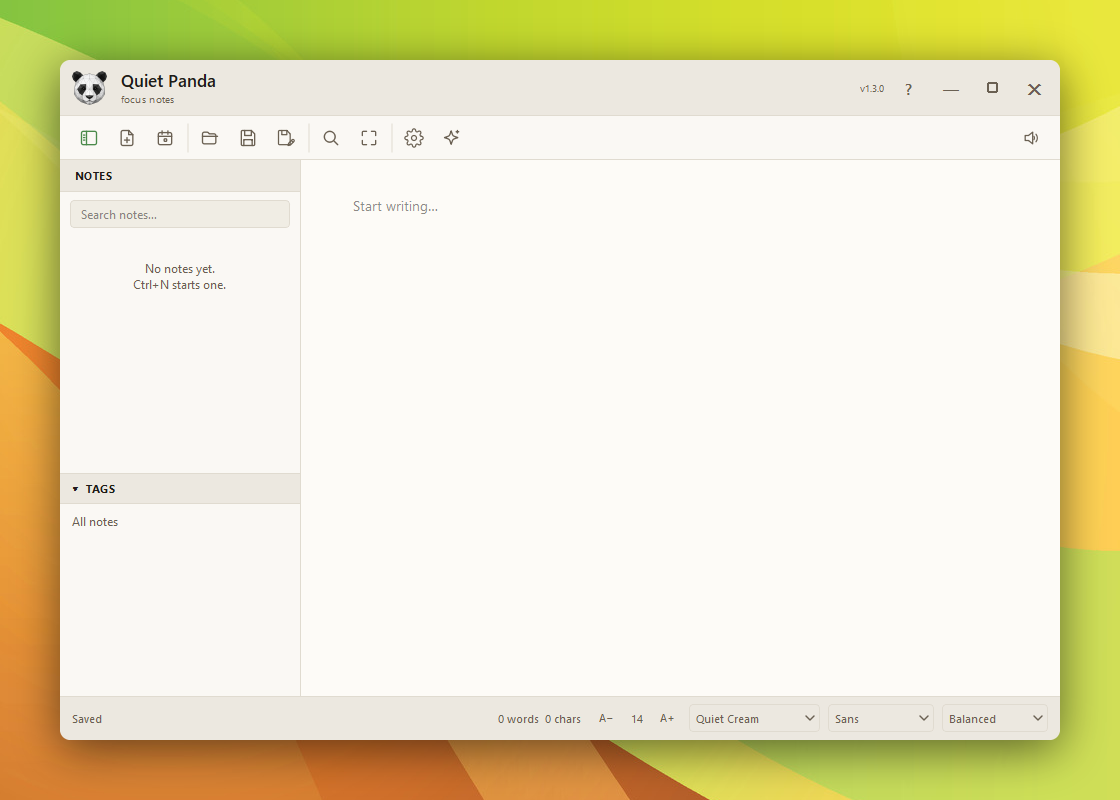
- Title bar. The version number, a ? button that opens this guide (also F1), and minimize, maximize and close.
- Toolbar. Icon buttons, left to right: Notes panel, New note, Today’s note · Open file, Save, Save as · Find, Zen Mode · Settings, AI. Hover over any of them to see its name and shortcut. At the far right, a speaker button mutes the startup sound; Quiet Panda remembers your choice.
- Notes panel on the left. It starts empty: No notes yet. Ctrl+N starts one. It has a Search notes… box and, below the list, a TAGS section.
- The page. One big empty area that says Start writing…
- Status bar at the bottom: Saved or Unsaved changes, the word and character count, the text size buttons (A− and A+), and the selectors for theme, font and line spacing.
Where your notes live
Quiet Panda keeps your notes in Documents\Quiet Panda Notes. Every .md and .txt file in that folder is a note, including the ones you copy in from somewhere else. You can pick another folder in Settings.
4. Core Workflow
The whole loop, from a blank page to a note you can find again.
Press Ctrl N (or the New note button) and start typing. The file is created with the first thing you write, so no empty notes are left behind.
There is no Save to remember: a moment after you stop typing, the note saves itself. A new note takes its first line as its name (a leading # is dropped; if the first line is only tags, the next line is used). After that, only you rename it.
Write #tags in the text to group notes, and [[Another note]] to link to one. Both are just text inside the note.
Press Ctrl E and type a word, a phrase or a tag. Or click a tag in the TAGS section of the notes panel.
Press F11 to hide everything but the text. Esc brings it back.
5. Your Notes
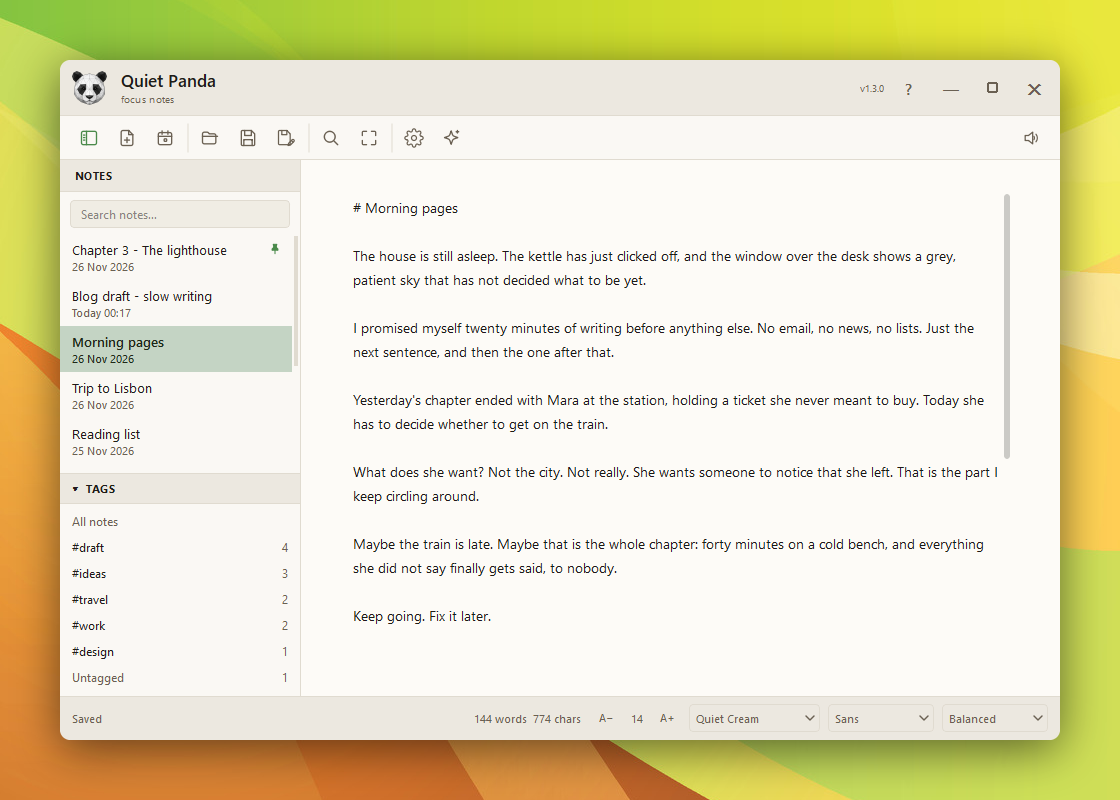
A note is an ordinary text file. Nothing else is stored, so the folder stays readable in any other editor and you can back it up like any folder.
🗂️ Notes panel Ctrl+\
Shows or hides the list of notes on the left. Pinned notes first, then newest first, each with its date. Click one to open it.
✍️ New note Ctrl+N
A blank page. In Settings you choose whether new notes are Markdown ( .md , the default) or plain text ( .txt ).
📅 Today’s note Ctrl+D
Opens the note named after today’s date (like 2026-11-27 ), or creates it. F5 inserts the date and time at the cursor.
📌 Pinned notes
Hover over a note and a faint pin appears at the right of its row: click it to pin the note to the top, and click the filled pin to unpin it. Drag pinned notes to put them in your own order.
Rename, delete, show in folder
- F2 renames the note selected in the list, or the open one. Renaming updates every
[[link]]to it in your other notes (see Tags & Links). - Delete on a selected note asks Move “name” to the Recycle Bin? Notes are never deleted for good.
- Right-click a note for Open, Pin to top (or Unpin), Rename, Version history…, Show in folder and Move to Recycle Bin.
Moving between notes with the keyboard
- Alt ↑ and Alt ↓ open the previous or next note in the list, as the list is shown (a filter counts).
- Ctrl 1 to Ctrl 9 open the note in that place of the list.
- Ctrl Tab goes back to the note you had open before; press it again to return.
- Ctrl E opens the note finder, which is usually the quickest way.
Files outside the notes folder
Quiet Panda also opens any text file, wherever it is, as a loose file:
- Ctrl O opens a
.txtor.mdfile (or any file, from the picker’s filter). Ctrl S saves it and Ctrl Alt S saves it under another name. The pickers start in the folder you used last time. - A file keeps its encoding (UTF-8 with or without BOM, or Windows-1252) and its line endings when you save it, so opening and saving changes nothing you did not touch.
- Unlike a note, a loose file does not save itself. Opening another file or closing the window with unsaved changes asks You have unsaved changes. Save them first? with Save, Discard or Cancel.
- As a safety net, Quiet Panda writes a draft copy every 30 seconds in its settings folder, apart from your file, and puts it back on the page if the app closed before you saved. It never overwrites the file you have open.
6. Tags & Links
Tags and links are written in the text of the note. There is no database behind them: delete the text and the tag or link is gone.
Tags
- Write
#ideaanywhere in a note. A tag starts with a letter, then letters, digits,_or-. Tags are highlighted in every theme. - These are not tags: a Markdown heading (
# Title, with a space),#12,C#and anything inside code (backticks).#work/clientis just#work: there is no hierarchy. - Capitals do not matter (
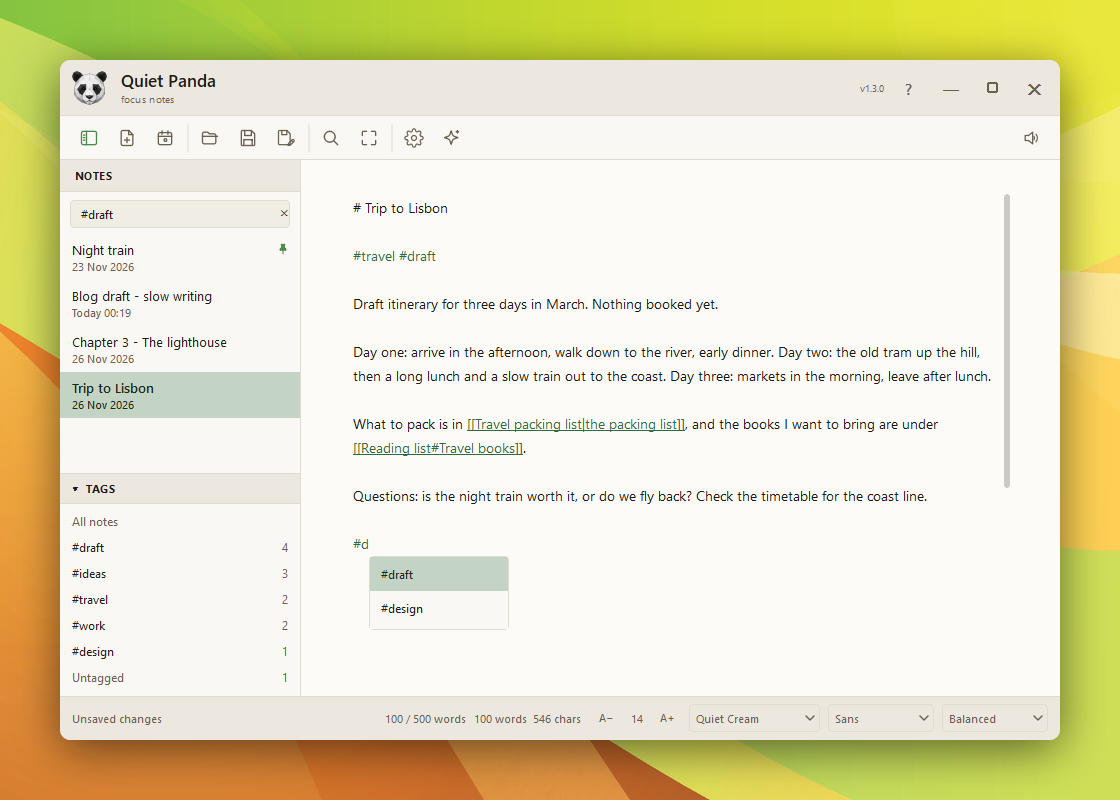
#Workis#work); accents do (#reuniónis not#reunion). - Suggestions. When you type
#, a small list offers the tags you already use. Tab or Enter completes the one selected, Esc closes the list, and if you keep typing you lose no key. - TAGS section under the notes list: every tag with how many notes use it (3 notes), plus All notes and Untagged. Click a tag to filter the list; Ctrl+click adds another tag (a note must have all of them). Ctrl+click on a tag inside the text filters the panel too (not in Zen Mode). The TAGS header folds the section away.
- Rename or remove a tag everywhere. Right-click a tag in the TAGS section: Rename tag… or Remove tag from all notes…. Quiet Panda tells you how many notes it will change. The open note is reloaded (its undo history is lost), every note keeps its encoding and line breaks, and the previous version of each goes to its history.
Links between notes
- Write
[[Note name]]and Ctrl+click it to open that note. If the note does not exist yet, Ctrl+click creates it. It works in Zen Mode too. - A link names a note by its file name without the extension, ignoring capitals.
[[Note name|other words]]and[[Note name#Section]]both point to Note name; the part after|or#is only for the reader (the#Sectionpart does not scroll to a heading). - Suggestions. After
[[and a character, a list shows the names of your notes (newest first). Tab or Enter writes the link. - Rename a note and its links follow. Quiet Panda rewrites the links that pointed to it in every other note and says so (Links updated in 3 notes). Each note keeps its encoding and its previous version goes to its history first.
- Anything inside code (backticks) is not a link. A note name that contains
#,[,]or|cannot be a link target; if you rename a note to such a name, Quiet Panda warns you that the links were not updated.
7. Search, History & Outside Changes
One search for everything
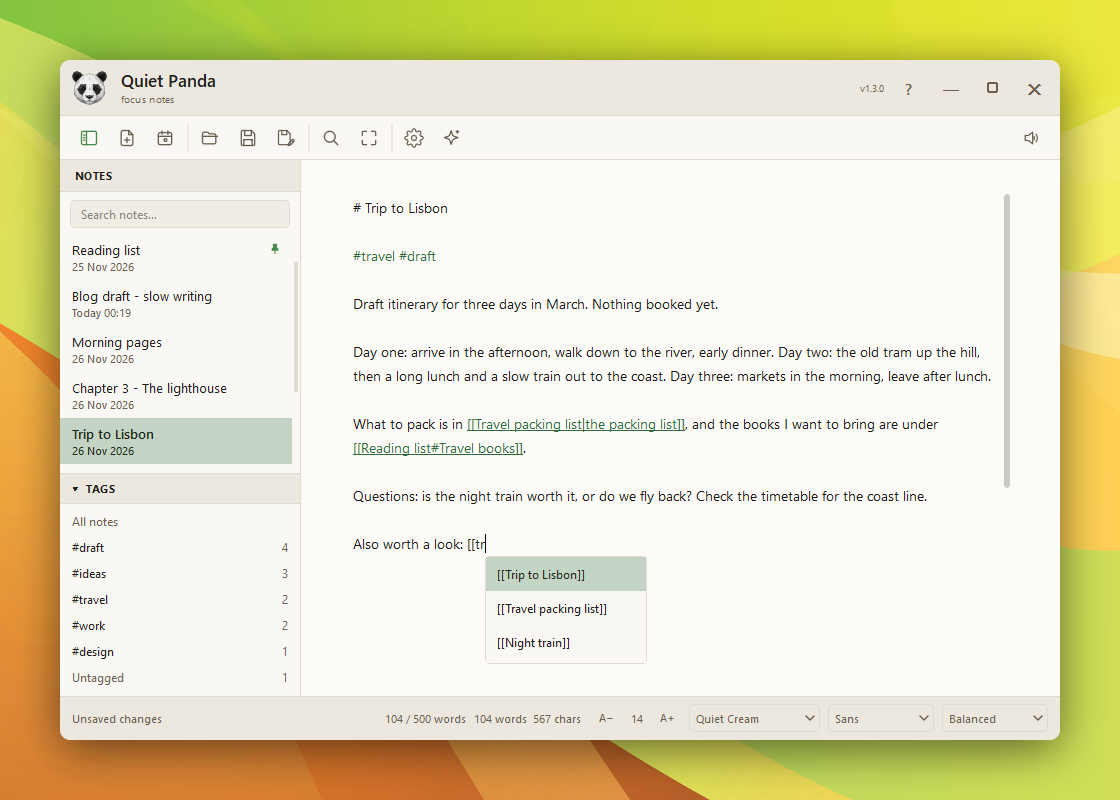
The search box in the notes panel (Ctrl Shift F jumps to it, opening the panel if needed) and the note finder understand the same thing:
- Words: every word must appear in the name or the text.
- “Exact phrases” in double quotes: the phrase must appear as written.
#tags: the note must have all the tags you give.- Capitals and accents are ignored (
reunionfinds “Reunión”). Notes whose name holds the words come first, and the results show where the words were found.
The note finder Ctrl+E
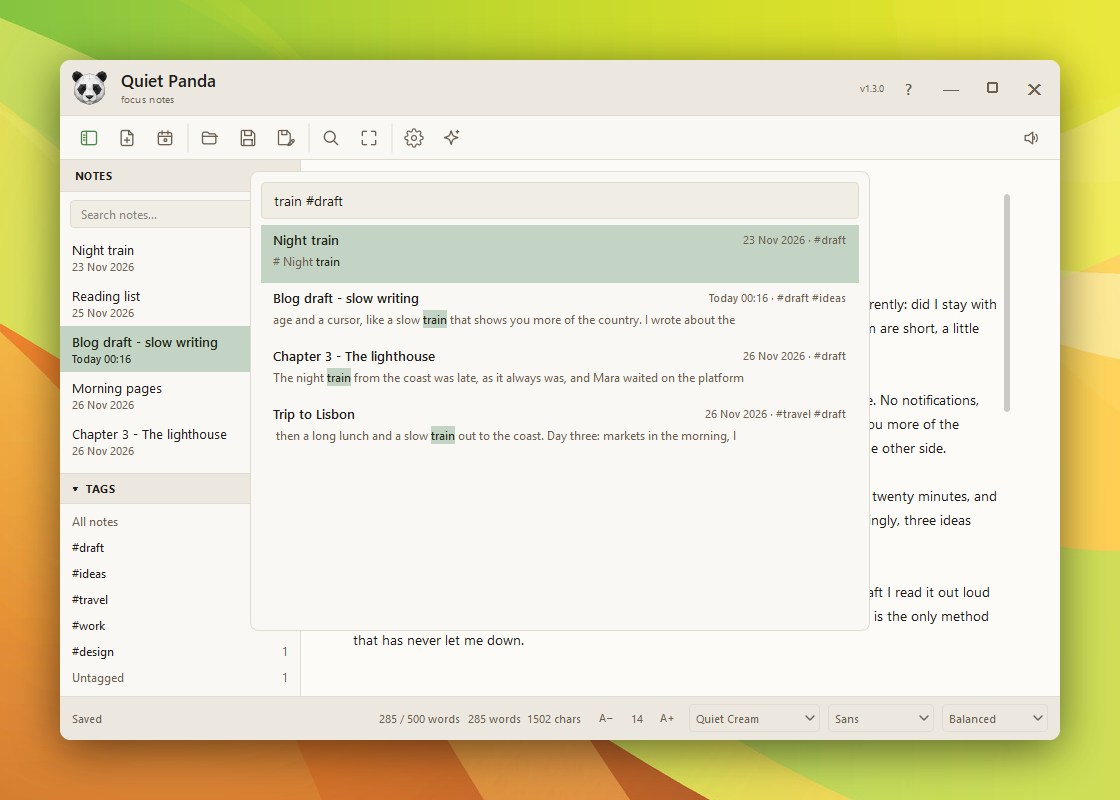
A small box with Search notes and #tags… opens over the page, also in Zen Mode. Type, move with ↑ and ↓, press Enter to open. Pinned notes come first. If nothing matches, it says No notes match and offers Create note “…”: Ctrl Enter creates a note with what you typed as its name, and tags you typed (#idea) go into it. Esc closes the finder.
Version history
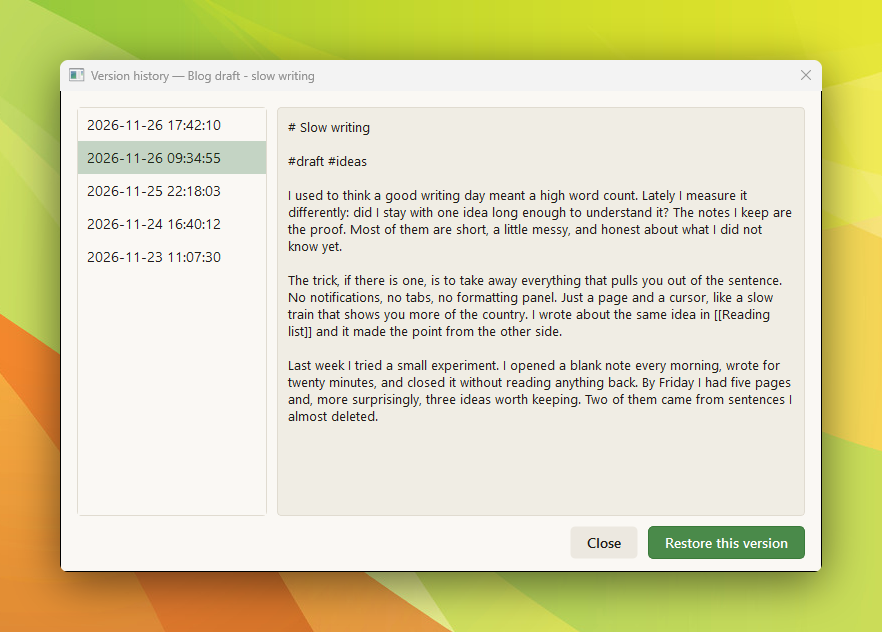
Quiet Panda keeps earlier versions of each note outside your notes folder, up to 50 per note and for 90 days. It takes one before it overwrites a note (at most one every 10 minutes while you write), and always before an AI Replace, a tag rename or removal, a link update after a rename, and a restore.
- Right-click a note and choose Version history…. The dates are on the left; the text of the selected version, read only, is on the right.
- Restore this version puts it back. The text you had just before goes to the history first, so a restore can be undone with another restore.
- A note with no earlier versions says No earlier versions of this note yet.
When another program changes your file
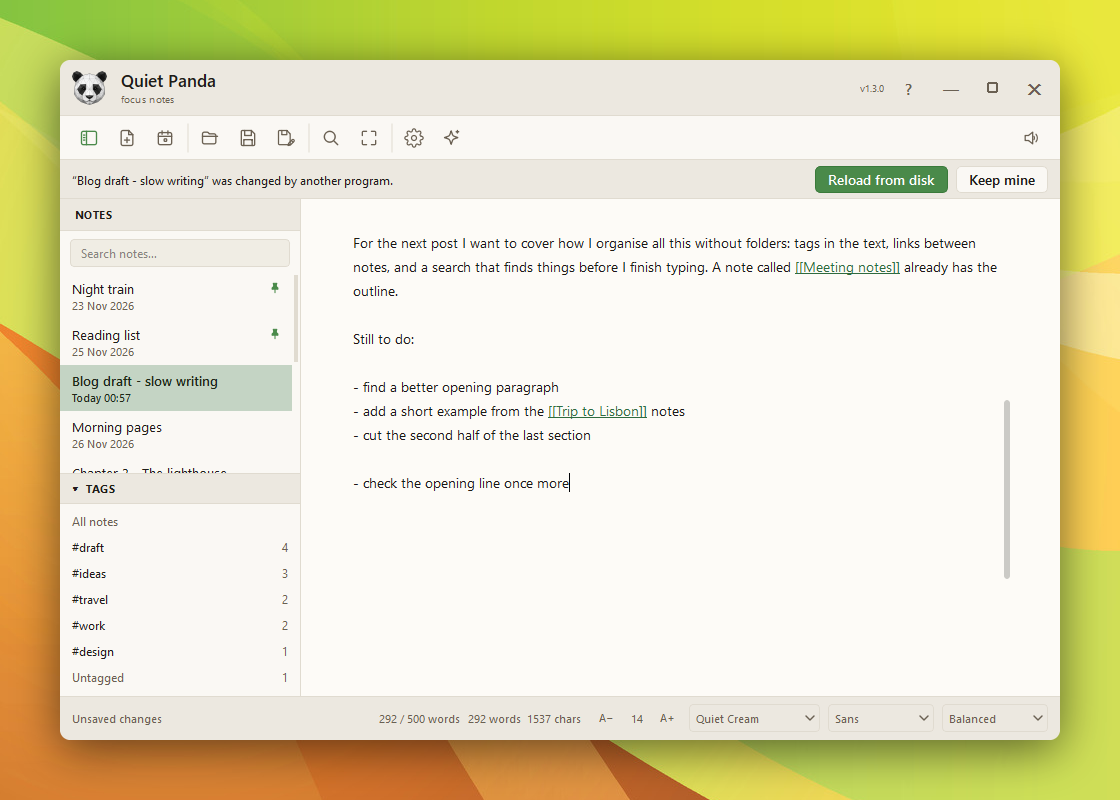
If a synced folder, another editor or another computer changes the open file, Quiet Panda notices when you come back to it and when you save. What happens next depends on whether you have unsaved text:
- You have not touched it: the new version is loaded at once and the status bar says “name” changed outside Quiet Panda and was reloaded.
- You have unsaved changes: a bar says “name” was changed by another program. with two buttons. Reload from disk shows the file as it is now; Keep mine keeps what you wrote. Nothing is saved over the file until you answer. In a note, the version you do not keep goes to its history, so neither is lost.
- The file was deleted or moved: the bar says so and offers Keep in editor, which saves your text as the file again.
8. Writing & Focus
Focus tools
🧘 Zen Mode F11
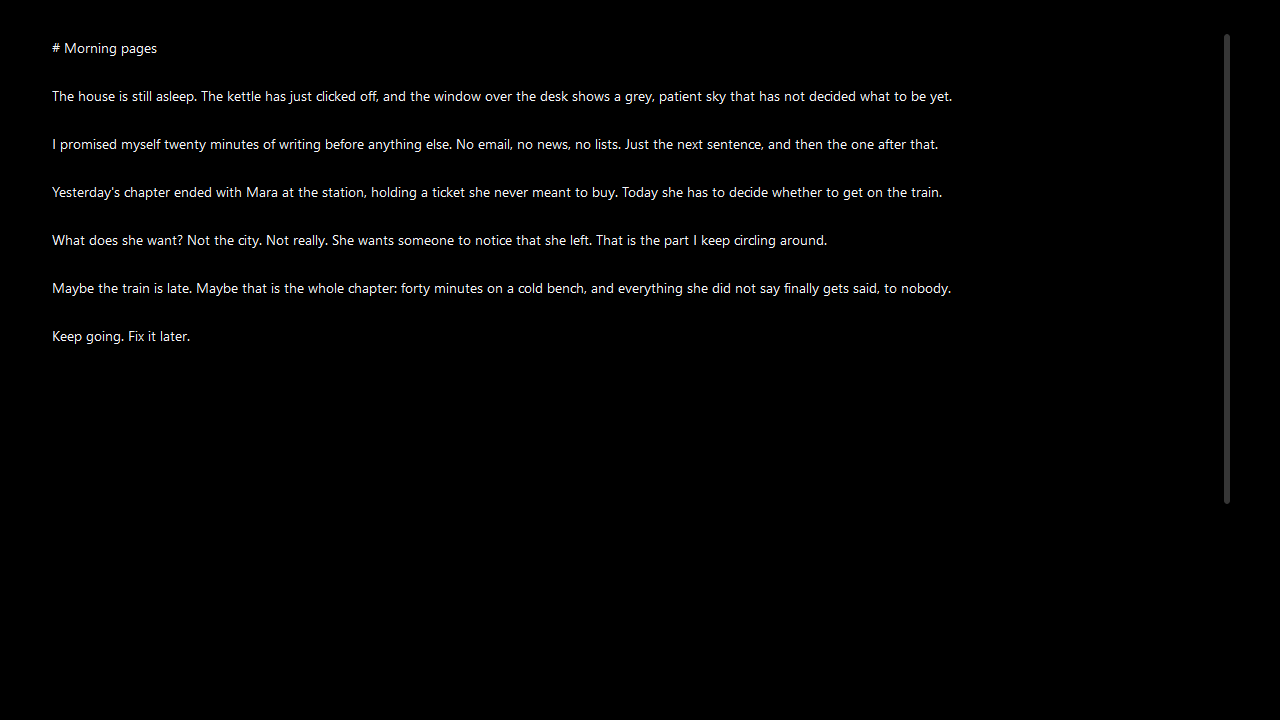
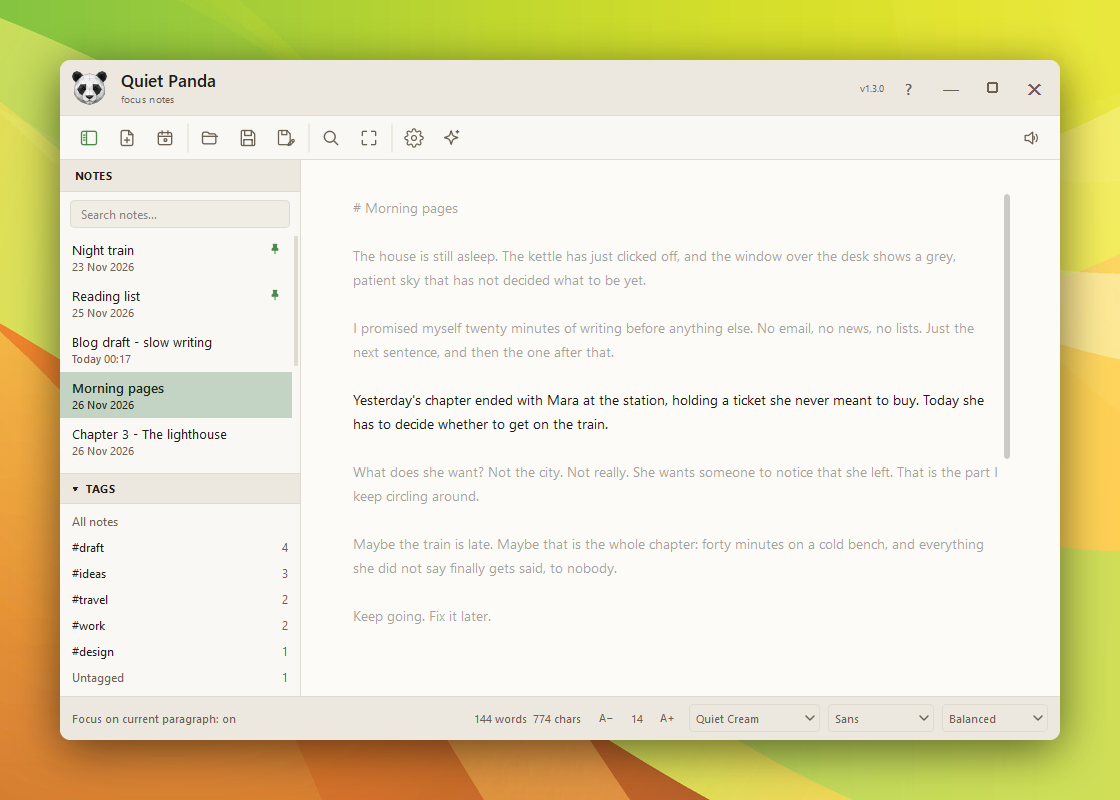
Full screen, with the title bar, toolbar, notes panel and status bar hidden: only the text is left. Esc comes back to how the window was.
🔦 Focus paragraph F8
Dims every paragraph except the one you are writing. The status bar says Focus on current paragraph: on or off . Off by default.
🎞️ Typewriter scrolling F9
Keeps the line you are typing in the middle of the window. On by default; F9 turns it on or off.
🎯 Word goal
Set Word goal per note in Settings and the status bar shows 120 / 500 words for the open note.
Zen Mode, in detail
- It also hides the completion lists and the spelling marks, so only the text is there. Ctrl E (finder) and Ctrl+click on a
[[link]]still work. - Messages that would go in the status bar (for example AI action cancelled) show as a small message box, because the status bar is hidden.
- Esc closes one thing at a time, in this order: the suggestions, the note finder, an AI call in progress, the find bar, and only then Zen Mode.
Counting
- The status bar shows N words N chars for the open text.
- With text selected it counts the selection: 12 of 340 words. Hover over the count to see the reading time (About 2 min read, at 200 words a minute; Less than a minute to read for short texts).

Find and replace
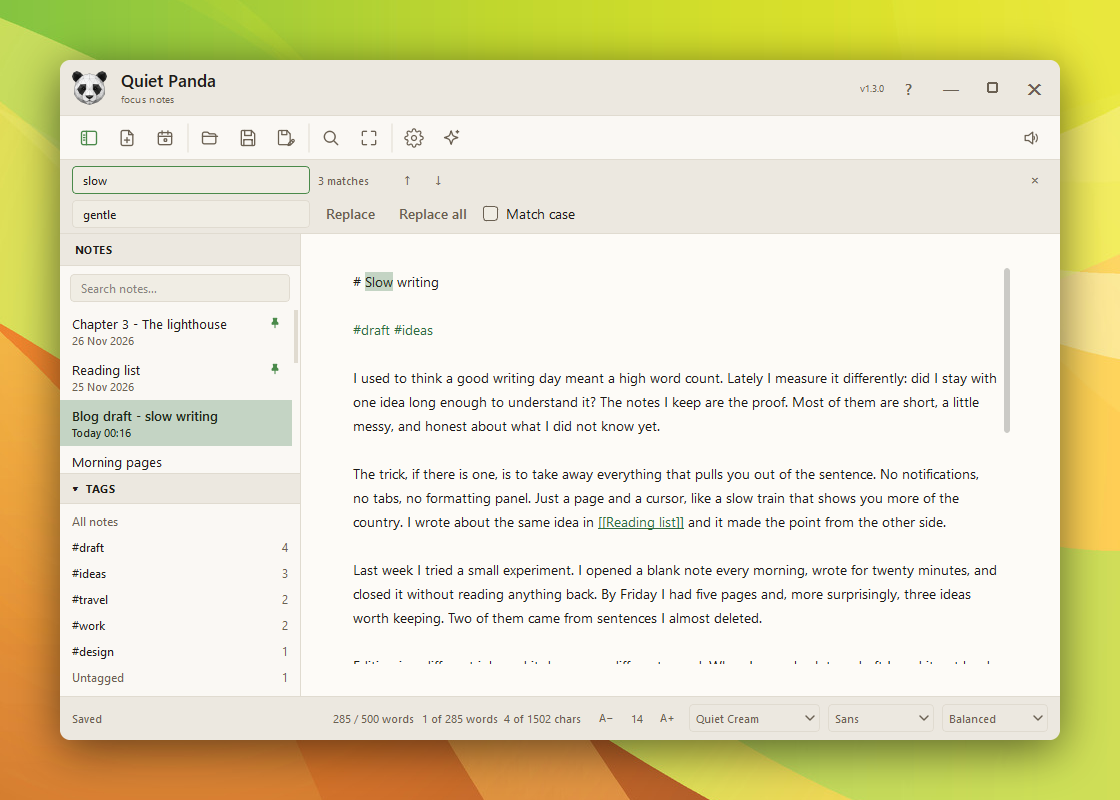
- Ctrl F opens a bar that says Find in document…. The search starts as you type, ignoring capitals. Enter or the ↓ button goes to the next match, ↑ to the previous one, and the search wraps round at the ends. The bar says 3 matches, 1 match or No matches. If a word is selected when you open it, it is filled in.
- Ctrl H adds a second row: Replace with…, Replace, Replace all (one undo step; it says 4 replaced) and a Match case box.
- Esc or the × button closes the bar.
Spell check
Offline, in English, Spanish, French, German and Italian, on by default. Right-click a marked word for suggestions, Add to dictionary or Ignore. It does not mark tags, links, words with digits or code blocks, and it stays quiet in Zen Mode. Choose the language, or turn it off, in Settings.
Small helpers
- Ctrl B and Ctrl I wrap the selection in bold (
**) or italic (*) Markdown marks, and take them off if they are already there. With nothing selected, the cursor lands between a pair. They add the marks; Quiet Panda does not render them. - Ctrl Enter on a line that starts with
- [ ]ticks it (- [x]), and again unticks it. - F5 inserts the date and time at the cursor, like
2026-11-27 17:42.
9. Optional AI
The AI is optional, and it is yours: Quiet Panda has no AI of its own and no account. You bring a key from Google Gemini or Groq (both offer a free key), and the actions run on that account.
Set it up
Settings › AI shows links to Google AI Studio and Groq, where you create one.
Open Settings (Ctrl ,), paste it in API key and press Test key. It says Key works and the model in use. There is no provider picker: the key itself tells Quiet Panda which provider it is.
Press Ctrl J, the AI toolbar button or the right-click menu. Without a key, the menu only offers Set up AI….
What it can do
The menu works on the selection if you have text selected, and on the whole note if not (the first line of the menu says which). Actions:
- Fix spelling & grammar and Tidy up formatting (structure and spacing, without changing words).
- Rewrite: Clearer, Shorter, More formal, More casual.
- Translate: English, Spanish, French, German, Italian or Portuguese.
- Summarize and Turn into to-do list.
- Suggest a title (for a saved note: it offers to rename it) and Suggest tags (it offers to add them).
You always see it before it changes anything
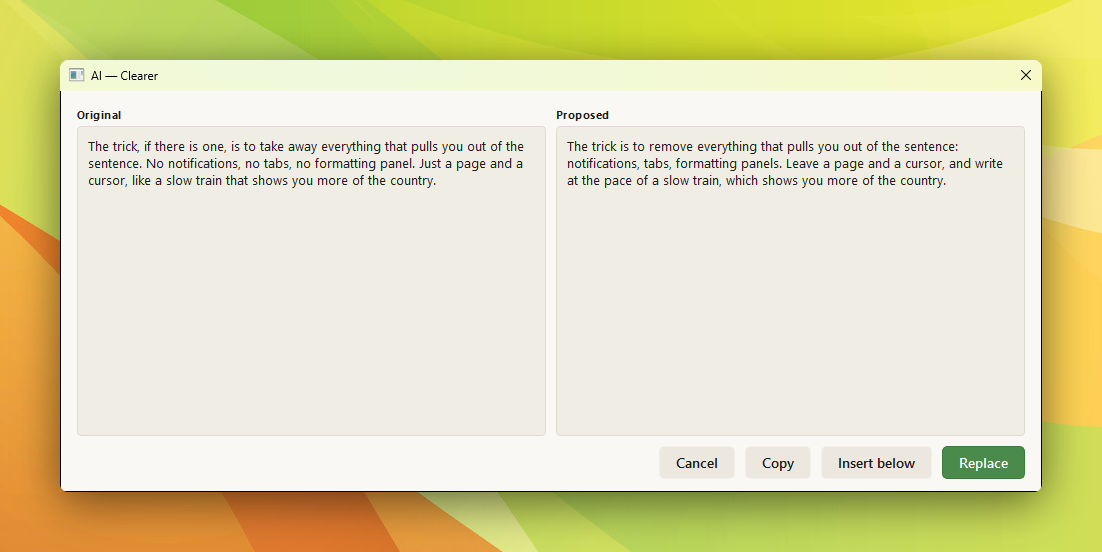
- Every answer opens a preview, Original next to Proposed, with Replace, Insert below, Copy and Cancel.
- Replace is a single undo step, and the text before it goes to the version history first.
- Esc cancels a call in progress (AI action cancelled). While it works, the status bar says Thinking….
- Too long for one pass? It asks you to select a part. An answer that was cut short is not allowed to replace your text.
What is sent, and where the key lives
- Only the text you chose (the selection, or the whole note if nothing is selected) goes to the provider, and only when you pick an action. Suggest tags also sends the names of the tags you already use, so it can reuse them. Nothing else is sent.
- The first time, a notice (Before using AI) says this and asks you to Continue.
- The key is kept in the Windows Credential Manager, never in a file of Quiet Panda. Remove key in Settings deletes it.
- Failed calls are logged in
crash.logwith the action, provider and error, but never your text or your key. - The provider’s own terms and limits apply to your key.
- Do not want it? Untick Show AI features in Settings and the button and menu disappear.
10. Settings & Configuration
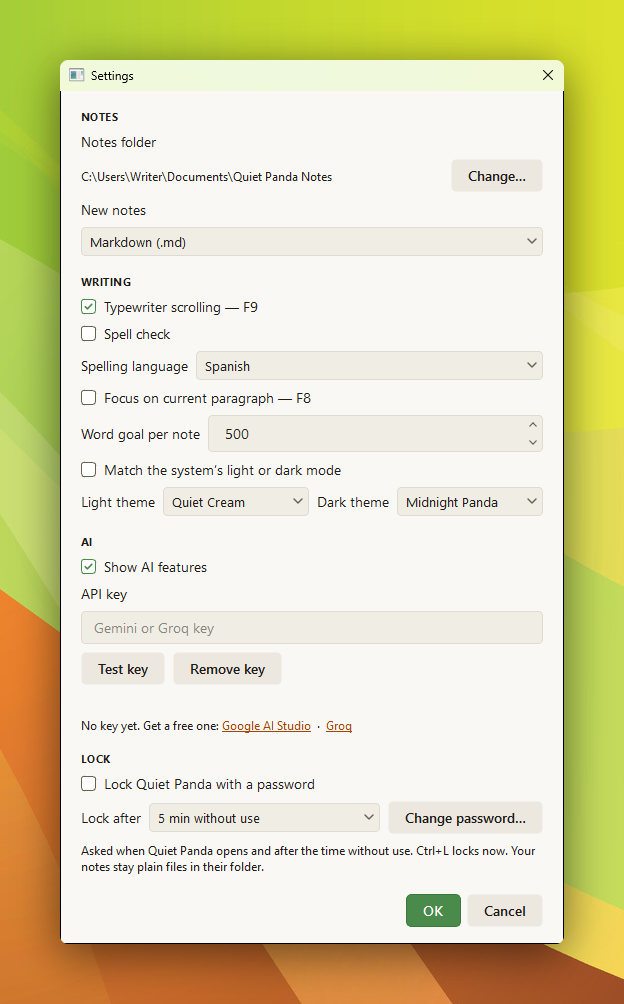
Open Settings with Ctrl , or the gear button in the toolbar; OK saves, Cancel discards. It has four sections, and the look of the page has its own selectors in the status bar.
Notes
- Notes folder — Change… picks another folder.
- New notes — Markdown (
.md) or Plain text (.txt).
Writing
- Typewriter scrolling (F9), Spell check, Spelling language (by default, your system’s language when there is a dictionary for it, otherwise English) and Focus on current paragraph (F8).
- Word goal per note — No goal by default. It counts the words of the open note, not a daily total.
- Match the system’s light or dark mode — off by default. Turn it on and pick a Light theme and a Dark theme: Quiet Panda switches when Windows does. Until you choose, it uses Quiet Cream by day and Midnight Panda by night.
AI
Show AI features, the API key field, Test key and Remove key. See Optional AI.
Lock
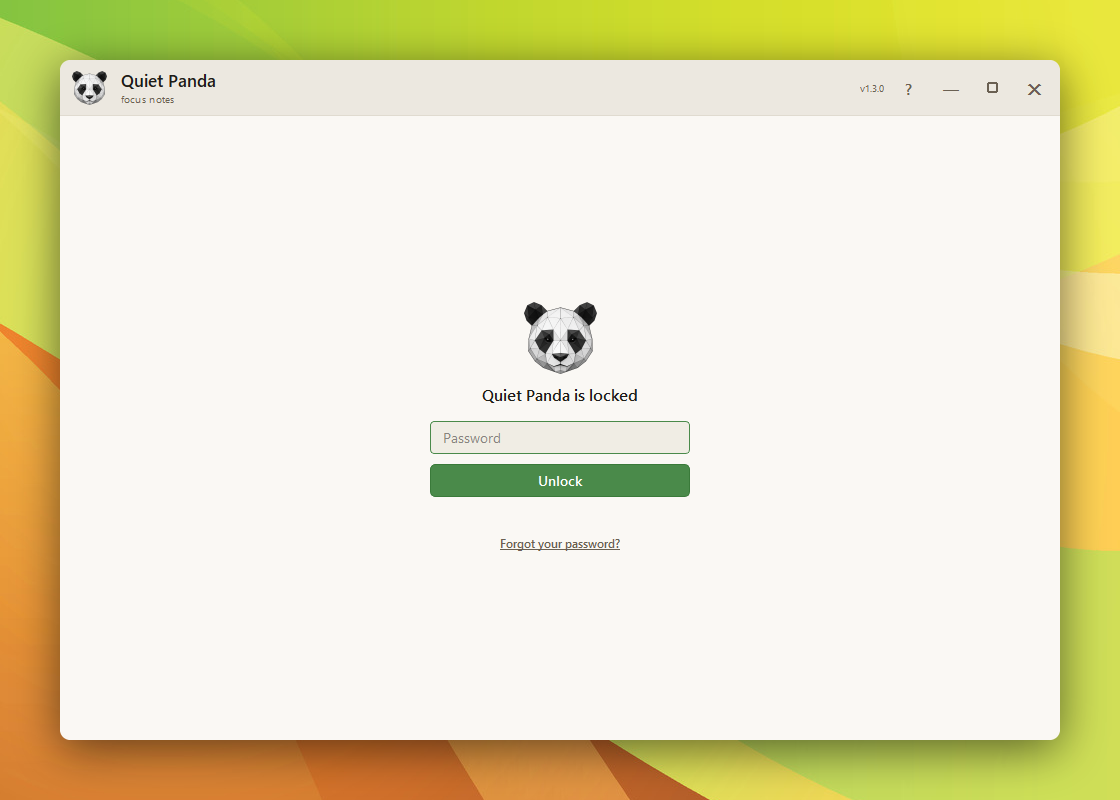
- Tick Lock Quiet Panda with a password and set one (at least 4 characters). From then on Quiet Panda opens locked and locks itself after 1, 5, 15, 30 or 60 minutes without use (5 by default). Ctrl L locks it right now.
- The lock screen covers the whole window, Zen Mode included, and the shortcuts do not reach the text behind it. Change password… is in the same section.
- It covers the window, not the files. Your notes stay plain text in their folder: anyone who can open the folder can read them. Quiet Panda keeps only a salted hash of the password, never the password.
The look of the page
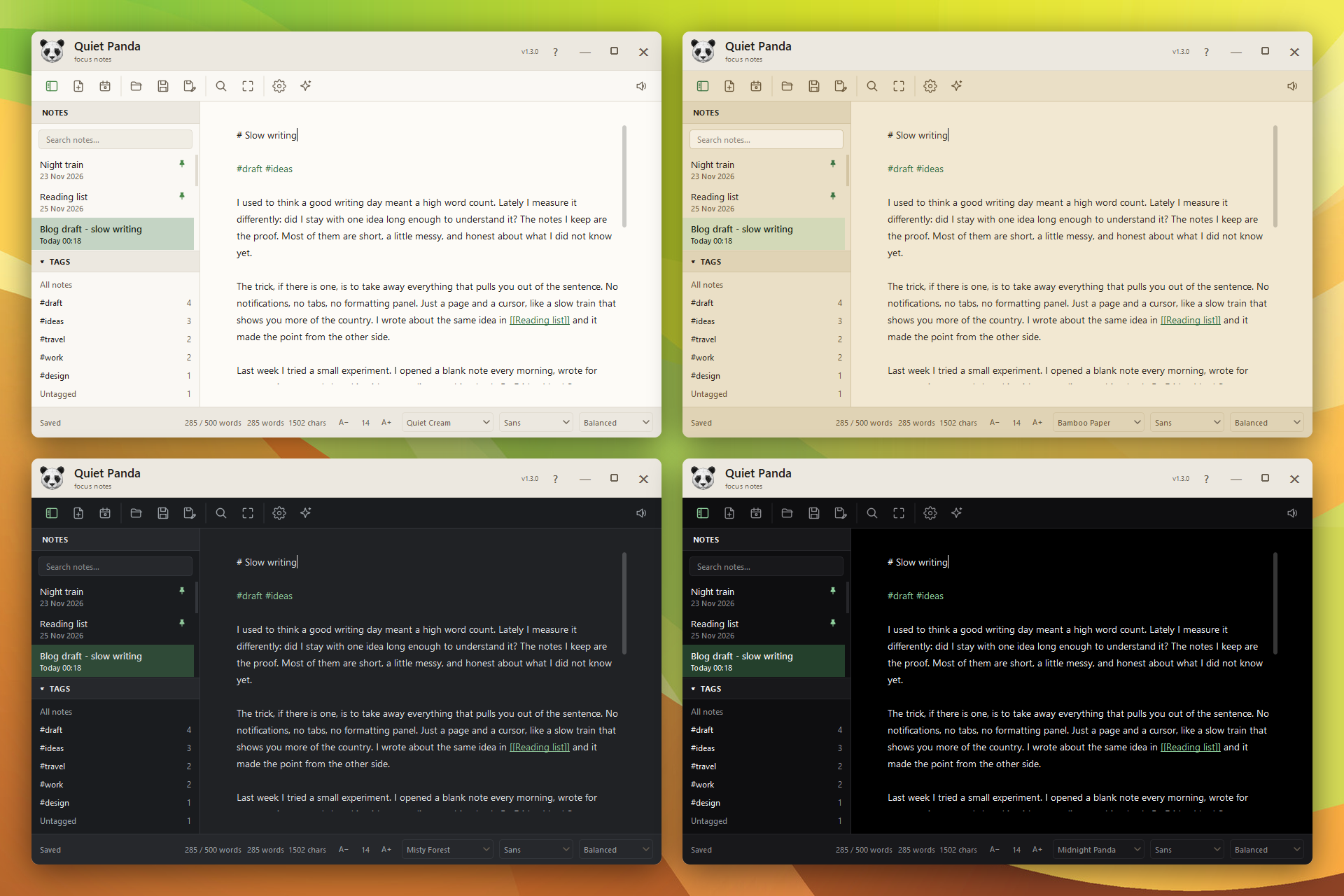
Four themes, four fonts, a text size and a line spacing, all in the status bar, and remembered for next time:
- Themes: Quiet Cream (the default), Bamboo Paper (a warm sepia), Misty Forest and Midnight Panda (both dark). A theme dresses the whole window — notes panel, toolbar and status bar — except the title bar, which keeps the suite’s ivory.
- Fonts: Sans (the default), Serif, Mono and Round.
- Text size: 10 to 32 px, 14 by default. A− and A+ in the status bar, Ctrl = and Ctrl -, or Ctrl and the mouse wheel; Ctrl 0 goes back to 14.
- Line spacing: Narrow, Balanced (the default) or Wide. It follows the text size.
Updates
When it starts, Quiet Panda checks in the background whether there is a newer version, against a signed list of the suite’s apps. If there is one, a notice says Quiet Panda … is available with three choices: Update opens the download page in your browser, Skip this version stops asking about that version, and Later asks again next time. It never downloads or installs anything by itself.
Good to know
- One copy at a time. If you open Quiet Panda while it is already open, the open window comes to the front.
- Resizing. You can resize the window from any edge, maximize it with the button or by double-clicking the title bar, and move it by dragging the title bar.
- Where things are. Notes:
Documents\Quiet Panda Notes(or your folder). Settings, draft, version history andcrash.log:%APPDATA%\QuietPanda. Unexpected errors are written tocrash.logso the problem can be diagnosed. - The goodbye card. From time to time, when you close it, a small card shows the other tools of the suite.
- Licences. Third-party licences are in
THIRD-PARTY-NOTICES.md, next to the program.
11. Tips
- Name a note by its first line. Write a clear first line and the file is named for you. If it starts with tags only, the next line is the name.
- Reach for Ctrl E, not the mouse. It finds by name, text or tag, works in Zen Mode, and Ctrl Enter turns what you typed into a new note.
- Start the day with Ctrl D. One note per date, and F5 stamps the time on a line.
- Write first, tidy later. F11 and write; with F8 on, the paragraphs you are not in fade out. Leave Zen Mode when you want to see the count.
- Link as you go. Type
[[and pick a note, or write a link to a note that does not exist and Ctrl+click it later to create it. - Rename tags in one place. A tag you spelled two ways is fixed from the TAGS section, in every note at once. The previous versions stay in the history.
- Pick the paper for the hour. Turn on Match the system’s light or dark mode and let Windows decide.
All the keys are in the shortcut tables below.
12. FAQ
Can I have several notes open at once, or use tabs?
No. Quiet Panda works on one note at a time, in one window. Switching is quick (Ctrl E, Alt ↑/↓, Ctrl Tab for the previous one), but if you want several files side by side as tabs, Clever Cat has them.
Does it show Markdown formatted?
No. New notes are .md files by default, but the text is shown as text: no preview and no formatting. Ctrl B and Ctrl I only add the ** and * marks.
Does it sync with the cloud, or need an account?
No on both. Your notes are files on your computer. You can point the notes folder at a folder that another program syncs; if that program changes the note you have open, Quiet Panda asks you what to keep (see Outside Changes). The only things that go over the network are the update check at startup and, if you use it, the AI.
Can I organise notes in subfolders, see backlinks or a graph?
No. Quiet Panda is not a knowledge-base tool: no vault, no subfolders, no backlinks panel, no graph. Your notes are plain text files in one folder, and tags and links are written in the text itself.
A note I copied into the folder does not appear.
Only .md and .txt files directly inside the notes folder are notes. Check the folder in Settings (Ctrl ,), and come back to the Quiet Panda window: it refreshes the list when you return to it.
I deleted a note by mistake. Can I get it back?
Delete moves a note to the Windows Recycle Bin, so restore it from there. If it is a change you regret, not a deletion, Version history… brings back an earlier version of the text.
Does the password lock encrypt my notes?
No. It covers the window, not the files: your notes stay plain text in their folder, readable by anyone who opens it. Do not use it to protect secrets.
I forgot the lock password.
Your notes are safe in their folder. To remove the password, close Quiet Panda, open settings.json in %APPDATA%\QuietPanda in any text editor and delete the line that starts with "lock_hash". The Forgot your password? link on the lock screen shows the same steps with your real paths.
Does the AI read all my notes?
No. Nothing is sent until you choose an action, and then only the selection (or the open note if nothing is selected) goes to Google Gemini or Groq, depending on your key. Suggest tags adds the names of your existing tags. If you never add a key, nothing is ever sent, and Show AI features hides it all.
The AI says my key does not work.
Open Settings and press Test key. A key must be from Google Gemini (starts with AIza) or Groq (starts with gsk_); anything else is rejected. If the provider answers with an error, such as no access to its models, the message says so; check the key and your plan with the provider. Failed calls are noted in crash.log.
Can I print or export a note to PDF or Word?
No. Quiet Panda has no printing and no export; your notes are plain files you can open anywhere. For a formatted document that you export to .docx or PDF, see Neat Bluejay.
Can I drag a file onto the window to open it?
No. Open files with Ctrl O. There is no drag and drop and no “Open with”.
Can I set a daily word goal or see writing statistics?
No. The goal is per note (Word goal per note in Settings), and there are no statistics. The status bar counts words and characters, and the selection when you select text.
Does the update notice install the new version?
No. Update opens the download page in your browser, and you install it from there. Skip this version stops the notice for that version only.
Is it free? Is there a Mac or Linux version?
Quiet Panda is free, with no account. It is for Windows only.
13. Keyboard Shortcuts
Notes
| Action | Key |
|---|---|
| New note | Ctrl N |
| Today’s note | Ctrl D |
| Note finder | Ctrl E also in Zen Mode |
| Search all notes (the panel’s search box) | Ctrl Shift F |
| Show or hide the notes panel | Ctrl \ |
| Rename the note | F2 the selected one in the list, or the open one |
| Move the selected note to the Recycle Bin | Delete with the list selected |
| Previous or next note in the list | Alt ↑ / Alt ↓ |
| Open the 1st to 9th note of the list | Ctrl 1 … Ctrl 9 |
| Back to the note you had before | Ctrl Tab |
Open a [[link]], or filter by a #tag | Ctrl + click |
| In the finder: choose, open, create a note, close | ↑ ↓, Enter, Ctrl Enter, Esc |
| In suggestions (tags, links): complete, close | Tab or Enter, Esc |
Files
| Action | Key |
|---|---|
| Open a file | Ctrl O |
| Save | Ctrl S |
| Save as | Ctrl Alt S |
Writing
| Action | Key |
|---|---|
Bold (wraps the selection in **) | Ctrl B |
Italic (wraps the selection in *) | Ctrl I |
Tick or untick a - [ ] task | Ctrl Enter |
| Insert the date and time | F5 |
| Larger text | Ctrl = or Ctrl +, or Ctrl + mouse wheel up |
| Smaller text | Ctrl - or Ctrl + mouse wheel down |
| Back to the default size (14 px) | Ctrl 0 |
| AI menu | Ctrl J |
Find and replace
| Action | Key |
|---|---|
| Find in the document | Ctrl F |
| Find and replace | Ctrl H |
| Next match | Enter in the find bar |
| Replace the current match | Enter in the Replace with… box |
| Close the bar | Esc |
Focus and window
| Action | Key |
|---|---|
| Zen Mode on | F11 |
| Focus on the current paragraph, on or off | F8 |
| Typewriter scrolling, on or off | F9 |
| Leave Zen Mode (after closing suggestions, finder, an AI call or the find bar) | Esc |
| Lock now | Ctrl L |
| Settings | Ctrl , |
| Open this guide | F1 |
Ready to install?
Free for Windows. No account, no cloud.
Get Quiet Panda →