🌋 The Stromboli Project
Free 🪟 Windows

Quiet Panda Focus Notes

A quiet page to write on, and your notes close by.

Open it and there is a page and a cursor. Your notes are plain .md and .txt files in one folder, listed in a panel you can fold away. Add #tags and [[links]] as you type, and press F11 when you want everything but the text to disappear.

No account, no email, no licence key. Quiet Panda is free, and your notes stay as ordinary files in a folder you choose.

Windows desktop build

Windows may show a SmartScreen warning on first launch — click More info → Run anyway.

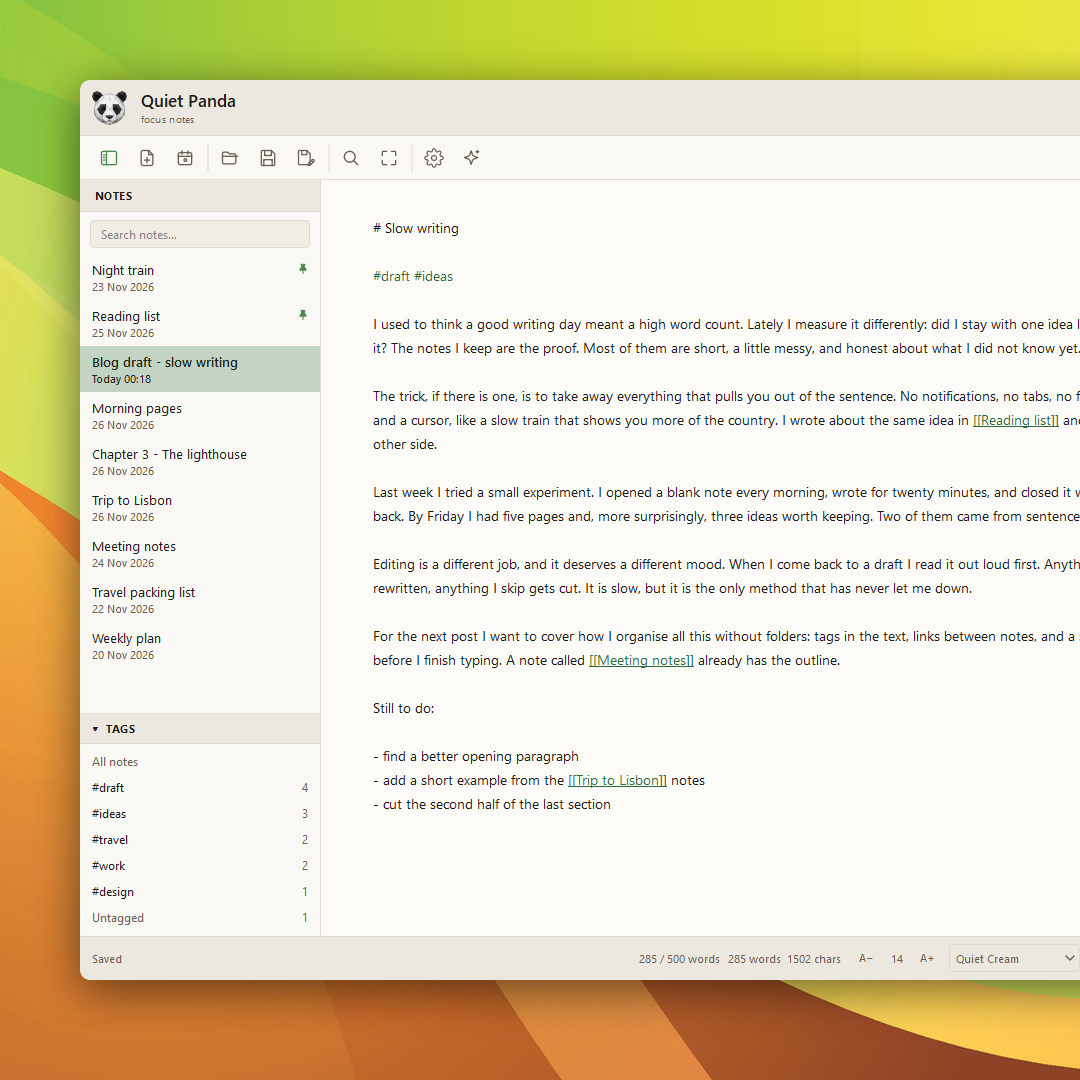
Quiet Panda Focus Notes on the Quiet Cream theme: the notes panel on the left with a few notes, pinned notes and a TAGS section, a note with highlighted #tags open in the middle, and the word count and word goal in the status bar.

Quiet Panda is a writing app first and a notes app second: a quiet page to write on, with your notes in one folder beside it, as plain files that any editor can open.

Features

Write, find, keep. Everything else stays out.

Zen, focus and typewriter.

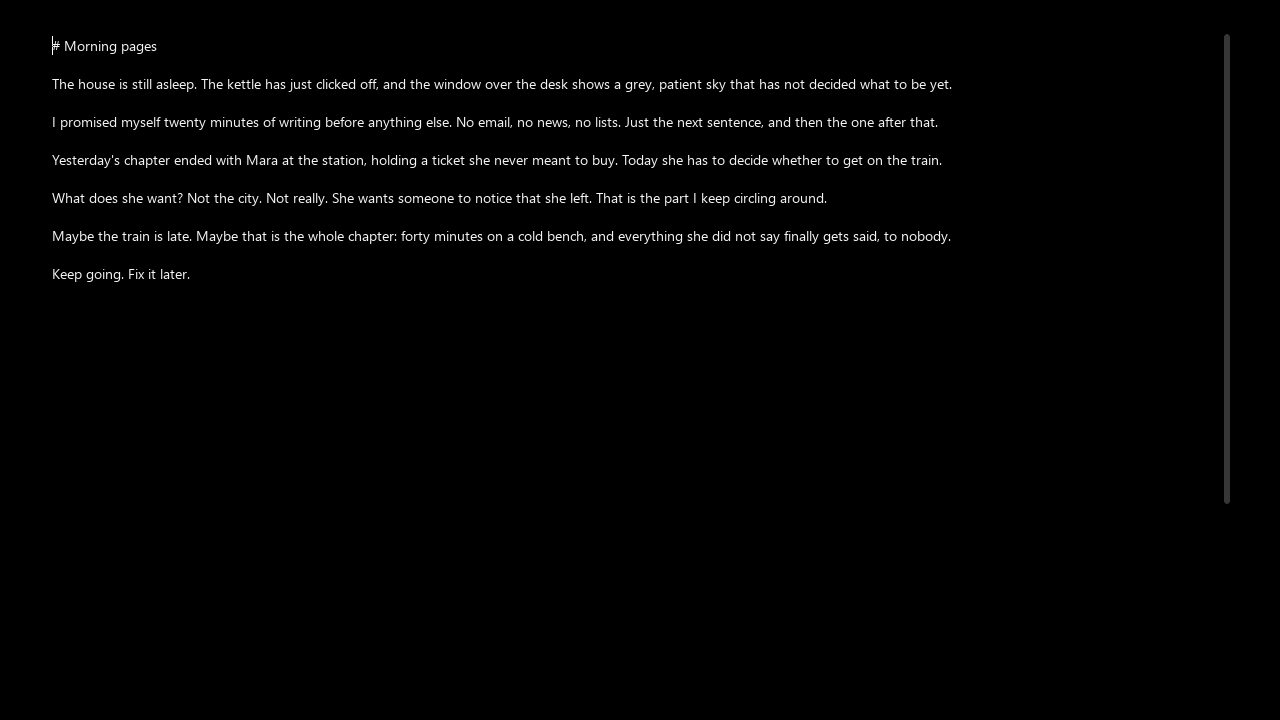
  • F11 goes full screen and hides the title bar, toolbar, notes panel and status bar; Esc brings them back
  • F8 dims every paragraph except the one you are in
  • F9 keeps the line you are typing in the middle of the window
  • Word and character count at the bottom; select text and it counts the selection, with the reading time on hover
  • An optional word goal per note in the status bar

Themes that dress the whole window.

  • Quiet Cream (the default), Bamboo Paper, Misty Forest and Midnight Panda; the last two are dark
  • The notes panel, toolbar and status bar take the theme’s colours; only the title bar keeps its ivory
  • In Settings › Writing, follow Windows light or dark mode, with one theme for each
  • Sans, Serif, Mono or Round, text size from 10 to 32 px, and line spacing Narrow, Balanced or Wide, all remembered

Your notes, in one folder.

  • A panel (Ctrl \ folds it) lists every .md and .txt file in the folder, including ones you copy in from outside
  • Ctrl N starts a note; it saves itself and takes its first line as its name. F2 renames, Delete sends it to the Recycle Bin
  • Pin notes to the top and drag them into your own order; Ctrl D opens today’s note
  • Open any .txt or .md file with Ctrl O; its encoding and line endings are kept when you save
  • The folder and the format of new notes (.md or .txt) are set in Settings

Tags and links, typed in the text.

  • Write #idea anywhere; tags are highlighted and suggested as you type #
  • The TAGS list counts the notes per tag: click to filter, Ctrl+click to add another; All notes and Untagged are there too
  • Rename a tag, or remove it, across every note at once
  • [[Note name]] links to another note: Ctrl+click opens it, or creates it. After [[ it suggests your notes’ names
  • [[Note|other words]] and [[Note#Section]] work too, and renaming a note updates the links to it in every other note

One search, and a note finder.

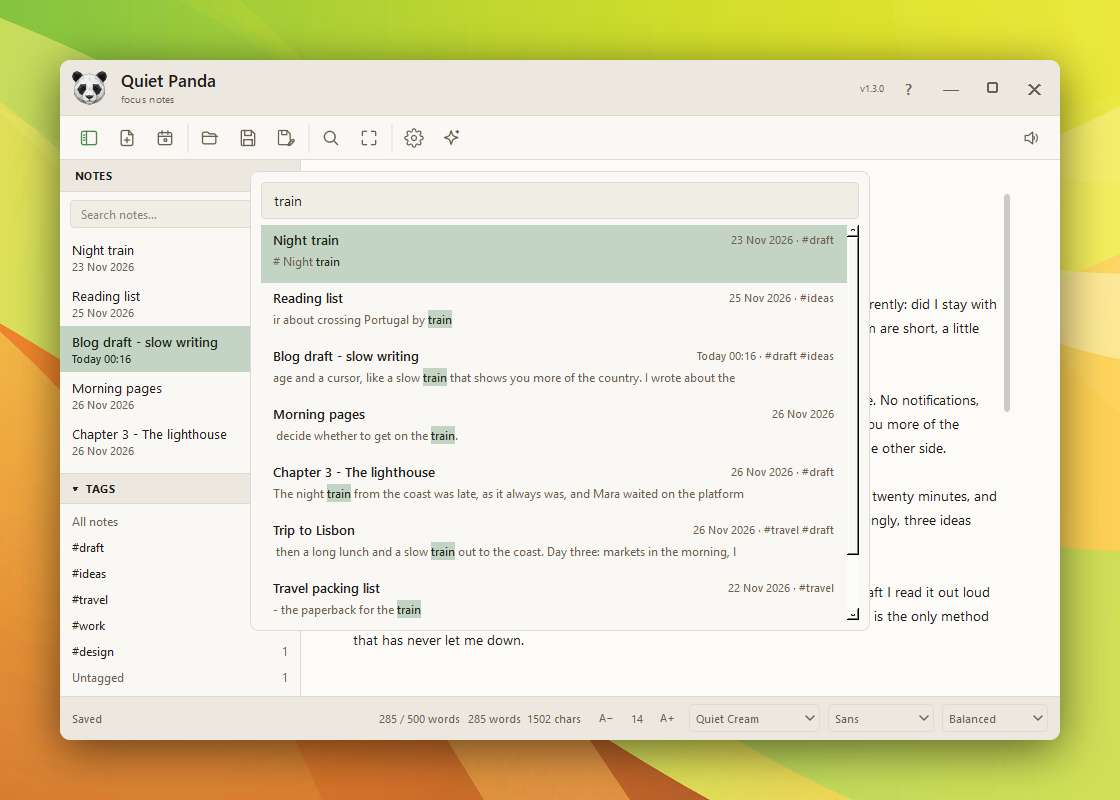
  • Words, “exact phrases” and #tags in the same box, ignoring accents and capitals, with where each match was found
  • Ctrl E opens the note finder, also in Zen Mode; Ctrl Enter creates a note from what you typed
  • Alt ↑ / ↓, Ctrl 1…9 and Ctrl Tab move between notes from the keyboard
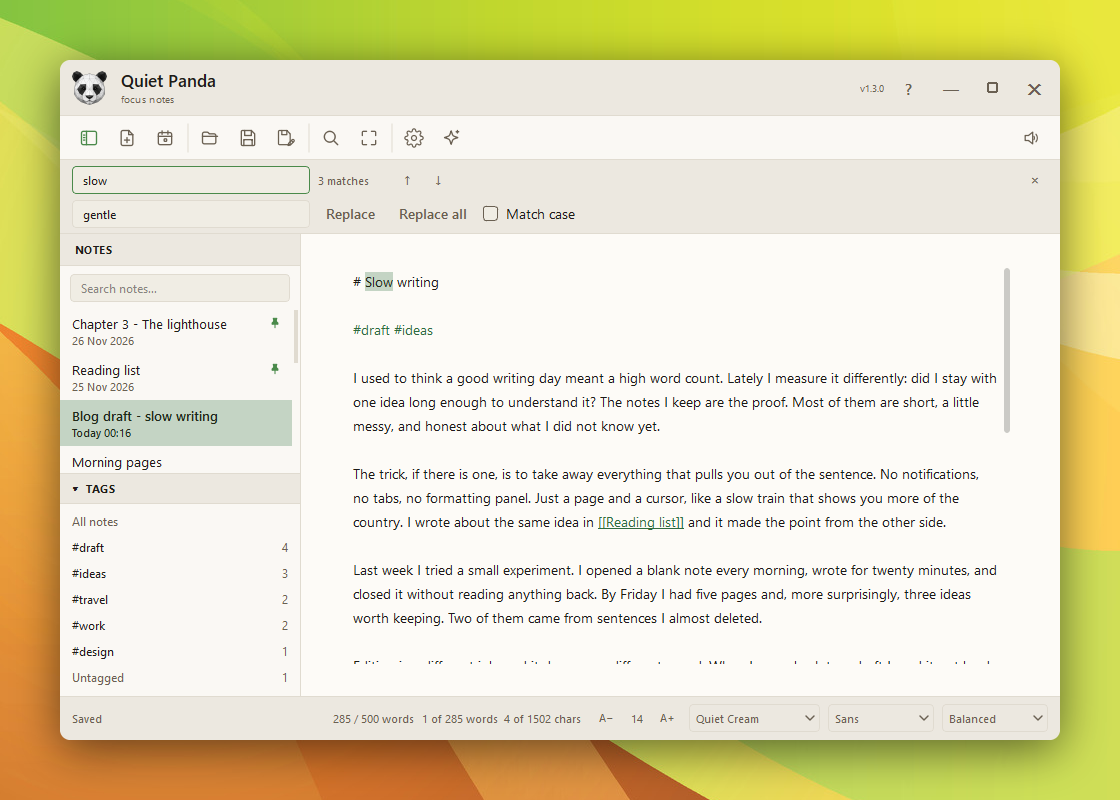
  • Ctrl F finds in the open note; Ctrl H replaces, with Replace all as one undo and Match case

Earlier versions, and a warning.

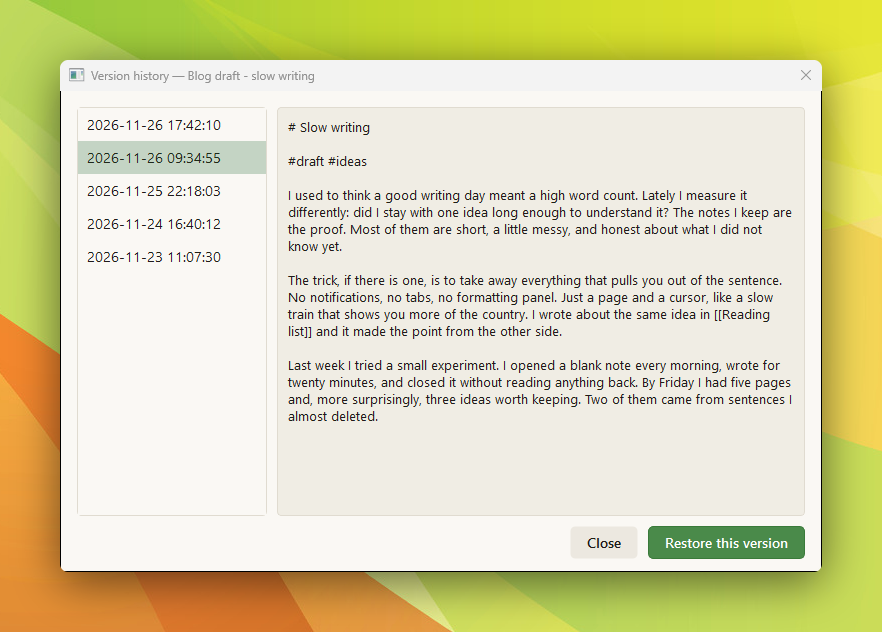
  • Keeps up to 50 earlier versions of each note for 90 days, outside your notes folder; Restore this version brings one back
  • A draft is saved every 30 seconds and comes back if the app closed without saving
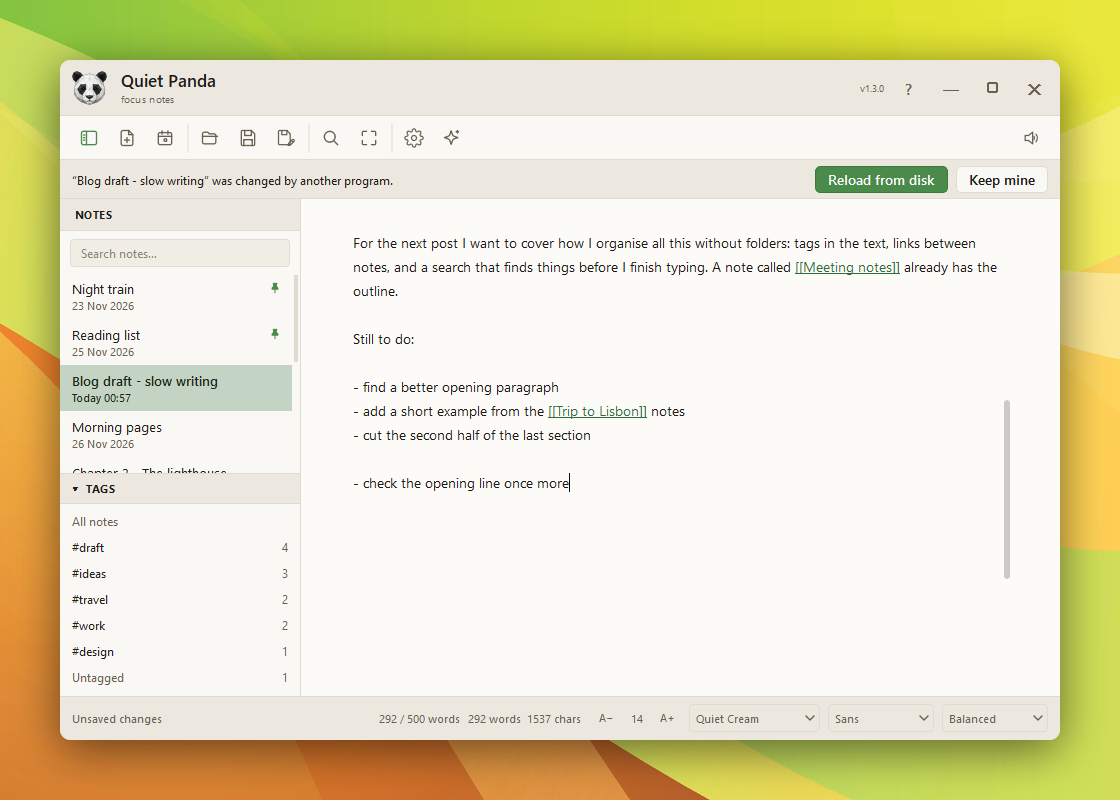
  • If another program changes the open file (a synced folder, another editor, another computer), Quiet Panda notices: untouched text reloads, otherwise a bar asks Reload from disk or Keep mine
  • Nothing is saved over the file until you answer, and in a note the version you do not keep goes to the history

Spell check and small helpers.

  • Offline spell check in English, Spanish, French, German and Italian, with suggestions, Add to dictionary and Ignore
  • It skips tags, links, words with numbers and code blocks
  • Ctrl B and Ctrl I wrap the selection in Markdown bold or italic; Ctrl Enter ticks a - [ ] task; F5 inserts the date and time
  • A soft panda sound at startup, with a mute button on the toolbar that remembers your choice

AI, only if you ask for it.

  • It uses your own Google Gemini or Groq key; with no key, there is no AI
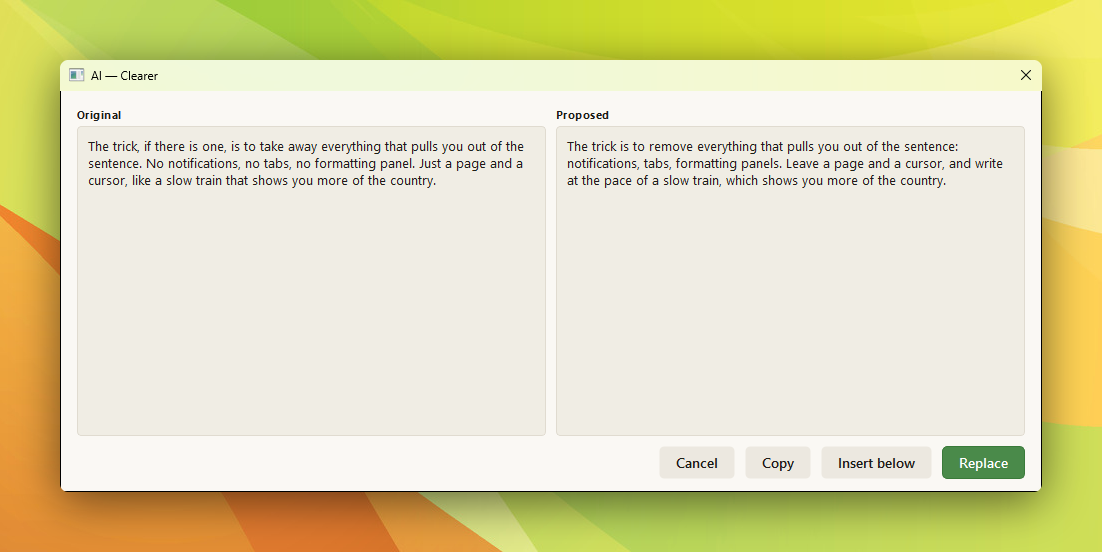
  • Fix spelling & grammar, tidy up formatting, rewrite (clearer, shorter, more formal, more casual), translate, summarize, turn into a to-do list, suggest a title or tags — Ctrl J
  • Every answer shows a preview first: Replace, Insert below, Copy or Cancel; Replace is one undo
  • The key lives in the Windows Credential Manager, never in a file, and the AI features can be hidden in Settings

A lock for the window, not for the files.

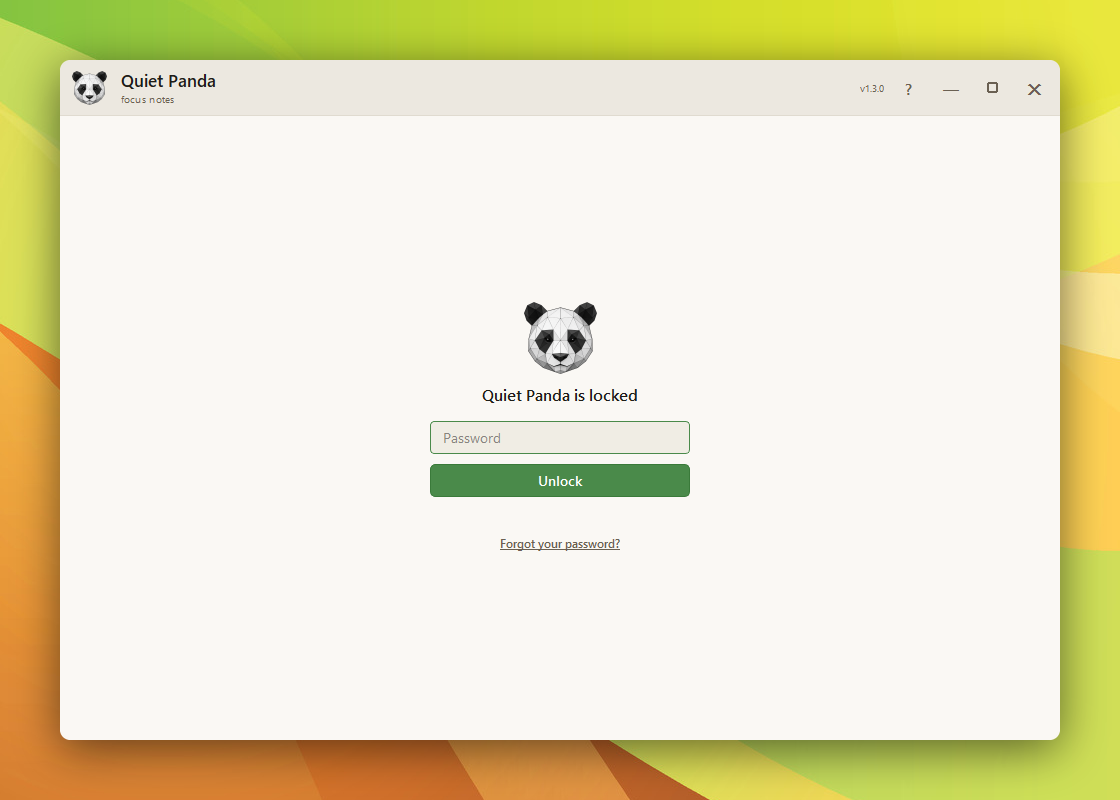
  • Settings › Lock asks for a password when Quiet Panda opens and after 1, 5, 15, 30 or 60 minutes without use; Ctrl L locks it at once
  • It covers the window. It does not encrypt: your notes stay plain files in their folder
  • Only a salted hash of the password is kept
  • If you forget it, your notes are still in their folder, but unlocking the app means editing a settings file
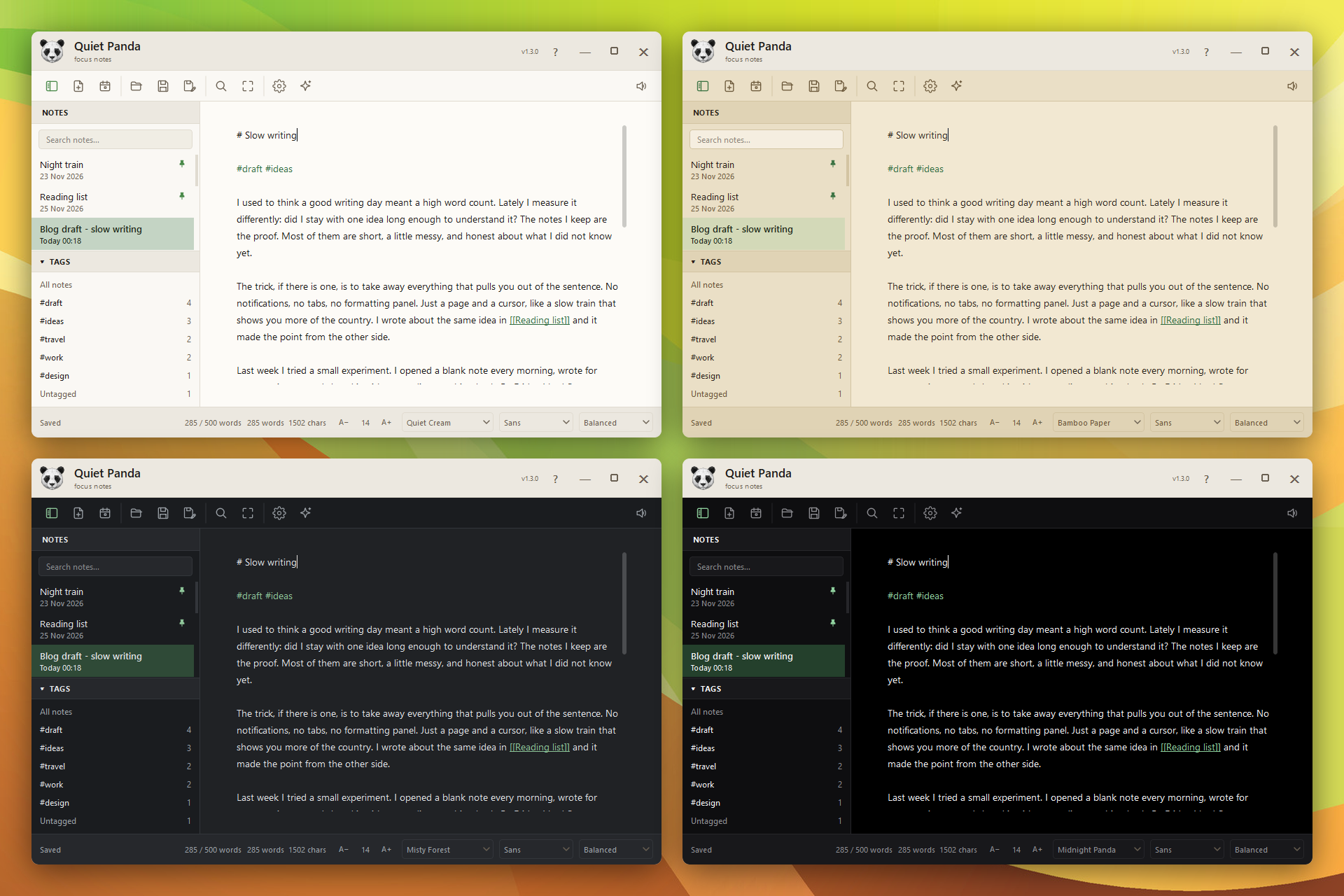
The same note on the four Quiet Panda themes, each with the notes panel, toolbar and status bar in the theme’s colours: Quiet Cream, Bamboo Paper, Misty Forest and Midnight Panda.

What you get

A quiet page, and notes you can find again.

Room to write

Zen Mode hides everything but the text, F8 dims the paragraphs you are not in and F9 keeps your line in the middle. Four themes, two of them dark, dress the whole window.

Notes that stay yours

Your notes are .md or .txt files in a folder you choose. Tags and links are written in the text itself, so nothing is locked inside the app and any other editor opens them.

Nothing overwritten by surprise

One search finds words, phrases and tags. Each note keeps up to 50 earlier versions, and a bar warns you when another program changes the file you have open.

The one thing

Quiet Panda is for the moment you just want to write. A calm page, Zen Mode one key away, and your notes as plain files you can open anywhere. Tags, links and an optional AI are there when you need them, and invisible when you don’t.

— Javier, The Stromboli Project
Quiet Panda in Quiet Cream: the notes panel with two pinned notes and the tag list, and a blog draft open with #draft, #ideas and links to other notes.

Before you install it

What it needs, and what leaves your computer.

What it needs

  • Windows 10 or 11, 64-bit. It installs for your own user, with no administrator prompt
  • No account, no email. Nothing to register and nothing to sign in to
  • A folder for your notes. Documents\Quiet Panda Notes by default, or any folder you pick in Settings
  • Linux and macOS: no build

What leaves your machine

  • A version check when it starts, against a signed list of the suite’s apps, to tell you if there is a newer build. It installs nothing by itself: it opens the download page
  • Your notes are not uploaded anywhere, and Quiet Panda has no sync of its own
  • Only if you set up AI: the text you choose goes to Google Gemini or Groq, with your own key, when you pick an action. Nothing is sent before that

How it goes

Open. Write. Find it again.

It opens on your notes and a page ready to write on, so the first thing you do is write, not set anything up.

  • A note saves itself a moment after you stop typing
  • Zen Mode is one key: F11 in, Esc out
Step 1 · Open it A short splash, a soft sound, and then your notes panel and a page. In an empty folder, Ctrl+N starts the first note.
Step 2 · Write Type. The first line becomes the name. Add #tags and [[links]] as you go.
Step 3 · Set the room F11 for Zen, F8 to dim every paragraph but yours, F9 to keep your line in the middle, and a theme and font from the status bar.
Step 4 · Find it again Ctrl+E from anywhere: type a word, a phrase or a #tag and open the note.

In the app

The parts you will use most.

Quiet Panda with [[ typed in a note and a list of suggested note names open under the cursor, ready to pick one.
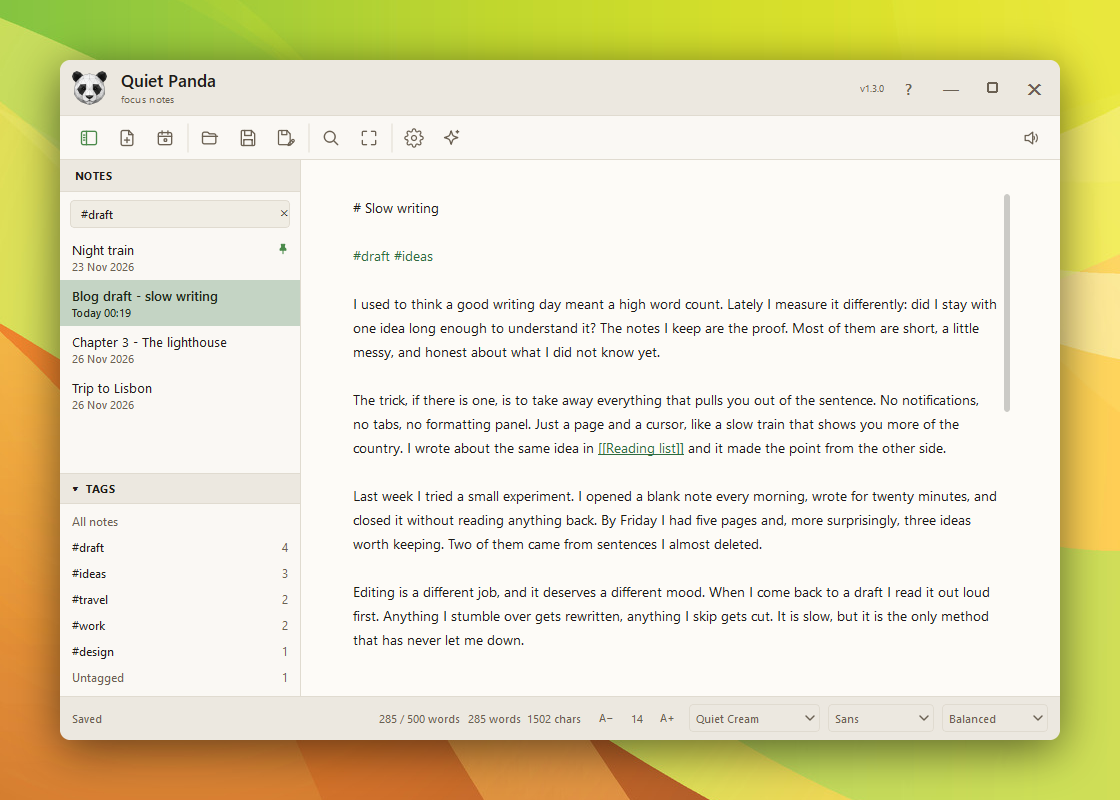
The notes panel filtered by a tag: the TAGS list with a count next to each tag, one tag selected, and only the notes that carry it listed above.
The note finder opened with Ctrl+E: a search box with a word typed in it and a short list of matching notes under it, each showing where the match was found.
The find and replace bar open above a note, with a word in Find, another in Replace with…, the Replace and Replace all buttons, the Match case box and the match counter.
The Version history window of a note: a list of earlier versions with their dates, one selected, and the Restore this version button.
The bar that appears when another program changes the open note: “was changed by another program”, with the Reload from disk and Keep mine buttons.
The AI preview window: the original text on one side and the proposed rewrite on the other, with the Replace, Insert below, Copy and Cancel buttons.
The lock screen: “Quiet Panda is locked” over the window, with a Password box and the Unlock button.
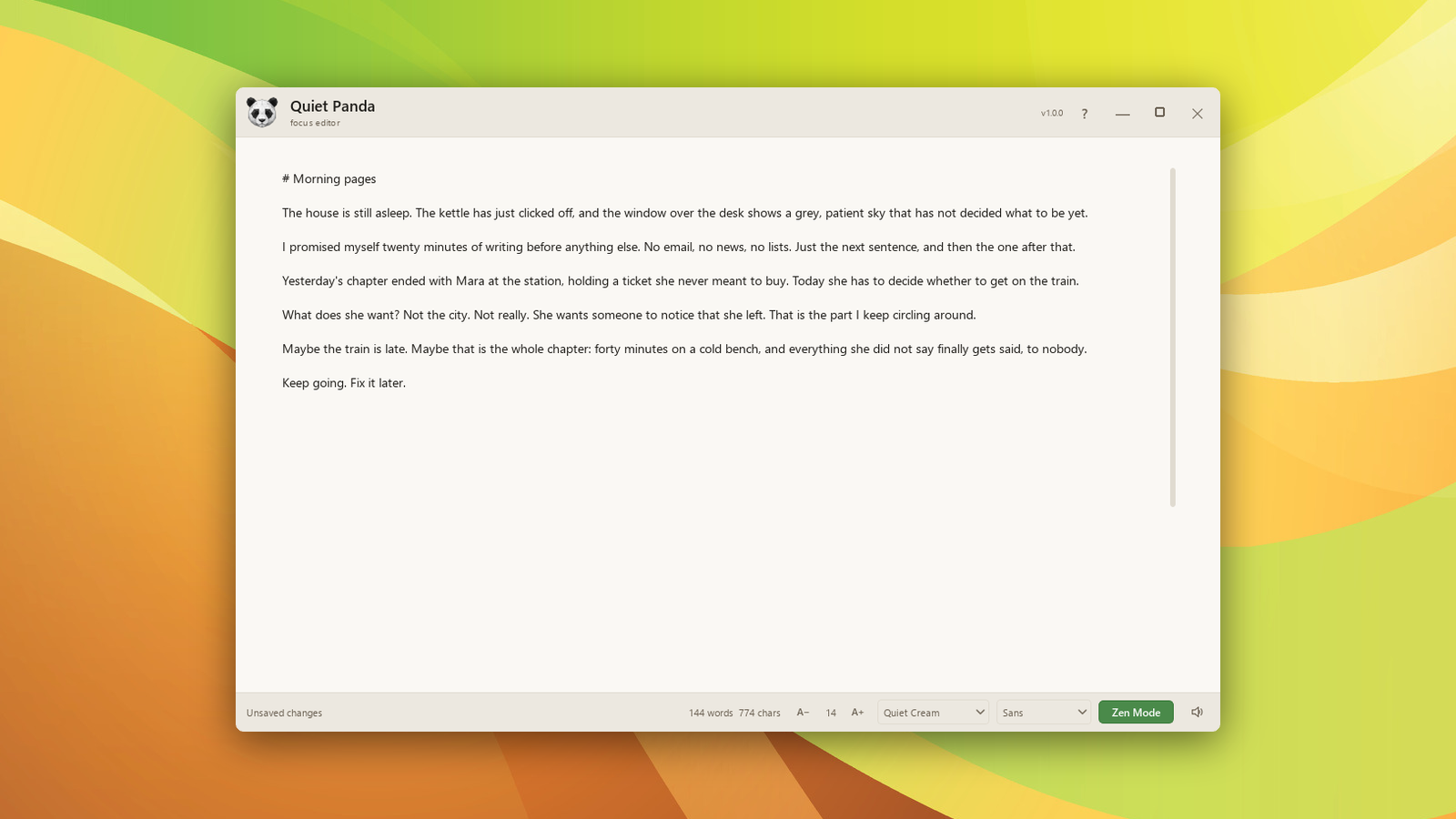
Quiet Panda in Zen Mode on the Midnight Panda theme: full screen, with no title bar and no status bar, only the text.

Try it

The honest test is the note you keep putting off.

Install it, write the README, the journal entry or the draft you have been postponing, and see whether the page gets out of your way. It is free, with no limits, and your notes are plain files you can take anywhere.

Who it is for

People who write, and want to find it again.

Someone writing a long README, a journal entry, a first draft or the notes from a meeting, who wants to find it again later without building a system first. No vault, no database and no account: a folder of files you could open in any editor, and a page that stays quiet while you write.

The guide goes through the page, the notes panel, tags and links, search, version history and Settings, step by step.

Read the complete guide →

What it leaves out

A writing app with notes, not a knowledge base.

  • No cloud sync and no account: the folder is yours, and Quiet Panda warns you when something else changes a file in it
  • No formatted preview: .md files are shown as the text they are, symbols and all
  • No encryption: the password lock covers the window, and the files stay plain text
  • No subfolders, no graph and no backlinks panel: one flat folder, with tags and links written in the text
  • No printing and no export
  • No tabs: one note open at a time, with the finder and the keyboard to jump between them
  • No opening files by dragging them in or with “Open with”: use Ctrl+O
  • No plugins, and no daily word goal or writing statistics: the goal is per note