Complete Guide
Smart Greenjay
Open a workbook, do your sums with formulas, and keep it as .xlsx. The grid, the formula bar and the shortcuts you know from Excel — only the parts a household uses, and no account.

1. What Is Smart Greenjay?
Smart Greenjay is a spreadsheet for Windows, with experimental Linux packages, built for the numbers people keep at home. It looks and answers like Excel where it matters — columns with letters, rows with numbers, the name box, the formula bar, =SUM(…) and the usual shortcuts — and it leaves out the parts of Excel a household never opens: Power Query, macros and hundreds of specialist functions — and keeps the everyday kind of PivotTable.
It reads and writes .xlsx, so the workbook you keep your budget in, or the one somebody emails you, opens here and goes back in the same format. It also imports and saves CSV. There is no account and no cloud: every workbook is a file on your computer.
Who it is for
Whoever keeps the monthly budget, the costs shared in a flat, the community fees or a loan in a spreadsheet: someone who knows how to do a sum and would rather not pay for Microsoft 365 or keep the family accounts in Google. And whoever receives a .xlsx and only needs to open it, change a few figures and send it back.
=SUMA(A1;B1) works.
2. Installation
Get it from the Smart Greenjay page. It is a single .exe for 64-bit Windows, signed with our code-signing certificate.
It installs into your own user folder, so Windows does not ask for administrator rights. It also registers itself for .xlsx and .csv, so those files open with a double-click or from Open with.
Find it in the Start menu as Smart Greenjay - Spreadsheet. It is named by what it does, so Windows Search finds it whether you type the animal or “spreadsheet”.
3. First Launch
Smart Greenjay opens with a short sound from the green jay and an empty workbook, Untitled, ready to type in. From top to bottom: the title bar with the version, an icon bar (new, open, save, save as, print, undo, redo, find, settings and, on the right, the speaker to mute the sound), the ribbon, the workbook tabs, the name box and the formula bar, the grid, the sheet tabs and the status bar.
The status bar is worth a look: on the right it shows the sum, average and count of whatever you select, as Excel does. On the left is the licence indicator, with the days left of your trial; click it to enter your Animal Tools key.
Your free trial
There is no “start my trial” button. The first 14 days are the full version, and they start by themselves on first launch. You do not sign up, and you do not enter anything.
4. Core Workflow
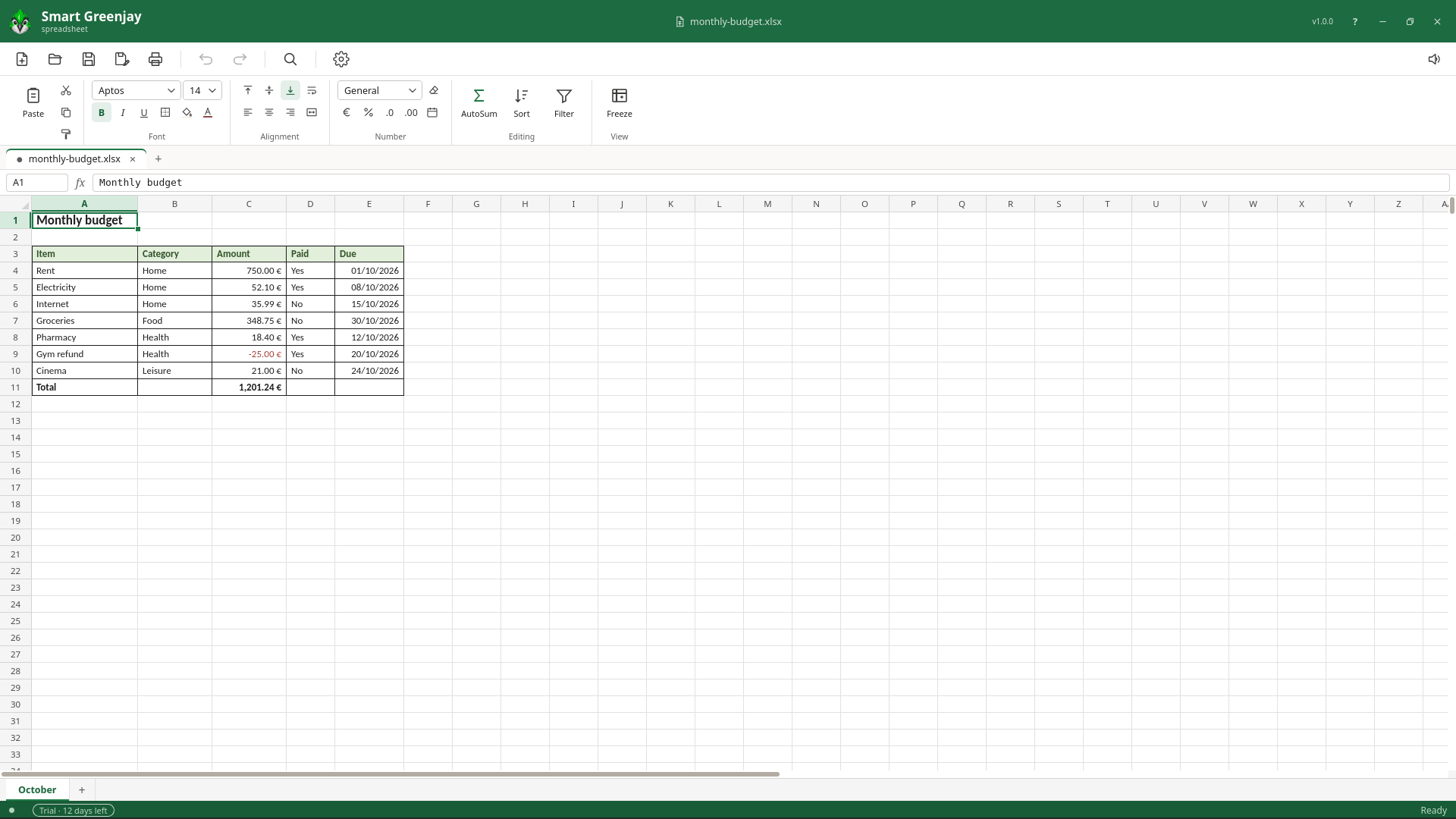
Most uses of Smart Greenjay are this short: a list of amounts, a total, and a file to keep or send.
Ctrl N for a new one; Ctrl O, a double-click on a .xlsx or .csv, or dropping files on the window to open existing ones. Each workbook gets its own tab, and a file that is already open just brings you to its tab.
Click a cell and type; Enter moves down, Tab moves right, Esc cancels, F2 edits what is there. With Windows in Spanish, 3,5 is a number, 25/10/2026 a date and 12,50 € an amount.
Drag the small square at the corner of a cell to copy a formula down a column, or to continue numbers, dates, months (in English or Spanish) and days of the week.
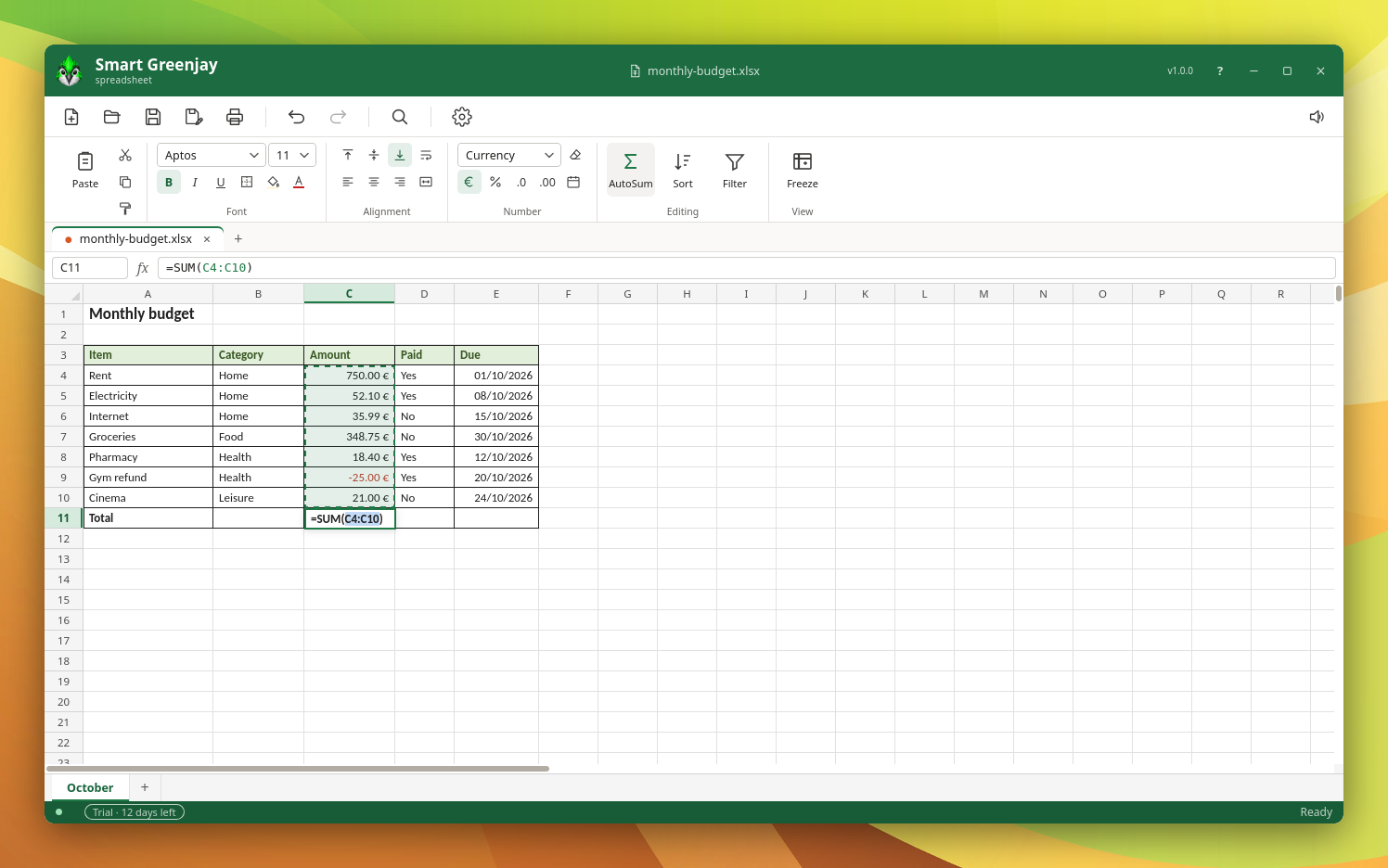
Select the amounts and click AutoSum (Σ) or press Alt =. The total goes under the column, and comes out in euros if the amounts were in euros.
Ctrl S saves as .xlsx; F12 or Ctrl Alt S saves a copy elsewhere, or as CSV. Ctrl P opens the print preview, where you can also save a PDF.
Rows and columns are inserted and deleted from the right-click menu, which also fits a column’s width or a row’s height to its contents. Dragging the border between two headers resizes; a double-click on it fits.
5. Formulas & Functions
A formula starts with =, as in Excel, and recalculates on its own whenever a value it uses changes. While you type one, you can point at cells with the mouse or the arrow keys instead of typing their addresses, and the formula bar colours each reference to match its outline on the sheet.
📍 References F4
A1 moves when you copy the formula; $A$1 does not. F4 cycles through the four forms of the reference under the cursor.
📏 Ranges & sheets
A1:B5 , whole columns like C:C , and cells on other sheets with Sheet2!A1 .
📚 78 functions
Sums and averages, rounding, IF and its family, SUMIF/COUNTIF/AVERAGEIF and the -IFS versions, SUMPRODUCT, text, dates, VLOOKUP, HLOOKUP, XLOOKUP, MATCH, INDEX, COLUMN and ROW, and PMT.
🇪🇸 Spanish names
=SUMA , =PROMEDIO , =SI , =BUSCARV , =PAGO … with or without accents. The formula is stored — and shown in the formula bar — with the English names, which is how Excel reads it.
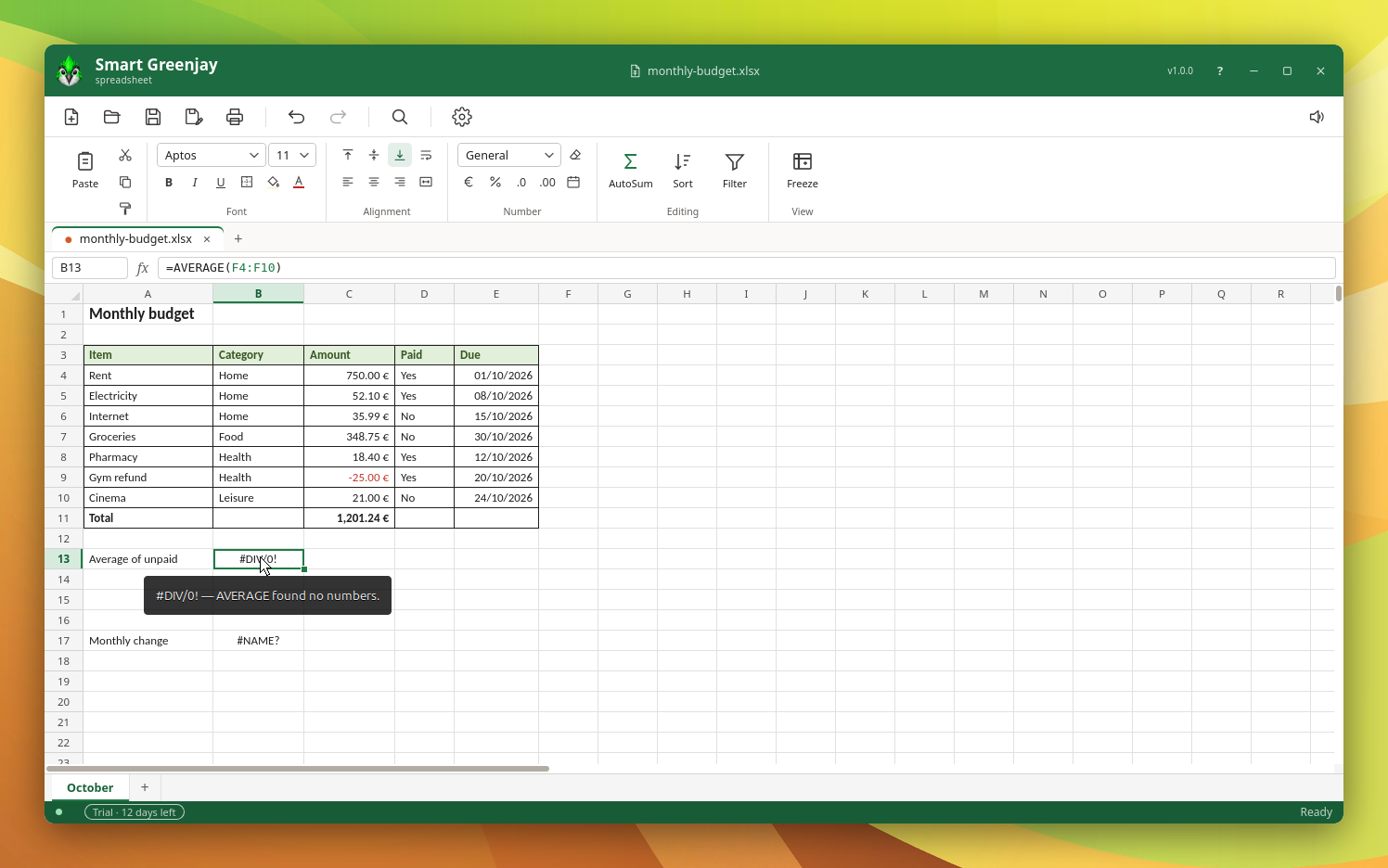
⚠️ Errors explained
#DIV/0! , #REF! , #NAME? , #VALUE! … Hover over the cell and it tells you what went wrong. A loop of references shows #CIRC! .
📋 Copy, cut & paste CtrlC
Copied formulas adjust their references; cut and pasted cells keep the formulas that pointed at them working. Paste from and into Excel or Google Sheets too.
The complete list of functions
Maths: SUM, AVERAGE, MIN, MAX, PRODUCT, COUNT, COUNTA, COUNTBLANK, ROUND, ROUNDUP, ROUNDDOWN, TRUNC, ABS, INT, MOD, SQRT, POWER, SIGN, CEILING, FLOOR, SUMPRODUCT, MEDIAN, LARGE, SMALL. Logic: IF, AND, OR, NOT, IFERROR, IFNA. Information: ISNUMBER, ISTEXT, ISBLANK, ISERROR, NA. Conditional: SUMIF, COUNTIF, AVERAGEIF, SUMIFS, COUNTIFS. Text: CONCAT, TEXTJOIN, LEFT, RIGHT, MID, LEN, UPPER, LOWER, PROPER, TRIM, TEXT, VALUE, SUBSTITUTE, FIND, SEARCH, REPT. Dates: TODAY, NOW, DATE, YEAR, MONTH, DAY, WEEKDAY, DATEDIF, EDATE, EOMONTH, DAYS. Lookup and position: VLOOKUP, HLOOKUP, XLOOKUP, MATCH, INDEX, CHOOSE, COLUMN, ROW, COLUMNS, ROWS. Loans: PMT.
=A1*1,21), and any other comma, like the ;, separates arguments — =SUMA(A1;B1) and =SUMA(A1,B1) both work.
6. Formatting & Number Formats
Everything in the ribbon applies to the selected cells, and every change can be undone.
🅰️ Font CtrlB
Typeface and size from the lists; bold, italic and underline.
🎨 Colours
Text colour and fill from a 24-colour palette, plus Automatic and No fill.
🔲 Borders
All borders, outside borders, bottom border or none.
📐 Alignment
Horizontal and vertical, wrap text, and merge and centre — it warns you if merging would lose values.
🖌️ Format painter
Copy the look of one cell onto others with the mouse. One use per click.
🧽 Clear formats
Back to plain cells, keeping the values.
Number formats
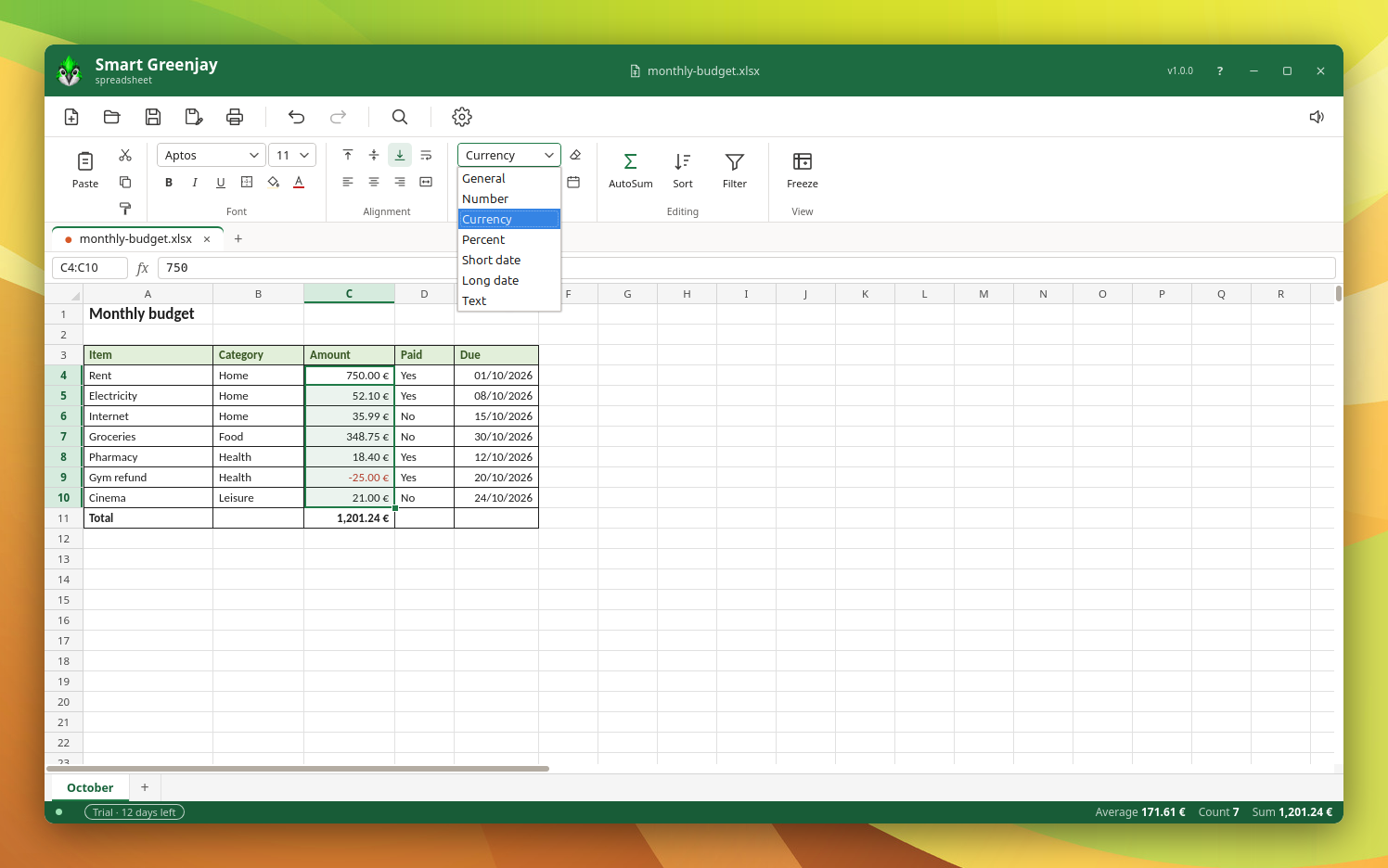
The list in the Number group offers General, Number (with decimals and a thousands separator), Currency (euros, with negatives in red), Percent, short and long dates, and Text. Next to it are direct buttons for euros, percent and date, and for one decimal more or less.
A formula picks its format from what it calculates, as Excel does: the sum of a column in euros comes out in euros, TODAY() as a date and PMT as currency.
7. Sort, Filter & Find
🔃 Sort
A → Z or Z → A by the active column. It recognises the header row, and leaves the title above and the totals row below where they are.
🔽 Filter
Arrows in the header row; each opens a list of values with checkboxes, a search box and “(Select all)”. The status bar says how many rows are showing.
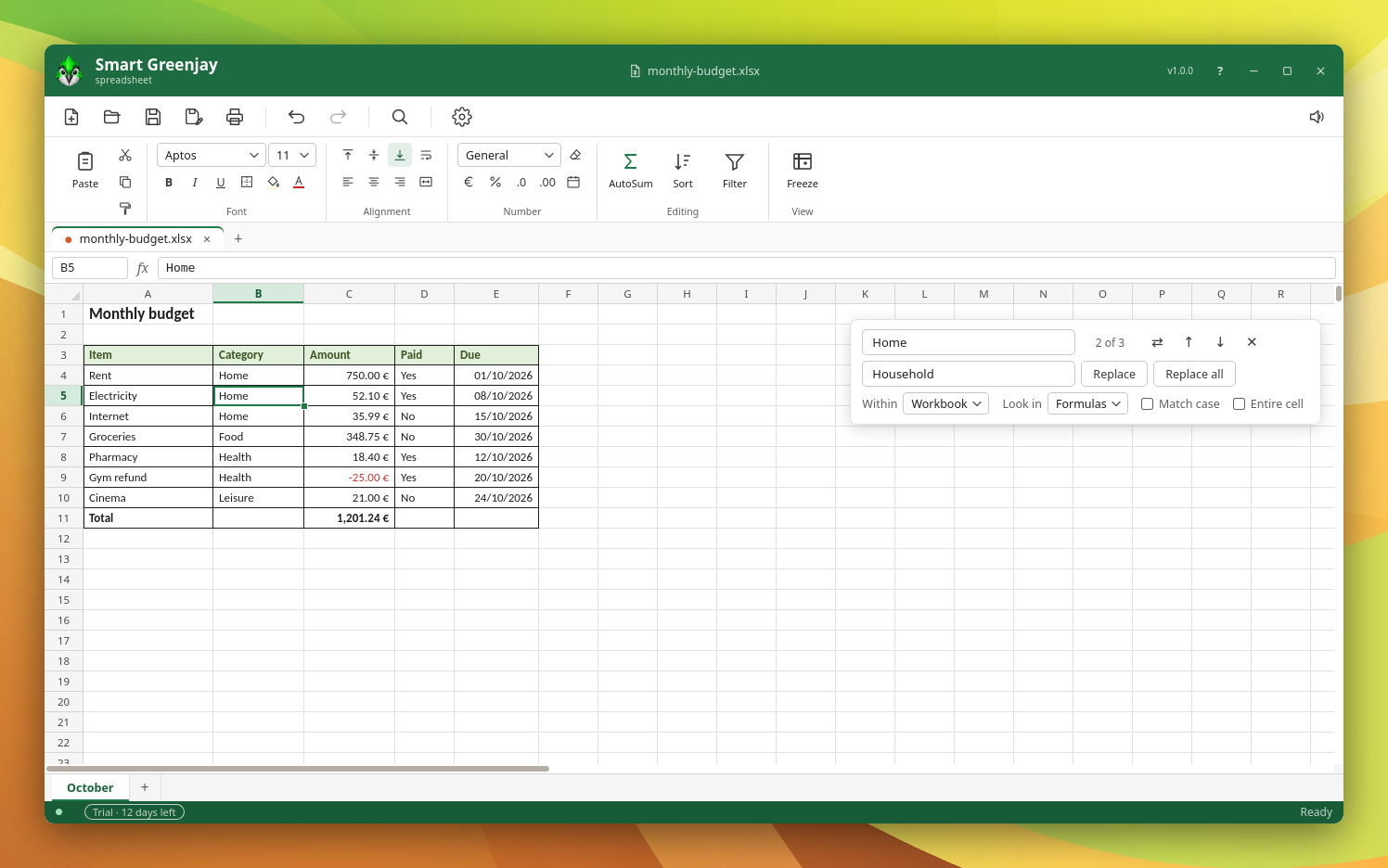
🔍 Find & replace CtrlH
In the sheet or the whole workbook, with match case and whole cell. Replace all undoes in one step.
📌 Freeze
Keep the top row, the first column or both in view while you scroll.
.xlsx. To see them again, right-click the row headers and choose Unhide rows. There is no command to hide rows by hand.
8. PivotTables
A PivotTable summarises a long list without a formula: what you spent in each category, how many purchases each shop has, the average per month. Click any cell of the list — the first row must hold the names of the columns — and press PivotTable in the Insert group of the ribbon. Smart Greenjay proposes the table around the cell; you choose whether the result goes on a new worksheet or at a cell you name, as in Excel.
🧩 Field panel
At the right of the window while a cell of the PivotTable is selected. Tick a field to add it (numbers go to Values, the rest to Rows) or drag it into Filters , Columns , Rows or Values . Drag a field out of an area to take it out. Drag the left edge of the panel to make it wider; the ⋯ menu of a field adds it to an area without the mouse. The panel also shows where the data comes from.
➕ Sum, count, average
Each field in Values has its own function. The same field can be summed and counted at once. Totals appear on their own.
🔽 Filters
The ▾ on a field in the panel, or the arrow beside a filter on the sheet, opens the list of items with checkboxes. One item reads as its name, several as “(Multiple Items)”.
↕️ Sort by a value
Right-click a number and choose Sort Smallest to Largest or Largest to Smallest : the rows are ordered by that value, inside each group.
🔎 The records behind a number
Double-click a value and a new sheet opens with the rows of the list that make it up — the ones that match its row, its column and your filters.
🔄 Refresh
A PivotTable does not change when the list does, as in Excel: press Refresh in the panel. Every change, and the refresh, is one step for Ctrl Z .
PivotTables in Excel files
When you save as .xlsx the PivotTable goes in as a real one: Excel opens it as a PivotTable, with its fields, filters and order, and refreshes it when the file opens. The other way round, a PivotTable in a workbook you open is kept if it sums, counts or averages a plain range of a sheet; otherwise it stays as the cells it shows, and the line under the tabs says so.
9. Sheets, Workbooks & Files
Sheets
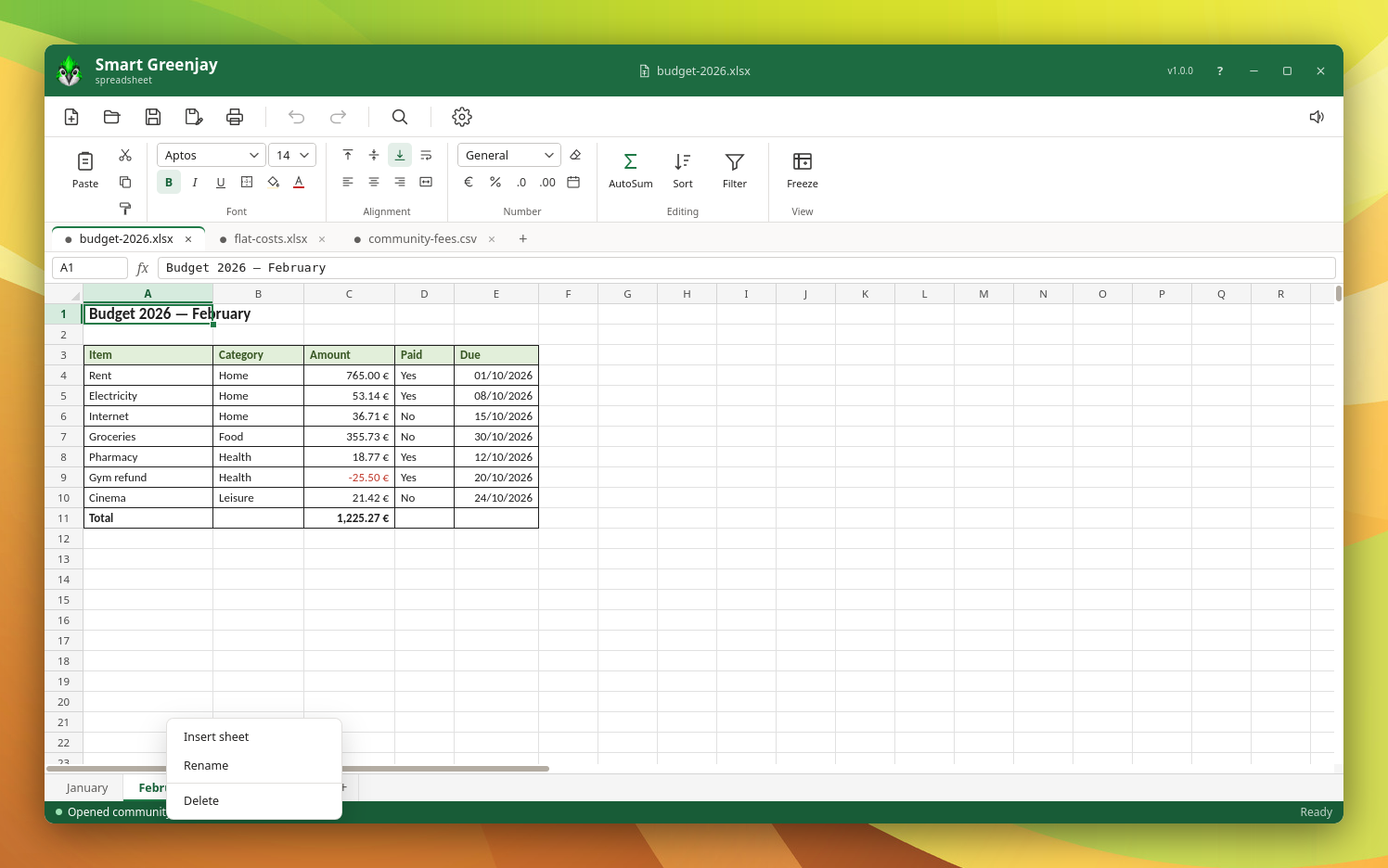
The + next to the sheet tabs adds a sheet. Double-click a tab to rename it, drag it to reorder, and right-click it to insert, rename or delete — deleting asks first, and Ctrl Z brings the sheet back. Ctrl PgUp and Ctrl PgDn move between sheets.
Workbooks in tabs
Several workbooks stay open at once, each in its own tab above the formula bar. Their contents are saved as you go, and the next time you open Smart Greenjay the same tabs come back. Closing a tab, or the window, with unsaved changes asks first.
What it opens and writes
.xlsx— opened and saved with values, formulas, number formats, font, fill, borders, alignment, merged cells, column widths and row heights, hidden rows, frozen panes, the filter range, and the names and order of the sheets.- CSV — imported with commas, semicolons or tabs, in UTF-8 or in the encoding Excel uses in Spain. Saved with commas, as the values look, with accents that Excel reads correctly. Before saving it reminds you that a CSV keeps only the active sheet, and no formulas.
#NAME? and is kept as text, with a warning before you save. Keep the original if those parts matter to you.
Printing and PDF
Ctrl P opens Smart Greenjay’s own preview of the active sheet on A4 paper: portrait or landscape, with or without gridlines, and with every column fitted to the page width if you want. What you see is what prints, always in light colours. Save as PDF… writes the file directly; Print… hands over to the Windows print dialog.
10. Settings & Configuration
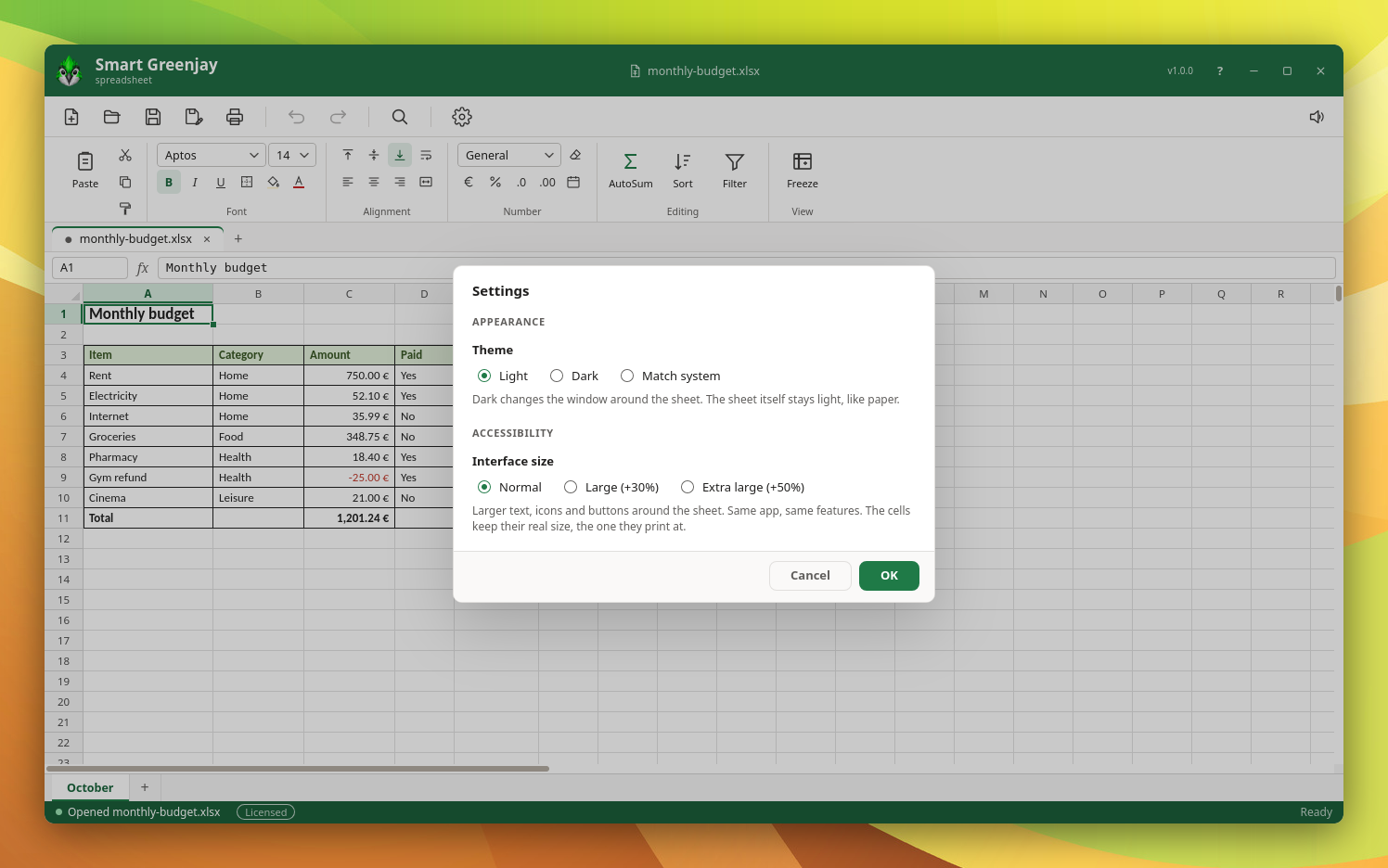
There is very little to configure, and it all lives in one dialog: the gear in the icon bar opens Settings.
Theme
Under Appearance: Light (the green “Office” look, the default), Dark or Match Windows. Dark changes the window around the sheet; the sheet itself stays light, like paper.
Interface size
Under Accessibility → Interface size: Normal, Large (+30%) or Extra large (+50%). Text, icons and buttons around the sheet grow; the cells keep their real size, the one they print at.
Sound and updates
The speaker at the right of the icon bar mutes the start-up sound. When a new version is available, the app says so and installs it with one click on Update now.
Licence
The indicator at the left of the status bar opens the licence dialog. Paste the key from your Animal Tools purchase email and press Activate; Deactivate this computer frees the licence to move it to another one.
11. Tips
- Select before you ask. Selecting a column is often enough: the status bar already shows its sum, average and count, without writing a formula.
- Lock a rate with F4. Writing
=B4*$F$1keeps the VAT or the exchange rate inF1fixed when you drag the formula down. - Keep a header row and a blank row before the totals. Sorting and filtering recognise the header, and leave the title and the totals row alone.
- Months fill themselves. Type January (or enero) and drag the corner: the rest of the year follows.
- Freeze the top row in long lists. The column names stay in view while you scroll down.
- Hover over an error before you fix it. The explanation usually names the exact problem.
The complete list is in Keyboard Shortcuts.
12. FAQ
Can it make charts?
Not in this version. Charts, templates, conditional formatting and drop-down lists are not in this first version. A chart in a .xlsx you open is removed, and the line under the tabs says so — keep the original if you need it.
Does it have PivotTables or macros?
PivotTables, yes: the everyday kind — sum, count and average by groups, with filters, sorting and the records behind each number, saved as real PivotTables in the .xlsx. See PivotTables. Macros, no, and that is deliberate: macros and scripts are a security risk with nothing to gain for a budget. Power Query and connections to outside data are left out too. If your work depends on those, Excel is still the right tool.
A function I use gives #NAME?. Why?
Smart Greenjay has a closed list of 78 functions, not Excel’s five hundred. When a function is not on the list, the cell shows #NAME? and the explanation says that Smart Greenjay does not include it. The list is in Formulas & Functions.
Can it open .xls or LibreOffice’s .ods?
No: only .xlsx and .csv. Save the file as .xlsx from the program that made it, and it will open here.
Where are my workbooks stored? Do I need an account?
No account, and no cloud. Workbooks are ordinary files on your computer, wherever you save them, and nothing is synced anywhere. It is not meant for editing with other people at the same time. When the numbers need a letter or a report around them, Neat Bluejay Document Editor, its blue sibling, writes that document and exports it to .docx or PDF.
What happens when the 14 days are up?
Nothing is deleted and nothing is closed. You can keep working on the workbook you have open and save it, and restoring your session brings everything back. What you cannot do is have more than one workbook open: to open another, close the one you have. A licence, included with Animal Tools, lifts that.
13. Keyboard Shortcuts
Smart Greenjay follows Excel’s keys. If your fingers already know them, they work here.
Workbooks & files
| Action | Shortcut |
|---|---|
| New workbook | Ctrl N |
| Open | Ctrl O several files at once |
| Save | Ctrl S |
| Save as | F12 or Ctrl Alt S |
| Close workbook | Ctrl W |
| Next / previous workbook | Ctrl Tab add Shift to go back |
| Print preview | Ctrl P print or save as PDF from there |
Moving & selecting
| Action | Shortcut |
|---|---|
| Jump to the edge of the data | Ctrl + arrow |
| Extend the selection | Shift + arrow |
| Go to A1 / to the last cell with data | Ctrl Home / Ctrl End |
| One screen up / down | PgUp / PgDn |
| Previous / next sheet | Ctrl PgUp / Ctrl PgDn |
| Select the whole row / column | Shift Space / Ctrl Space |
| Select all | Ctrl A |
Editing & formulas
| Action | Shortcut |
|---|---|
| Edit the active cell | F2 |
| Confirm and move down / right | Enter / Tab |
| Cancel the edit | Esc |
| Clear the contents | Delete |
| Fill down / fill right | Ctrl D / Ctrl R |
| Today’s date / the time now | Ctrl ; / Ctrl Shift ; |
| Go to a cell (the name box) | Ctrl G or F5 |
| Cycle $ in a reference | F4 while editing a formula |
| AutoSum | Alt = |
| Copy / cut / paste | Ctrl C / Ctrl X / Ctrl V |
| Undo / redo | Ctrl Z / Ctrl Y up to 500 steps |
Formatting & finding
| Action | Shortcut |
|---|---|
| Bold | Ctrl B |
| Italic | Ctrl I |
| Underline | Ctrl U |
| Number, date, currency, percent, general | Ctrl Shift 1 / 3 / 4 / 5 / ` |
| Turn the filter on or off | Ctrl Shift L |
| Find | Ctrl F |
| Find and replace | Ctrl H |
Ready to install?
Free for 14 days. No account, no cloud, no subscription.
Get Smart Greenjay →