🌋 The Stromboli Project
Free + licence 🪟 Windows

Smart Greenjay Spreadsheet

Feels like Excel. Only the parts you use at home.

The household budget, the shared costs of the flat, the community fees or the car loan, in a real spreadsheet: formulas, euros, sorting and filters — and the .xlsx someone sent you opens here and goes back as .xlsx. No account and no subscription.

Free to download and use. The first 14 days are the full version, with no account and no card. After that it keeps working with one workbook open at a time; an Animal Tools licence (€19.99, once) removes the limit.

Windows and Linux desktop builds · the Linux packages are experimental

Windows may show a SmartScreen warning on first launch — click More info → Run anyway.

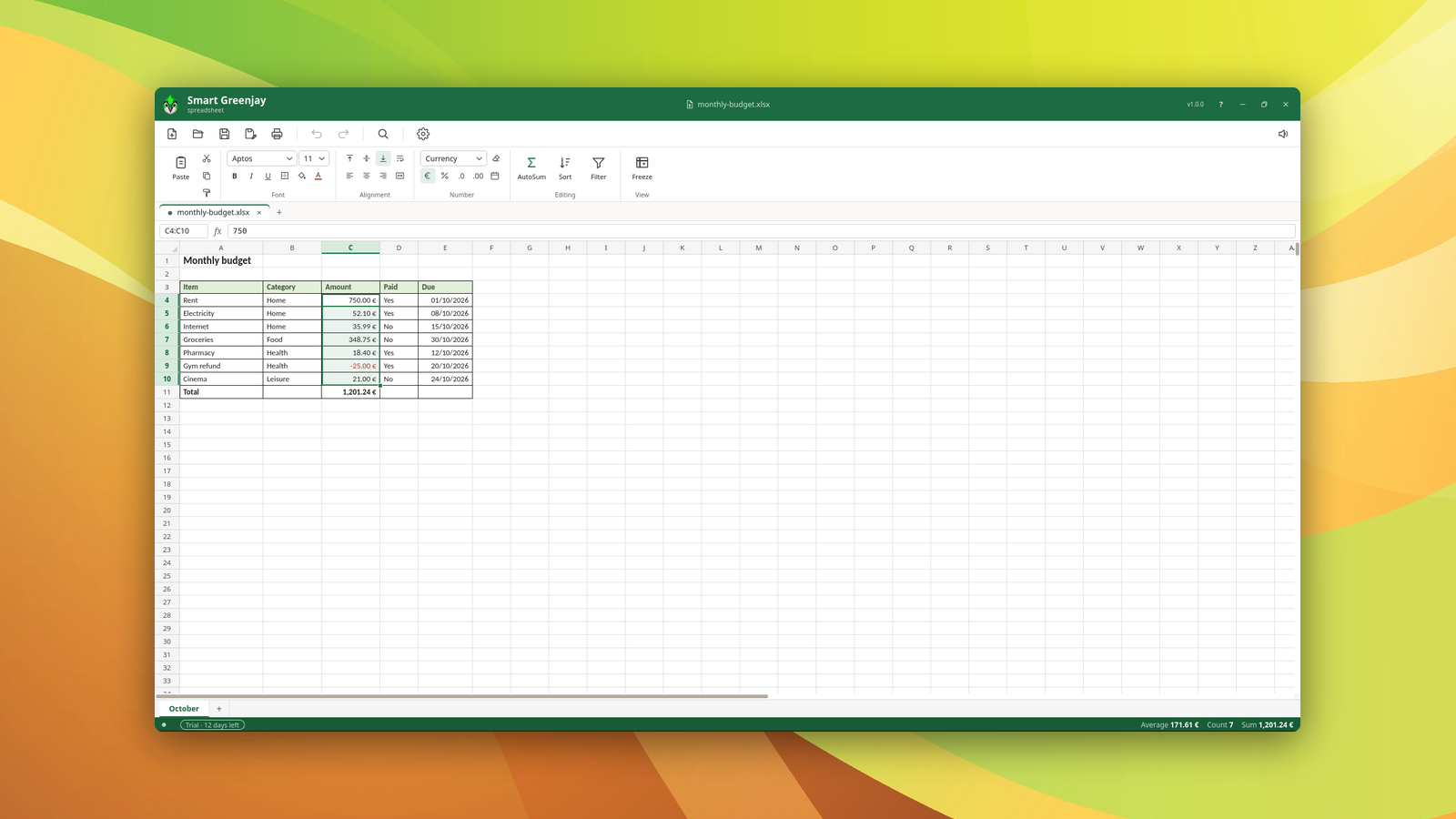
Smart Greenjay with a monthly budget open: a header row, amounts in euros with a negative in red, a total row, and the sum, average and count of the selection in the status bar.
Your household accounts laid out the way Excel taught you: euros, dates and a total, with the sum of whatever you select right at the bottom.

Smart Greenjay is a spreadsheet that works like Excel in the parts a household uses: the grid, the formula bar, the shortcuts and the .xlsx file — without the hundreds of functions and panels around them.

Features

What it does with a workbook, before you install it.

Formulas the way Excel writes them.

  • A1 and $A$1, with F4 to cycle the $
  • Ranges like A1:B5 or C:C, and other sheets with Sheet2!A1
  • Point at cells with the mouse or the arrows while you type; the formula bar colours each reference, and the sheet outlines the cells and ranges it points at, following the text as you edit
  • Everything recalculates when a number changes

78 functions for the household accounts.

  • SUM, AVERAGE, IF, SUMIF, COUNTIFS, ROUND, TEXT, TODAY, DATEDIF, VLOOKUP, XLOOKUP, SUMPRODUCT, COLUMN…
  • PMT for the monthly payment of a loan
  • Type Spanish names if you prefer: =SUMA, =SI, =BUSCARV — the formula bar always shows them in English
  • A function it does not have says so, instead of a bare #NAME?

PivotTables, the home version.

  • Pick a table, press PivotTable and drag fields into Filters, Columns, Rows and Values
  • Sum, count or average, with totals; sort a column by right-clicking it
  • Double-click a number to see the records behind it on a new sheet
  • Saved as real PivotTables in the .xlsx, so Excel opens them as such

Totals at a glance.

  • AutoSum in one click, or Alt =
  • Sum, average and count of any selection in the status bar
  • Excel’s errors — #DIV/0!, #REF!, #VALUE! — explained when you hover over the cell
  • A circular reference shows #CIRC! and says why

Euros, percentages and dates.

  • Currency with negatives in red, Percent, short and long dates, Text
  • A sum of euros comes out in euros, and TODAY as a date, on its own
  • Bold, colours, 24-colour fill, borders, merge and centre, format painter
  • A one-row ribbon in Excel’s order

Copy, paste and fill.

  • Copied formulas adjust their references, as in Excel
  • Paste from and into Excel or Google Sheets
  • Drag the corner of a cell to continue numbers, dates, months and days
  • Insert or delete rows and columns from the right-click menu; double-click a header border to fit

Sort, filter and find.

  • Sort A–Z or Z–A, keeping the header, the title above and the totals below in place
  • Filter arrows with a list of values, a search box and how many rows are showing
  • Find and replace in the sheet or the whole workbook (Ctrl F, Ctrl H)
  • Freeze the top row, the first column or both

It opens what people send you.

  • .xlsx in and out, with formulas, number formats, borders, merged cells, widths and frozen panes
  • CSV with commas, semicolons or tabs, including the encoding Excel uses in Spain
  • What it does not have is removed on opening, and a line under the tabs says what
  • Print or save as PDF from its own preview, in A4

Excel’s shortcuts, and nothing lost.

  • F2, Ctrl + arrows, Ctrl Z/Y, F12 to save as
  • Ctrl Shift L for the filter, Ctrl D / R to fill down or right, Ctrl ; for today’s date and Ctrl Shift ; for the time, Ctrl Shift 1/3/4/5 for number, date, currency and percent formats, Ctrl 1 for Format cells (Number, Alignment, Font, Border and Fill), Ctrl Enter to fill the whole selection, Ctrl K to add a hyperlink, Ctrl G / F5 to go to a cell
  • Hyperlinks to a web page, an email address or a cell in the workbook (Ctrl + click opens them; only https:// links open). They are saved in the session and in the .xlsx
  • Up to 500 undo steps, sorting and filtering included
  • Several workbooks in tabs, with autosave and session restore; closing the window asks about each workbook with unsaved changes (Save / Don’t save / Cancel)
  • Light or dark theme, and interface size Normal, +30% or +50%
  • A “Report a problem” option in the ? menu opens an email with the app, its version and your system already filled in; nothing is sent until you send it
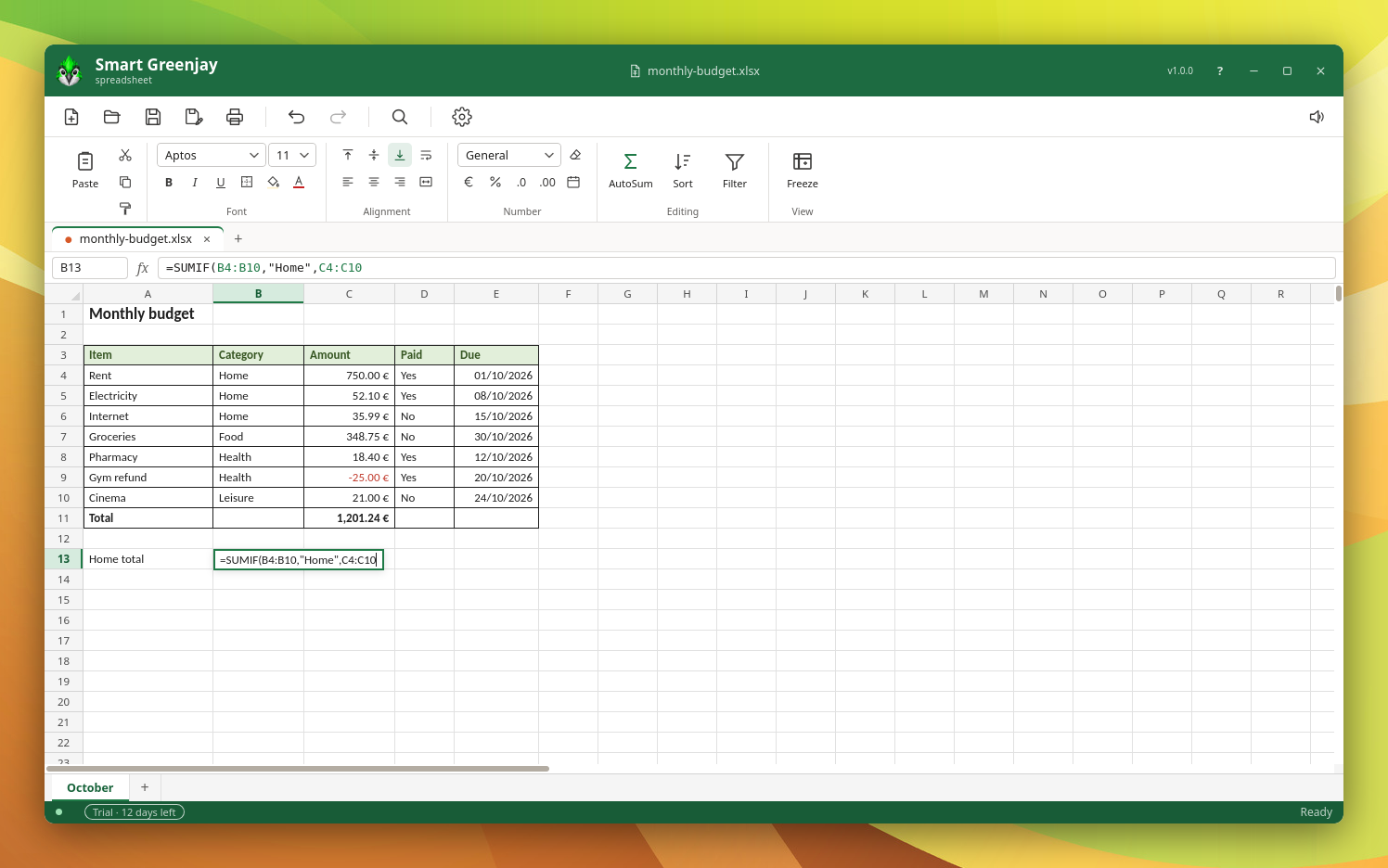
Smart Greenjay while a formula is being typed: the cell and the formula bar show =SUMIF with its ranges, each reference outlined on the sheet in its own colour.
Formulas you already know, =SUMIF included, with every reference coloured as you type.

What you get

The spreadsheet you already know how to use, kept to its size.

Nothing to learn

Columns with letters, rows with numbers, the formula bar, =SUM or =SUMA, and Excel’s own shortcuts. If you have done a sum in Excel, you can do it here.

The .xlsx goes back as .xlsx

Open the file the community administrator sent, change four figures and return it in the same format, with its formulas and formats in place.

Your accounts on your computer

No account to sign into and no cloud to sync with. Each workbook is a file on your disk, and the tabs you left open come back the next time.

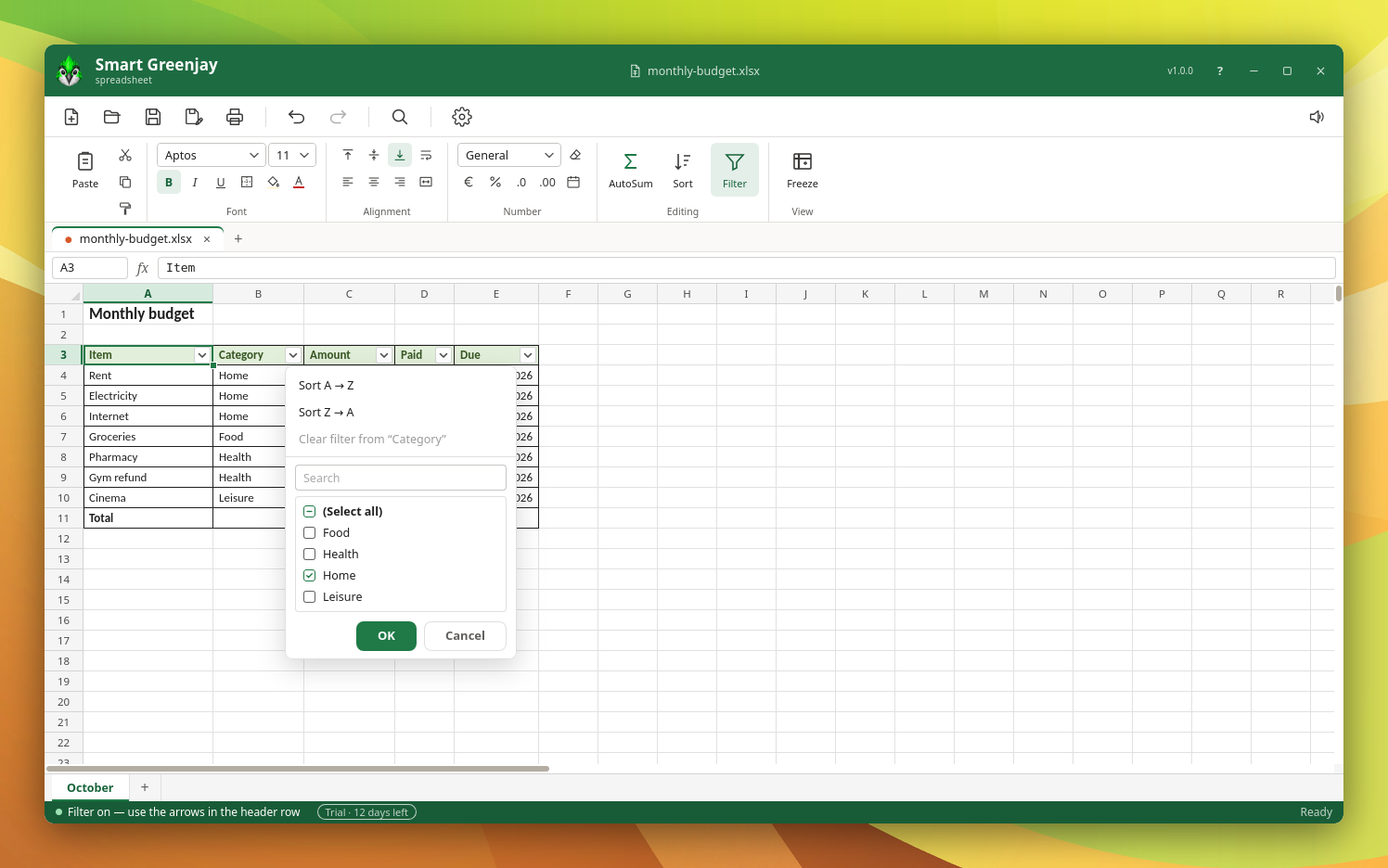
Smart Greenjay with the filter list open on the Category column: a search box, (Select all) and a checkbox for each value, with Home ticked.
Tick Home and only the household bills stay on screen. Untick to see everything again.

Before you install it

What it needs, and what an Excel file keeps when it opens here.

What it needs

  • Windows with the WebView2 runtime, already installed on Windows 11
  • Linux: experimental packages, .deb and AppImage — the version line above says which build is which
  • No macOS build. This is a Windows and Linux desktop app
  • No account and nothing in the cloud. Every workbook is a local file
  • .xlsx and .csv. Not the old .xls, and not LibreOffice’s .ods

What a workbook from Excel keeps — and what it loses

It keeps the sheet: values, formulas, number formats, font, fill, borders, alignment, merged cells, column widths and row heights, hidden rows, frozen panes, the filter range, the names and order of the sheets, and the PivotTables that sum, count or average a plain range (any other PivotTable stays as the cells it shows).

It removes what it does not have, and says so in one line under the tabs: charts other than line, bar and column, images and shapes, slicers, comments and notes, macros, links to other workbooks, conditional formatting, data validation and named ranges. Styled tables arrive as plain cells. Line, bar and column charts built on a block of cells, and hyperlinks, are kept. A formula it cannot read shows #NAME? and is kept as text, with a warning before you save.

Files up to 50 MB and 2 million cells with data open; a bigger one is turned down with a message instead of freezing the window.

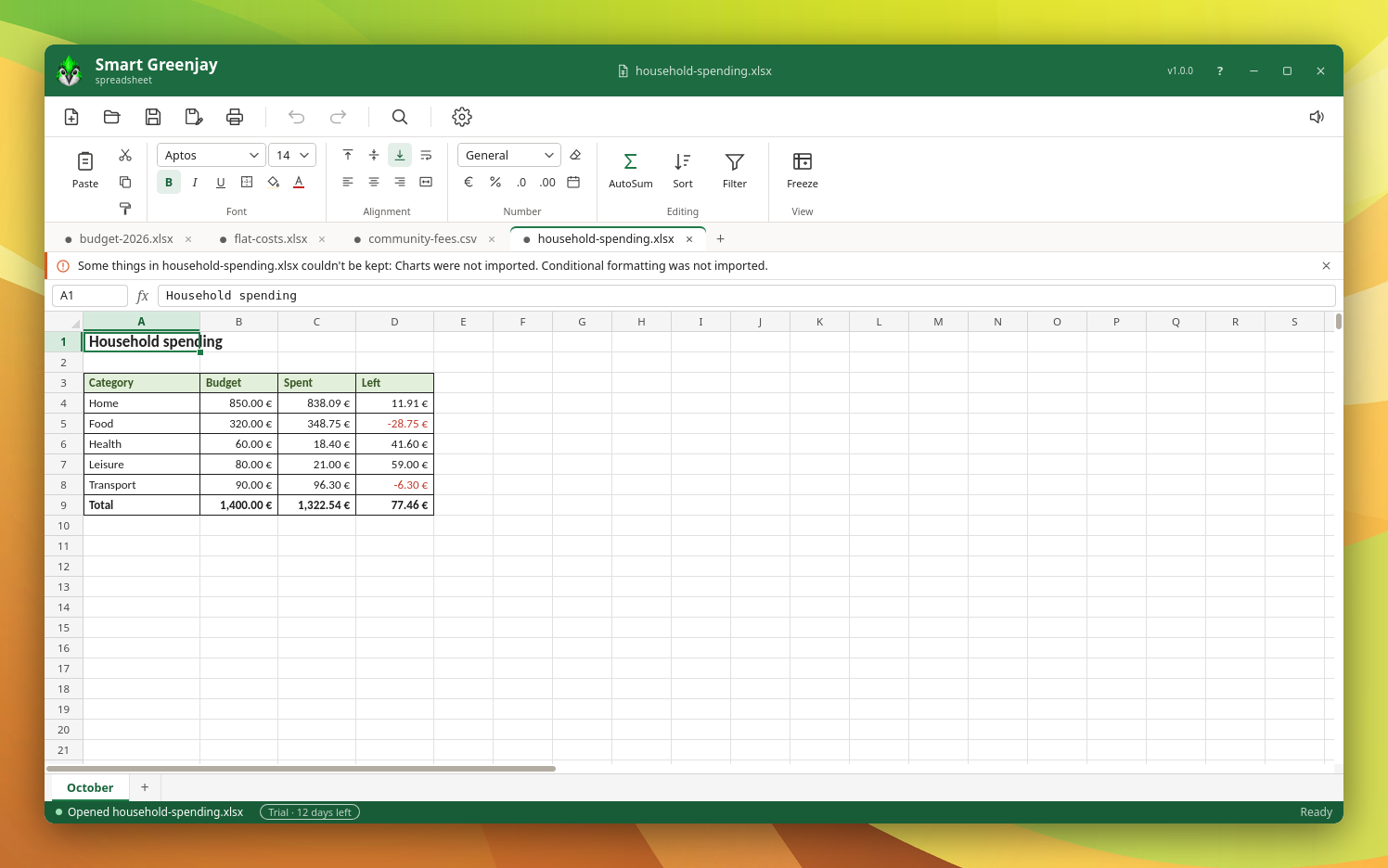
Smart Greenjay just after opening an Excel workbook, with the one-line notice under the tabs listing what was removed, such as a chart and conditional formatting.
Open a workbook made in Excel and one line tells you exactly what didn't come along. No surprises later.

How it goes

From an empty sheet to the total you were after.

Several workbooks stay open in tabs, each one saved on its own as you go, so the budget you left yesterday is the one that opens today.

  • Select a column and the status bar shows its sum, average and count
  • Hover over an error such as #DIV/0! and it tells you what went wrong
Step 1 · Open it A blank workbook, or a .xlsx or .csv by double-click, by dropping it on the window, or with Ctrl+O.
Step 2 · Fill it in Type amounts, dates and text; drag the corner of a cell to continue a series of numbers, dates or months.
Step 3 · Do the sums AutoSum with one click or Alt+=, write the formula yourself, in English or in Spanish, or summarise a whole table with a PivotTable.
Step 4 · Keep it or send it Save as .xlsx or CSV, or print and save as PDF from the preview.

Compared

The spreadsheet you do the household accounts in, without the subscription.

Excel is the standard and Google Sheets is the free one most people already have. Smart Greenjay opens and saves the same .xlsx files and stops at what a home budget needs — the last block is the part of a spreadsheet it deliberately leaves out. LibreOffice Calc, free and complete, is the other road; it is not in the table.

Smart Greenjay compared with Microsoft Excel and Google Sheets
Smart GreenjayFree + licence · closed source Microsoft ExcelSubscription · closed source Google SheetsFree · web app
What it costs
Price Free; full version €19.99 once $9.99/month or $99.99/year; Office Home 2024 at $179.99 Free with a Google account
Works without signing into an account ✓ ✕“You’ll need an account to download” ✕Needs a Google account
Keeps working without a subscription ✓Nothing to renew ✕Unless you buy the one-time edition ✓
What it does, and where
Opens .xlsx and CSV, saves back to .xlsx ✓Formulas, formats and sheets kept ✓ ✓Edits Excel files in place
PivotTables ✓Sum, count and average, with filters; saved as real PivotTables ✓ ✓
Charts ✓Line, bar and column; no pie, area or combo yet ✓ ✓
Runs on Mac, phones and the web ✕Windows and Linux ✓PCs, Macs, phones and tablets ✓Browser, phone and tablet
What it leaves out on purpose
Macros and scripts —No code runs inside your files ✓ ✓

✓included✕not available—left out on purpose

Comparison based on the published pages of each product — microsoft.com and support.microsoft.com for Microsoft 365 and Excel, workspace.google.com and support.google.com for Google Sheets — verified 2026-10-27, against Microsoft 365 Personal, the Office Home 2024 one-time purchase and a free personal Google account. Features and prices change: check their sites for current details. The Stromboli Project is an independent project, not affiliated with, endorsed by or sponsored by Microsoft or Google. All product names are trademarks of their respective owners.

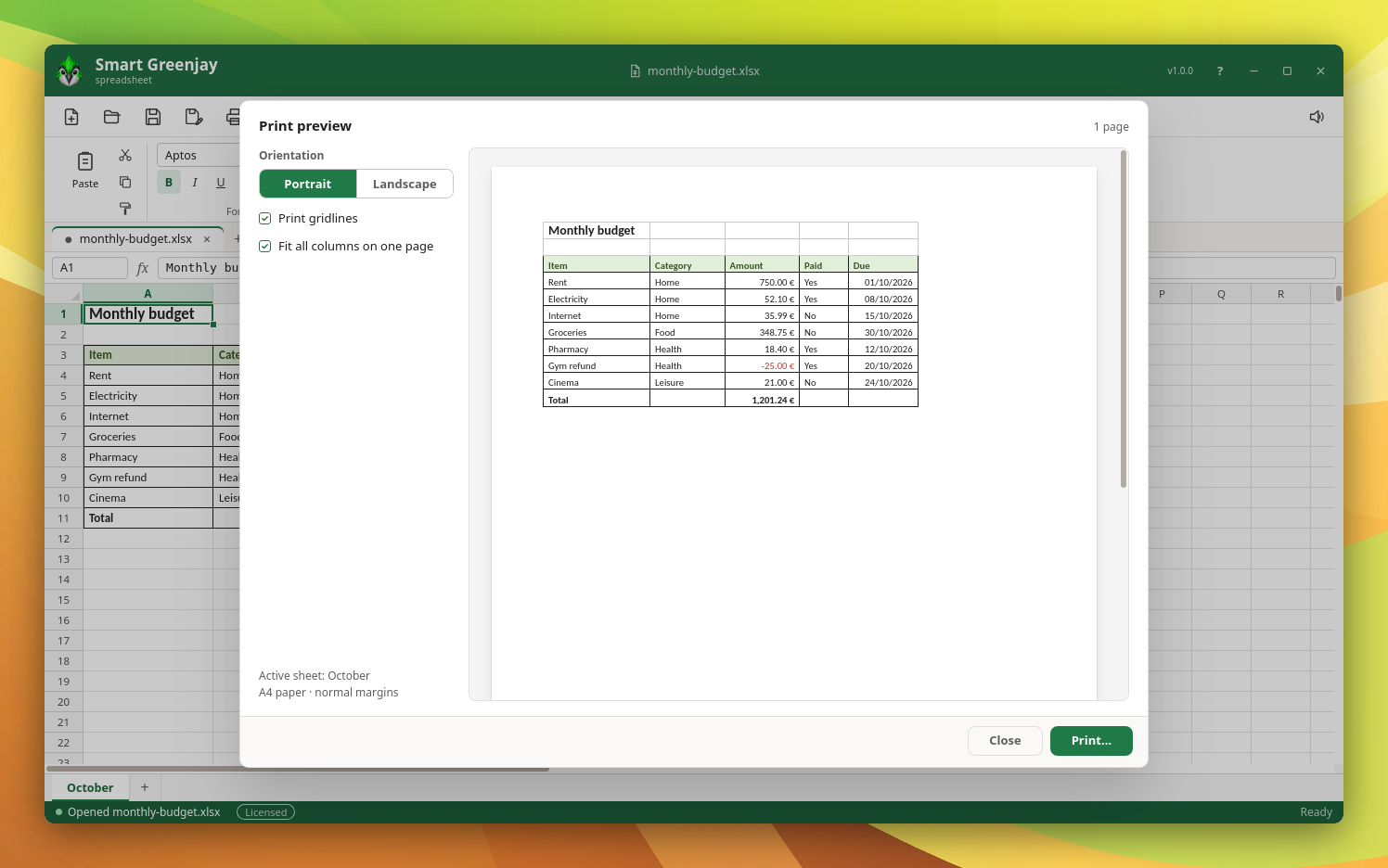
Smart Greenjay's print preview: the monthly budget on an A4 page with gridlines, the page settings beside it and the Print button.
See the page before it prints: gridlines on or off, portrait or landscape, every column on one sheet.

Free version and full version

  • The first 14 days are the full version. It starts on first launch — no account, no email, no card — and the days left show in the status bar
  • Then it stays free, with one limit. One workbook open at a time; it can still be edited and saved — what you cannot do is open another workbook until you close the one you have. Nothing is deleted, and your last session comes back whole
  • The licence removes the limit. €19.99 once, for the full version of Smart Greenjay and the other tools in the collection that have one. You paste the key into the app you already installed

What the licence includes →

Who it is for

People who keep the household numbers in a spreadsheet.

The monthly budget, the costs you split in a shared flat, the community fees or the loan for the car — kept by someone who knows how to do a sum, would rather not pay for Microsoft 365 and does not want the family accounts in Google.

And whoever gets a .xlsx by email and only needs to open it, change a few figures and send it back.

Read the complete guide →

What it leaves out

The accounts at home. Not the office.

  • PivotTables are the everyday kind: no date grouping or calculated fields. No Power Query or connections to outside data
  • No macros or scripts
  • 78 functions, not Excel’s five hundred
  • In this version: no pie, area or combo charts, templates, conditional formatting or drop-down lists
  • No cloud, no account and no real-time collaboration
  • Prints in A4 only, without headers or footers

In the app

More screenshots

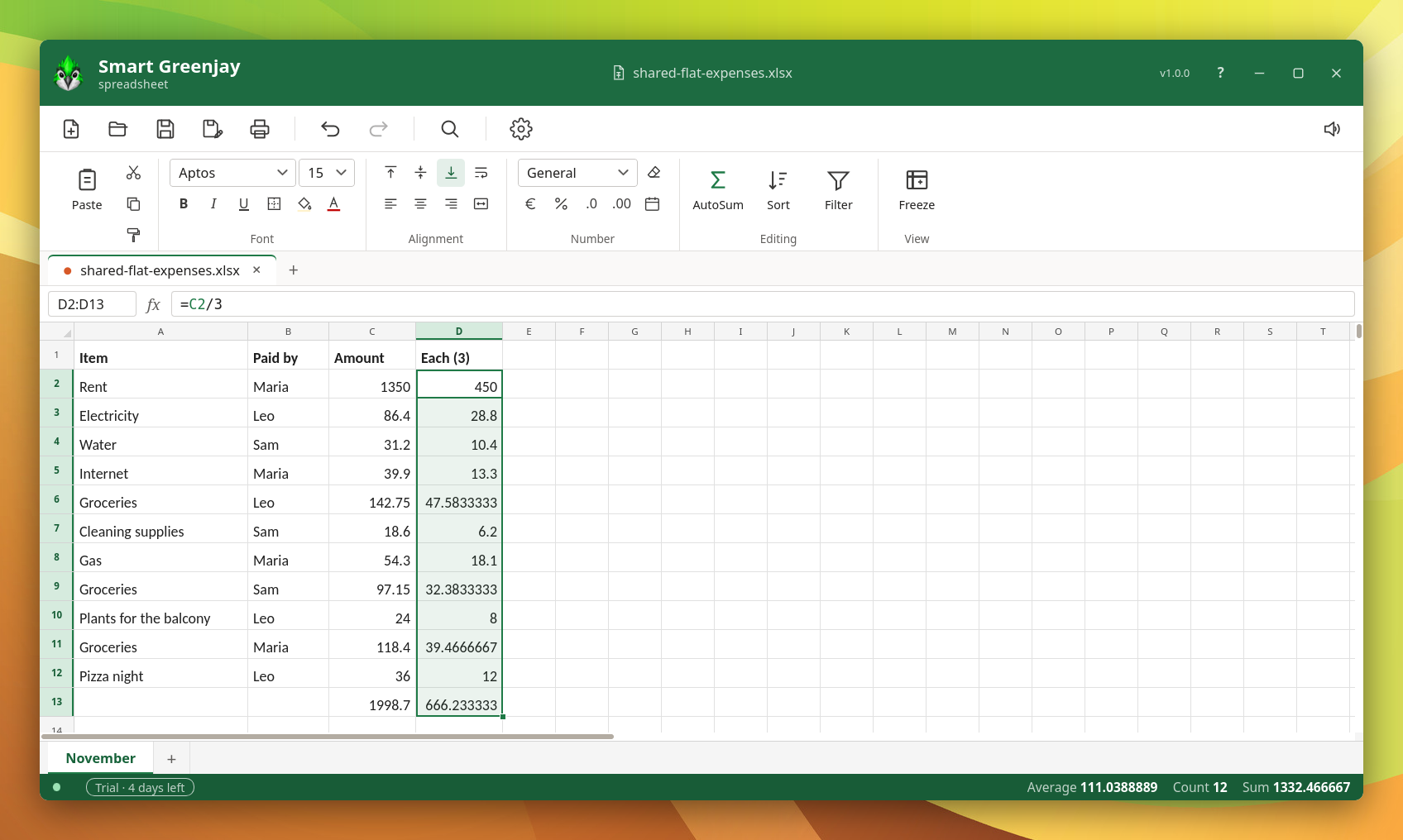
AutoSum totals each column in one click, right under the numbers
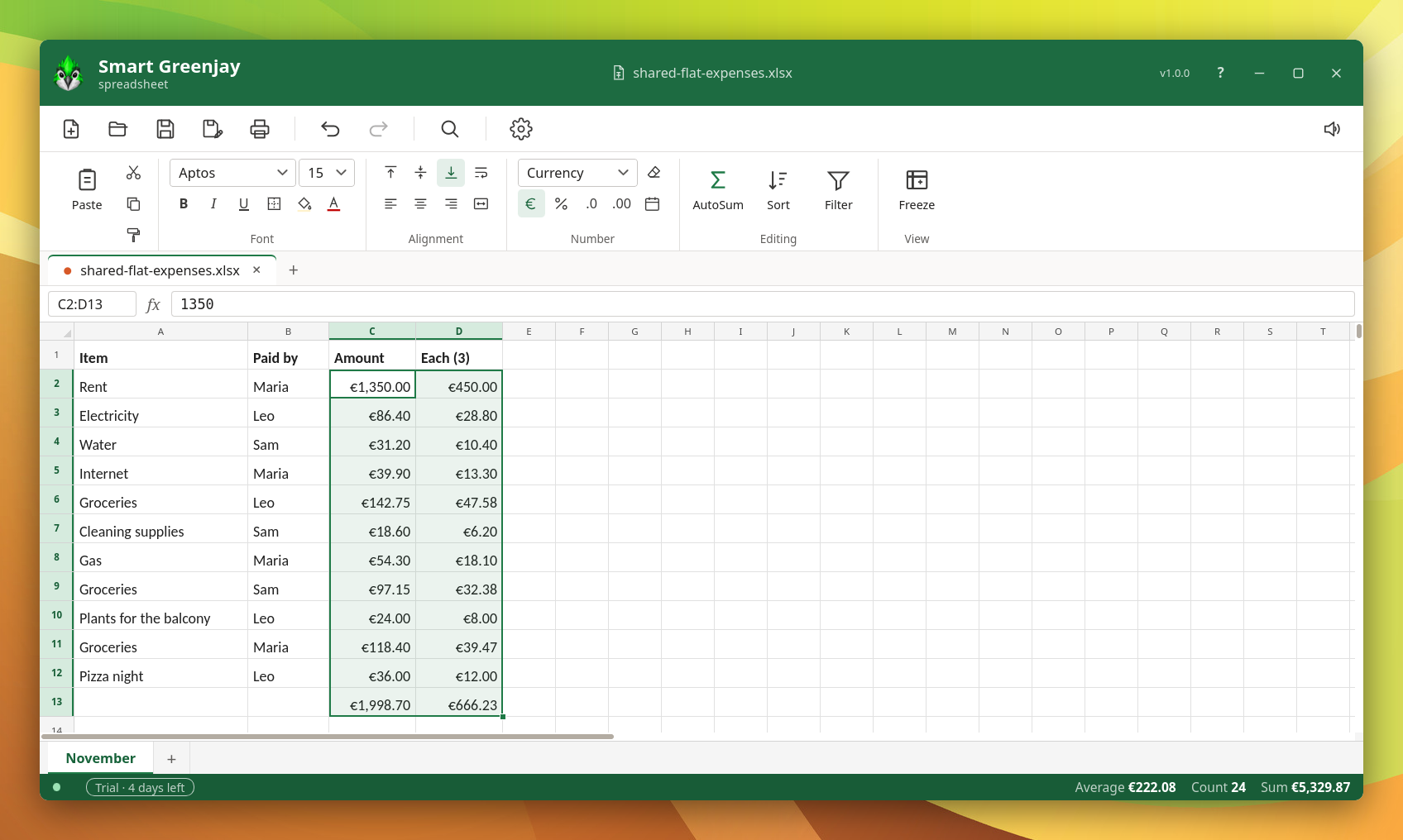
One click on € and every amount shows in euros, with two decimals
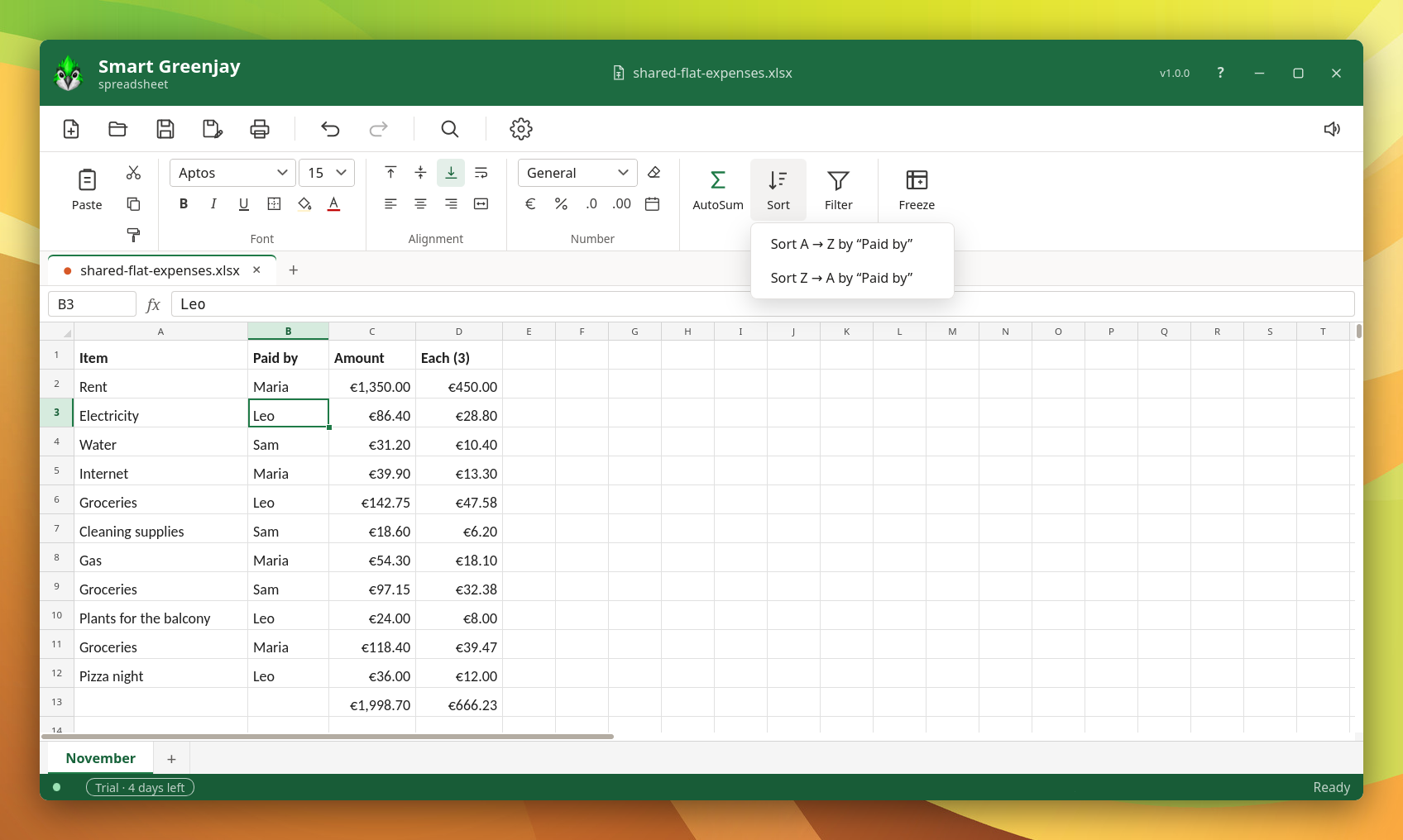
Sort by the column you are in, A to Z or Z to A
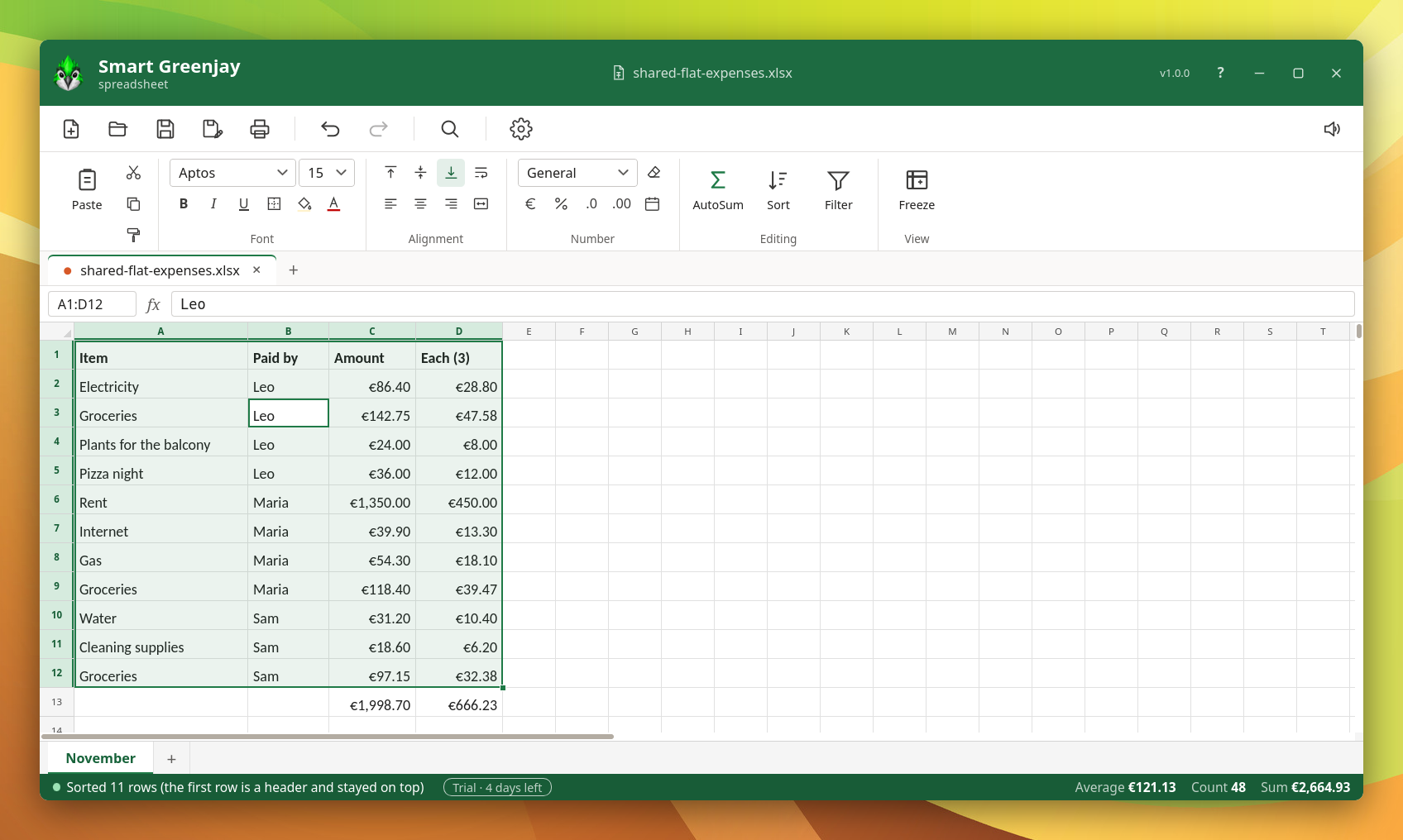
Sorted by who paid: the header stays on top and the totals row stays at the bottom