Complete Guide
Sneaky Spider Web Scraper
Crawl a site, audit what matters for SEO, see what's wrong and why, and export it to Excel. On your own machine.

1. What Is Sneaky Spider?
Sneaky Spider is a desktop crawler for auditing a website's SEO. You give it an address, it follows the site's internal links — respecting robots.txt — and it records what search engines care about on every page it finds: title, meta description, headings, canonical, meta robots, response code, response time, word count, images without alt text, internal links in and out, how many clicks deep the page sits, hreflang annotations, structured data, and whether the page is indexable — and, when it isn't, why not.
The point isn't the raw table. It's the SEO Checklist: more than 35 checks that turn those columns into a list of actual problems, each with a severity and a one-line "what to do about it". You click a check and the table filters down to the pages it flagged. Then you export to CSV or XLSX and get on with fixing things. Everything runs on your machine — no account, no cloud service holding your crawl, and no annual renewal.
It's built for the SEO freelancer auditing a client's catalogue before sending the report, the developer checking that a migration didn't leave pages without titles or with broken canonicals, the multilingual European shop that needs to know whether its hreflang tags are right, and the marketing lead who just wants to know how many product pages have an empty meta description — without learning a new tool or signing up for a monthly subscription.
2. Installation
Get the Windows installer from the Sneaky Spider tool page, or the Linux build (.deb or AppImage) from Downloads.
It installs into your own user folder (%LOCALAPPDATA%\Sneaky Spider), so it never asks for administrator rights.
A Start menu shortcut called Sneaky Spider - Web Scraper is created under "The Stromboli Project". The desktop icon is an optional tick box, unchecked by default.
The last page of the installer offers to start the app straight away.
3. First Launch
A splash screen with the spider logo appears for about a second, with a short sound, and then the main window opens. There is no setup wizard, no account screen and nothing to configure: the app is ready to crawl the moment you see it.
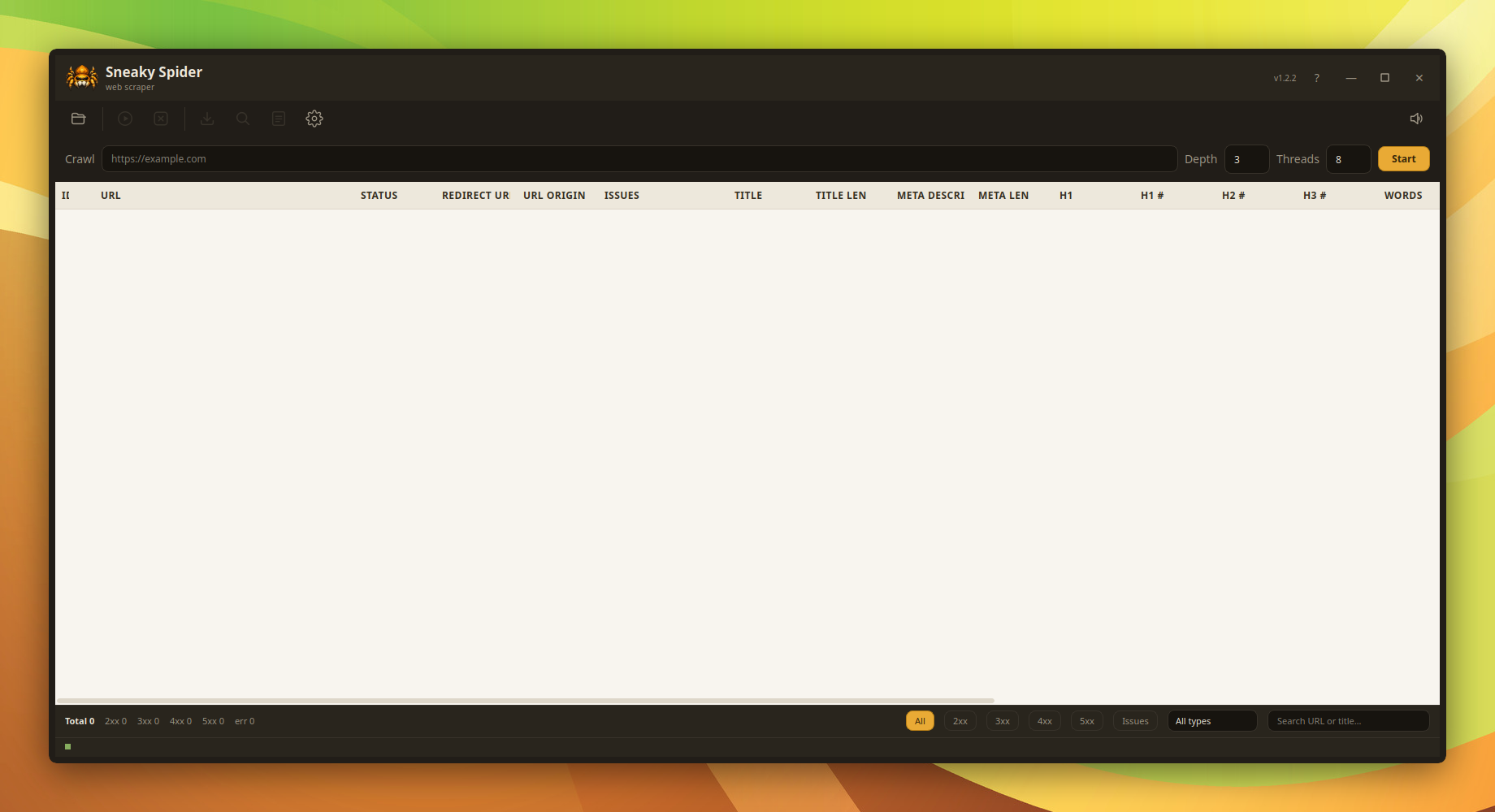
The window is one screen, read top to bottom:
- Title bar — logo, the app name, the version, and on the right the
?button that opens this guide, plus minimise, maximise and close. - Trial chip — on a fresh install you'll see Trial · 14 days left · Unlock next to the version. Click it to open Settings, where the License row lives.
- Toolbar — Import, Stop/Resume, Clear, Export, Checks and tools, SEO Checklist, Settings, and on the far right the mute button for the app's sounds.
- Context bar — the word "Crawl", the URL field, Depth, Threads and the Start button.
- Results table — empty until you crawl, with the status filters, the content-type dropdown and the search box below it, and the status bar showing Ready.
4. Core Workflow
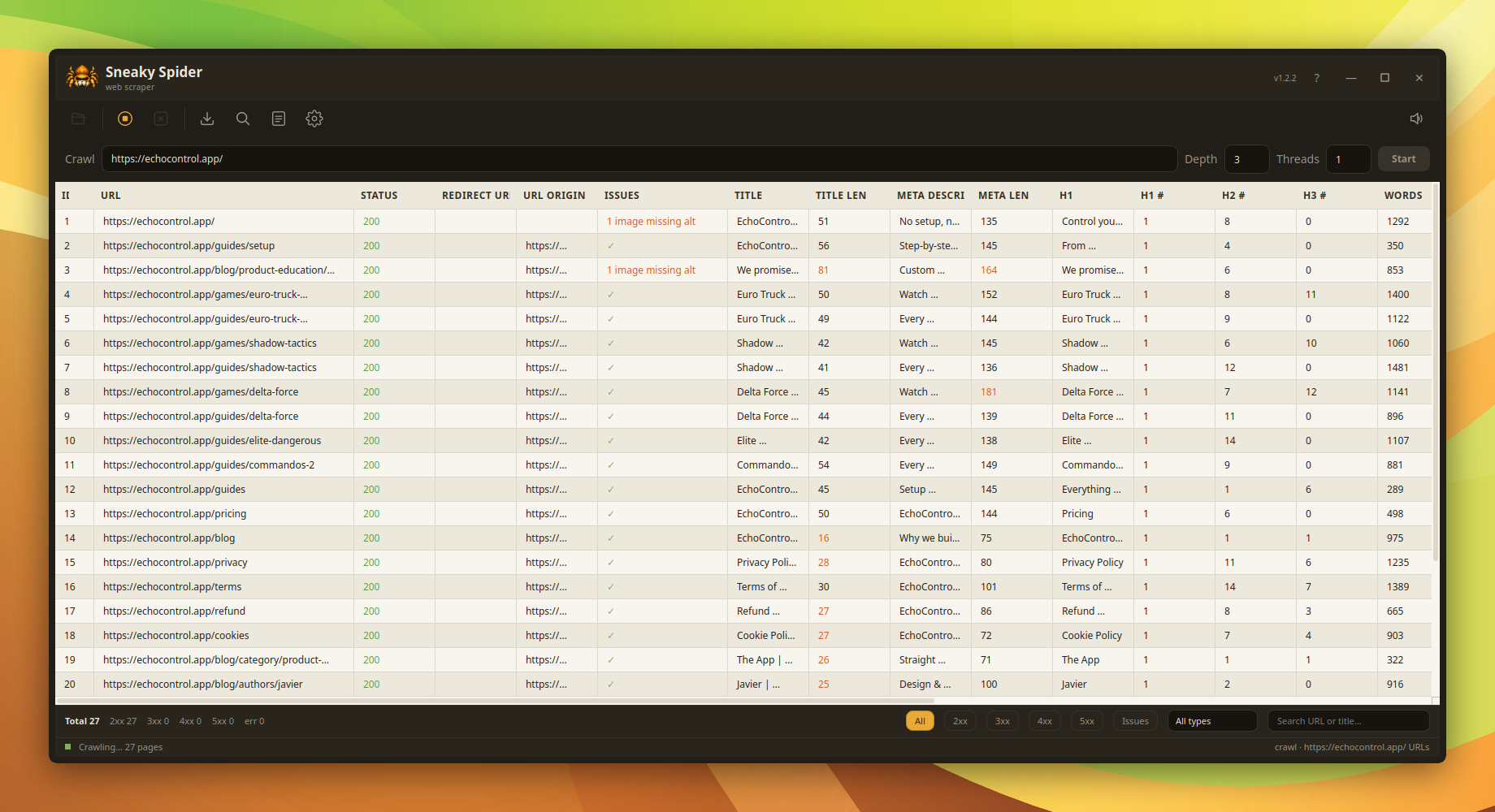
The short version is two moves: paste an address, press Start. Everything else in this guide is what you do with the results.
Into the URL field in the context bar. Press Enter or click Start — they do exactly the same thing.
Depth is how many clicks away from the starting page the crawler is allowed to go; Threads is how many pages it fetches at once. The defaults are 3 and 8. On someone else's live site, fewer threads is the polite choice.
Pages appear in the table as they're crawled, the status bar counts them, and a soft tick sounds for each one — the rhythm of the ticking is the rhythm of the crawl. When it goes quiet, the crawl is done. The mute button on the right of the toolbar silences all three sounds.
The Stop button halts the crawl immediately; it then turns into Resume, which picks up where it left off without re-fetching the pages it already has.
Filter by response family (All, 2xx, 3xx, 4xx, 5xx, Issues), filter by content type, or search URLs and titles with Ctrl F. The filters combine — a search plus a filter applies both.
Right-click any row for Re-check (fetches that one URL again and updates it in place, without restarting the crawl), Copy URL, Open in browser, and the same two for the URL Origin — the page where this URL was discovered, which is how you find where a broken link actually lives.
Once the crawl is done, that's where the findings are. See section 6.
sitemap.xml — first through the Sitemap: line in robots.txt, then at the usual address. You don't have to import it. That's what powers the two sitemap checks in the Checklist: URLs that are in the sitemap but nothing links to, and URLs that were crawled but aren't in the sitemap.
5. Importing URL Lists
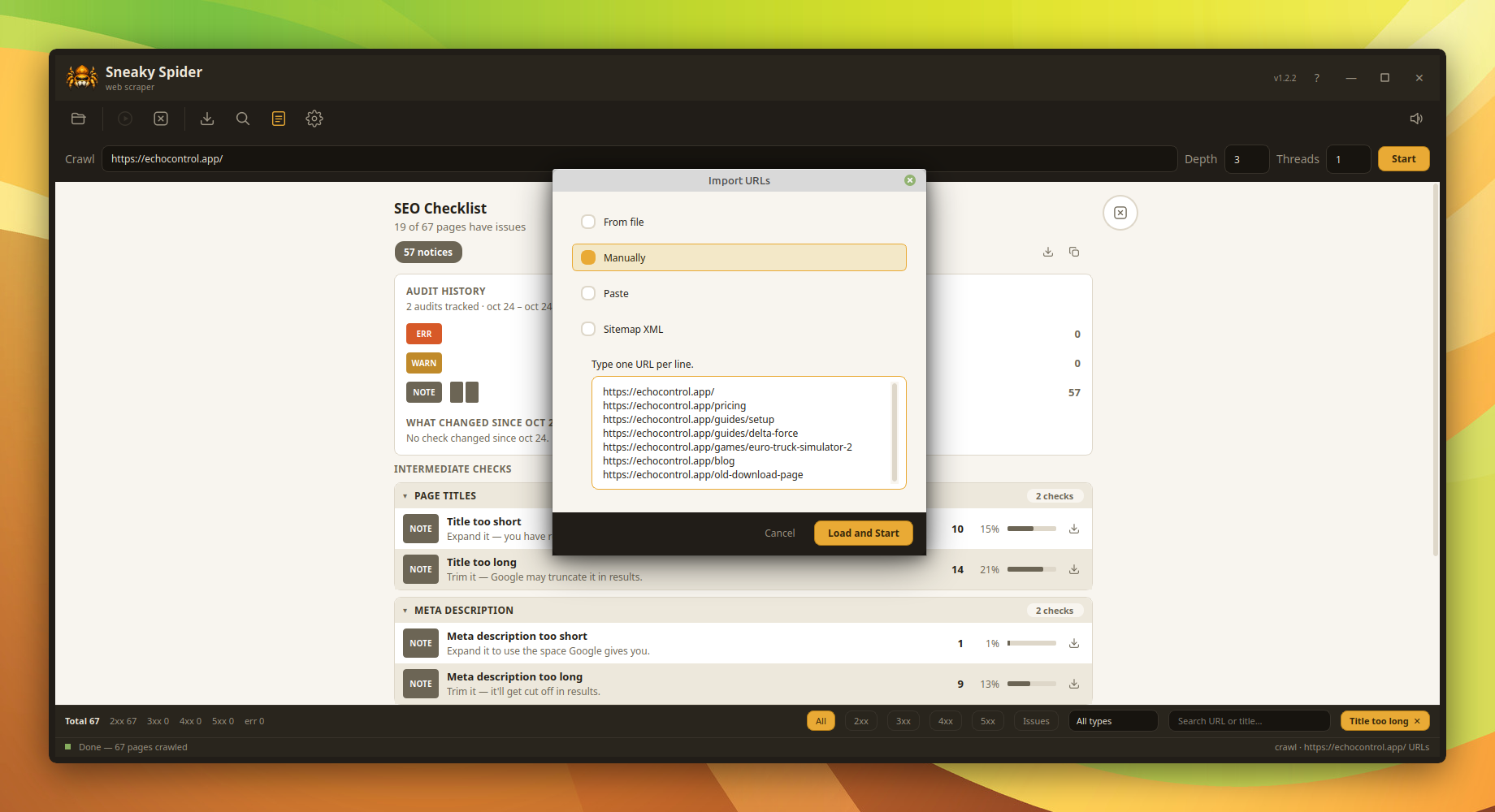
Sometimes you don't want a whole site — you want these pages: the 40 URLs that changed in a migration, the list a client sent you, the addresses in a sitemap. That's what Import is for. Click the Import button or press Ctrl O and pick one of four ways in; the dialog opens on the tab you chose, and you can switch tabs inside it.
📄 From file
Browse to a CSV or XLSX file with one URL per row.
⌨️ Manually
Type the addresses yourself, one per line.
📋 Paste
Paste a block of URLs straight from the clipboard, one per line.
🗺️ Sitemap XML
Give it the address of a sitemap.xml and it pulls the URLs out of it, following sitemap index files.
The button at the bottom says Load and Start, and it means it: the list loads and the audit begins. This is list mode — Sneaky Spider audits exactly the URLs you gave it and doesn't go discovering new links, so Depth stops mattering. To go back to crawling a whole site, just type an address in the URL field again.
6. The SEO Checklist
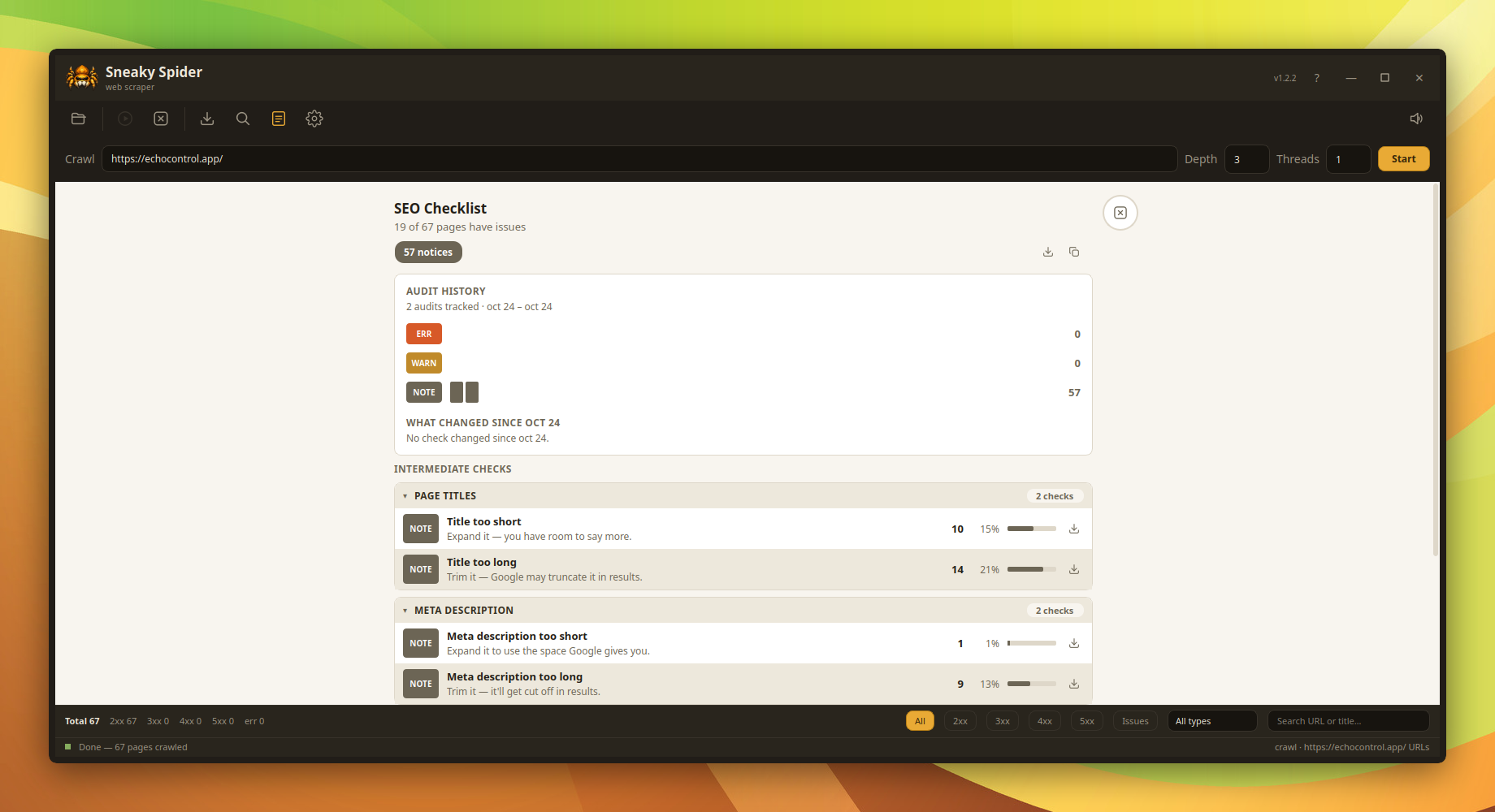
This is the part of the app worth knowing about, and the one you'd never guess from looking at the table. Click the checklist button in the toolbar and the middle of the window swaps from the table to the Checklist — the same window, a different view. Esc brings the table back.
The Checklist runs more than 35 checks over everything you've crawled, groups them by topic — response codes, page titles, meta descriptions, headings, content, images, indexability, internal linking, internationalisation, structured data, security, sitemap — and sorts them into three levels:
🔴 Basic checks
The critical and unambiguous. HTTP errors, pages that failed to load, missing titles, duplicate titles, missing or duplicate meta descriptions, missing H1, noindex, blocked by robots.txt.
🟠 Intermediate checks
Thresholds and nuance. Titles and metas too short or too long, multiple or duplicate H1, thin content, images without alt, slow pages, pages more than three clicks deep, temporary redirects, invalid hreflang , broken JSON-LD, mixed content.
🟡 Advanced checks
Correlations across the whole crawl. Broken canonicals, redirect chains, substantial pages nobody links to, a low indexable ratio, hreflang with no return link, pages with no structured data where the rest of the site has it, and the two sitemap checks.
How to use it
- Click a check and the table filters to it. The view switches back to the results table showing only the pages that check flagged, with a chip naming the active filter. That's the whole point of the Checklist: it's not a report to read, it's a set of handles on the table.
- Every check carries a severity — ERR, WARN or NOTE — and a short line telling you what to do about it, not just what happened.
- The severity chips at the top filter the Checklist itself. Click ERR to see only errors; click it again to clear.
- Each group folds and unfolds, so you can collapse the topics you've already dealt with.
- The ↓ button on a row exports just that check — the URLs it flagged, and nothing else.
- The copy button at the top copies the whole summary as Markdown, ready to paste into any AI assistant and ask what to fix first. It needs no API key and nothing leaves your computer: it's a summary written by the crawler, not page content.
- The export button next to it saves the whole report to a file — pick JSON (to hand to an AI agent), HTML (to keep or read later, with the affected pages tucked under each check) or PDF (a clean summary to print), right from the menu that opens on click.
7. Extra Checks & AI Help
Next to Export there's a second button — Checks and tools — with three entries. They live in their own menu rather than under Export because none of them exports anything: they do new work, making requests beyond what the crawl already fetched. And that's exactly why none of them fires on its own when a crawl finishes. Extra requests to the site you're auditing are your decision; in the case of external links, those requests go to other people's servers entirely.
Resolve redirect chains…
Takes every 3xx in your results and follows it to its final destination, counting the hops along the way. The window lists the original URL, the number of hops, the final URL and its status, and flags loops, chains that go on too long and fetch errors. Results export to CSV or XLSX from inside that window.
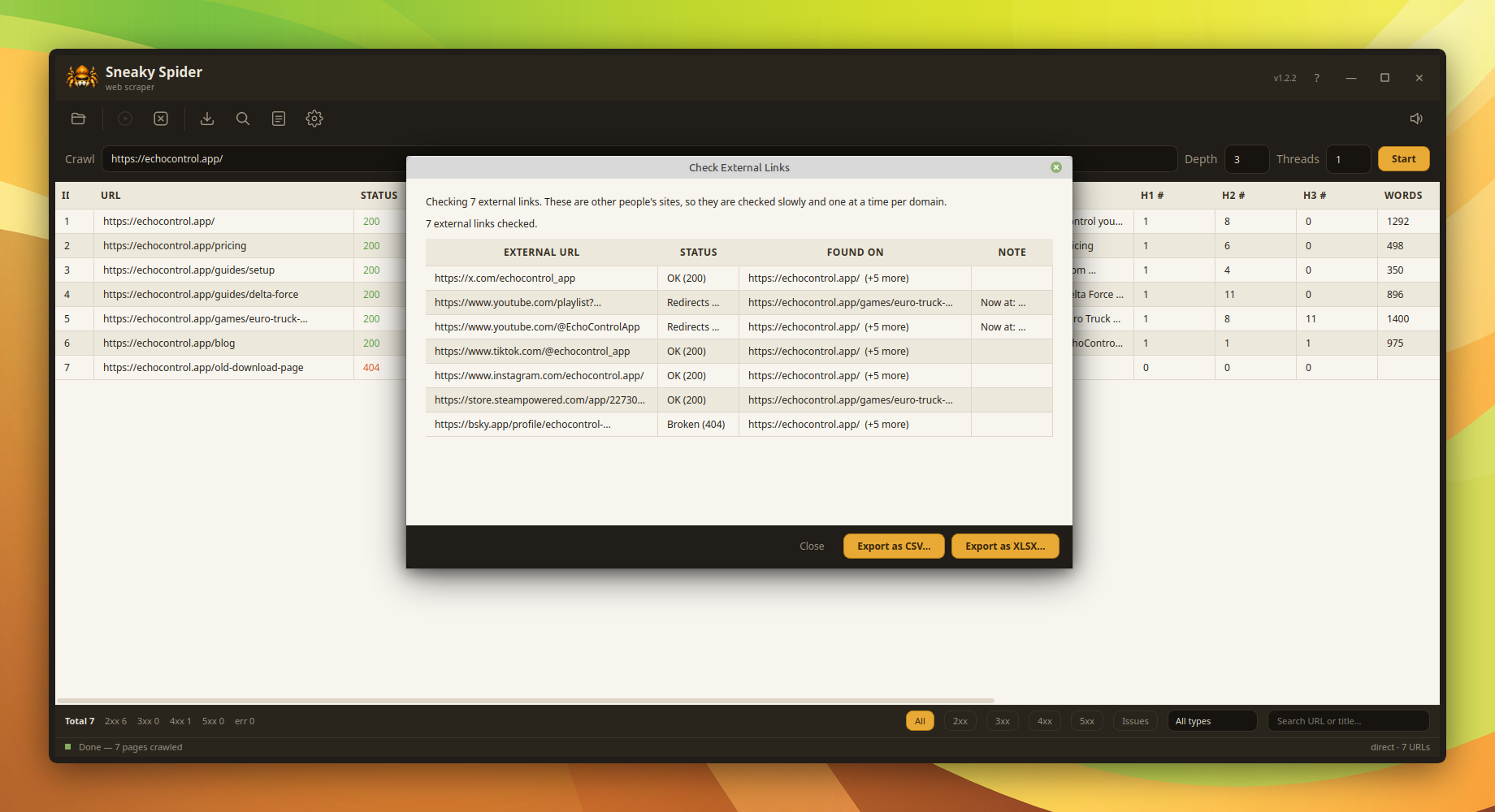
Check external links…
Checks the outbound links to other domains that the crawl collected. These are strangers' servers, so the app is deliberately gentle: only four requests in flight at a time and never two at once to the same host, half a second between requests to the same domain, a short timeout, and a hard cap per run. Links it couldn't check are reported as "couldn't check" rather than guessed at — not knowing is itself a finding. You can stop it mid-way; whatever was checked still counts, and the results feed the "links to a broken external URL" check back in the Checklist.
Suggest titles & meta descriptions…
This entry only exists once you've set up AI help in Settings. Without a key of your own, it isn't in the menu at all — no greyed-out button, no prompt to configure anything. See Settings for how to turn it on and exactly what gets sent.
When it is on, it offers you the crawled pages whose title or meta description is missing, duplicated or outside the recommended length. You tick the ones you want, the window tells you how many pages it's about to send before it sends them, and the suggestions come back into a table you can read, copy or export. Nothing is ever written to your site.
8. Audit History & Exports
Auditing the same site twice
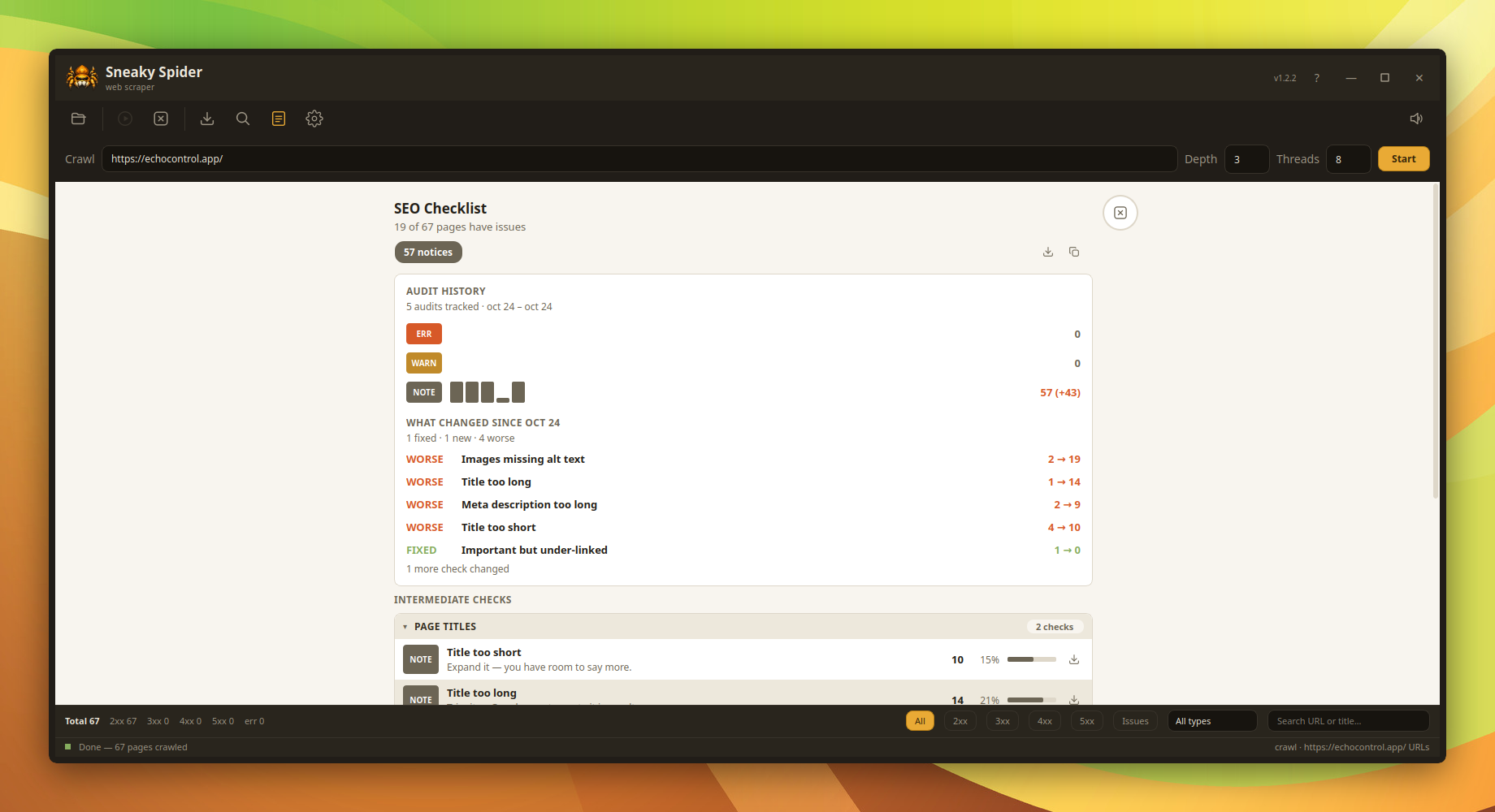
This is the flow that makes the tool worth having if you look after a site over time rather than auditing it once. Every time you finish an audit, Sneaky Spider keeps its summary — how many errors, warnings and notices — filed under that site's address. It keeps up to ten audits for each of five sites. The crawl itself isn't stored; only the tally.
Crawl the same site again and the Checklist grows an Audit history card at the top: a trend across the audits it has on file, and underneath it, what changed since the last one — how many problems were fixed, how many are new, how many got better and how many got worse, check by check.
Getting the results out
Ctrl E, or the Export button, opens a menu with exactly two entries: Export as CSV… and Export as XLSX…. That menu only exports — everything that makes new requests lives in the checks menu instead. Both formats carry the same columns, cleaned up and ready to work with. The app remembers the folder you chose last time.
There are three other ways out of the app, each for a narrower job:
- The ↓ button on a Checklist row — just the URLs that one check flagged.
- The export buttons inside the redirect, external-links and AI windows — the contents of that window.
- The copy button in the Checklist — the whole summary as Markdown, for pasting into a chat or a ticket.
9. Settings
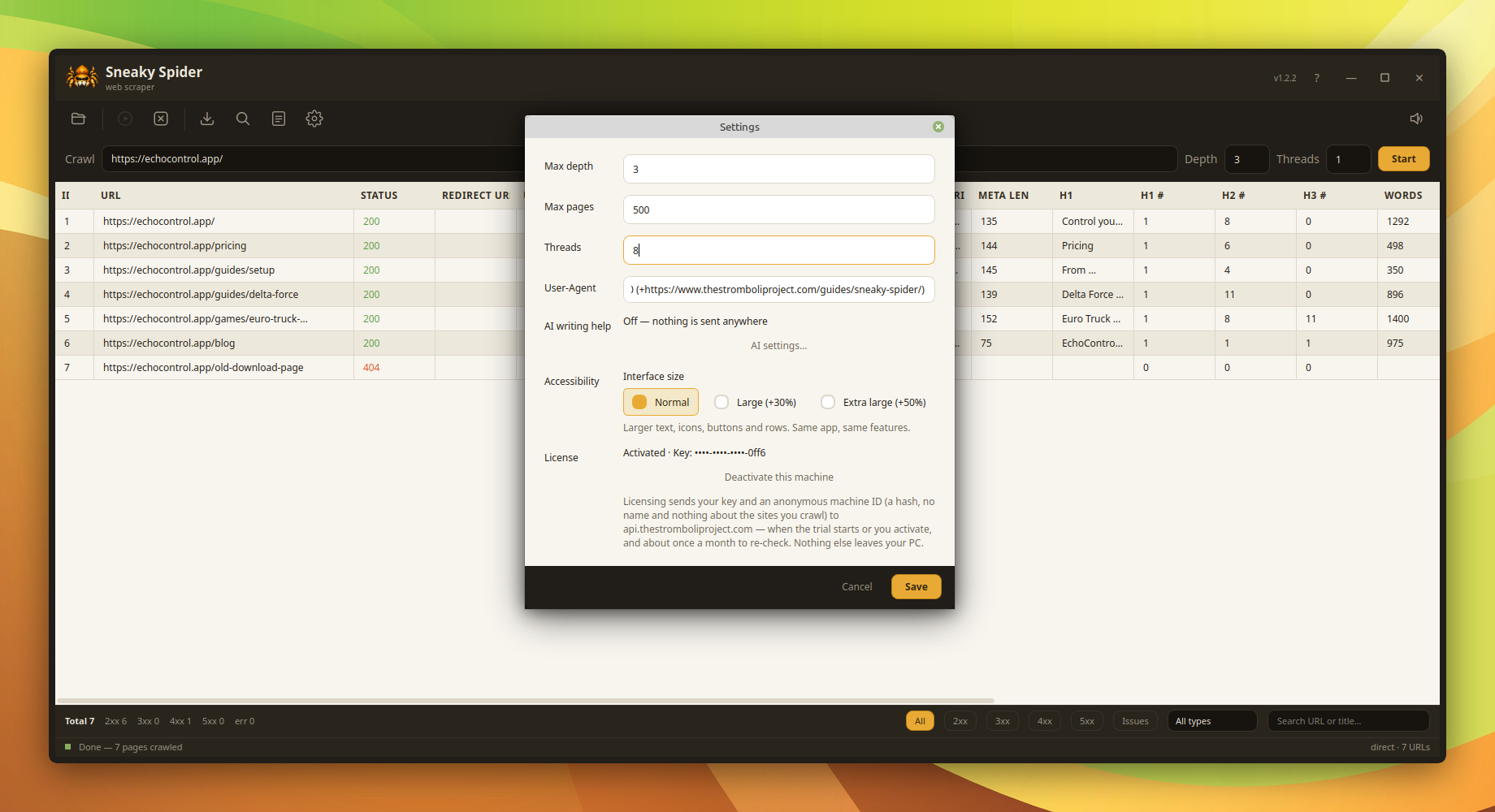
The Settings button in the toolbar opens one short dialog. Changes apply when you press Save.
| Setting | What it does |
|---|---|
| Max depth | How many clicks from the starting page the crawler may go. Also on the context bar, where it's quicker to change per crawl. |
| Max pages | The ceiling for a single crawl. 500 by default, and it can be raised — though a desktop app is the wrong tool for a site of tens of thousands of pages. |
| Threads | How many pages are fetched at the same time. Also on the context bar. |
| User-Agent | How the crawler identifies itself to the servers it visits. Change it if a site treats the default badly — but leave it honest. |
| Interface size | Normal, Large (+30%) or Extra large (+50%). The same app with bigger text, buttons, rows and icons — nothing is hidden or simplified. It applies as soon as you save, with no restart, and it is remembered next time. |
| AI writing help | A status line (On or Off — nothing is sent anywhere) and a button that opens the AI settings screen. |
| License | Whether this machine is activated, the key it's using, and the button to activate or deactivate it. |
AI writing help
Off from the factory, and it stays off until you do something about it. Open Settings → AI writing help → AI settings…, paste a Google Gemini API key and tick the box. You get a free key at aistudio.google.com/api-keys, which is linked straight from that screen.
The key goes into Windows Credential Manager — your computer's own credential store — and never into a file. What gets sent to Google, when you ask for suggestions, is the URL, the current title, the current meta description and the H1 of the pages you tick. Not the page content, not the pages you didn't tick, nothing else. Remove the key and the AI entry disappears from the menus again.
The trial and the licence
Sneaky Spider runs unrestricted for 14 days. When the trial ends without a licence, the app keeps working — the only thing that changes is that a crawl stops at 50 pages. The Checklist, the history, the extra checks and every export carry on exactly as before.
A licence is €19.99, paid once, and doesn't expire. It unlocks the rest of the paid Animal Tools as well, on up to three machines. Licensing sends your key and an anonymous machine ID — a hash, with no name and nothing about the sites you crawl — when the trial starts, when you activate, and about once a month to re-check.
10. Tips
- Click the empty URL field. It offers the last five sites you audited, so re-auditing one is a click rather than a memory test — and picking one repeats exactly the same crawl.
- Work from the Checklist, not the table. Scrolling 500 rows looking for empty titles is the slow way round. Click the check and the table filters itself.
- If you see "server throttled the crawl" in the status bar, lower Threads and run it again. That warning means the site's own defences were pushing back, and any 4xx or 5xx in that crawl may be a false alarm.
- Re-check a single row instead of re-running everything. Fixed one page and want to confirm it? Right-click it, Re-check, done — the rest of the crawl stays as it is.
- Crawl a site twice on purpose. The second audit is where the "what changed" card appears, and that card is what goes in a client report.
- The copy-for-AI button works with no API key. It's a plain Markdown summary on your clipboard. Paste it into whatever assistant you already use and ask it what to fix first.
Every shortcut in the app is listed in Keyboard Shortcuts.
11. FAQ
Does it render JavaScript?
No. It reads the HTML the server returns. WordPress, Shopify, PrestaShop, Wix and an ordinary corporate site all read perfectly; a single-page app doesn't. The important part is that Sneaky Spider tells you when it hits one, in the status bar, instead of handing you a report of three pages that all look broken.
Can it show me backlinks, rankings or Core Web Vitals?
No, and it isn't going to. Backlinks and search positions need third-party databases; Core Web Vitals need field data. It doesn't read server logs and doesn't connect to Search Console or Analytics either. It audits what it can fetch and measure on its own — and says nothing about the rest.
What leaves my computer?
The crawl itself never goes anywhere — no upload, no sync, no account. Three things do leave, and that's the complete list: the licence check, the "is there a new version?" query at startup, and — only if you turn on AI help and pick pages — the URL, title, meta description and H1 of those pages.
What happens when the 14-day trial ends?
The app keeps working. The single restriction is that a crawl stops at 50 pages. The SEO Checklist, the audit history, the extra checks and both export formats stay available, and nothing you already crawled is taken away. It's deliberate: a crawler that bricks itself is no use for the small job you still need doing.
Can it fix the problems it finds, or upload the corrected pages?
No. Sneaky Spider reads; it never writes to your site. Even the AI suggestions land in a table for you to copy or export, never in your CMS. For the other half of that job — getting the corrected files onto the server — the suite has an FTP and SFTP client: Silent Frog.
12. Keyboard Shortcuts
Crawling
| Action | Shortcut |
|---|---|
| Start the crawl | Enter with the cursor in the URL field — same as clicking Start |
| Clear all results | Ctrl Shift Backspace asks for confirmation first |
Lists and exports
| Action | Shortcut |
|---|---|
| Import URLs | Ctrl O opens the menu with the four ways in |
| Export results | Ctrl E CSV or XLSX |
Finding your way around
| Action | Shortcut |
|---|---|
| Jump to the search box | Ctrl F searches URLs and titles |
| Close the SEO Checklist | Esc back to the results table |
Ready to install?
Free for 14 days, in full. After that it keeps crawling — unlock the whole Animal Tools collection once, and keep it.
See Sneaky Spider's tool page →